KnowBe4's Learner Experience (LX) is where your users take their security awareness training. It includes optional gamification, so your users can compete with their peers on leaderboards and earn badges while they learn how to keep themselves and your organization safe from cyberattacks.
Read below to learn more about these features.
Set Up Your Learner Experience
The Learner Experience section of your Account Settings has many options for customizing your users' experience. This article covers the settings that control what your users see on their Dashboard. For a full list of LX settings and what they do, see our KnowBe4 Console Account Settings: Training article.
The steps below will explain how to set up your LX. Log in to your KnowBe4 console.
- Click your email address in the top right corner and select Account Settings.
- Navigate to the Learner Experience section.
- Enable the Learner Dashboard. The dashboard shows users their training progress, phishing test results, Personal Risk Score, and more. Learn more in the Learner and Team Dashboards section.
- (Optional) Select the Enable Badges toggle to turn on badges.
- (Optional) Select the Enable Leaderboards toggle, click the Leaderboard Type drop-down menu and select the leaderboard you want to use. Then, select a Leaderboard Time Period and the groups to include. Any enrollment that was active during that time period will be included in the leaderboard rankings.
- Click the Save Changes button at the bottom of the page to save your changes.
Navigate the Learner Experience
Users move around the LX using the menu on the left side of the page. The list below describes each tab. To learn more about the options in this section, see the screenshot and the list below:
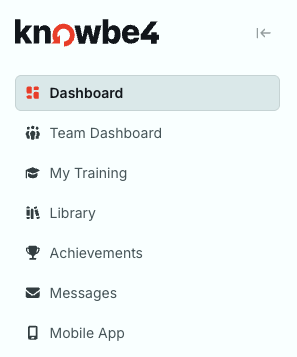
- Dashboard: See your next training, overall progress, phishing results, Personal Risk Score, badges, leaderboard rank, and recent messages.
- Team Dashboard: View training and phishing statistics for your team. This tab only displays for users who manage a team.
- My Training: Start, resume, and review your assigned training.
- Library: Browse and enroll in optional training.
- Achievements: See where you rank on the leaderboard and view the badges you’ve earned.
- Messages: Read announcements and security tips from your organization.
- Learner App: Download the KnowBe4 Learner App and link your mobile devices.
You can customize your users' learning experience, from gamification to localization, to fit your organization's culture. Read the sections below to learn about each feature.
Learner Dashboards
The Dashboard is the first tab users see when they log in to the LX. It's specific to the user who is logged in. To learn more about the options in this section, see the screenshot and the list below:
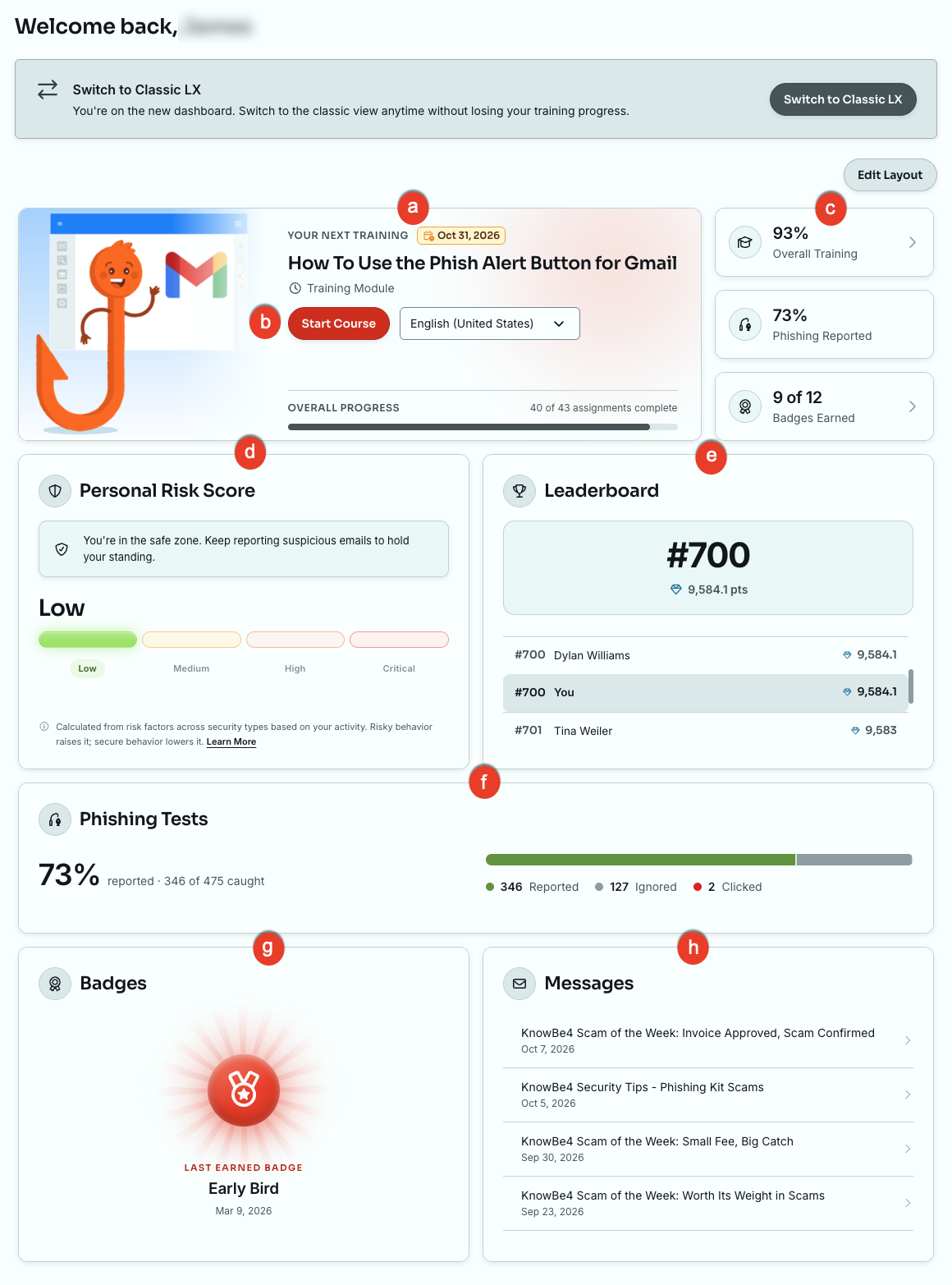
- Your Next Training: Shows your next training assignment, its due date.
- Start Course. You can click this button to start your course, select a training language and see your overall progress.
- Overall Training, Phishing Reported, and Badges Earned: Shows a quick summary of your training completion, phishing reporting rate, and badge count.
- Personal Risk Score: Shows your risk level, from Low to Critical. The score is calculated from risk factors across security types, based on the user's activity.
- Leaderboard: Shows your current rank and points.
- Phishing Tests: Shows how many simulated phishing emails you reported, ignored, and clicked.
- Badges: Shows the last badge you earned.
- Messages: Shows your most recent messages.
You can click the Edit Layout button to rearrange the cards on your Dashboard.
For more information, see our Learner Dashboard Overview article.
Team Dashboard
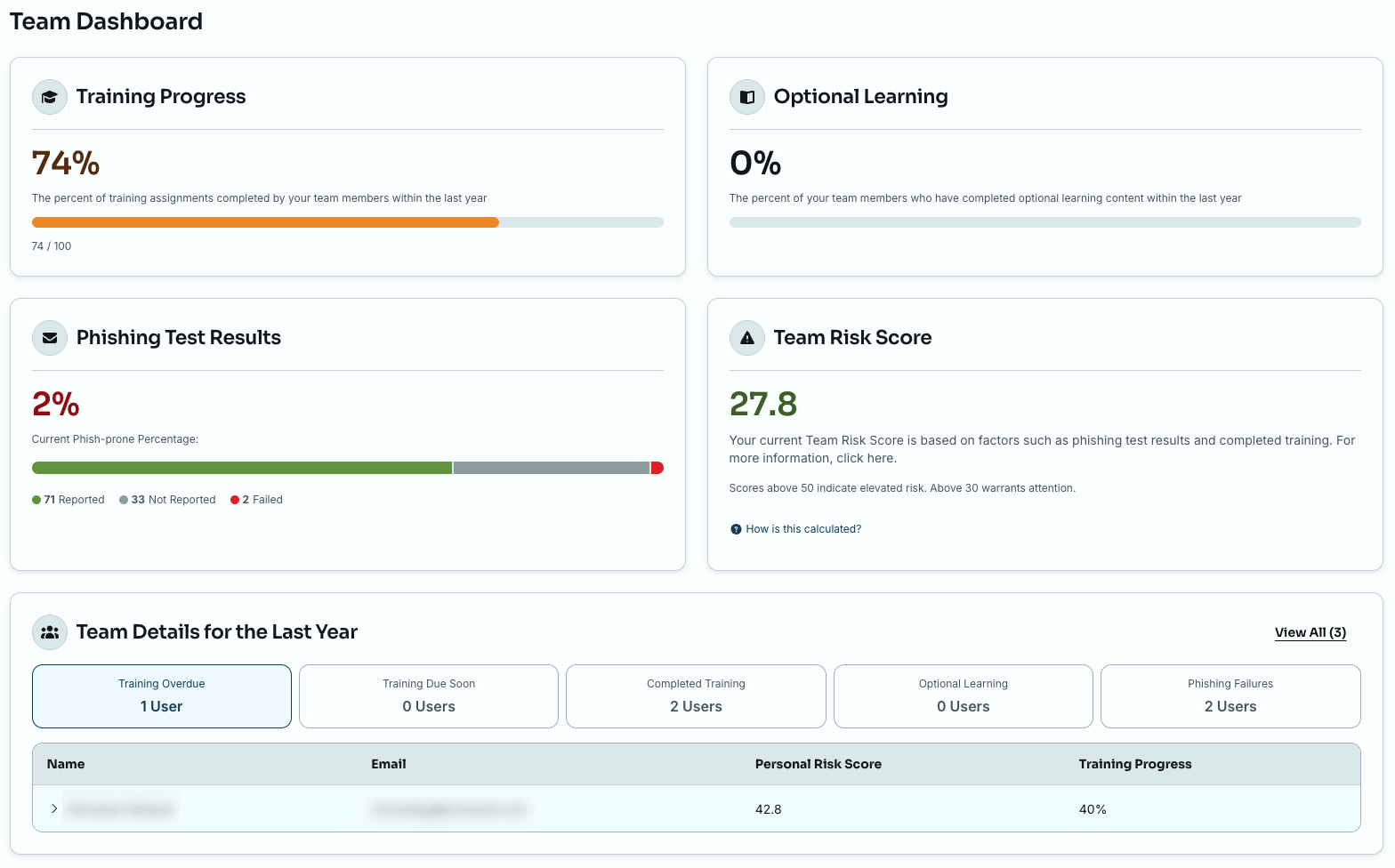
The Team Dashboard is designed for managers to view statistics for each user on their team and for the team as a whole. It includes Training Progress, Optional Learning, Phishing Test Results, Team Risk Score, and Team Details for the Last Year. For more information, see our Team Dashboard Overview for Admins article.
My Training
On the My Training tab, users can see all of their training in one place. Required training is listed at the top, with the due date and number of completed assignments for each campaign. Users can click the Start button to begin their next training, or expand Up next to see the rest of their assignments.
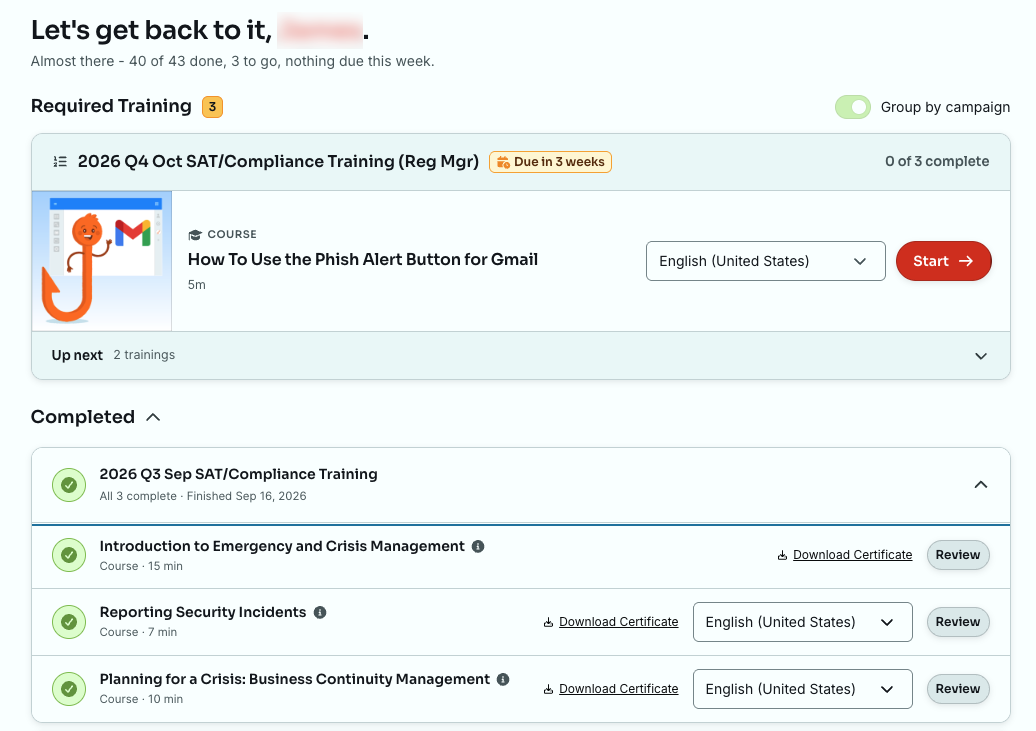
By default, training is grouped by campaign. Users can turn off the Group by campaign toggle to see their assignments in a single list.
Completed training displays in the Completed section. From here, users can click Review to retake a course or click Download Certificate to download a completion certificate.
Library
If you have enabled Optional Learning in your Account Settings, the Library tab of the LX will be visible to all users. On the Library tab, your users can view and complete the optional content of their choice. Users can also download a completion certificate for each piece of optional content completed.
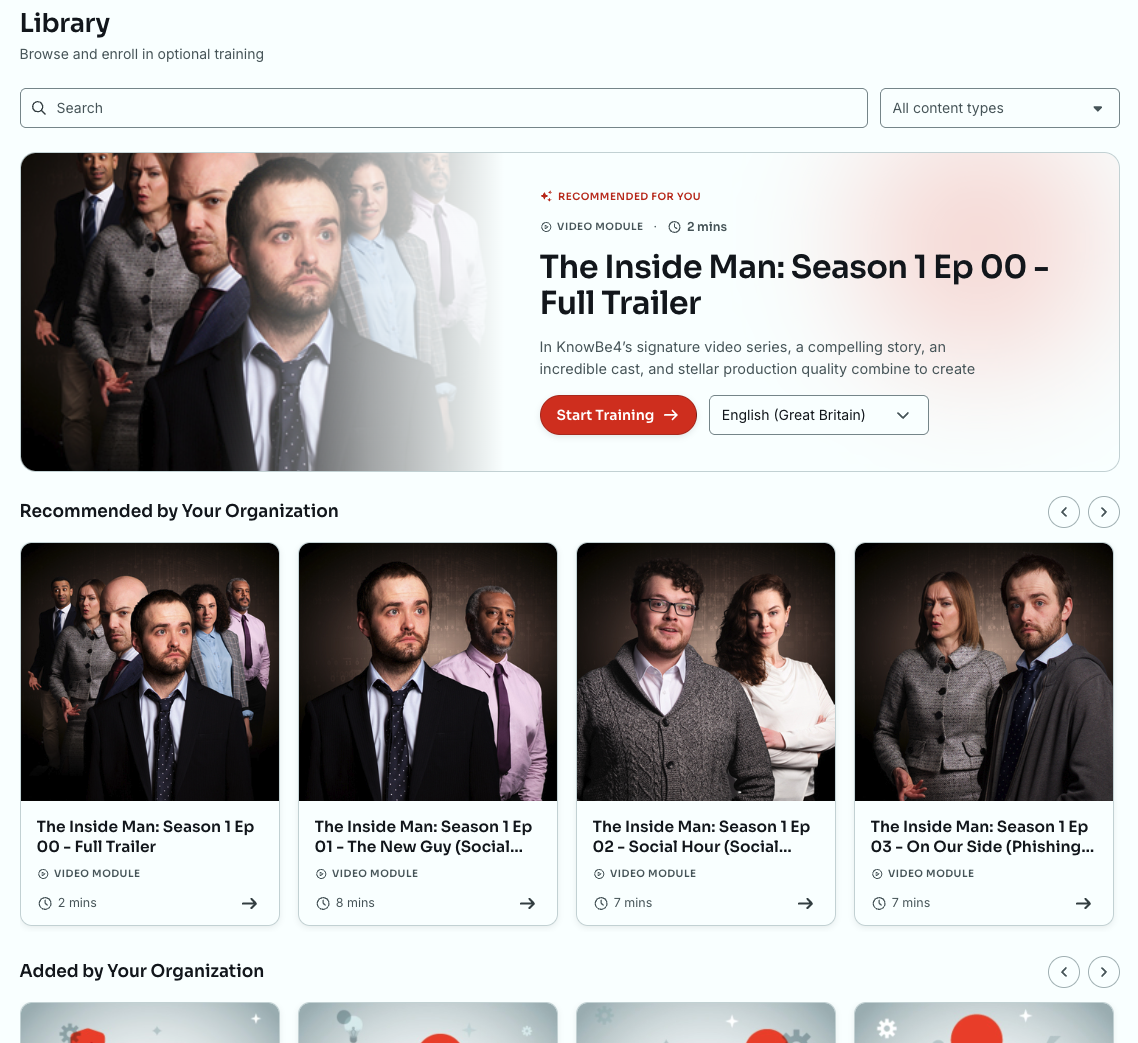
Depending on your settings, users will see the sections listed below:
- Recommended for You: A featured training at the top. Users can click the Start Training button to begin.
- Recommended by Your Organization: Content you've selected for your users.
- Added by Your Organization: Content your organization has added to the library.
Users will only see the content preselected by their admin when you enable the Optional Training Campaign feature in your account settings. This feature is available to all paid accounts. Users will see recommended training content if you enable the AIDA Recommended Optional Learning feature, which is available to Diamond accounts.
For more information, please see the Optional Learning Guide.
Achievements
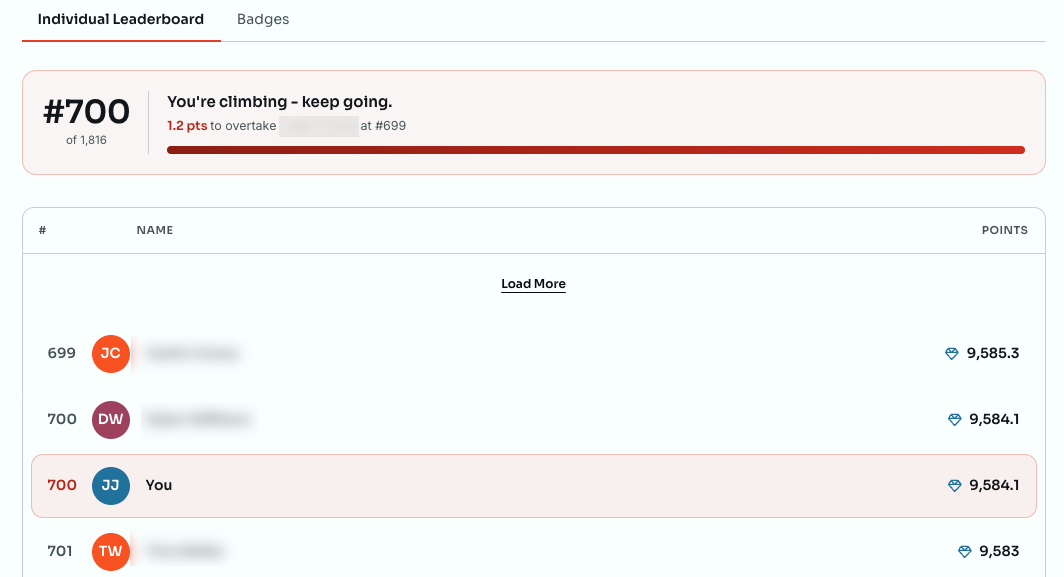
The Achievements tab is where users see their leaderboard rank and the badges they've earned. The tab has a subtab for each feature you've enabled, such as Individual Leaderboard and Badges. For more information, see the Leaderboards and Badges sections of this article.
Messages
The Messages tab is hidden by default. You can show it by using the User Messaging feature in Account Settings. After you create a message, users will see the Messages tab in the menu. They'll also see their recent messages on their Dashboard.
On the Messages tab, users can select a message in their Inbox to read it. They can click Mark all as Read to mark all of their messages as read.
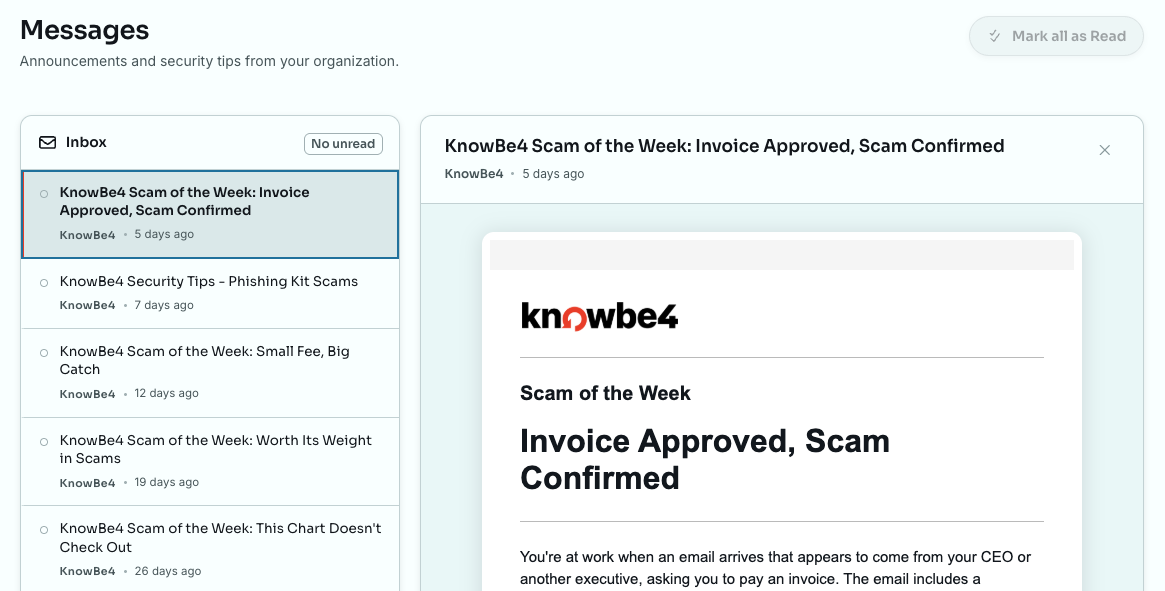
Once a user has read a message, they can click Mark as Read to move the message to the Read Messages section at the bottom. Users can review any message in the Read Messages section by clicking on the message subject.
For more information about messages, see our User Messaging Guide.
Mobile App
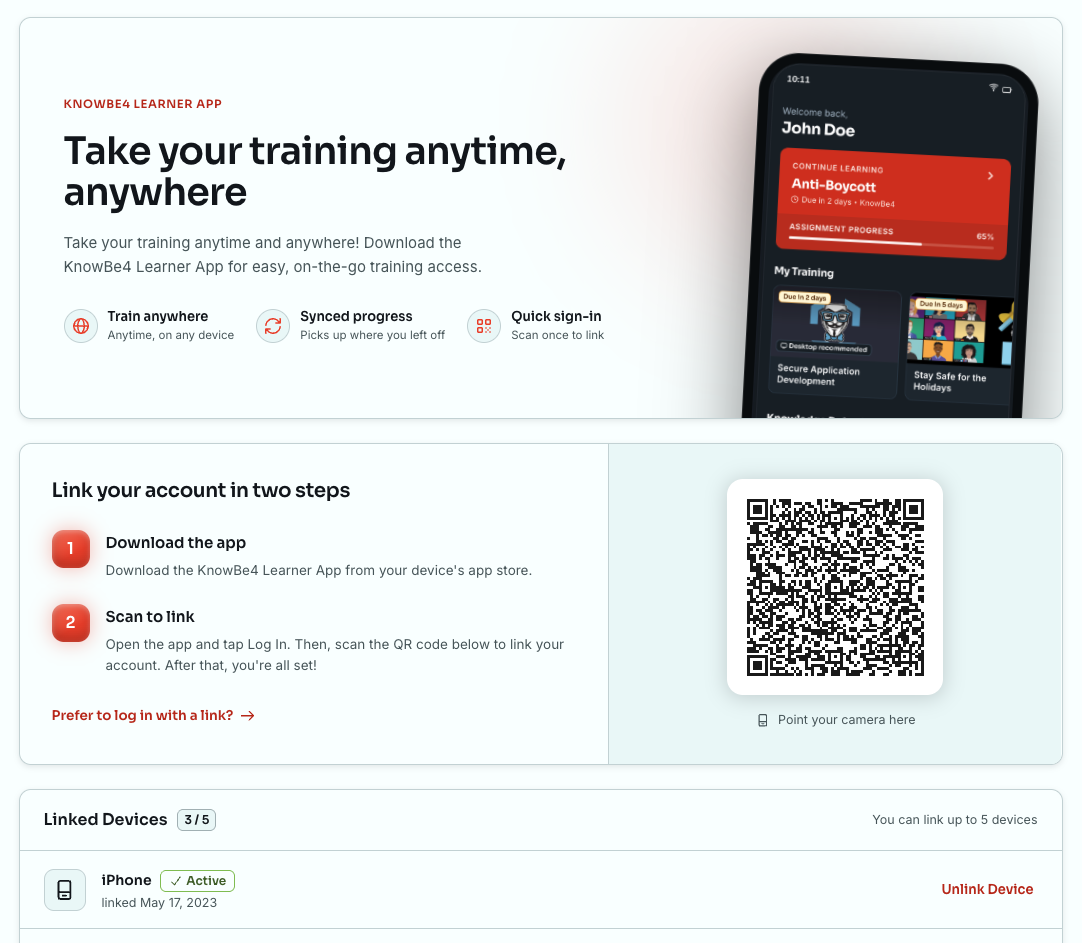
On the Mobile App tab, users can link their account to the KnowBe4 Learner App in two steps:
- Download the KnowBe4 Learner App from their device's app store.
- Open the app and tap Log In. Then, scan the QR code on the Learner App tab.
Users who prefer not to scan the QR code can click Prefer to log in with a link? instead.
Users can link up to five devices. They can see their linked devices in the Linked Devices section and click Unlink Device to remove a device.
For more information about the app, see our FAQ: KnowBe4 Learner App for Admins article.
Localization
Users can choose the language for each training assignment from the language drop-down menu next to it on the Dashboard, My Training tab, and Library tab. Users can also set their LX language from the Language option in the menu. The LX interface will display in the selected language. For more information, see our Localization Guide.
If a training course is available in the selected language, this setting will update the default language of that course. If a user has already started a course in a different language, that course won't change.
Learner Assistance
To support users during training, the LX includes a Need Help? button. By default, this button leads to our Knowledge Base. You can change the button to point to a URL or email address that your users can use when they need help with their training.
To customize the learner assistance links, follow the steps below:
- From your KnowBe4 console, click your email address in the top-right corner of the tab and select Account Settings.
- Navigate to the Learner Experience section.
-
Under Learner Assistance, select the Enable Customized Need Help Button toggle.

- Enter the URL or email link that you want to direct users to. See the list below for requirements and options:
- To direct users to a webpage, enter a full URL. Shortened URLs may cause an error. For example, https://support.knowbe4.com is a full URL.
- To let users send an email using their default mail client, enter the mailto: HTML tag, followed by the email address of your choice. For example, mailto:AdminName@YourDomain.com.
- To have users send an email using Outlook Online, copy the URL below. Then, replace [[Email Address]] with the email address of your choice. https://outlook.office.com/owa/?path=/mail/action/compose&to=[[Email Address]]
- To prefill the subject line for Outlook Online, add the text below to the end of the URL. Then, replace [[Subject]] with the subject of your choice. &subject=[[Subject]]
- To have users send an email using Google Workspace, copy the URL below. Then, replace [[Email Address]] with the email address of your choice. https://mail.google.com/mail/?view=cm&fs=1&to=[[Email Address]]
- To prefill the subject line for Google Workspace, add the text below to the end of the URL. Then, replace [[Subject]] with the subject of your choice. &su=[[Subject]]
- Click Save Changes.
Surveys
You can turn on surveys for your users to take after they complete training content. Their feedback can help you evaluate how effective your training campaigns are.
To customize the learner assistance links, follow the steps below:
- From your KnowBe4 console, click your email address in the top-right corner of the page and select Account Settings.
- Navigate to the Training section.
-
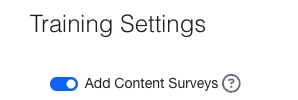
Under elect the Add Content Surveys toggle.
Gamification
KnowBe4's LX offers optional gamification in the form of leaderboards and badges. These features motivate your users to take their assigned training.
Gamification adds game features, such as badges, points, and rankings, to something that usually doesn't have them. In our case, that's security awareness training and e-learning content.
Gamification has been shown to improve user engagement by tapping into people's natural drive to compete, achieve, and master new skills. When people are motivated to complete a task, they learn better and remember more.
Leaderboards let users see how they rank against their peers, which promotes friendly competition. Badges give users unexpected rewards after their training to remind them that they've accomplished something important. Users can find both on the Achievements tab.
Leaderboards
The Leaderboard tab encourages users to compete with their colleagues and show off their security awareness skills. You can enable a group leaderboard based on training completion, an individual leaderboard based on the usage of the Phish Alert Button (PAB), or you can enable both leaderboards at once. To learn more about these leaderboards, continue reading this article. To learn how to enable leaderboards, see our KnowBe4 Console Account Settings: Training article.
If you would like to educate your users on how the leaderboards work, see the Learner Support: Leaderboard Guide.
Individual Leaderboard
On the individual leaderboard, users compete with their colleagues on how well they use the Phish Alert Button (PAB). Users earn points based on the percentage of simulated phishing emails they report and how quickly they’re reported. For more information about this point system, see the Detailed Point Calculation section of our Learner Support: Leaderboards Guide.
Group Leaderboard
On the group leaderboard, users work in groups to complete all of their assigned training on time. Groups are ranked according to the percentage of training completed. This percentage is calculated by dividing the number of completed training assignments for each group member by their total number of training assignments.
Before enabling the group leaderboard, be sure to create the user groups you would like to use. You can create groups based on any criteria you would like. Some common groupings are by manager, department, office, or region. If you’re a Platinum or Diamond customer, we suggest using Smart Groups to create your leaderboard groups.
Users who are not in the selected groups will not have the leaderboard tab in their LX. If a user is in multiple groups, the group with the highest score will display on their leaderboard.
Badges
Badges add engagement to your security awareness training plan by providing an incentive for your users to meet specific achievements while taking their training.
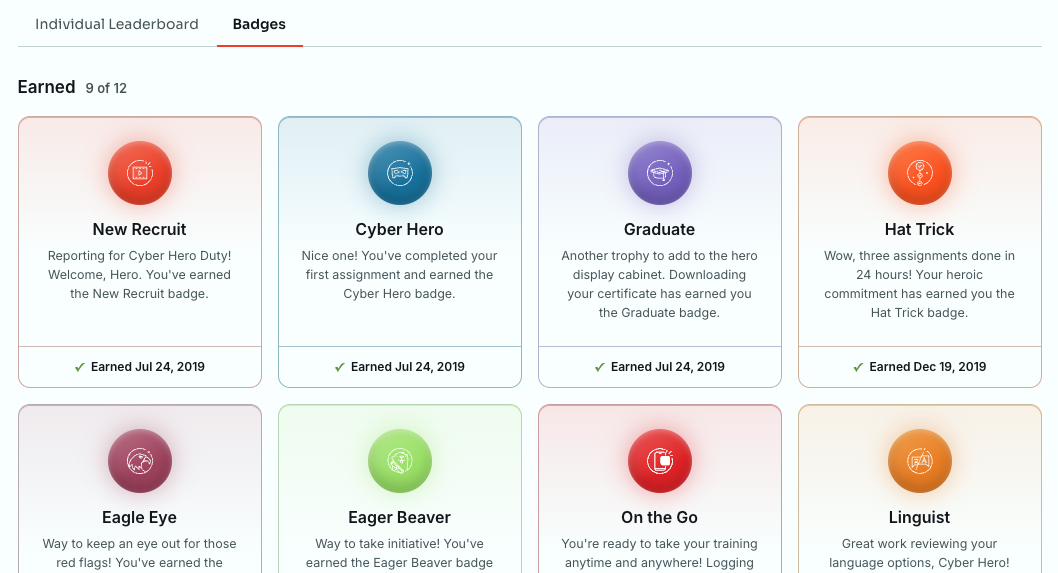
Each badge has requirements associated with it. Once a user meets these requirements, they’ll receive a pop-up indicating they earned a badge. They can click the Badges tab to see what badges they’ve received and what badges are still available.
You must enable badges in your Account Settings to turn them on in the LX. By default, all badges will be available to earn. You can select or deselect badges in your Account Settings to enable or disable them in the LX.
To learn about the available badges and how users can earn them, see our Learner Support: Badges Guide article. You can also share that article with your users to encourage them to earn badges.
FAQ
Why is gamification useful?
Gamification has been shown to improve user engagement by increasing people’s inherent ambition to compete, achieve, or master. When people are intrinsically motivated to complete a task, they learn better and retain more information.
Can I see what badges my user has received, or where they rank on the leaderboards?
No, user badges and leaderboards are only visible to users and will not be viewable by admins or available in reports.
How can I access my training from the admin console?
Click your email address in the top-right corner of the page and click My Training.
How can I return to my admin console while in the user learning experience?
Click your name or email address in the top-right and click Return to Console.
How can I return to my admin console from the LX?
Click your name or email address in the top-right corner of the page and select Return to Console.
Can users go back to the classic LX?
Yes. Users can click Switch to Classic LX on their Dashboard to use the previous version of the LX. Their training progress stays the same in both views.
How are leaderboard rankings determined?
Each group's ranking is determined by the percentage of assigned training completed by the group members. All groups that have a 100% completion rate will be ranked depending on how fast all users within that group completed the training.
How is the language for individual courses determined?
If a course isn't available in the language a user selected for the LX, our system considers other factors to set the default language for that course. These factors include the default language set by the admin, the user's browser language, and the languages the user selected for past courses. However, the language a user sets for their LX will override all other factors, as long as they haven't set it before. Courses a user has already started will stay in the language they started them in.
How long are completed modules available in the user's ‘Training’ tab in the Learner Experience?
Completed modules display in the Completed section of the My Training tab while their campaign is active.