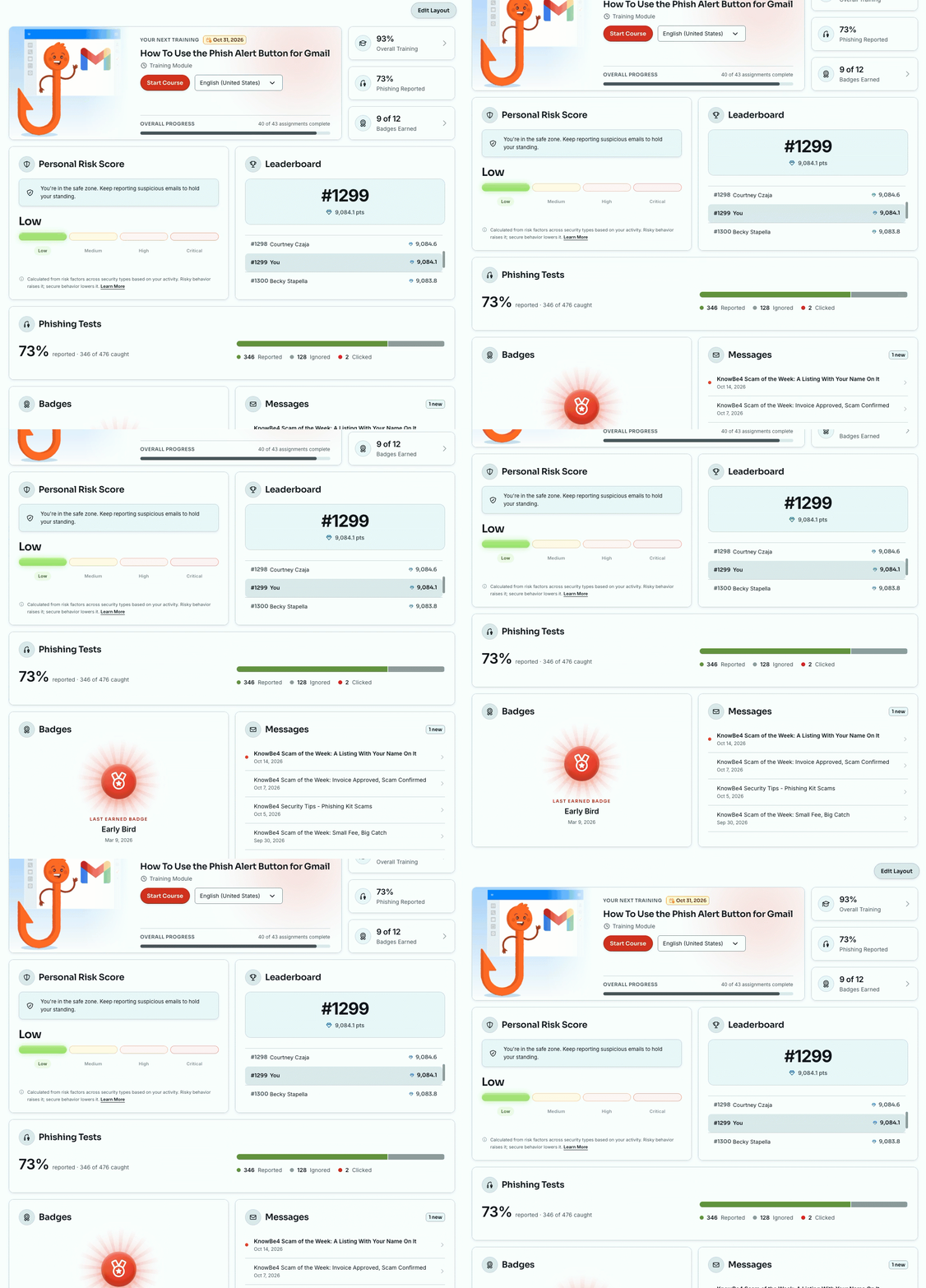
The Learner Dashboard is a customizable dashboard designed for users in the Learner Experience (LX). On the learner dashboard, users can view their training progress along with other statistics that you choose.
Enable the Learner Dashboard
When the Learner Dashboard is enabled, users can see a summary of their training completion, including their next assignment and its due date. You can also choose to display the Phishing Information, Risk Information, Badges, and Leaderboard tiles. Follow the steps below to enable the learner dashboard.
- In your KnowBe4 console, click your email address at the top-right corner of the page.
- From the drop-down menu that opens, select Account Settings.
- Navigate to Training > Learner Experience > Learner Dashboard
- Select the Enable Learner Dashboard toggle to enable the Learner Dashboard.
Once you enable the Learner Dashboard, two more options will display. You can select the Enable Phishing Information check box to enable the Phishing Test Results tile, and you can select the Enable Risk Information check box to enable the Personal Risk Score tile.
Use the Learner Dashboard
The Dashboard is the first page users see when they log in to the LX. It's made up of cards, and users can click Edit Layout to rearrange them. The dashboard only displays information from active training campaigns.
Your Next Training
The Your Next Training card shows the user's next training assignment and its due date. Users can select a training language from the drop-down menu and click the Start Training to begin, or Resume Training to pick up where they left off. The card also shows the user's Overall Progress as the number of assignments completed out of the total assigned.
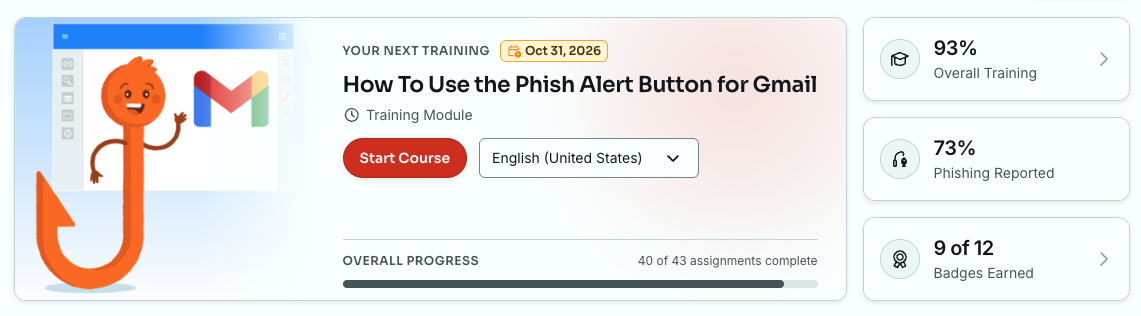
Next to the Your Next Training card, users see three summary cards:
- Overall Training: The percentage of training assignments the user has completed. Users can click this card to go to the My Training page.
- Phishing Reported: The percentage of simulated phishing emails the user has reported. This card only displays if you've enabled phishing information.
- Badges Earned: The number of badges the user has earned out of the total available. Users can click this card to go to the Achievements page. This card only displays if you've enabled badges.
Personal Risk Score
If you've enabled risk information, users see the Personal Risk Score card. This card shows the user's risk level, from Low to Critical, with a short message about how to hold or improve their standing. It also includes a Learn More link to our Learner Support: SmartRisk Agent™ and Risk Score article.
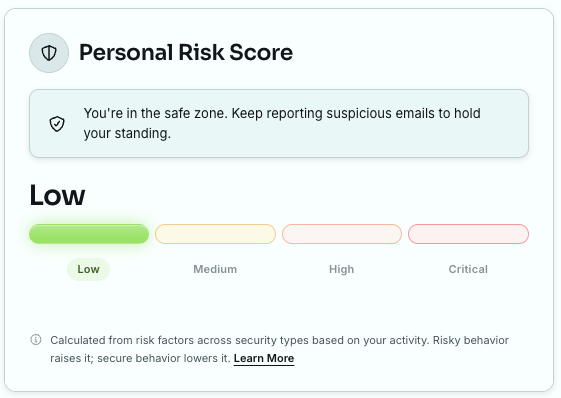
The score is calculated from risk factors across security types, based on the user's activity. Risky behavior raises the score, and secure behavior lowers it.
Leaderboard
If you've enabled a leaderboard, users see the Leaderboard card. For the individual leaderboard, the card shows the user's rank, their points, and the users ranked directly above and below them. For the group leaderboard, the card shows the user's group and its completion percentage. Users can click View Leaderboard to go to the Achievements page.
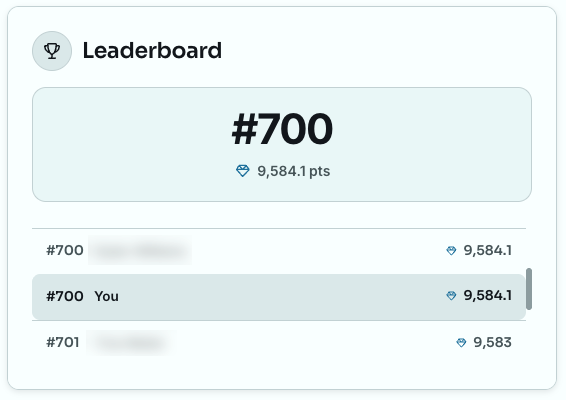
Users who haven't reported a phishing test yet will see a Join the leaderboard message instead of a rank.
Phishing Tests
If you've enabled phishing information, users see the Phishing Tests card. This card shows the percentage of simulated phishing emails the user reported, along with the total number of emails they've reported, ignored, and clicked.

Badges
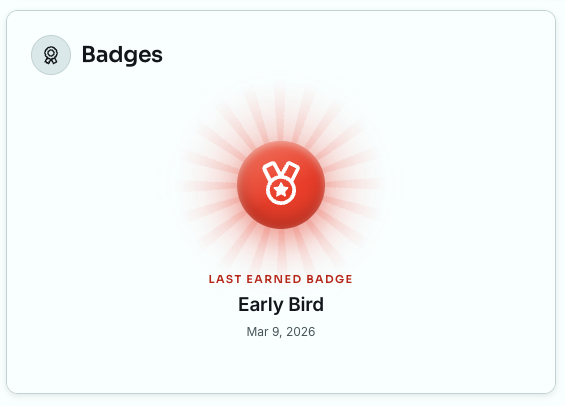
If you've enabled badges, users see the Badges card. This card shows the user's Last Earned Badge and the date they earned it. Users who haven't earned a badge yet will see a short message encouraging them to complete training and report phishing tests. Users can click Learn How to Earn Badges to go to the Badges tab of the Achievements page.
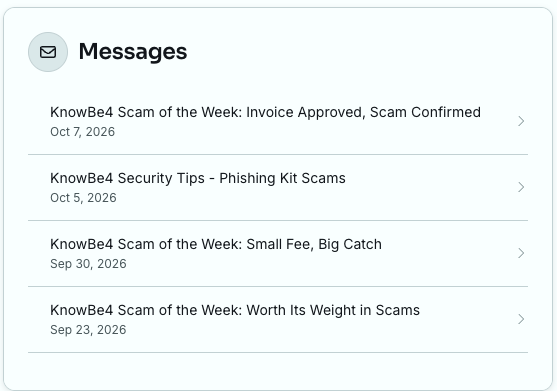
Messages
If your organization has used the User Messaging feature, users who have received a message can see the Messages card. This card lists the user's most recent messages and the date each was sent. Users can click a message to read it on the Messages tab. For more information about messages, see our User Messaging Guide.