Localization improves your users’ experience with translated training content, phishing templates, notifications, and more. We offer a number of localized features in over 34 languages. For a full list of supported languages and their availability within the console, see our Multi-Language Support and Localization Multi-Language Support and Localization (link opens in new window) page.
Read the sections below to learn more about our localized features, what can be localized, and how to set up localization for your users. Alternatively, you can watch our Language Settings video.
What Language Settings Are Available?
There are three types of language settings available:
Each of these settings can be updated for each user. You can also select a default language for each setting at the account level. When a user’s preferred language is unavailable, the account’s default language will be used instead.
Training Language
Users can set their Training Language in the Learner Experience (LX), as outlined in our Learner Experience (LX) Guide. You can also update this setting on the user's profile.
The Training Language applies to the following:
- The LX, including training content when a localized version is available. If your account uses AI Translations and an AI translation is available in the user's training language, your users will receive the training in that language automatically.
- User Notifications from the KnowBe4 console, such as welcome emails and password reset notifications.
- Training notifications, when Localized Training Notifications are enabled in Account Settings.
Phishing Language
To keep phishing security tests fair and effective, users cannot set their own Phishing Language. You can update this setting on the user's profile or by bulk updating using a CSV file. The phishing language will be applied to emails sent from a localized phishing campaign.
If your account uses the Office Add-in Phish Alert Button (PAB), you can autofill phishing languages based on the users’ PAB locales. This feature only impacts users who don't already have a phishing language set. Follow the steps below to enable this option:
- From your KnowBe4 console, click your email address in the top right corner and select Account Settings.
- Navigate to Account Integrations > Phish Alert.
- Under your PAB's settings, enable the Autofill Phishing Languages with PAB Locale toggle.
- Click the Save Changes button at the bottom of the page.
Once you have set a default language and updated your users' language settings, you can create a localized phishing campaign.
Admin Console Language
The KnowBe4 admin console can be viewed in the following languages:
- English (United States)
- English (Great Britain)
- Japanese
- Portuguese (Brazil)
- German
- French (Europe)
- French (Canada)
- Chinese (Mandarin) - Simplified
- Spanish (Europe)
- Spanish (Latin America)
- Italian
- Dutch (Netherlands)
Admins can set their admin console language by following the steps below:
- Log in to the KnowBe4 admin console.
- Click your email address in the top-right corner.
- Click the language at the bottom of the drop-down menu.
-
Select your desired language and click Confirm.

If an admin hasn't set their admin console language, you can update this setting on the user's profile.
Once an admin has set their admin console language, this language will be applied to most of their KnowBe4 console and admin notifications they receive, such as bulk change results or import notifications.
Localization is an ongoing improvement, so there may be some parts of the console that have not been localized. Parts of the admin console that are not localized will be displayed in English (United States) and a localized banner will display to notify the admin. If you have questions about what elements of the admin console are localized, please contact support contact support (link opens in new window).
Set Your Language Settings
This section outlines how to set default languages for your account, update individual user languages, bulk update phishing languages, and enable localized training notifications.
Set the Default Languages
To set your account’s default training language, follow the steps below:
- From your KnowBe4 console, click your email address in the top right corner and select Account Settings.
- Navigate to Training > Learner Experience.
- From the Default Training Language drop-down menu, select a language for your organization’s account.
- If you plan to use Localized Training Notifications, we recommend enabling the Enable Localized Training Notifications toggle.
- To make your training content available in more languages, you can also turn on Enable AI Translations in the Training Settings section of the same page. For more information, see the KnowBe4 Console Account Settings: Training article.
- Click the Save Changes button at the bottom of the page.
To set your account’s default Phishing Language, follow the steps below:
- From your KnowBe4 console, click your email address in the top right corner and select Account Settings.
- Navigate to Phishing > Phishing Settings.
- From the Default Phishing Language drop-down menu, select a language for your organization’s account.
- Click the Save Changes button at the bottom of the page.
To set your account’s default admin console language, follow the steps below:
- From your KnowBe4 console, click your email address in the top right corner and select Account Settings.
- Navigate to Account Information > Organization Information.
- From the Default Admin Console Language drop-down menu, select a language for your organization’s account.
- Click the Save Changes button at the bottom of the page.
Set Individual User Languages
To manually update an individual user’s preferred languages, follow the steps below:
- From your KnowBe4 console, go to the Users tab.
- From the user list, click any user's name or email to access their profile.
- Click the User Information tab.
-
Navigate to the User Languages section.

- If the user’s admin console language hasn't been set, you can select a language from the Admin Console drop-down menu.
- To set the phishing language, select the preferred language from the Phishing drop-down menu.
-
To set the training language, select the preferred language from the Training drop-down menu.
Important:The user may have already selected their preferred training language in their Learner Experience (LX). We recommend that you only change a user's training language if the user requests that you change it for them.
Sync User Phishing and Training Languages with User Provisioning
You can sync your user phishing and training languages using either ADI or SCIM user provisioning.
- If a user has already set their training language in the Learner Experience (LX), then the training language field won't be changed from a provisioning sync.
- For more information on syncing using ADI, see the Syncing Other User Information section of our Edit Your CONF File for Active Directory Integration (ADI) article.
- For more information on syncing using SCIM, see our SCIM Configuration Guide.
Bulk Update Phishing Languages
If you're importing users for the first time, create your CSV file by following our Import Users with a CSV File article, and be sure to include the Phishing Language column.
To bulk update the Phishing Language of existing users, follow the steps below:
- From your KnowBe4 console, go to the Users tab.
- From the header of the Users list, click the green Generate CSV link. The generated CSV file will include all of your users and their profile information.
-
Open the CSV file and delete all columns except for Email and Phishing Language.
Important:This step helps to prevent unintentionally changing or deleting user information. - Refer to our Supported Language Codes list and enter the preferred language for the desired users in the corresponding columns.
- Save the CSV file. If you're using Excel, CSVs must be saved in the CSV UTF-8 format.
- In the KnowBe4 console, navigate to Users > Import Users > CSV Import.
- Click the Browse button and select your CSV file.
- Choose your notification settings.
- Click Import Users at the bottom of the page.
Localized Training Notifications
Follow the steps below to enable localized training notifications:
- From your KnowBe4 console, click your email address in the top right corner and select Account Settings.
- Navigate to Training > Learner Experience.
- Select the Enable localized training notifications and user messages toggle. This option can only be enabled after setting a default training language for your account.
- Click the Save Changes button at the bottom of the page.
AI Translations
AI Translations uses artificial intelligence (AI) to create on-demand language versions of your training content. You can use this feature to offer a training module in a language that is not already available, including languages that KnowBe4 Studios does not translate.
AI translations are created once for each module and language, and then they are reused. If another organization has already requested an AI translation of a module in a language, that translation is available to your account immediately.
What Can Be Translated with AI
AI Translations are available for the following types of training content:
- Training modules and mobile-first modules, including all text in the module
- Captions in video modules, audiocasts, and training module videos
- Compliance Plus content
- KnowBe4 Student Edition content
AI Translations are not available for games, newsletters and documents, posters and artwork, or organizational assessments. AI Translations also cannot be used for content that your organization created.
AI Translations do not apply to phishing templates, landing pages, or notifications. For information about those types of content, see the sections above.
How to Use AI Translations
There are two ways to create an AI translation of a training module.
- Automatically: In your account settings, select the languages that you want. Any training content you add to your library after that will be translated into those languages automatically. For more information, see the Training Settings section of our KnowBe4 Console Account Settings: Training article.
- Manually: Request a translation for a single module from the module's details panel in the ModStore. For more information, see the Working with AI Translations section in our ModStore and Library Guide.
AI Translations and KnowBe4 Studios Translations
KnowBe4 Studios is our team of professional translators. Training content that KnowBe4 Studios translates is available to all accounts and does not require AI Translations.
If KnowBe4 Studios creates a translation for a language, that translation replaces any AI translation for the same language. You cannot request an AI translation for a language that already has a translation from KnowBe4 Studios.
Which Languages Are Available
The languages available for AI Translations are a subset of the languages listed in the Supported Language Codes section of this article. To see which languages you can select, review the drop-down menu in your account settings or in the module's details panel in the ModStore.
Create a Localized Phishing Campaign
Once you have set a default language and updated your users' language settings, follow the steps below to create a localized phishing campaign.
- From your KnowBe4 console, go to the Phishing tab and click Create Phishing Campaign.
- Customize the campaign settings to your liking. Review our Create and Manage Phishing Campaigns article for more information.
- From the Template Topics drop-down menu, select the phishing template topics you want to use. You can select one or more phishing template topics.
- Set Template Language: Use this check box to select the languages you want to use in this phishing campaign. If multiple languages are selected, users will receive templates in any of the selected languages. This setting will override the account’s default phishing language and the language set in the user’s profile. When this check box is selected, the Language Override Selection drop-down menu will appear. You can select a maximum of five languages.
- Select a Template Selection option. Choose from Full Random, which includes a random email to each user; Random, which includes the same random email to all users; Specific Template, which lets you choose one template; or AI-Selected,powered by AIDA, which is for Diamond-level, SAT Foundation, or SAT Advanced customers only. For more information, see our Automated Template Selection Overview.
- Localized campaigns set to Full Random or AI-Selected will send each user a different template that has been localized in either their preferred language or the account's default language.
-
Localized campaigns set to Random will send the same template to all users in their preferred language or in the account's default language. In recurring campaigns, this feature remembers the last five emails sent and selects a different template for subsequent tests.
Important:If the templates selected for the campaign are unavailable in both the user's language and the account's default language, the user will not receive a phishing security test.
- When you’re satisfied with your settings, click Create Campaign.
Localization and Template Selection
When you create a phishing campaign and review your available templates, the language of the templates and their names will depend on your localization settings.
To determine which templates to display, the console looks at your preferences in the following order:
- Admin Console Language: If you haven't set a specific template language, the console uses the admin console language you selected.
-
Set Template Language: If you use this option during campaign creation, it overrides all other settings and displays templates in your chosen language.
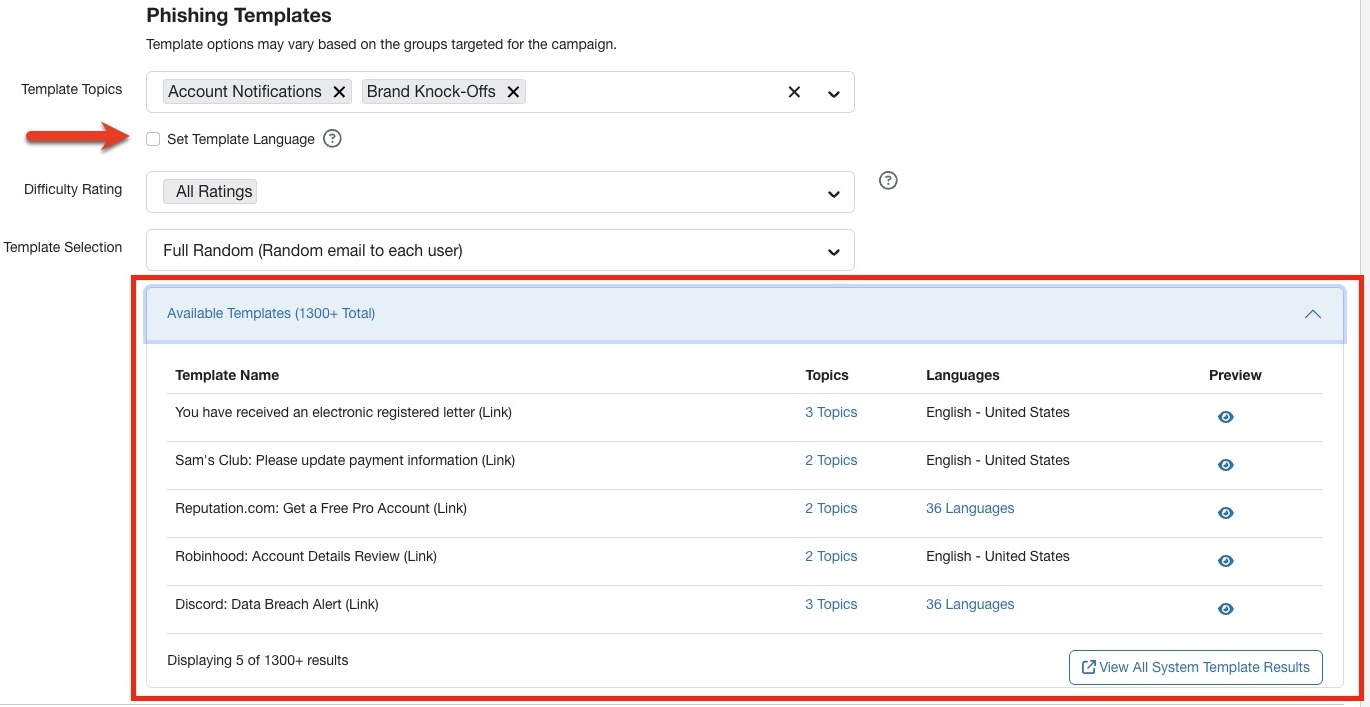
For example, if your admin console is set to Dutch and you choose AI-selected templates for a campaign, you will only see templates localized in Dutch, and their names will appear in Dutch. However, if you select Set Template Language and choose Spanish, your available templates will switch to Spanish. If you select multiple languages, you will see all available templates translated into those specific languages.
Localized Landing Pages
We also offer localized landing pages, so that users who click a phishing test link can view the page in their preferred language. See our Use and Customize Localized Landing Pages article for more information about localized landing pages.
Supported Language Codes
When setting up localization for your users, be sure to use the language codes listed in the table below. It’s important to follow the format of supported languages, paying attention to both the specific uppercase and lowercase letters. For a full list of supported languages and their availability within the console, see our Multi-Language Support and Localization page Multi-Language Support and Localization page (link opens in new window).
| Language Code | English Display Name |
|---|---|
| ar-mod | Arabic |
| zh-hk | Chinese (Cantonese) - Traditional |
| zh-cn | Chinese (Mandarin) - Simplified |
| zh-tw | Chinese (Mandarin) - Traditional |
| cs-cz | Czech |
| da-dk | Danish |
| nl-nl | Dutch |
| en-au | English (Australia) |
| en-gb | English (Great Britain) |
| en-us | English (United States) |
| fi-fi | Finnish |
| fr-ca | French (Canada) |
| fr-fr | French (Europe) |
| de-de | German (Germany) |
| he-il | Hebrew |
| hi-in | Hindi |
| hu-hu | Hungarian |
| id-id | Indonesian |
| it-it | Italian |
| ja-jp | Japanese |
| ko-kr | Korean |
| ms-my | Malay |
| nb-no | Norwegian |
| pl-pl | Polish |
| pt-br | Portuguese (Brazil) |
| pt-pt | Portuguese (Europe) |
| ro-ro | Romanian |
| ru-ru | Russian |
| es-es | Spanish (Europe) |
| es-419 | Spanish (Latin America) |
| sv-se | Swedish |
| th-th | Thai |
| tr-tr | Turkish |
| uk-ua | Ukrainian |
| vi-vn | Vietnamese |
We’ve also included additional region-specific phishing languages when you create a phishing campaign for better localization support.
| Language Code | English Display Name |
|---|---|
| sq-al | Albanian |
| ar-sa | Arabic (Saudi Arabia) |
| bg-bg | Bulgarian |
| my-mm | Burmese |
| hr-hr | Croatian |
| nl-be | Dutch (Belgium) |
| en-at | English (Austria) |
| en-ca | English (Canada) |
| en-in | English (India) |
| en-ie | English (Ireland) |
| en-my | English (Malaysia) |
| en-nz | English (New Zealand) |
| en-sg | English (Singapore) |
| en-za | English (South Africa) |
| et-ee | Estonian |
| fr-be | French (Belgium) |
| fr-ch | French (Switzerland) |
| de-at | German (Austria) |
| de-ch | German (Switzerland) |
| el-gr | Greek |
| hi-in | Hindi (India) |
| is-is | Icelandic |
| lv-lv | Latvian |
| lt-lt | Lithuanian |
| ms-my | Malay (Malaysia) |
| sr-latn-rs | Serbian (Latin) |
| sk-sk | Slovak |
| sl-si | Slovenian (Slovenia) |
| es-ar | Spanish (Argentina) |
| es-cl | Spanish (Chile) |
| es-co | Spanish (Colombia) |
| es-mx | Spanish (Mexico) |
| sw-ke | Swahili |