If you’re a Platinum or Diamond customer, you can use our Smart Groups feature to create dynamic user groups based on a custom set of criteria. By creating Smart Groups, you can automate phishing, training, and reporting processes in your KSAT console.
If you’ve never created a Smart Group, we recommend starting with our What Are Smart Groups? article to learn what Smart Groups are and how you can use them. You can also view our Smart Groups Quickstart Guide to learn how to create Smart Groups.
In this glossary, you will learn about the available Smart Group criteria types and how you can use them to automate processes in your KSAT console.
Criteria Options
Some Smart Group criteria types also include criteria options. We offer two types of criteria options: Time Frame options and Phish Event options. These options allow you to further customize your Smart Groups to meet your organization’s needs.
To learn about each of these options, see the Time Frame Options and Phish Event Options subsections below.
Time Frame Options
The Range, Duration, and Any criteria types also include Time Frame options.
The Range option is best for Smart Groups that depend on a specific period of time. For example, to create a Smart Group of all users who have failed a phishing test from 1/1/2022 to 4/1/2022, you could use the Range criteria option.
The Duration option is best for Smart Groups that should change continuously over time. For example, if you would like to create a group of users who have failed a phishing test in the past month, you could set a Duration of In the last 4 weeks instead of setting a specific date range. This option will allow your Smart Group to stay accurate over time.
The Any option is best for Smart Groups that do not depend on a specific time frame. For example, if you create a Smart Group to automatically assign annual training to your users, you could set a time frame of Any. In this example, new hires would be added to the Smart Group as you add them to your KSAT console, and existing users would not be removed from the group over time.
To learn how to set up each Time Frame Option, click the tabs below:
Range
Click the Range option to only use information from a specific date range. You can use this option to set three types of date ranges:
- Specific start and end dates
- On or after a specific date
- On or before a specific date
For more information on these options, see the table below.
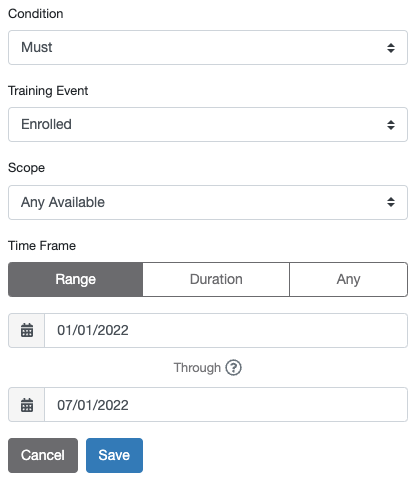 |
Specific Start and End Dates To set a specific start and end date, follow the steps below:
Note: The KSAT console calculates date ranges in UTC (-00:00). We recommend adding one day to the end of your desired end date to account for any time zone differences. For example, if you would like to create a Smart Group of users who failed phishing tests between 7/21/2022 and 7/31/2022, set the date range as 7/21/2022 to 8/01/2022. On or After a Specific Date To specify your criteria by events that occurred on or after a specific date, click the first calendar icon and select your desired start date. Leave the second date field blank. On or Before a Specific Date To specify your criteria by events that occurred on or before a certain date, click the second calendar icon and select your desired end date. Leave the first date field blank. |
Duration
Click the Duration option to specify your criteria using relative duration. You can choose either Prior to the last or In the last. Then, you can choose a specific number of days, weeks, or months.
To set a duration, follow the steps below:
 |
|
Any
Click the Any option to include any time since you created your KnowBe4 account, including future events. The Smart Group will update continuously as time passes.
Phish Event Options
The Phish Event, PhishFlip Event, and After Training criteria types require you to select a Phish Event option. A phish event is what happens when a user receives a Phishing Security Test (PST).
Each email sent in a phishing campaign is a PST. If a user interacts with the email in an unsafe way, that action is considered a failure and the user fails the test. Phishing campaigns can test multiple attack vectors, so a user could have multiple failures from one failed PST. For example, if a user clicks on a simulated phishing link and enters data on a landing page in the same PST, the user will have two failures but only fail one PST. You can use the Phish Event criteria type to filter by either one of these metrics.
You can use the Phish Event options to filter by specific types of failures in your Smart Group. For more information about the Phish Event options, see the table below.
| Phish Event Option | Function |
|---|---|
| Failed Phishing Test | This option counts the number of PSTs that a user failed. |
| Passed Phishing Test | This option counts the number of PSTs that a user has received and not failed. |
| Any Failures | This option counts the number of failures that a user has had, including failures from callback phishing or QR code phishing. |
| Any Failures But Clicks | This option counts the number of failures that a user has had, excluding failures where the user clicked on a simulated phishing link. |
| Clicked | This option counts the number of simulated phishing links a user has clicked. |
| Replied | This option counts the number of times a user has replied to a PST. |
| Opened Attachment | This option counts the number of times a user has opened an attachment from a PST. |
| Enabled macro | This option counts the number of times a user has enabled macros in an attachment from a PST. |
| Entered data | This option counts the number of times a user has entered information on a data-entry landing page that was linked in a PST. |
| Scanned QR Code | This option counts the number of times a user has failed a QR Code PST. |
| Callback | This option counts the number of times a user has entered the callback code in a callback phishing email. |
| Callback Entered Data | This option counts the number of times a user has entered the secondary callback code in a callback phishing email. |
| Reported |
This option counts the number of times a user reported a PST using the Phish Alert Button (PAB). This option includes all users who reported the PST, even if they failed the test before or after reporting it. |
| Delivered | This option counts the number of times a user has received a PST. |
| Bounced |
This option counts the number of times a user was sent a PST but did not receive it. You can view the reason for the bounced email in the Users tab of an individual campaign. For more information, see our How to Monitor and Review Phishing Campaigns article. |
| Opened | This option counts the number of PSTs opened by a user, regardless of whether the user failed the test. |
User Criteria
You can use our User Field and User Date criteria types to customize your Smart Groups based on specific user details.
To learn about each of these options, see the User Field and User Date subsections below.
User Field Criteria
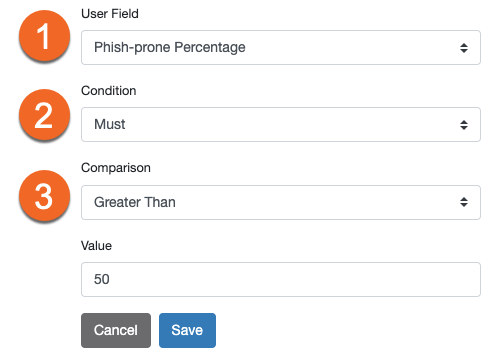
The User Field criteria type filters users based on the fields in their User Information tab. This criteria type includes fields from your KSAT console, such as Job Title and Location.
You can also include a Custom Field to meet your organization’s needs. For example, if your organization has offices in multiple countries, you can add each country to a Custom Field. Then, you can include this Custom Field in your User Field criterion to group users by country. You can create Smart Groups to assign specific phishing or training to users based on the country where their office is located.
For more information about each User Field option, see below:
 |
|
The example screenshot above would create a finished criterion that states:
| User Field | The Phish-prone Percentage must be greater than 50. |
|---|
User Date Criteria
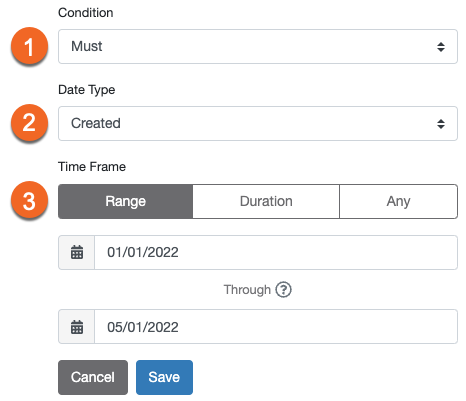
The User Date criteria type filters by user-specific dates. For more information about each option, see below:
 |
|
The example screenshot above would create a finished criterion that states:
| User Date | User must have been created from 01/01/2022 through 05/01/2022. |
|---|
Event Criteria
You can use our Event Criteria types to customize your Smart Groups based on your users’ actions.
To learn about each of these options, see the Phish Event, PhishFlip Event, Breach Event, PasswordIQ Event, PasswordIQ State, and Custom Event subsections below.
Phish Event Criteria
The Phish Event criteria type filters users based on their actions with simulated phishing tests. For information about each option, see below:
 |
|
The example screenshot above would create a finished criterion that states:
| Phish Event | User must not have had enabled a macro more than 1 times. |
|---|
PhishFlip Event Criteria
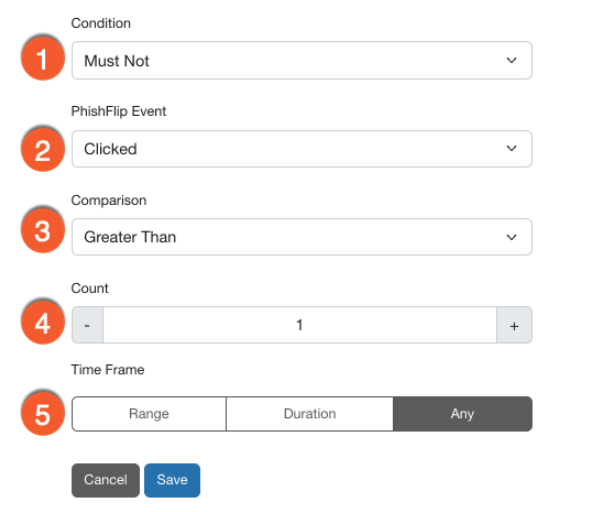
The PhishFlip Event criteria type filters users based on their actions with simulated phishing tests from a PhishFlip campaign. This criteria type is only available if you’re using our PhishER and PhishFlip features. For more information about each option, see below:
 |
|
The example screenshot above would create a finished criterion that states:
| PhishFlip Event | User must not have clicked on a flipped phishing email more than 1 times. |
|---|
Breach Event Criteria
The Breach Event criteria type filters users based on whether they have been involved in a data breach.
When an Email Exposure Check Pro (EEC Pro) scan finds that a user has been involved in a data breach, this event will be automatically added to the user’s User Timeline. For more information about each option, see below:
 |
|
The example screenshot above would create a finished criterion that states:
| Breach Event | User must have been in a security breach more than 1 time. |
|---|
PasswordIQ Event Criteria
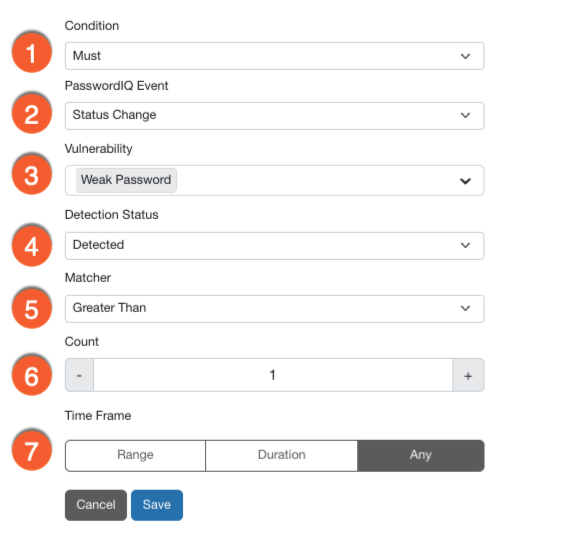
The PasswordIQ Event criteria type filters users based on their password vulnerability detection status. For information about each option, see below:
 |
|
The example screenshot above would create a finished criterion that states:
| PasswordIQ Event | User must have an event for Status Change in a detected state for Weak Password detection(s) more than 1 times. |
|---|
PasswordIQ State Criteria
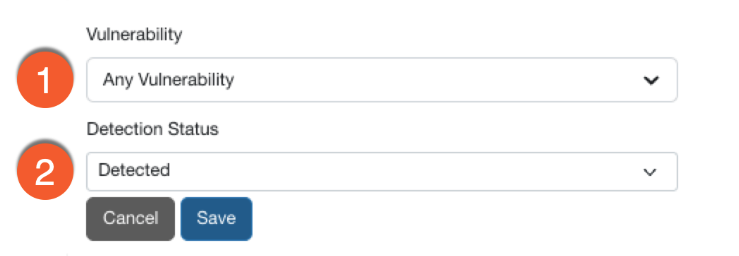
The PasswordIQ State criteria type filters users based on whether their password was detected to have a vulnerability. For information about each option, see below:
 |
|
The example screenshot above would create a finished criterion that states:
| PasswordIQ State | User has any vulnerability in a detected state. |
|---|
Custom Event Criteria
The Custom Event criteria type filters users based on external user data imported into your KSAT console using the User Event API.
For more information about each option, see below:
 |
|
The example screenshot above would create a finished criterion that states:
| Custom Event | User must have the specified Example Event more than 3 times. |
|---|
Training and Assessment Criteria
Our Training, After Training, and Assessment criteria types allow you to customize your Smart Groups based on the courses and assessments your users have taken.
To learn about each of these options, see the Training, After Training, SecurityCoach Detection Rules, SecurityCoach Real-Time Coaching, and Assessment subsections below.
Training Criteria
The Training criteria type filters users based on their involvement in training campaigns. For information about each option, see below:
 |
|
The example screenshot above would create a finished criterion that states:
| Training | User must have started all of these 2 assignments in the last 2 months. |
|---|
After Training Criteria
The After Training criteria type filters users based on their actions with simulated phishing tests after they complete training assignments. For more information about each option, see below:
 |
|
The example screenshot above would create a finished criterion that states:
| After Training | User must have reported a phishing email after completing Using the Phish Alert Button: Report Suspicious Emails. |
|---|
SecurityCoach Detection Rules Criteria
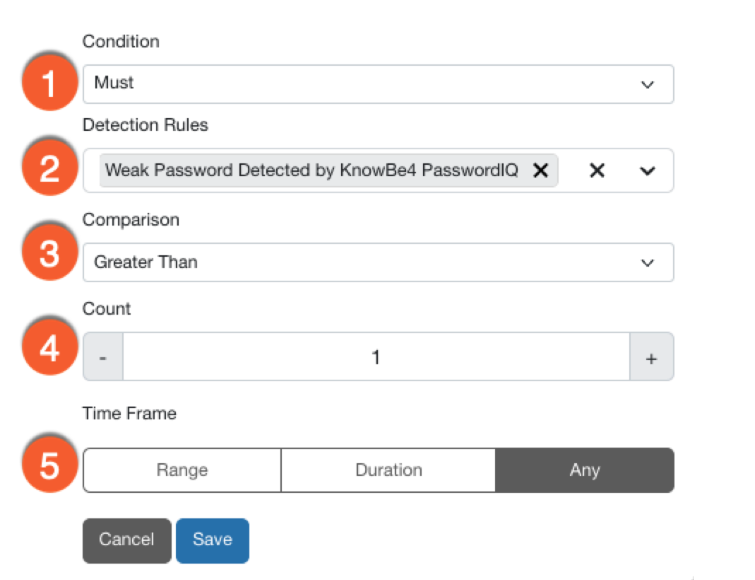
The SecurityCoach Detection Rules criteria type identifies user behavior based on data from integrated security vendors and KnowBe4. For information about each option, see below:
 |
|
The example screenshot above would create a finished criterion that states:
| SecurityCoach Detection Rules | User must have triggered 1 detection rules more than 1 times. |
|---|
SecurityCoach Real-Time Coaching Criteria
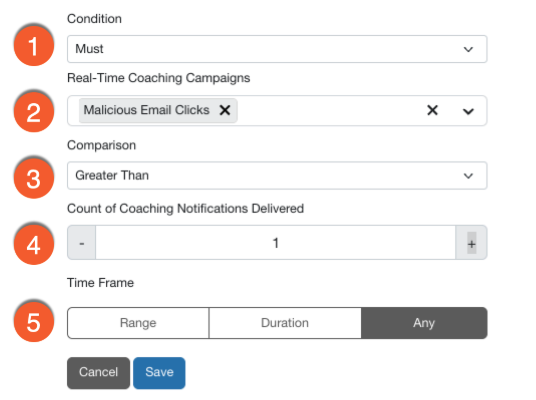
The SecurityCoach Real-Time Coaching criteria type identifies users enrolled in SecurityCoach real-time coaching campaigns. For information about each option, see below:
 |
|
The example screenshot above would create a finished criterion that states:
| SecurityCoach Real-Time Coaching | User must have been sent more than 1 SecurityTip for the 1 selected campaign. |
|---|
Assessment Criteria
The Assessment criteria type filters users based on their Security Awareness Proficiency Assessment (SAPA) scores. For more information, see below:
 |
|
The example screenshot above would create a finished criterion that states:
| Assessment | User must have scored more than 80% in Social Media in the latest completed. |
|---|
SmartRisk Engine Criteria
You can use our SmartRisk Engine criteria to filter users based on Risk Score or security types, which are two different criteria with different capabilities. To learn about each of these options, see the Risk Score Criteria and Security Type Criteria subsections below.
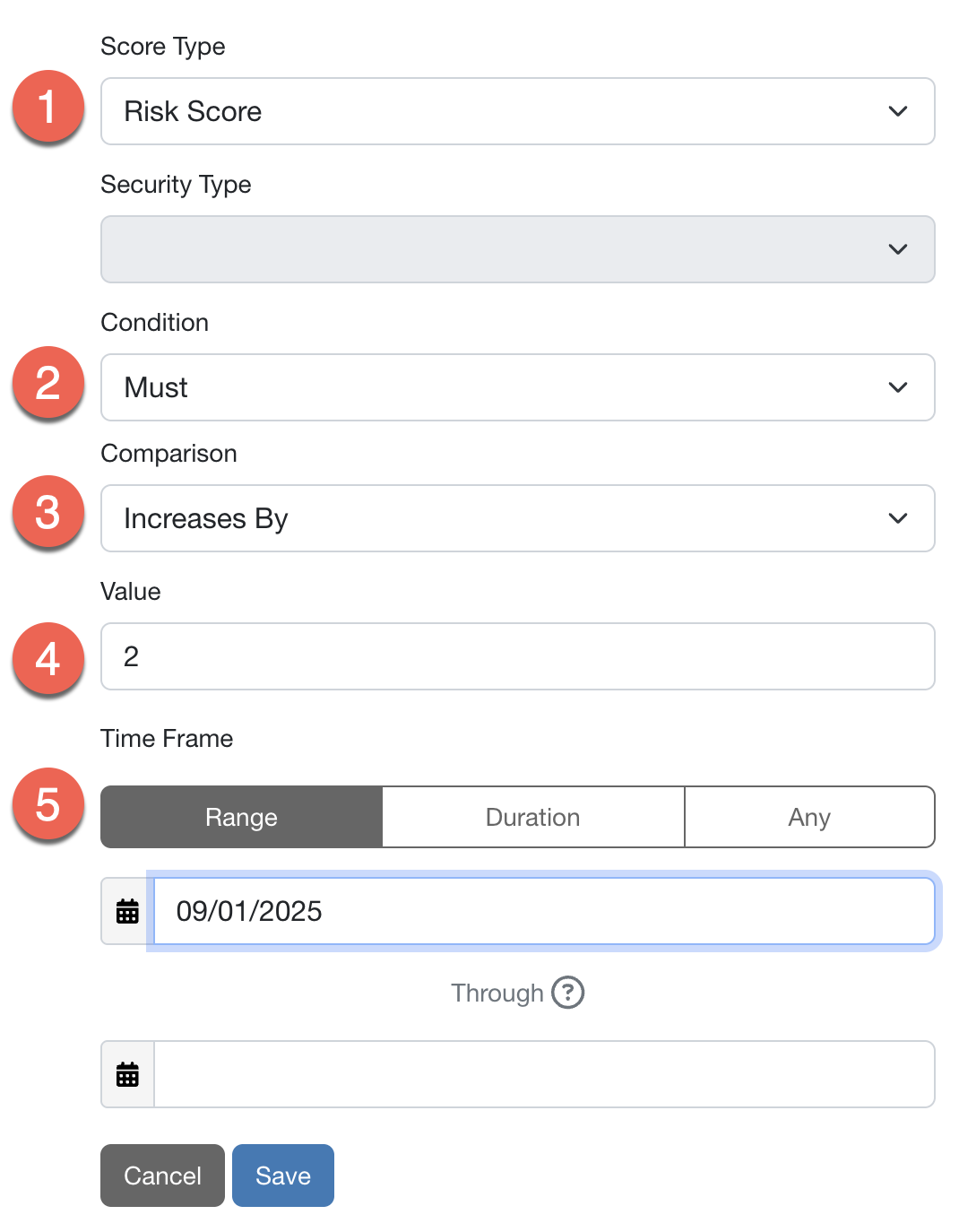
Risk Score Criteria
The Risk Score criteria allow you to filter users by their Risk Scores. For more information about each option, see below:
 |
|
The example screenshot above would create a finished criterion that states:
| SmartRisk Engine | The Risk Score must increase by 2 on or after 09/01/2025. |
|---|
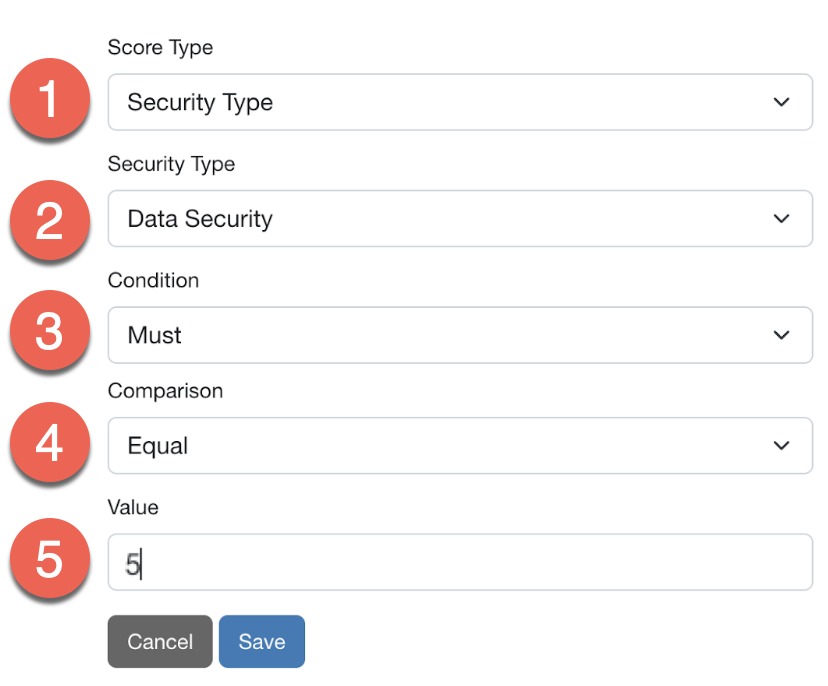
Security Type Criteria
The Security Type criteria allow you to filter users by their security type scores. For more information about each option, see below:
 |
|
The example screenshot above would create a finished criterion that states:
| SmartRisk Engine | The data security type score must be equal to 5. |
|---|