When you create a phishing campaign, you have the option to test your users with QR codes. QR codes, or quick response codes, are scannable barcodes that contain data in a compact format. QR codes can include data such as a link to a website, a location on a map, or a digital business card. If your users scan a malicious barcode, they could be prompted to visit a dangerous website. Additionally, malicious links hidden in QR codes may be able to bypass your organization's security filters.
QR code Phishing Security Tests (PSTs) can help prepare your users for real QR code phishing attacks. For example, your users may be used to using a QR code to view the online menu at their favorite restaurant. Unfortunately, not all QR codes are safe to scan. Using QR code phishing, you can train your users to spot fake QR codes.
Creating a QR Code Phishing Campaign
You can create a QR code phishing campaign from the Phishing tab of your KSAT console. When you create the campaign, you will need to select our QR Code template topic. If your users scan these QR codes or enter data after scanning them, the results will be tracked in your KSAT console.
To create a QR code phishing campaign, follow the steps below:
- From your KSAT console, navigate to the Phishing tab.
- Click the + Create Phishing Campaign button.
- In the Template Topics drop-down menu, select QR Code.
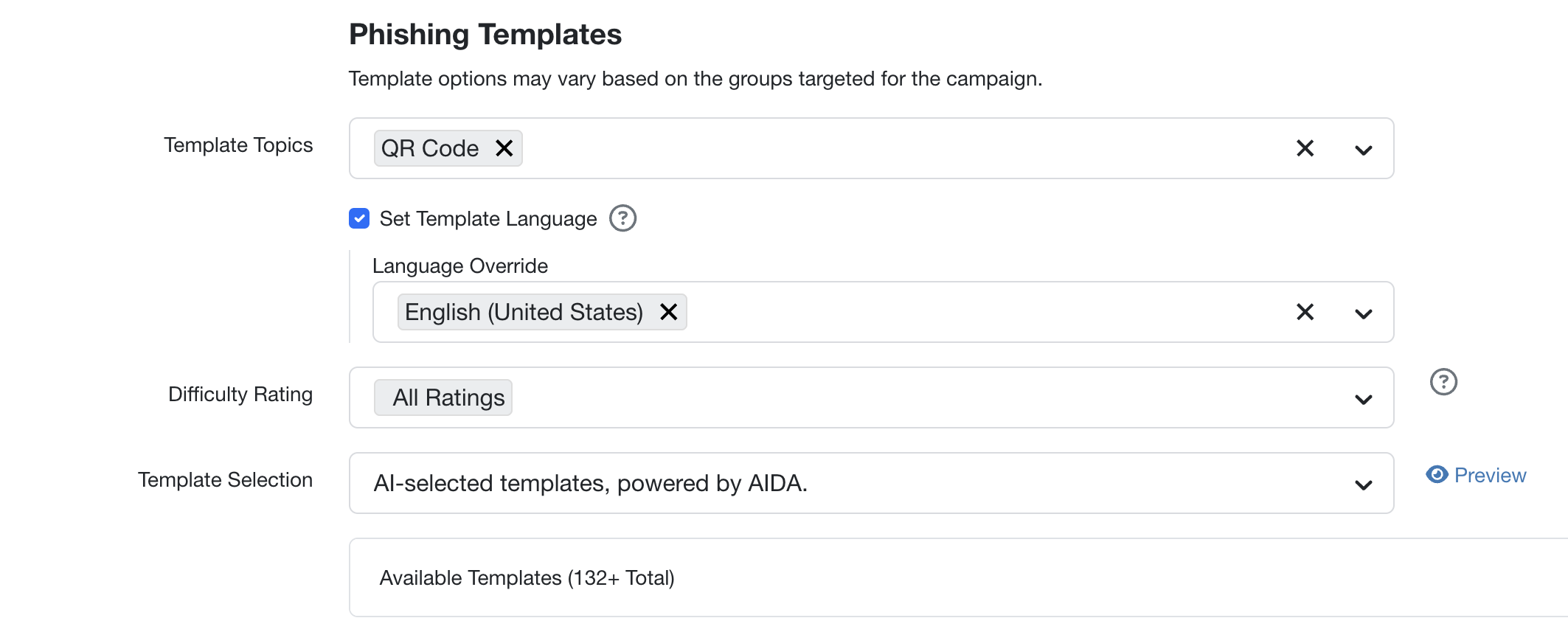
- From the Template Selection drop-down menu, you can select a specific template or use one of our Automated Template Selections: AI-selected templates, Full Random, Random, or Specific Template. For more information, see our Automated Template Selection Overview article. If you select to use a specific template, a Specific Template drop-down menu will appear.
- Fill out the rest of the fields on the page. For more information about the available fields, see the Create a Phishing Campaign section of our Create and Manage Phishing Campaigns article.
Note:When you select your landing page, you can select a data entry landing page to test whether your users will share sensitive information after scanning a QR code. For more information, see our Data Entry Landing Pages Guide.
- Click the Create Campaign button.
Example QR Code PST
When your users receive a QR code PST email, the QR code will display in the body of the email. For an example of a QR code PST, see the image below:
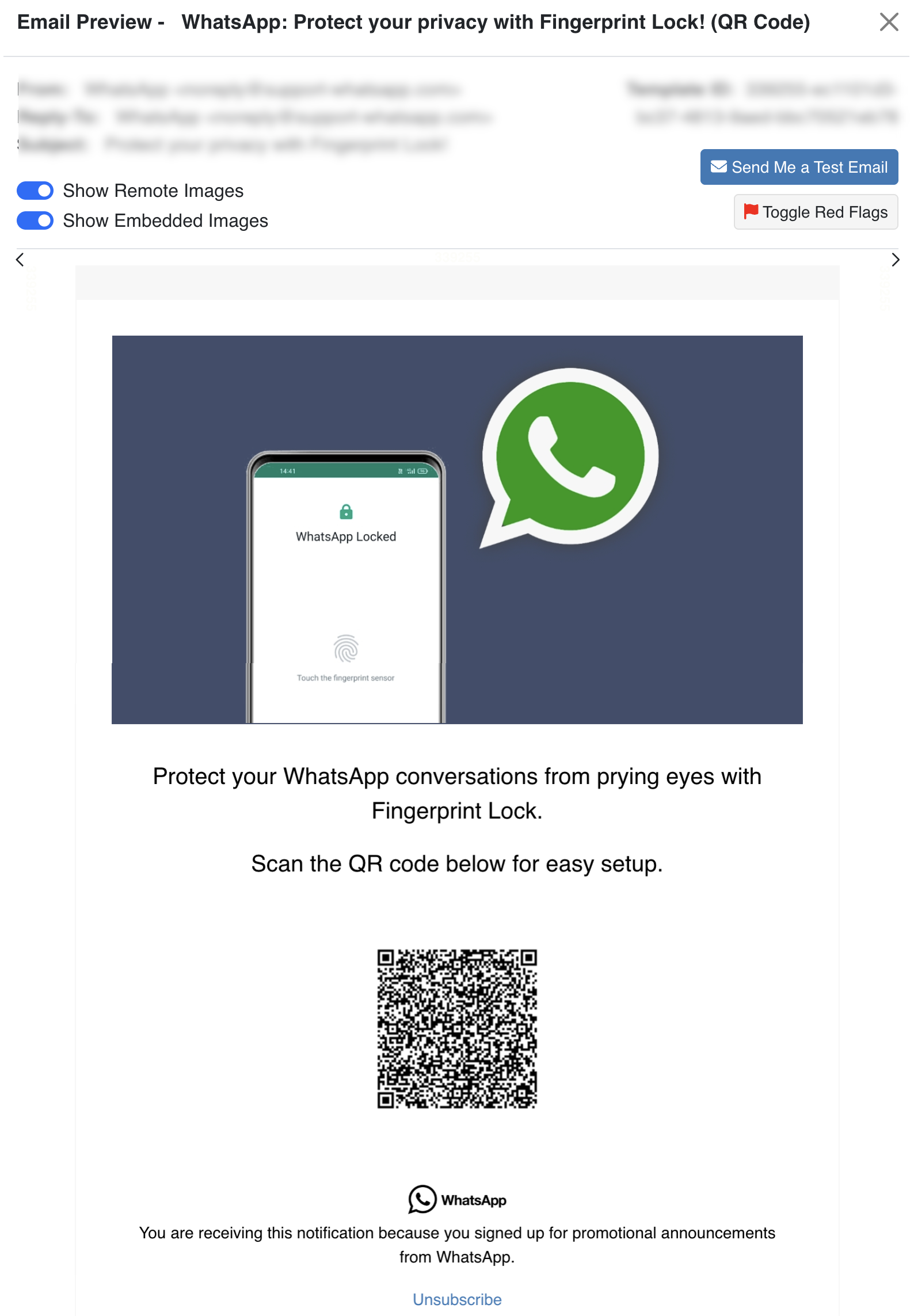
The QR code will be a unique link for each user. If a user scans the QR code with their mobile device, they will be redirected to the landing page. Scanning the QR code will be recorded as a failure.
Viewing QR Code PST Results
You can view the results of your QR code PSTs from the Campaigns subtab or from a specific user's User Details page in your KSAT console. For more information about viewing QR code PST results, see the subsections below.
Viewing QR Code PST Results from the Campaigns Subtab
To view the results of a QR code PST from the Campaigns subtab, follow the steps below:
- In your KSAT console, navigate to Phishing > Campaigns.
- Click on the name of the phishing campaign for which you want to view the results.
-
Click the Phishing Security Tests subtab.
Note:If you sent the QR code PST as a one-time phishing campaign, skip this step and step 4 below. - Click on the name of the QR code PST.
- From the PST’s overview page, click the Users subtab.
The Users subtab will provide information about your users’ QR code PST results, such as which users scanned the QR code and which users entered data into a landing page. From the Users subtab, you have the option to download the full list of PST results as a CSV file. To do so, click the Download CSV button.
To learn more about viewing PST results, see our Monitor and Review Phishing Campaigns article.
Viewing QR Code PST Results from the User Details Page
You can also view whether a specific user failed your QR code PST from a user's User Details page. To view a specific user’s PST failures, follow the steps below:
- In your KSAT console, navigate to the Users tab.
- From the user list, click on the name of the user whose results you would like to view. When you click on the user’s name, the user’s User Details page will open.
- From the User Details page, select the Phishing subtab.
From the table on the Phishing subtab, you can view the QR Code Scanned column to see if the user has failed a QR code PST. If the user failed a QR code PST, a check mark will display in the column.
