The Email Exposure Check Pro (EEC Pro) is a free tool that searches for publicly available information about a domain and compiles that information into a report. This tool finds information from data breaches, your users' social media accounts, online files, and more.
You can use EEC Pro to become aware of vulnerabilities in your organization, such as users who have been involved in data breaches or users who have public email addresses. Cybercriminals can use publicly available information to target your users in social engineering attacks, so EEC Pro reports can help your organization prepare for these attacks.
What Information EEC Pro Searches For
EEC Pro searches through three main categories of data for public information that is related to your domain.
For more information about these categories, see the list below:
- Data Breaches: EEC Pro searches through data breaches to see if your users' information has been exposed. If your users continue to use credentials that were exposed in a data breach, your organization may be vulnerable. Cybercriminals can access these credentials to target your users and your organization.
-
Online Information: EEC Pro searches through online archives, online files, and online forums. If your users' information is accessible online, your organization may be vulnerable. Cybercriminals can use this information to identify your organizational structure. Then, they can perform targeted social engineering attacks on your organization.
Note: EEC Pro searches through the following file types: PDF, DOC, DOCX, XML, HTML, RTF, ODT, and Pages. - Social Media: EEC Pro searches through social media platforms to find accessible information about your users, such as their social media accounts. Users who have accessible social media accounts or who post detailed information on social media may be more likely to receive targeted social engineering attacks.
Receiving Your EEC Pro Report
To run an Email Exposure Check Pro scan on your domain and receive an EEC Pro report, follow the steps below:
- Navigate to the KnowBe4 Email Exposure Check web page KnowBe4 Email Exposure Check web page (link opens in new window).
- Enter your information into the Send me my Free Report form.
- Click Send me the report!. Then, EEC Pro will scan for any public data about your organization. When the scan is complete, you will receive an email from KnowBe4.
-
Open the email that contains your EEC Pro results.
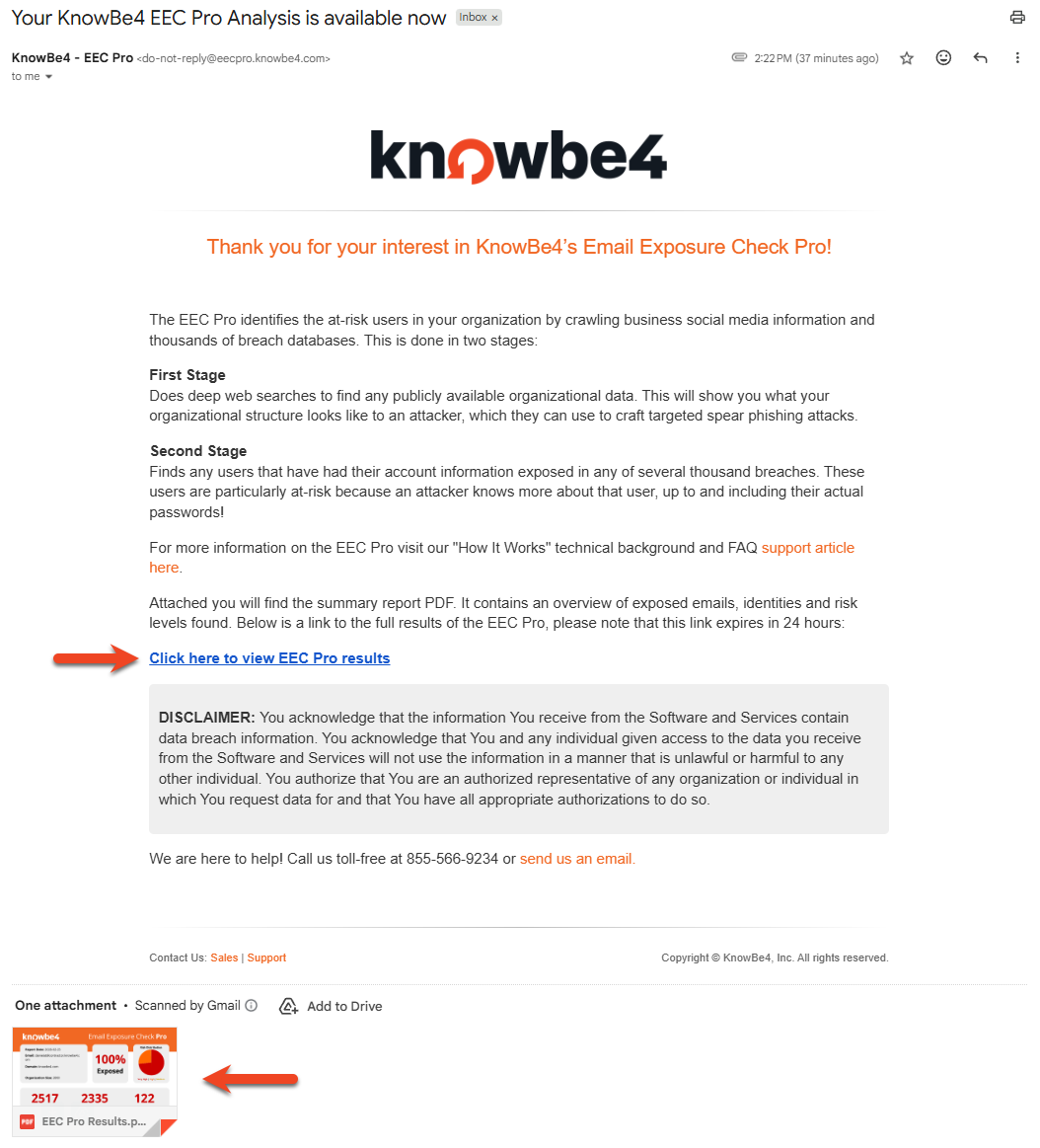
- You can click the Click here to view EEC Pro results link to view a detailed report. You can also click the EEC Pro Results PDF attachment to view a summary of your results.
Scheduling Monthly Reports
If you have a Gold or higher-level KSAT subscription, EEC Pro’s integration with your KSAT console allows you to schedule monthly reports. If you have a SAT Advanced or Diamond subscription, you can also customize your reports. To view the settings for this integration, navigate to Account Integrations > Email Exposure Check Pro (EEC Pro) in your Account Settings.
For more information about these settings, see the screenshot and list below:
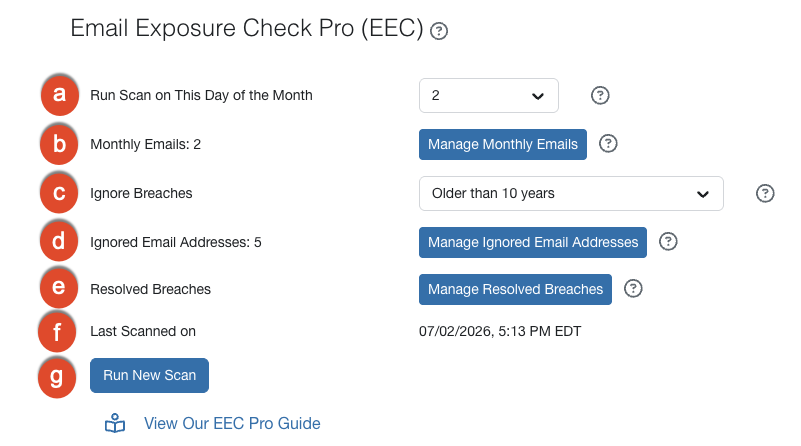
- Run Scan on This Day of the Month: From the drop-down menu, select which day you want to run a monthly EEC Pro scan. For example, you can select 17 to schedule a scan on the 17th day of each month.
- Monthly Emails: This setting allows you to select which users receive your monthly EEC Pro report by email. To update this setting, click Manage Monthly Emails. In the pop-up window that opens, you can enter one email address per line, up to 100, and save your changes. You can only add email addresses from your organization's verified domains.
- Ignore Breaches: This setting allows you to exclude old breaches from EEC Pro scans, limiting scan results to information available within a specific number of years. From the drop-down menu, you can select the number of years that EEC Pro will use as the threshold to determine if a breach should be included in your report. You can select up to a maximum of 10 years.
- Ignored Email Addresses: This setting allows you to exclude users from EEC Pro scans, based on their email addresses. To update this setting, click Manage Ignored Email Addresses. In the pop-up window that opens, you can enter one email address per line and save your changes. You can add up to 100 entries.
-
Resolved Breaches: This setting allows you to manage the reported breaches that have been marked as resolved on the User Timeline. To update this setting, click Manage Resolved Breaches. In the pop-up window that opens, you can view your resolved breaches and remove any breaches that you don’t consider resolved. To remove a breach from the list, click Remove and save your changes. For more information, see the Resolving Breaches on the User Timeline section below.
Note: The Ignore Breaches, Ignored Email Addresses, and Resolved Breaches settings are available to SAT Advanced and Diamond-level subscriptions. - Last Scanned on: This setting displays the date that your last EEC Pro scan was scheduled. This date and the scan completion date may not be the same.
- Run New Scan: You can click this button to run an EEC Pro scan immediately.
Resolving Breaches on the User Timeline
After you have taken action to handle a reported breach, you can exclude the breach from future reports by marking it as resolved. To resolve a breach, follow the steps below:
- In your KSAT console, navigate to the Users subtab of the Users tab.
- Select a user who was exposed in the breach and access their profile.
- From the User Dashboard that displays, navigate to the User Timeline subtab.
- From the Event Type drop-down menu, select Email in Security Breach to filter your results.
- Locate the reported breach.
- To mark the breach as resolved for the individual user only, click Mark as Resolved. To mark the breach as resolved for all of your users, click Mark as Resolved for All.
- When prompted to confirm your action, click Confirm.
All future EEC pro scans will exclude the resolved breach from reports and won’t add a new event to the User Timeline. If you incorrectly mark a breach as resolved, you can undo this action by removing it from the list of resolved breaches in your Account Settings. For more information about the User Timeline, see our User Profile Guide.
Analyzing Your Results
After you open the email from KnowBe4 and select the Click here to view EEC Pro results link, you can analyze your EEC Pro results.
For more information about the report, see the screenshot and list below:

- Exposed: This result is the percentage of your users who have exposed information due to data breaches, accessible online information, or social media. This percentage is calculated by adding the Total Emails to the Total Identities and dividing this number by your organization's total number of users.
- Download CSV: Click this button to download a copy of your report as a CSV file.
-
Delete Analysis: Click this button to delete the report permanently.
Note:If you permanently delete the report, the Analysis deleted! page will be displayed. To receive a new report, you can follow the steps in the Receiving Your EEC Pro Report section above. -
Total Emails: This result is the number of your users' email addresses that the report found online.
Tip: If an email address in your report is invalid or your organization no longer uses the email address, you can use that email address for receiving and analyzing spam. By viewing the phishing emails that your organization is receiving, you can prepare your users for those types of phishing emails. - Total Identities: This result is the number of your users' social media accounts that the report found online.
- Unique Breaches: This result is the number of breaches that your users have been involved in. To learn more about how we obtain our data breach information, see the Frequently Asked Questions (FAQs) section below.
- Very High Risk: This result is the number of users who are in the Very High Risk category. From the drop-down menu next to each user's name or email address, you can view information about the user. This information includes breaches that have exposed the user's data, the types of data exposed, and the social media URLs that contain the user's information. To learn more about this category, see the Risk Distribution Groups section below.
- High Risk: This result is the number of users who are in the High Risk category. From the drop-down menu next to each user's name or email address, you can view information about the user. This information includes breaches that have exposed the user's data, the types of data exposed, and the social media URLs that contain the user's information. To learn more about this category, see the Risk Distribution Groups section below.
- Medium Risk: This result is the number of users who are in the Medium Risk category. From the drop-down menu next to each user's name or email address, you can view information about the user. This information includes any social media URLs that contain the user's information. To learn more about this category, see the Risk Distribution Groups section below.
- Found Identity: This column contains checkmarks for each user that has an accessible social media account.
- Most Recent Breach: This column contains the date of the data breach that each user was most recently involved in, or the date when the breach report was published.
- Total Breaches: This column contains the number of data breaches that each user has been involved in.
Risk Distribution Groups
After EEC Pro gathers data about your users, the tool categorizes your users into three groups: Very High Risk, High Risk, and Medium Risk. These groups are based on the types of data that EEC Pro finds about your users.
For more information about these groups, see the list below:
-
Very High Risk: EEC Pro found these users in public data breaches that released clear text passwords or password hashes. Cybercriminals are likely to target these users because they may be able to use their data to gain unauthorized access to your organization's network. Your users may be unaware that their passwords were included in the breach, so they may continue to use these passwords or similar passwords.

-
High Risk: EEC Pro found these users in public data breaches that released sensitive personal information, such as email addresses, company background, or phone numbers. Cybercriminals can use this information to create sophisticated social engineering attacks against these users or your organization.

-
Medium Risk: EEC Pro found public information about these users on social media, but it did not find these users in any data breaches. Cybercriminals can use social media information for targeted phishing attacks or other social engineering attacks.

Frequently Asked Questions (FAQs)
What is a data breach?
A data breach is the intentional or unintentional release of secure information to an untrusted environment. Often, a data breach occurs because a cybercriminal illegally gathers private data from a system or network by exploiting a vulnerability. Data breaches can expose any sensitive or private information.
Where does KnowBe4 find the information about data breaches?
KnowBe4 partners with SpyCloud to search through data breaches and determine which user accounts have been affected. SpyCloud is a reputable online resource that allows users to search for their email addresses in about 12,000 different databases to see if their information has become accessible due to data breaches.
What should I do with the information in the EEC Pro report?
Accessible information that involves your organization or your users can increase your organization's vulnerability to a cyber attack.
We recommend that you perform the actions below.
- Train your users on password security, social engineering attacks, and securing personal information.
- Anything that we include in the EEC Pro report is public information, so programs that analyze email addresses can also access this information. All of the email addresses in your EEC Pro report are potential phishing targets. We recommend that you enroll these users in Security Awareness Training and phishing campaigns to strengthen your organization's human firewall.
- Notify users who are in the Very High Risk and High Risk categories that their information has been exposed by data breaches.
- In the How do I notify my users that their information was exposed in a breach? section below, we provide a sample email that you can use as a template to notify these users.
- Request that the users who are in the Very High Risk category change their passwords.
- Many users use the same password for multiple websites, so they may need to change their password for multiple accounts.
- Request that the users who are in the Very High Risk and High Risk categories enable multi-factor authentication.
- Multi-factor authentication provides an additional layer of security, which can help to prevent cybercriminals from accessing your users' private information.
- Remove public information about your organization from the internet.
- If external sites are posting data about your users without your permission, we recommend that you contact the website owners. If these websites are sharing your users' email addresses, you can prepare these users for potential phishing emails.
How do I notify my users that their information was exposed in a breach?
You can use the template below to notify users that their information was exposed in a data breach. Please replace the text in brackets and customize any text to fit your organization's needs.
Hello [name],
We have discovered that some of your information was exposed in a data breach. A data breach occurs when secure information is released to an untrusted environment. This does not necessarily mean that your data or identity was compromised, but it does mean that your information is accessible. However, there are precautions that you can take to secure your accounts.
At a minimum, we strongly recommend changing your passwords for your online accounts immediately. We also recommend that you set up multi-factor authentication, such as [insert recommendation], or a password manager, such as [insert recommendation], for an extra layer of security.
Please also be aware that when your information is part of a data breach, cybercriminals may use this information to target you in phishing attacks. Please stay alert, and be cautious of any emails that you receive.
Sincerely, [Your Name]