Real-Time Coaching is a feature of the KnowBe4 Platform’s Security Awareness Training (SAT). Real-Time Coaching coaches your users about their behavior in real time using SecurityTips. You can customize your coaching experience by integrating your security vendors, activating coaching categories, and setting up delivery methods for your SecurityTips.
Getting Started with Real-Time Coaching
For a tour of Real-Time Coaching, see our product demos.
To quickly set up Real-Time Coaching, see our Real-Time Coaching Quickstart Guide.
For detailed Real-Time Coaching setup guides and other resources, see the sections below.
Real-Time Coaching Workflow
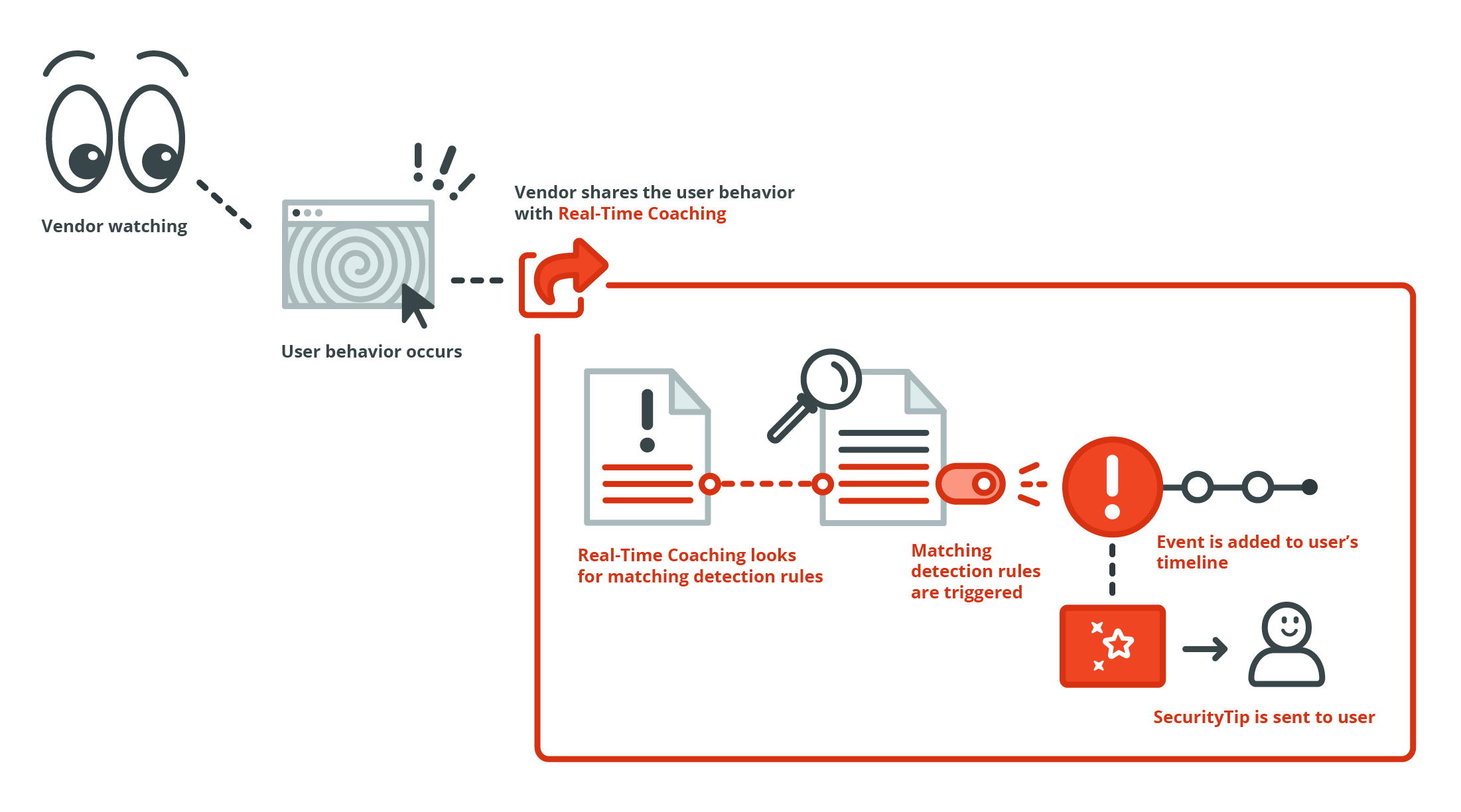
The Real-Time Coaching workflow involves both KnowBe4’s Real-Time Coaching and the vendors that you have integrated. For more information, see the workflow list below:
- Your integrated vendors monitor user behaviors using email, endpoint, and browser events.
- The vendors share those events with KnowBe4.
- KnowBe4 processes this information and determines whether the vendor events match the criteria for any of your detection rules.
- If an event matches a detection rule’s criteria, the detection rule is triggered, and the event is added to the responsible user’s events timeline.
- If the detection rule is part of an active coaching category, the user will also receive a SecurityTip to coach their behavior.
Real-Time Coaching events can also influence your users’ and organization's Risk Score. For more information, see the Security Types section of our SmartRisk Agent™ and Risk Score Guide.
Navigating Real-Time Coaching
Real-Time Coaching exists in the KnowBe4 console’s Coaching tab, and includes six subtabs:
- Dashboard
- Real-Time Coaching
- Detection Rules
- SecurityTips
- Setup
- Reports
Navigate these subtabs to view your high-level data, create and manage coaching categories, review detection rules, preview SecurityTips, set up configurations, and view reports. For more information about each subtab, see the subsections below.
Dashboard
When you navigate to the Coaching tab, the Dashboard subtab will display automatically. This dashboard contains a quick overview of your Real-Time Coaching data, including charts and summaries.
For more information about the Real-Time Coaching dashboard, see the screenshot and list below:
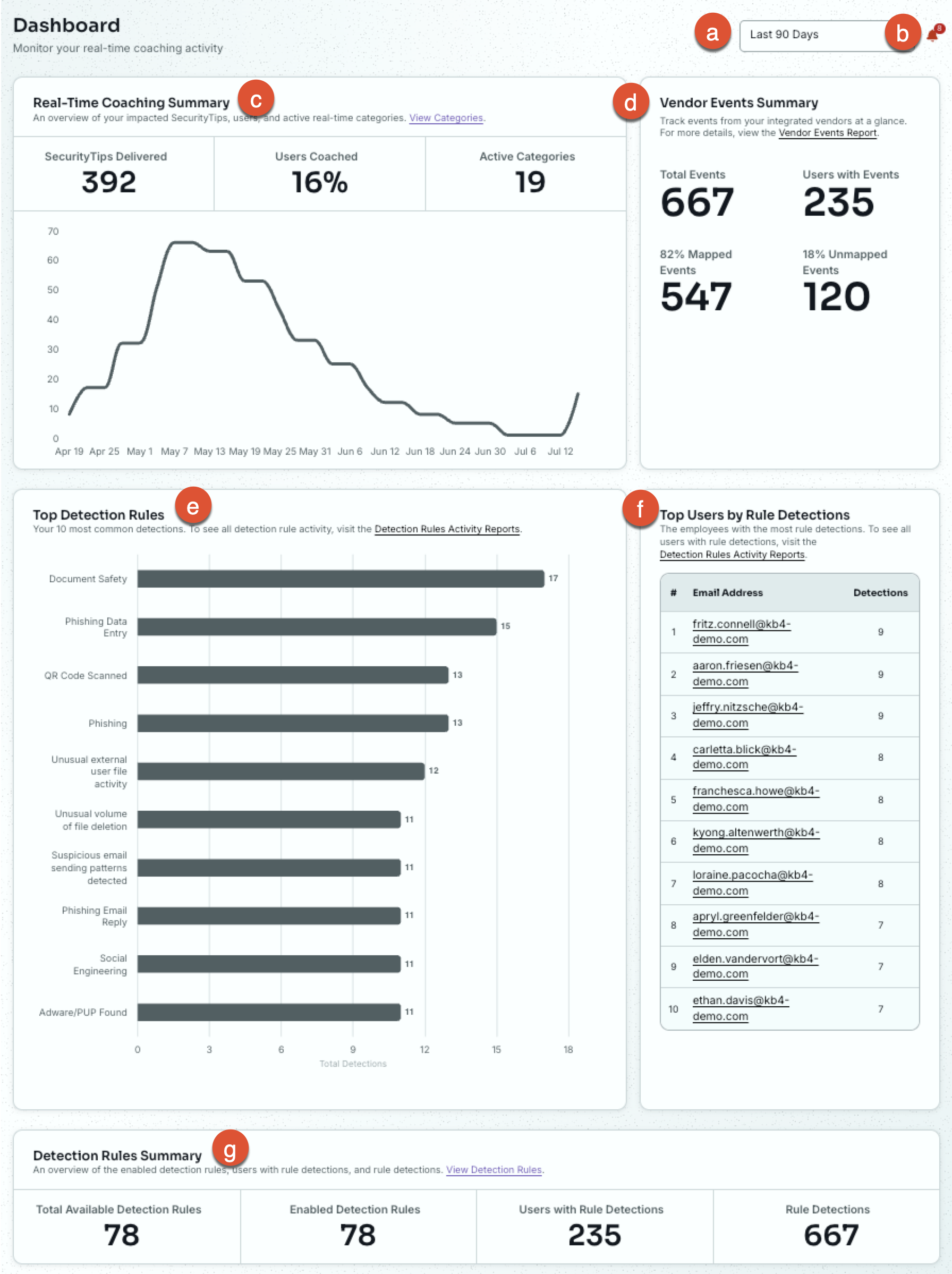
- Last 90 days: Change the date range for the dashboard data.Your dashboard will display data and activity from the last 90 days by default.
- Bell icon: View your Real-Time Coaching notifications.
- The Real-Time Coaching Summary widget contains the following data:
- SecurityTips Delivered: This section displays the total number of SecurityTips that have been sent to users.
- Users Coached: This section displays the percentage of users who received SecurityTips.
- Active Categories: This section displays the total number of active real-time coaching categories. This section does not include any categories you have in the Monitoring status.
- The Vendor Events Summary widget contains the following data:
- Total Events: View the total number of events from your integrated vendors.
- Users with Events: View the number of users with events in the selected time frame.
- Mapped Events: View the number of events mapped to users. The percentage represents the number of your organization’s events that are mapped.
- Unmapped Events: View the number of your organization’s events that aren’t mapped to a user. The percentage represents the number of your organization's events that aren’t mapped.
- Top Detection Rules: View the top 10 detection rules with the most event triggers.
- Top Users by Rule Detections: View the users with the most event triggers.
- The Detection Rules Summary widget contains the following data:
- Total Available Detection Rules: The total number of detection rules available.
- Enabled Detection Rules: The number of detection rules that have coaching enabled.
- Users with Rule Detections: The number of users that triggered detection rules in the selected time frame.
- Rule Detections: The number of detection rules that have been triggered in the selected time frame.
Real-Time Coaching
To create and manage coaching categories, navigate to the Coaching tab > Real-Time Coaching subtab. Real-Time Coaching categories can send SecurityTips to coach users when specific user behaviors are detected. SecurityTips can be sent through Slack, Microsoft Teams, Google Chat, or email. Email is enabled by default.
For more information about setting up real-time coaching categories, see our Real-Time Coaching Categories Guide.
Detection Rules
To create and manage detection rules, navigate to the Coaching tab > Detection Rules subtab. Detection rules identify what user behavior you would like to track from your integrated vendors. These detections will then appear on your users’ timelines. You can also create real-time coaching categories based on these detection rules.
For more information about creating and managing detection rules, see our Detection Rules Guide.
SecurityTips
The SecurityTips subtab displays the SecurityTip media and notification text templates that are used in your real-time coaching categories. SecurityTips coach your users on their user behaviors and how to improve their security posture.

You can use KnowBe4’s SecurityTip media or upload your own. SecurityTips are also localized based on the recipient's training language.
To learn more about the SecurityTips subtab, see our SecurityTips Guide.
Setup
To configure your vendor integrations, map your users, and set up a delivery method for your SecurityTips, navigate to the Coaching tab > Setup subtab. The Setup subtab includes the three pages listed below:
- Security Vendor Integrations: View your active vendor integrations, set up new vendor integrations, and fix broken vendor integrations. For more information about vendor integrations, see our Setting Up Integrations articles.
-
User Mapping Setup: Map your users, review mapping recommendations, and view reports related to user mapping. For more information about user mapping, see our guide.
Note:The User Mapping Setup subtab is only for third-party vendors and requires an SAT Advanced subscription. - Delivery Setup: Set up and view your delivery methods. For more information about setting up delivery channels, see our Configuring Delivery Methods articles.
Reports
The Reports subtab includes reports based on your security risks, detection rules, and real-time coaching.
The reports are listed below:
- Detection Rules Report
- Real-Time Coaching Report
- Real-Time Coaching Activity Reports
- Risk Report for Endpoint Security Vendors
- Risk Report for Email Security Vendors
- Risk Report for Web Security Vendors
- Vendor Events Report
Every report, except for the Vendor Events Report, displays data and activity over the last 90 days by default. You can adjust the report view to reflect a different date range by using the drop-down menu at the top-right corner of the specific report.
The Vendor Events Report displays up to 10,000 of the most recent events from the last 30 days. You can adjust the date range for this report up to the last 30 days using the Date Range drop-down menu.
For more information about reports, see our Real-Time Coaching Reports Guide.