If you've opted in to the new KnowBe4 console experience, some of your settings might look a little different. In this article, you'll find information for the updated interface as well as new settings related to the new KnowBe4 console. For information related to existing settings, see our Knowledge Base.
Risk Score Dashboard
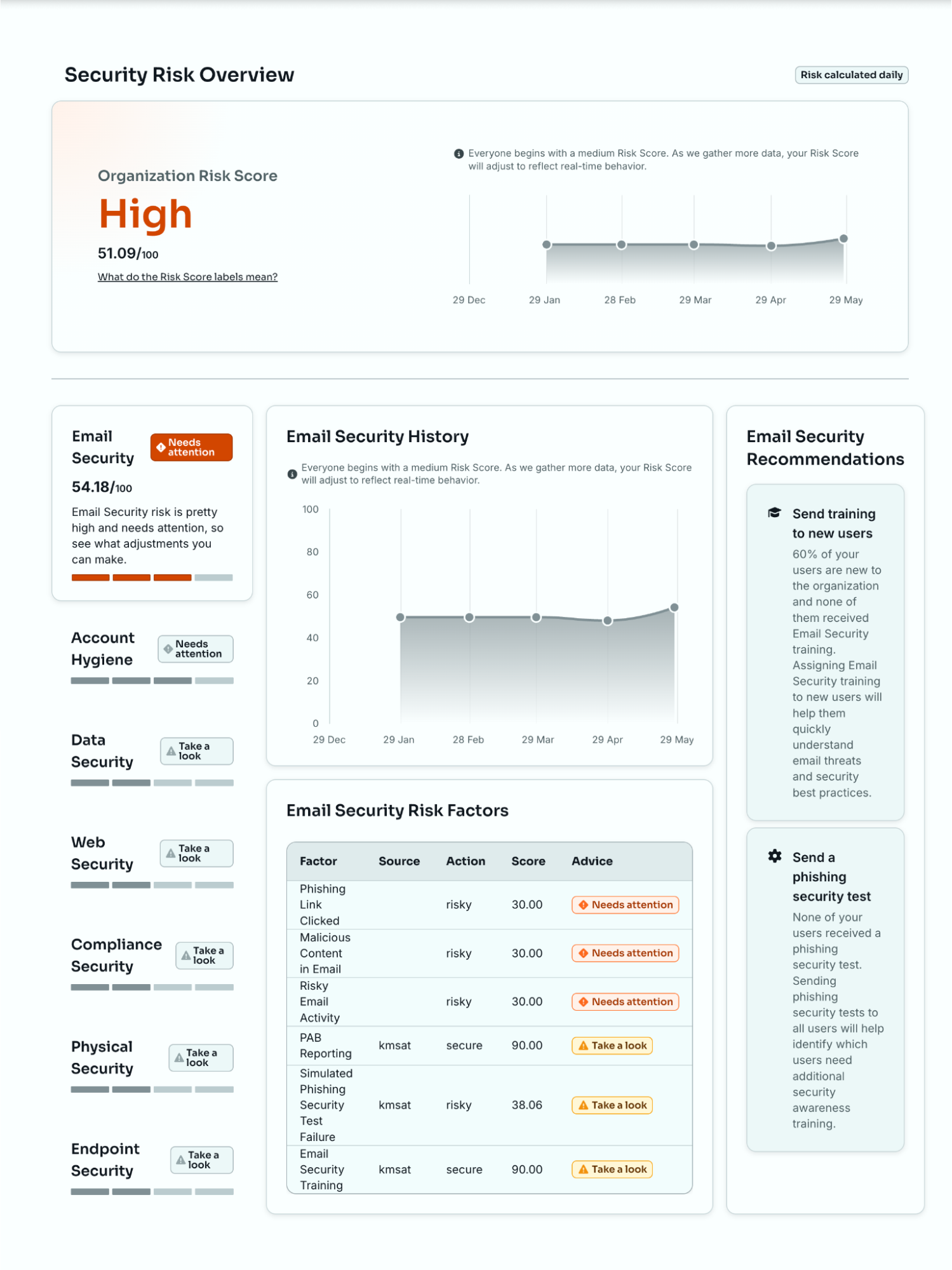
On the Home page, you can view the new Risk Score dashboard. This page allows you to view actionable insights for your Risk Score. The functionality behind Risk Score hasn't changed, just the look is different. For more information about Risk Score, see our SmartRisk™ Engine and Risk Score Guide.
In the new experience, you can click each security type widget to view its Risk Score, history, risk factors, and recommendations right on the dashboard. We also provide you with dynamic, actionable Risk Score recommendations based on your organization's integrated products and security needs.
Organization Settings
The Your Organization section allows you to adjust your general settings, allowed domains for your account, and authentication integrations.
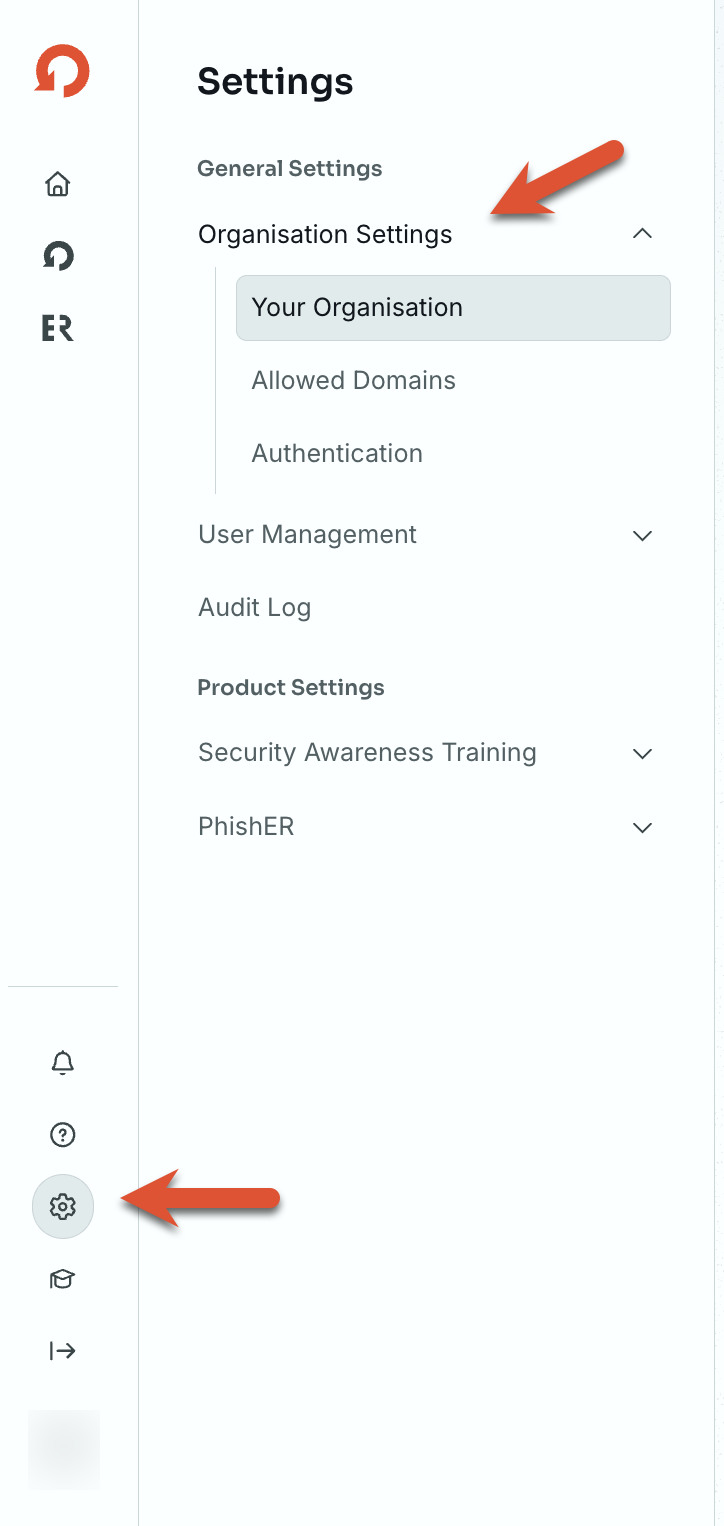
In the new experience, your settings are located on the left side of the page. To access these settings, log in to your KnowBe4 console and navigate to Settings > Organization Settings.
Your Organization
The Your Organization tab allows you to adjust settings for your organization's general details, time and location, and primary support contact.
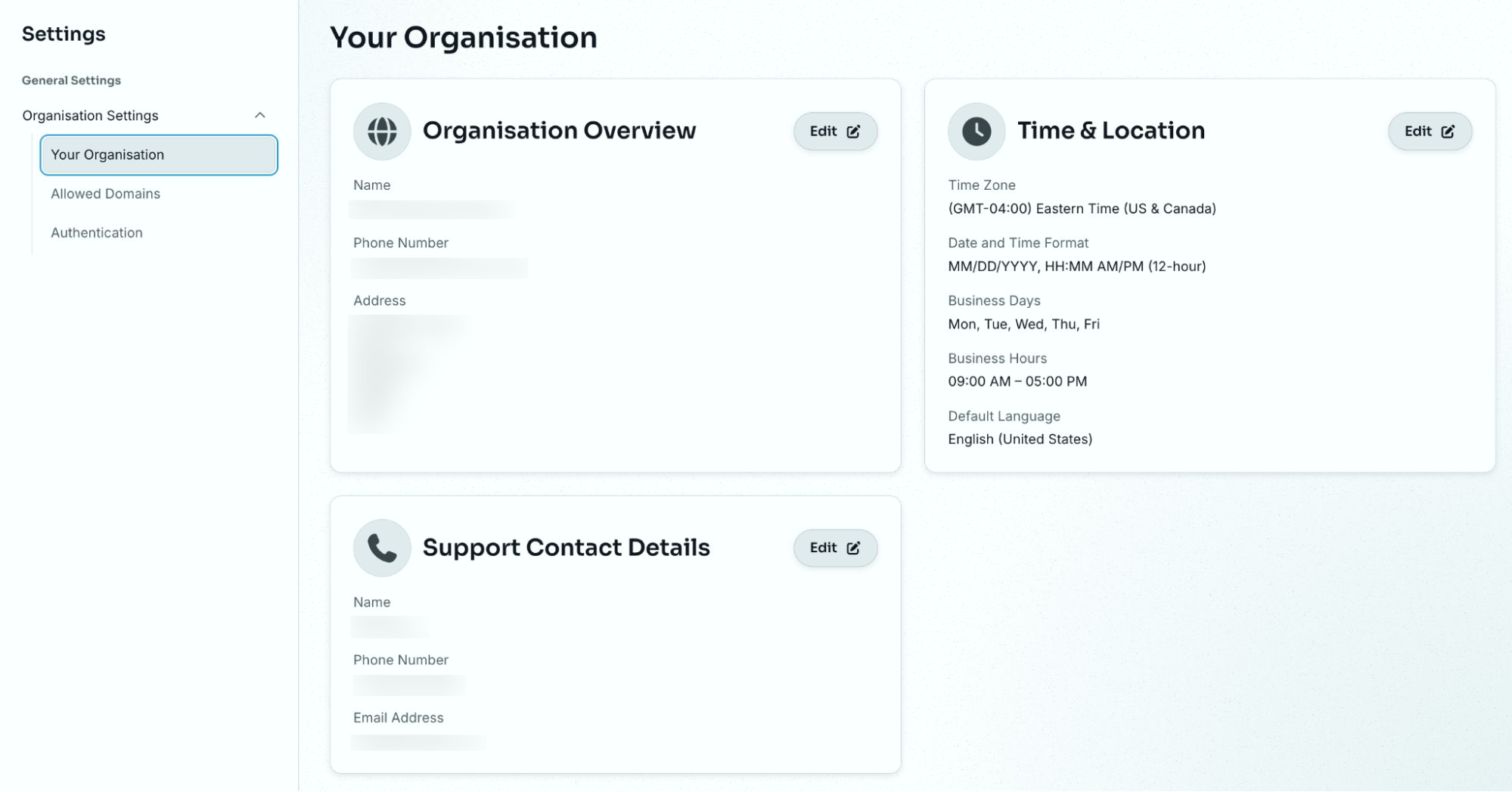
In the Support Contact Details section, you can enter information about your organization's primary contact for account service with KnowBe4 and technical support.
Allowed Domains
The Allowed Domains tab allows you to view, add, and verify domains for your account. For more information about these settings, see our Add and Verify Domains article.
Authentication
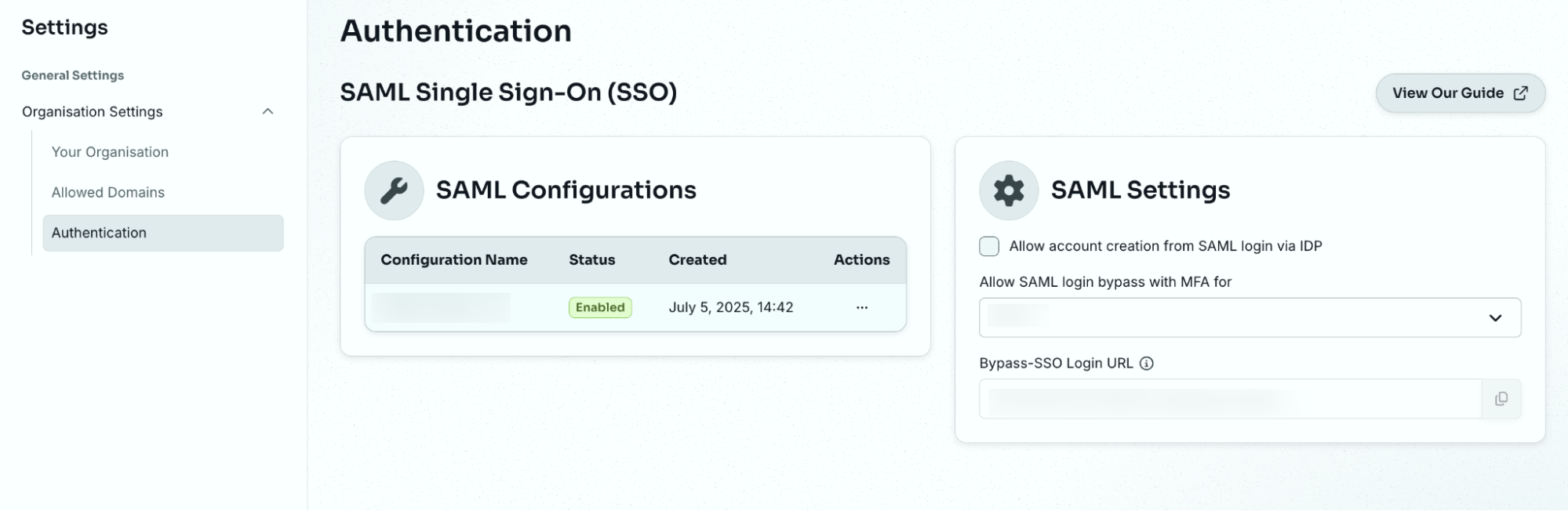
The Authentication tab allows you to add and set up your SAML single sign-on (SSO) configurations for your account. For more information about these settings, see our SAML Single Sign-On (SSO) section in the Knowledge Base.
User Management
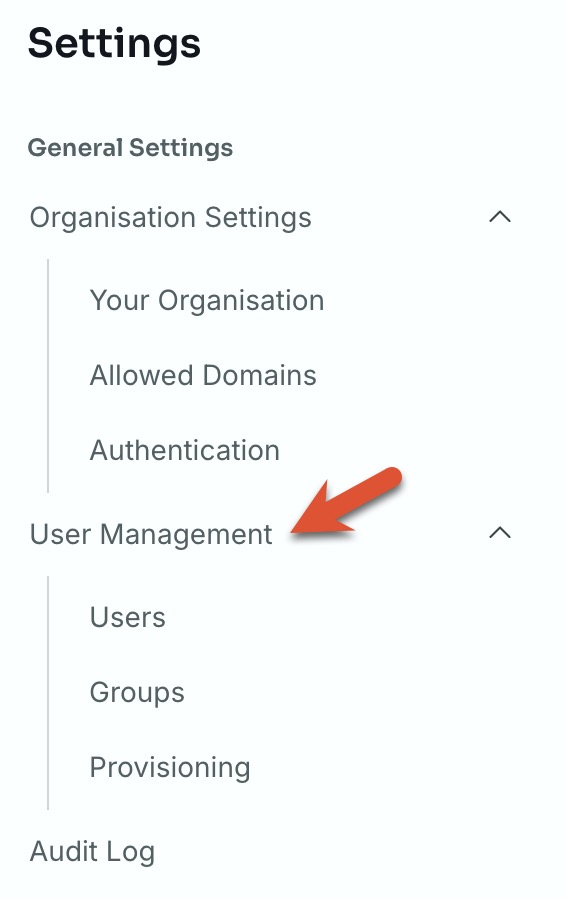
The User Management section allows you to add and view your users, and view and edit your groups. In the Provisioning tab, you can add and view your sync configurations and sync reports.
In the new experience, the User Management section is on the left side of the page. To access these settings, log in to your KnowBe4 console and navigate to Settings > User Management.
Users
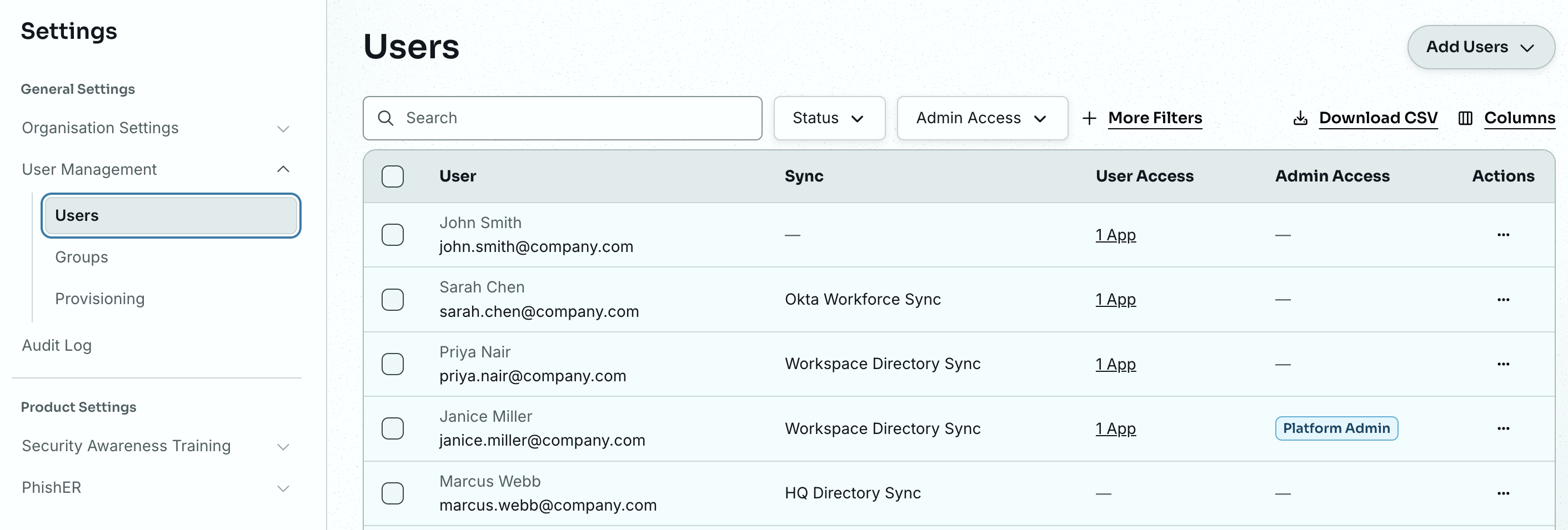
The Users tab lists all of your users in the KnowBe4 console. From this list, you can add users to the KnowBe4 console and to groups, view and change their user or admin access, edit their profile details, and export a list of your users to a CSV file. You can also view their sync status.
For more information about these settings, see our Users and Groups Management Guide.
Groups
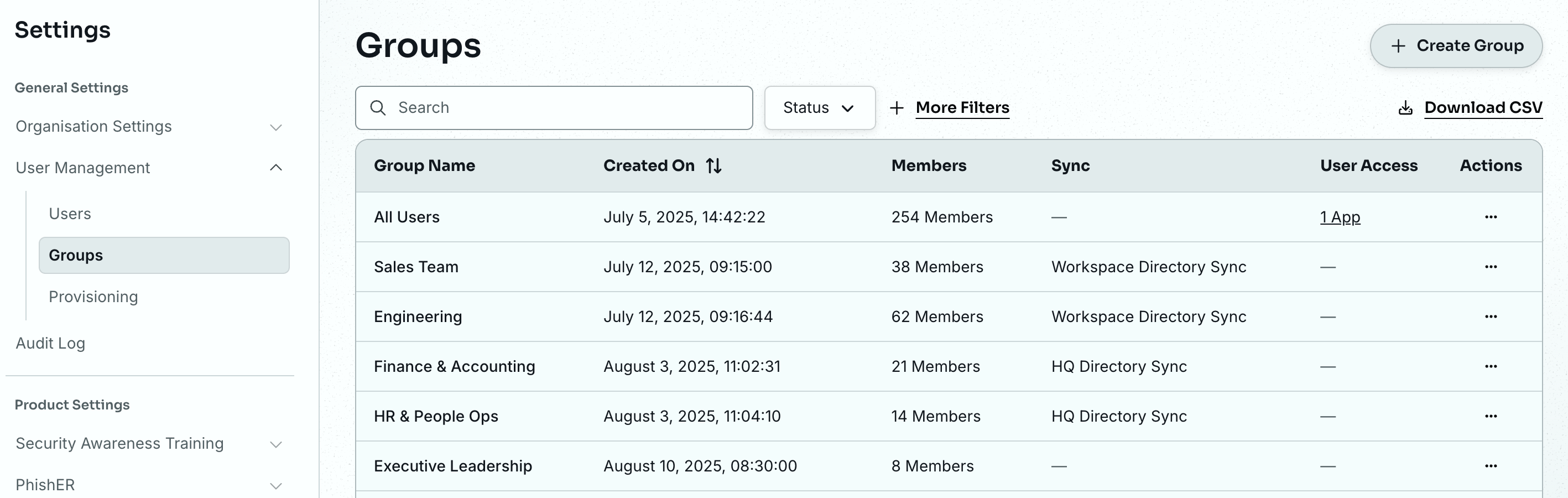
The Groups tab allows you to target your users with specific phishing or training campaigns. For more information on creating and managing groups, see our Users and Groups Management Guide.
Provisioning
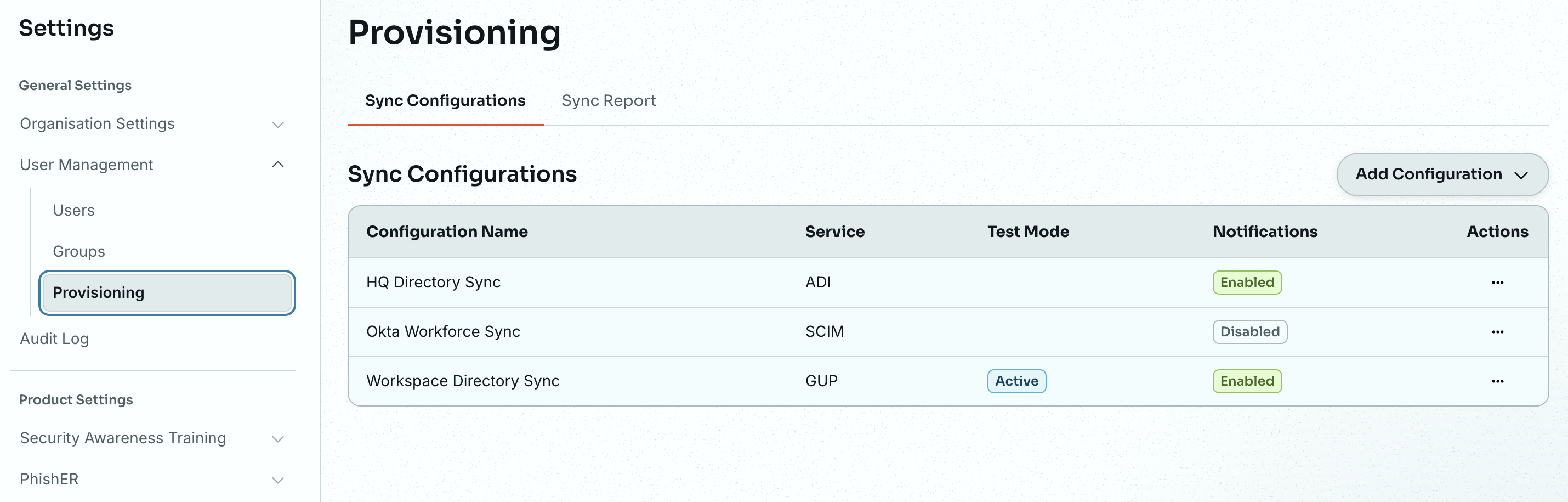
The Provisioning tab allows you to edit your user provisioning settings. You can use Active Directory Integration (ADI), SCIM, or Google User Provisioning (GUP) to provision your users.
The Sync Configurations subtab allows you to view the status of your sync configurations, and edit, add, and delete configurations.
The Sync Report tab allows you to view reports across all of your sync configurations.
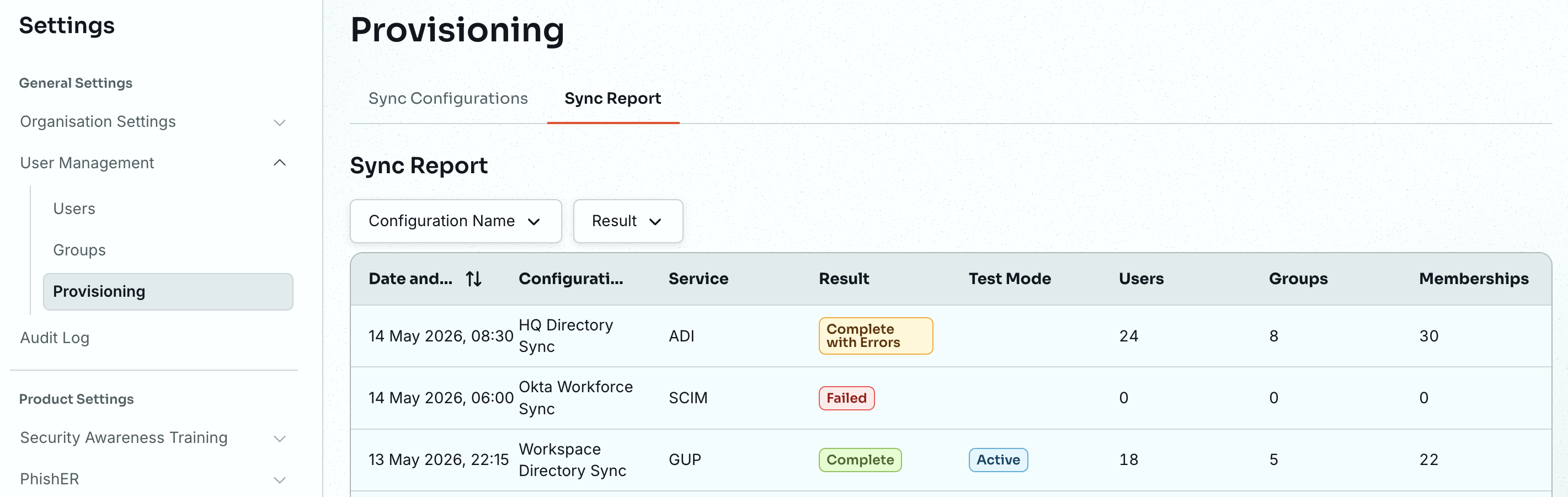
For more information about provisioning, see our Provisioning Subtab Guide and our KnowBe4 Console Account Settings: User Management article.
Personal Settings
In the new experience, your personal settings are located on the bottom-left side of the page. The Personal Settings section allows you to manage settings related to your personal account.
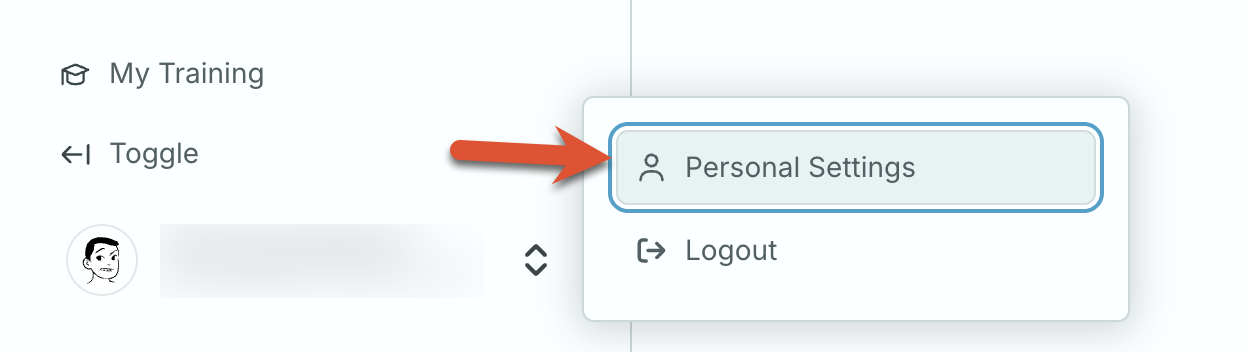
To access these settings, log in to your KnowBe4 console. Then, click your email address on the bottom-left side of the page and select Personal Settings.
Personal Details
The Personal Details tab allows you to enter your personal information and time and location information.
Notifications and Alerts
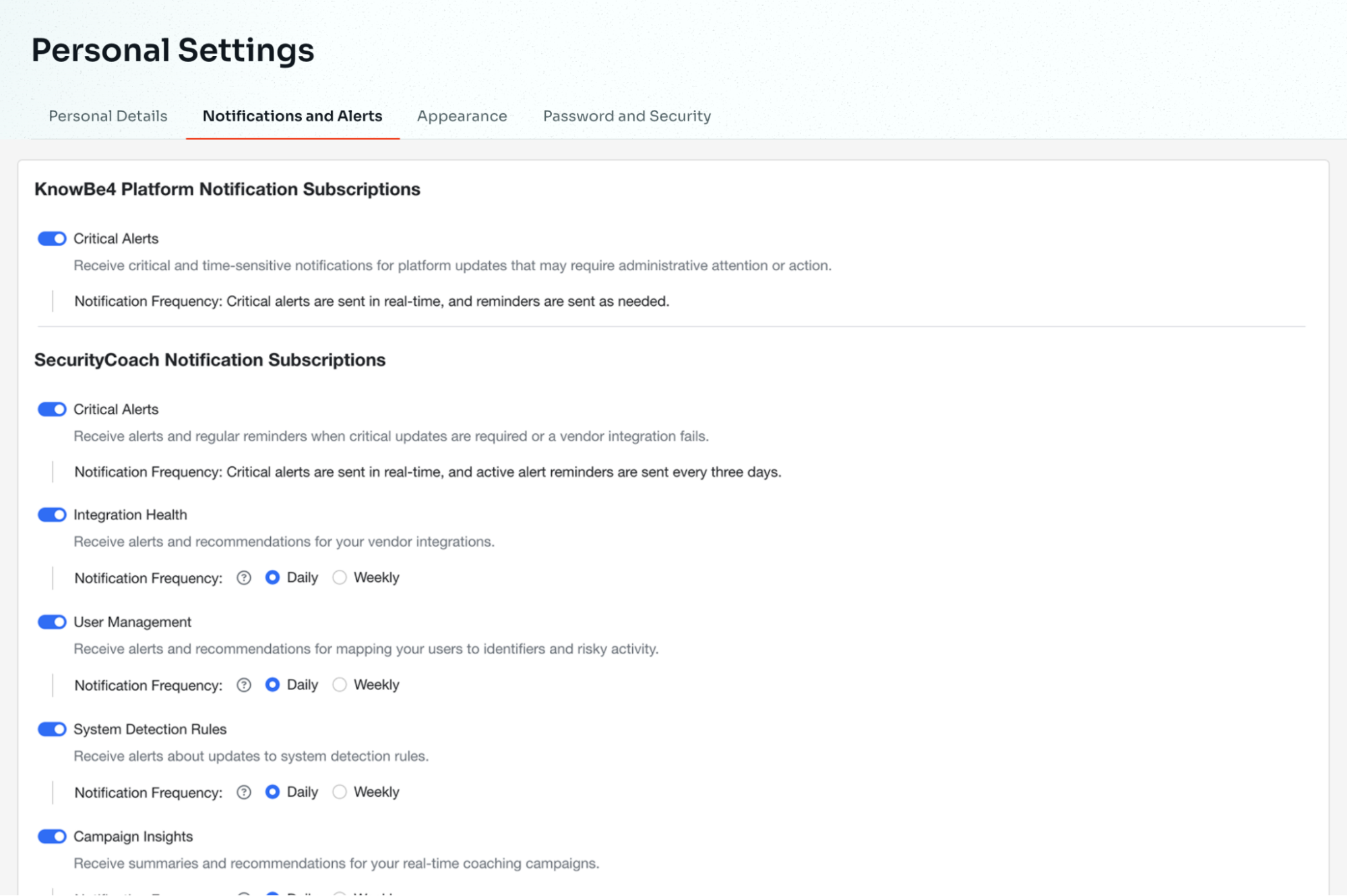
The Notifications and Alerts tab allows you to manage system notifications and alerts. For more information, see the Notifications and Alerts section of our Personal Settings Guide.
Appearance
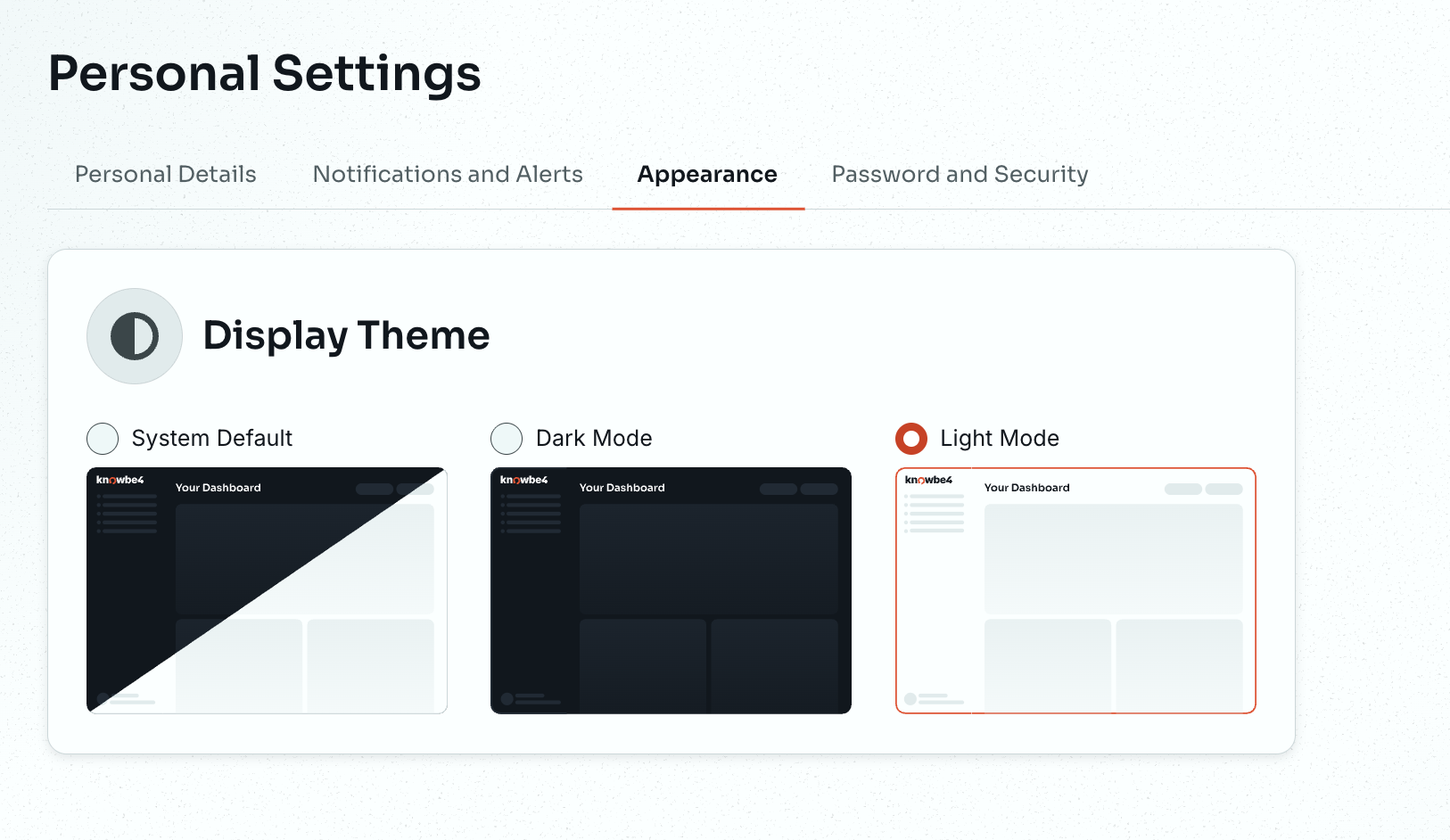
The Appearance tab allows you to choose your preferred theme for your KnowBe4 console. You can select System Default, Light Mode, or Dark Mode.
Password and Security
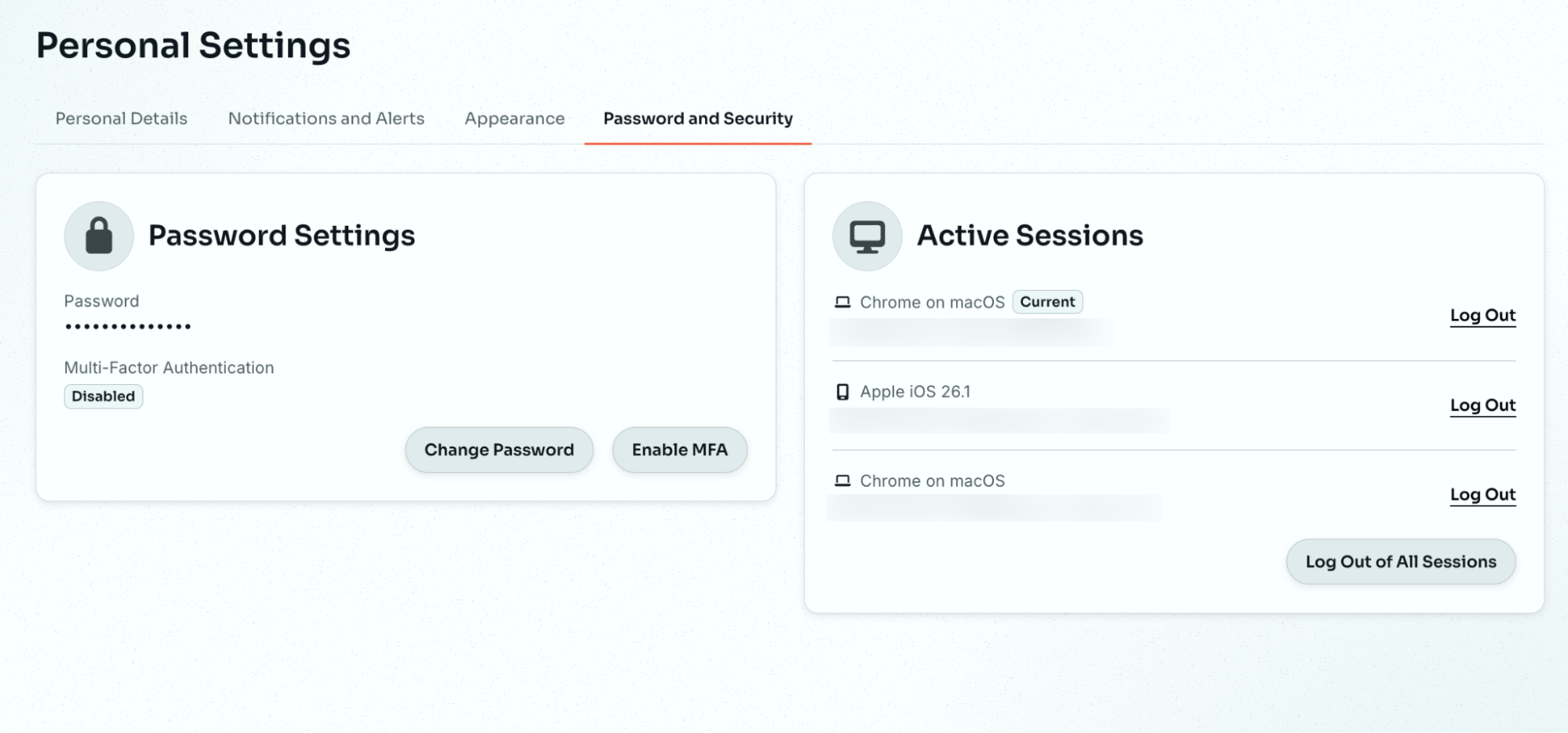
The Password and Security tab allows you to change your password, enable multi-factor authentication (MFA), and view or log out of your active sessions.