All admins and Security Role users in your KnowBe4 Security Awareness Training (SAT) console have access to their own personal settings. The Personal Settings page is used to update personal information and preferences such as name, time zone, preferred date and time format, phone number, password, and Multi-Factor Authentication (MFA) settings.
Access Your Profile
To access your personal settings, follow the steps below:
- Log in to your KnowBe4 SAT console.
-
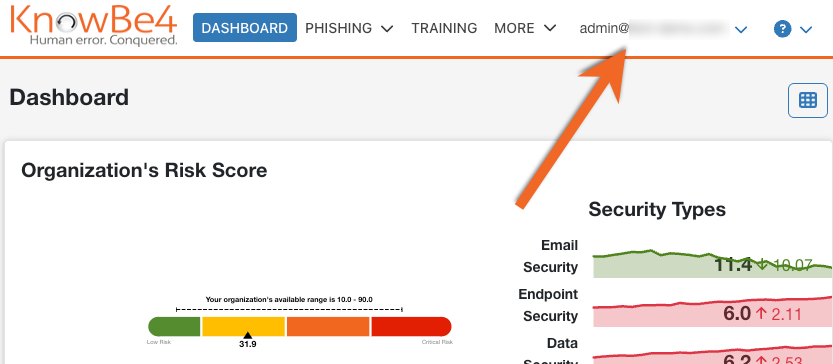
Select your email address in the top-right corner of the page.
-
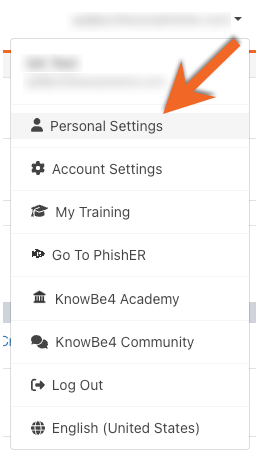
From the drop-down menu, select Personal Settings.
Personal Details
In your Personal Details subtab, you can update information such as your name, mobile phone number, MFA settings, and more. For more information, see the screenshot and list below:
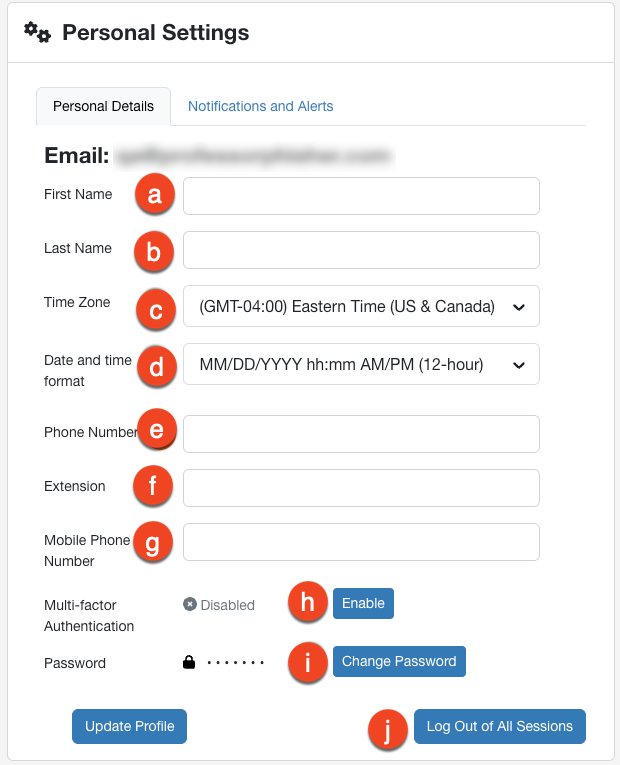
- First Name: Enter your preferred first name.
- Last Name: Enter your preferred last name.
- Time Zone: Select your preferred time zone. Your selection will change how timestamps appear to you in the admin console.
- Date and time format: Select your preferred date and time format. Your selection will change how dates and times appear to you in the admin console.
- Phone Number: Enter your preferred phone number.
- Extension: Enter the extension of your preferred phone number, if applicable.
- Mobile Phone Number: Enter your preferred mobile phone number.
- Multi-factor Authentication: Enable or disable Multi-Factor Authentication (MFA) for your account.
- Change Password: Change your password.
- Log Out of All Sessions: Log yourself out of all active sessions in the KnowBe4 SAT console.
After making any updates to this page, select Update Profile to save your changes.
Notifications and Alerts
You can use the Notifications and Alerts subtab to manage your system notifications and alerts. For more information, see the screenshot and list below:
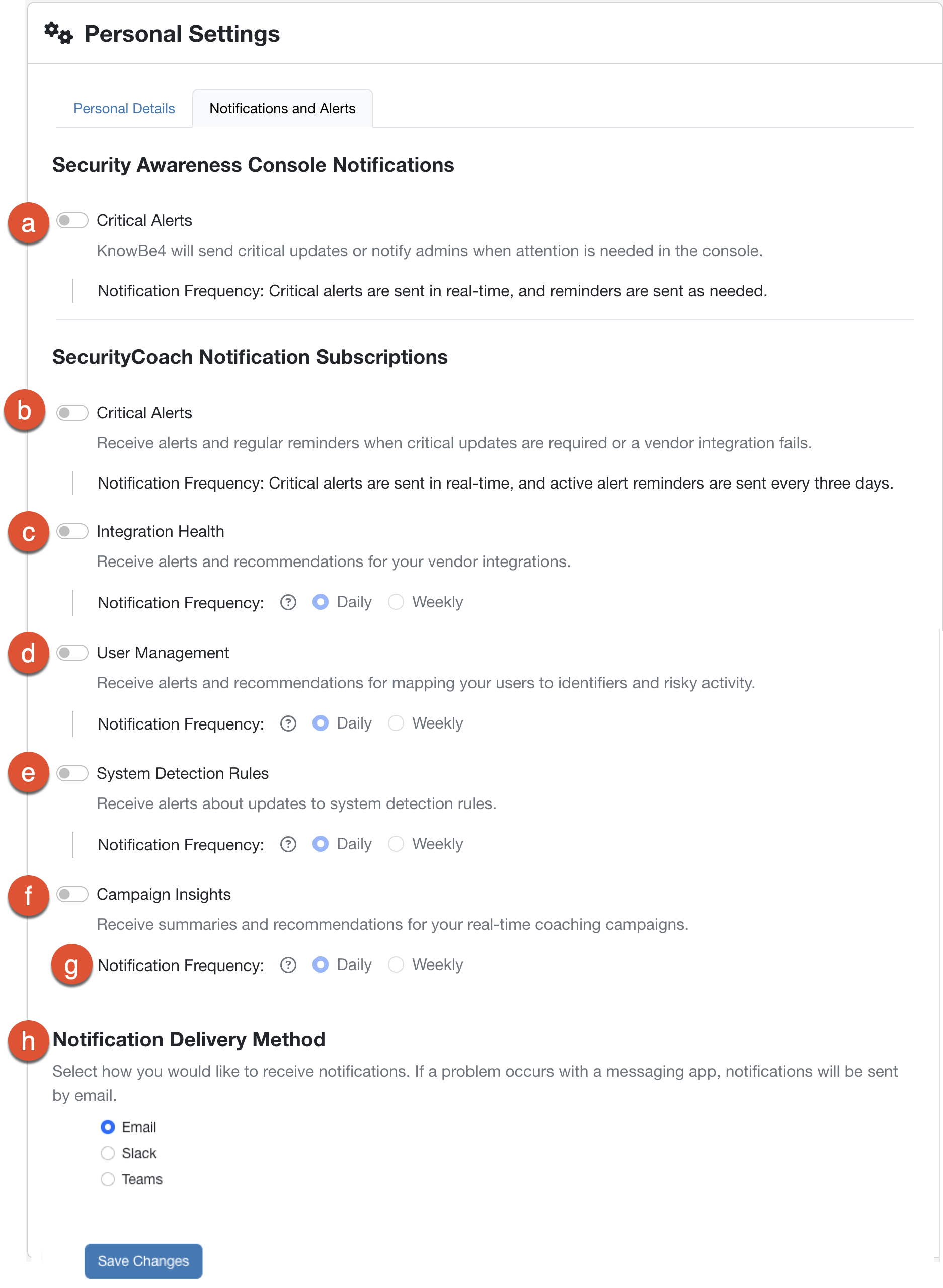
- Platform Critical Alerts: Receive critical and time-sensitive notifications for KnowBe4 Platform updates that may require administrative attention or action.
-
Real-Time Coaching Critical Alerts: Receive alerts and regular reminders when critical Real-Time Coaching updates are required or a vendor integration fails.
Important:Critical alerts are always sent in real time, and reminders about unresolved critical alerts are sent every three calendar days. - Integration Health: Receive alerts and recommendations for your vendor integrations.
- User Management: Receive alerts and recommendations for mapping your users to identifiers and risky activity.
- System Detection Rules: Receive alerts about updates to system detection rules.
-
Notification Frequency: Each category can be customized to send at different regular intervals:
-
Daily: Receive the selected notification every business day at 14:00 in your organization’s set time zone.
Note:If 14:00 is outside your organization’s set business hours, the notification will be sent at the next available business hour. To update your organization’s business hours, see our KnowBe4 Console Account Settings: Account Information article. -
Weekly: Receive the selected notification every Wednesday at 14:00 in your organization’s set time zone.
Note:If Wednesday at 14:00 is outside your organization’s set business hours, the notification will be sent at the next available business hour. To update your organization’s business hours, see our KnowBe4 Console Account Settings: Account Information article.
-
-
Notification Delivery Method: Select how you would like to receive notifications and alerts. If a problem occurs with a messaging app, notifications will be sent by email.
Note:To receive notifications via messaging apps, you must first configure the messaging app in Real-Time Coaching.
After making any updates to this page, select Save Changes to confirm and save your updates.