You can use Active Directory Integration (ADI) or the System for Cross-Domain Identity Management (SCIM) to bulk import users and add optional information about your users. If you use ADI or SCIM, you can view the results of your user provisioning syncs in the Provisioning subtab. To access the Provisioning subtab, log in to your KSAT console and navigate to Users > Provisioning.
See below for an overview of the Provisioning subtab.

- Service: Select the drop-down arrow to filter all user provisioning syncs by the provisioning service used. You can filter by ADI, SCIM, or All.
-
Status: Displays the sync status and how much data the provisioning has collected. There are four types of statuses:
- Pending - a sync has started, and provisioning is waiting for the data.
- Processing - provisioning has started collecting data and processing any changes to the users or groups.
- Completed - provisioning has finished collecting data, and users have been updated if applicable.
- Skipped - provisioning detected a misconfiguration between the settings in the console and the user data it was given, causing it to skip the sync.
- Groups, Users, and Memberships: Displays the number of groups, users, and memberships that the provisioning service created, archived, restored, or managed.
- Service: View the provisioning service used for each sync, such as ADI or SCIM.
- Test Mode: Indicates whether or not test mode was on when the sync occurred. Test mode reports what changes would be made without making the changes.
- Details: Click this button for more information about the specific sync. When you click this button, you'll be taken to a page with details about your sync. For more information about this page, see the below screenshot.
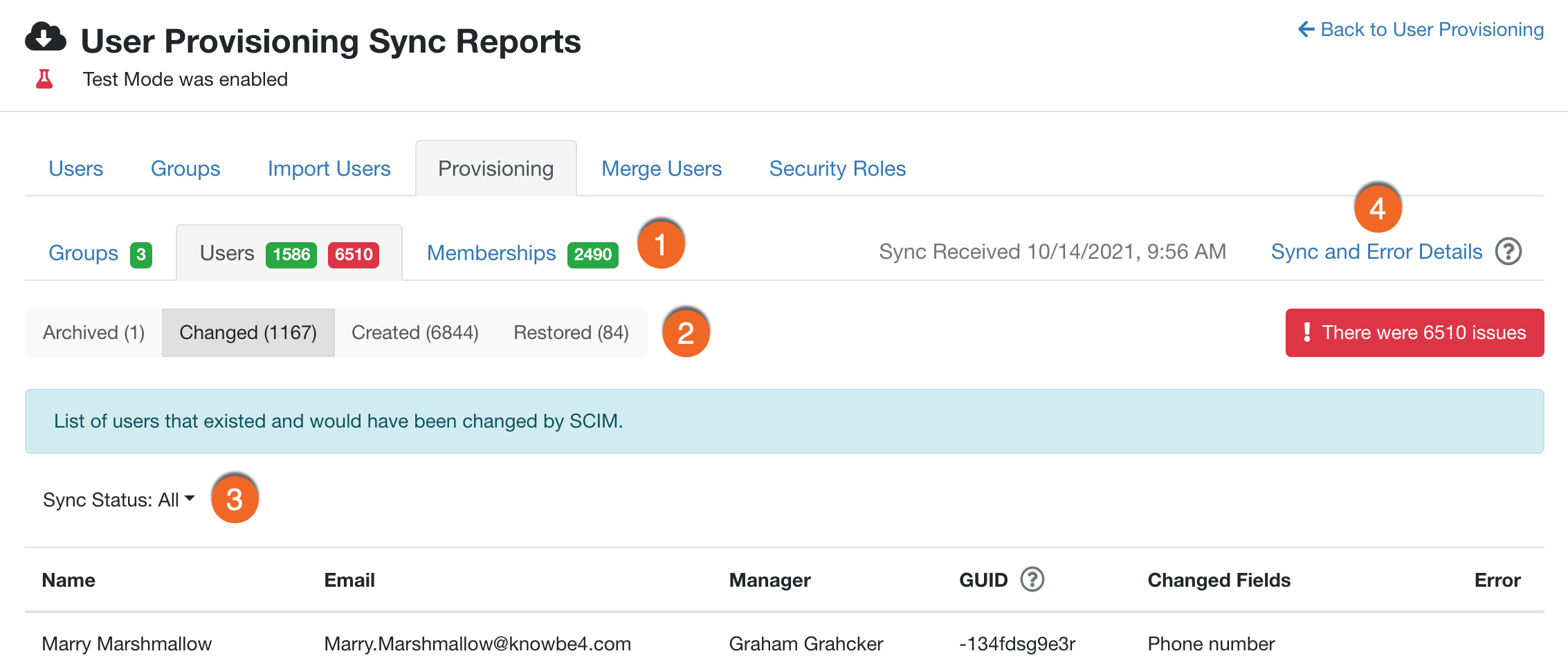
- Groups, Users, and Memberships: View the three different categories that were covered by your provisioning sync.
- Archived, Changed, Created, and Restored: View the different subsections that can appear depending on your sync.
- Sync Status: Click this drop-down arrow to filter your subsections. You can filter by Successful, Failed, or All.
- Sync and Error Details: Click this link to download a JSON file with the ADI sync changes and detailed error information. This file may not include all the information provided on the Provisioning subtab of your KSAT console.
You can view up to 30 sync reports in the Provisioning subtab. If you have run more than 30 syncs, the oldest syncs will be deleted. For example, if you have run 30 syncs and decide to sync one more time, the first sync that you ran will be deleted from the Provisioning subtab.
After a sync report has been available for 30 days, you will no longer have the option to click the Details button for that report.