In this guide, you’ll learn how to get started with Defend. Defend is a powerful cybersecurity tool that safeguards your organization against sophisticated inbound threats. Defend analyzes emails at delivery and provides protection that keeps your users and sensitive data secure. You can use the Defend console to customize security settings and conduct thorough investigations of detected and user-reported phishing emails.
To access the Defend console, you must first use the deployment center to deploy Defend for your organization.
Deployment Center
The Defend deployment center is a comprehensive wizard that allows admins to configure and deploy Defend features to their organization easily. Admins are guided through each section of the deployment process, and progress is saved at every step. Once the deployment center is complete, admins gain access to the Defend console, where further customization can be completed.
Prerequisites
To successfully complete the deployment center process, make sure you have the following prerequisites:
- Microsoft 365 tenant
- Global admin role on Microsoft 365 tenant
Deployment Center Steps
The following steps are completed in the deployment center:
-
Domain and SEG: Confirm your primary domain, industry, and SEG provider. For more information about the fields on the Domain and SEG page, see the list below.
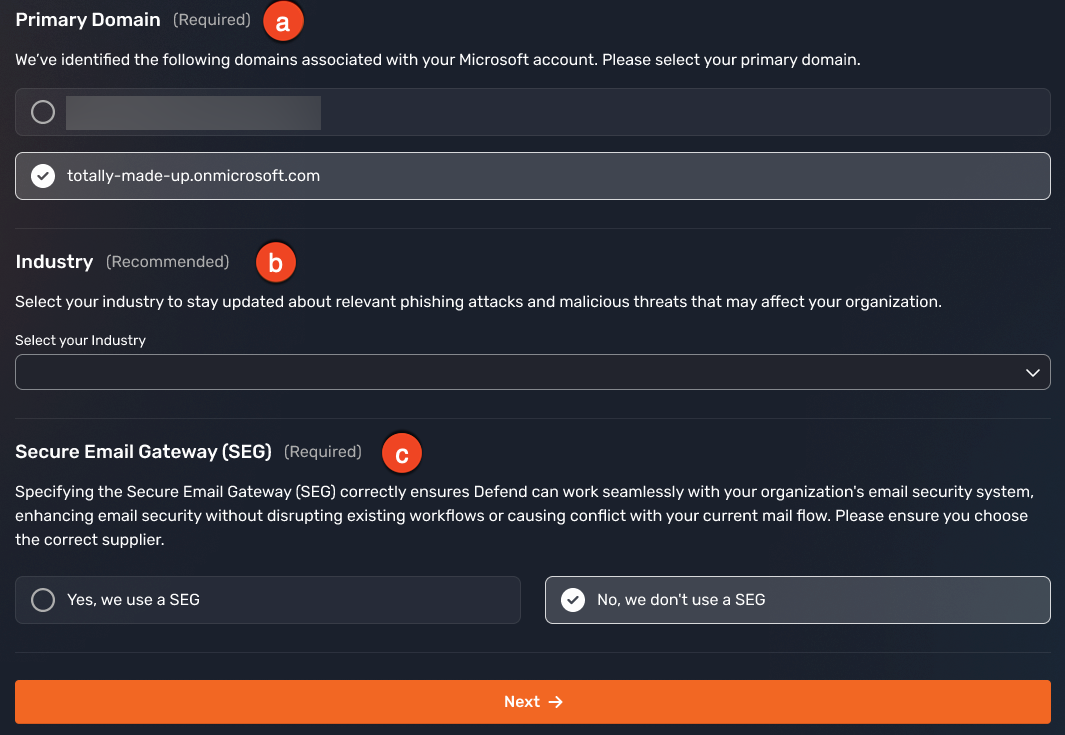
- Primary Domain: Defend will detect and provide a list of internal domains. Review the list and select your organization's primary domain.
- Industry: Use the drop-down menu to select the most appropriate industry for your organization. Industry information enables Defend to address industry-specific threats.
- Secure Email Gateway (SEG): Select if your organization uses a SEG.
-
Impersonation: Customize your impersonation protection by providing your organization's associated domains and brand names. For more information about the fields on the Impersonation page, see the list below.
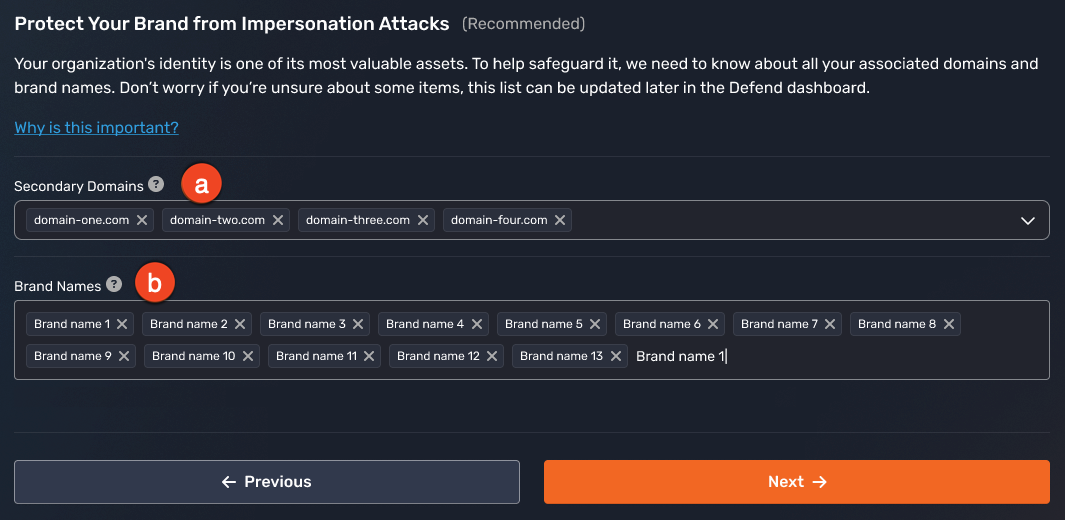
- Secondary Domains: Knowing your secondary domains allows Defend to extend protection to all your organization's domains and prevents impersonation attacks of these domains.
-
Brand Names: Understanding your brand names enables Defend to detect and block brand impersonation attacks that attempt to use variations of your organization's trusted identity. Adding as many brand names as possible is key to maximizing protection against these impersonation attacks.
Warning:Leaving the Brand Names field empty exposes your organization to an increased risk of impersonation attacks.
-
Linguistics: Avoid false positives by listing custom subject line phrases that are used widely in your organization. For more information about the fields on the Linguistics page, see the list below.
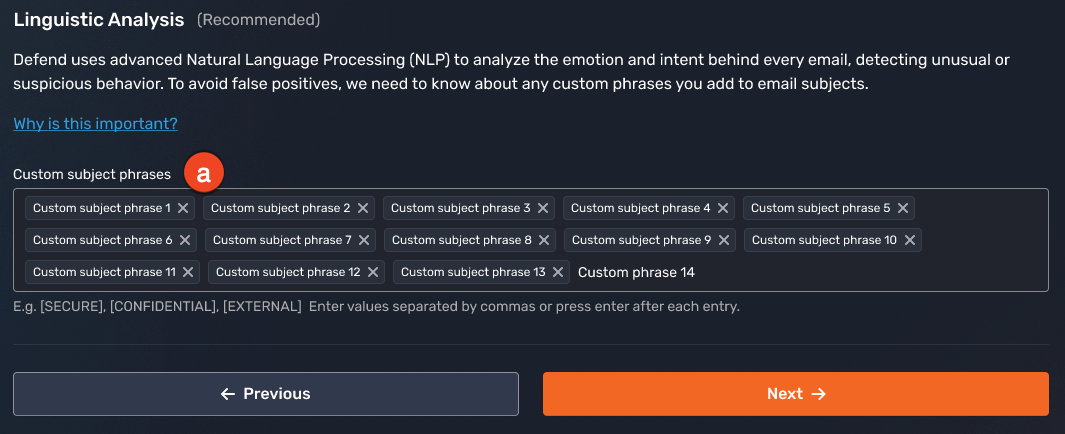
- Custom subject phrases: Understanding your organization's common email subject phrases enables Defend to better distinguish between legitimate communications and sophisticated phishing attempts that mimic your organization's standard messaging patterns.
-
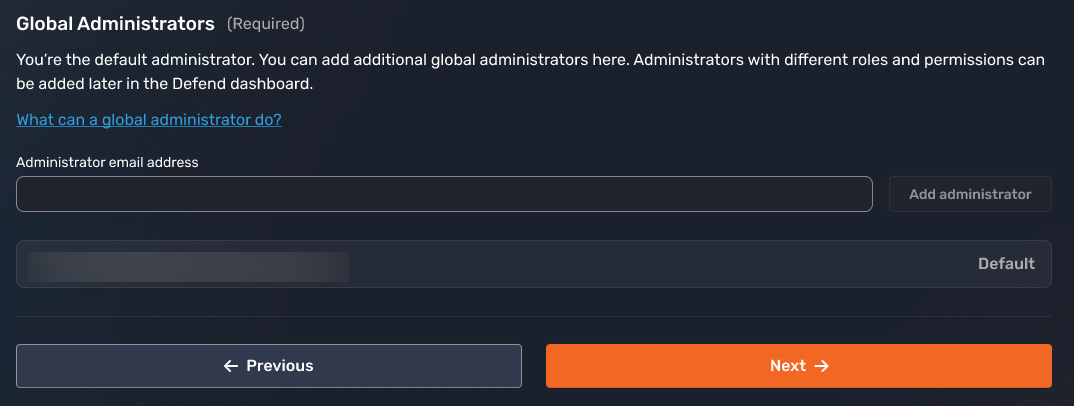
Admins: Specify the Global Admins who will be managing your Defend console.
-
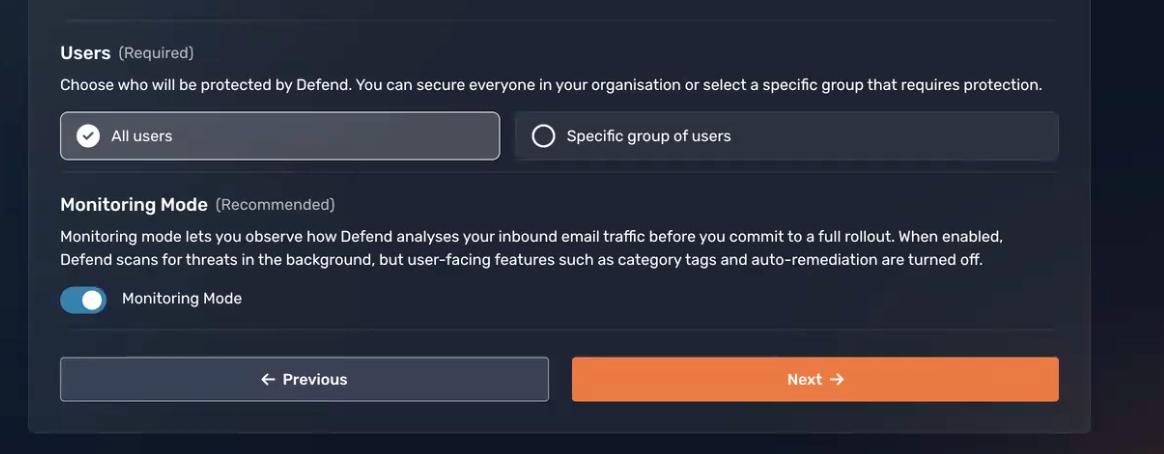
Users: Choose whether to protect your entire organization or a specific group of users. To test Defend without impacting user experience, enable Monitoring Mode . Monitoring mode exceptions can be added in the Defend admin console to allow specified users to receive Defend functionality before a full rollout, or you can disable monitoring mode entirely when you’re ready for a full rollout.
-
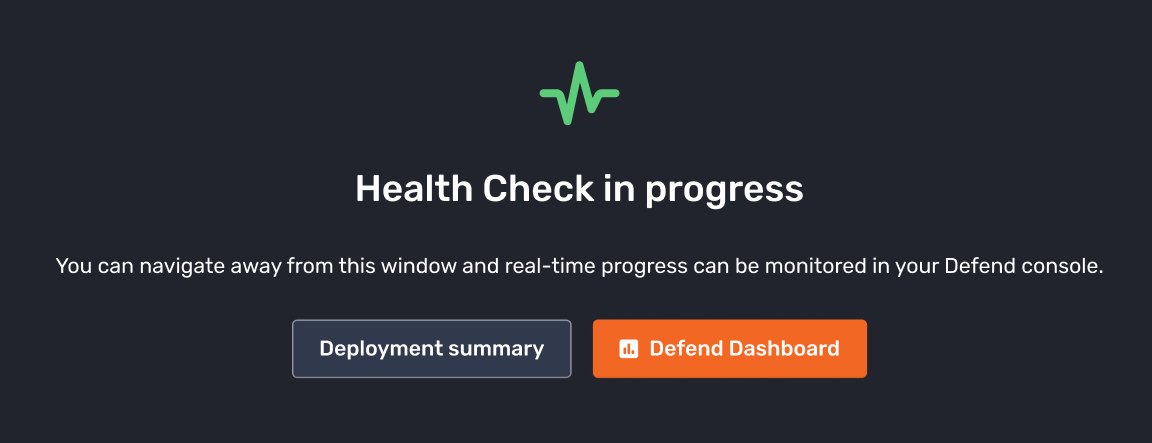
Health Check: Add a test user to run a health check against the user to ensure successful deployment.
-
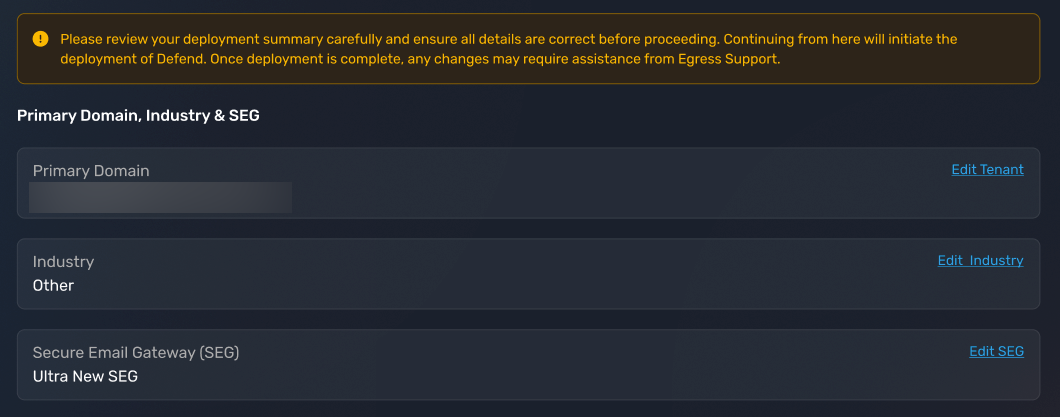
Deployment Summary: Review and edit the information you have provided before deployment. Once you are ready to proceed, select Next, and then the Deploy Defend button. Selecting Deploy Defend takes you to the Deploy page, where Defend creates the required app registration in your Microsoft 365 tenant.
-
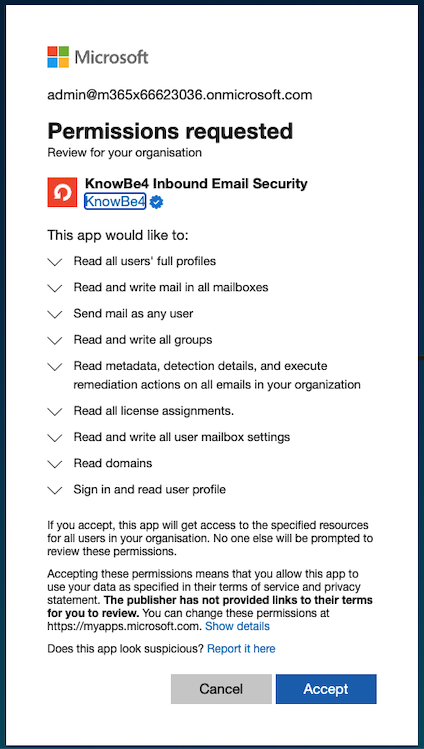
Grant App Registration Consent: Once the app registration has been created, select Grant App Consent Permissions. A window will open explaining why app consent is required, along with a list of the permissions Defend is requesting.
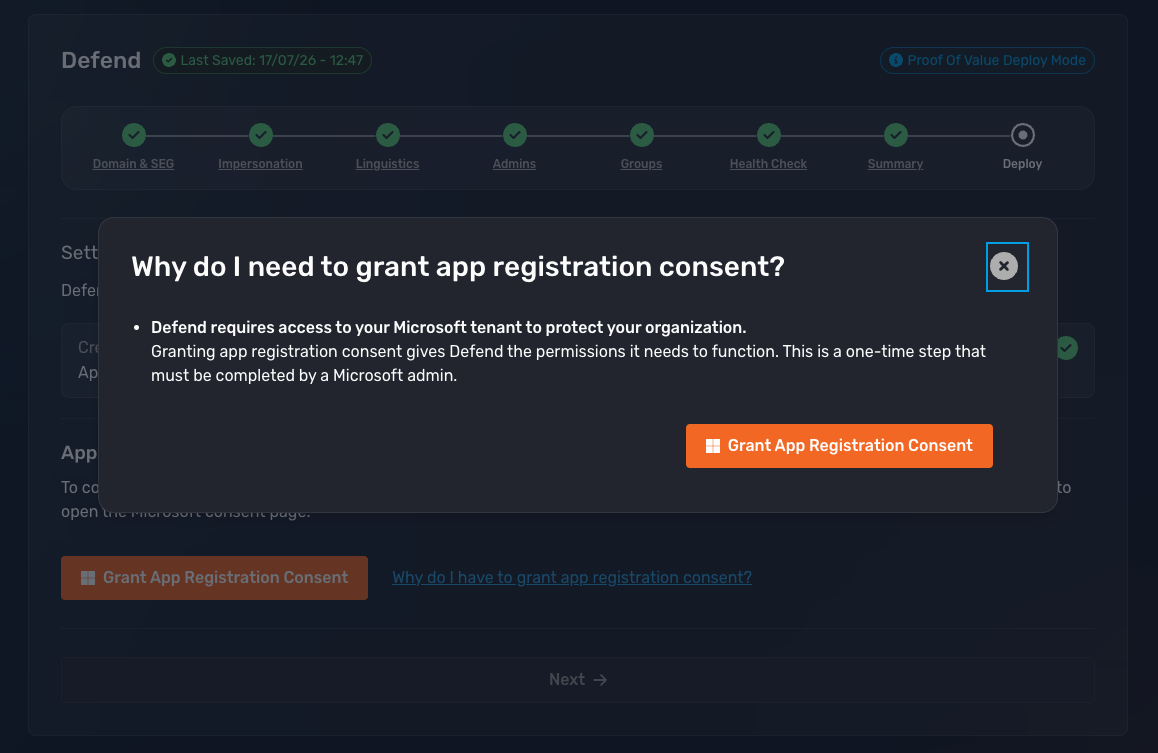
- Review the requested permissions, then select Accept to grant consent.
- Once consent has been granted, select the Next button to deploy Defend.
Summarized Changes
Once successfully deployed, the following changes will be made to your Microsoft tenant, allowing Defend features to function correctly.
Within the App Registration section, we break down the permissions at a granular level, listing each permission with its justification and noting what we're requesting.
| App Registration | Permissions Required | Justification |
|---|---|---|
| User Analysis |
Microsoft Graph > Application Permissions > Group.Read.All Microsoft Graph > Application Permissions > Mail.Read Microsoft Graph > Application Permissions > MailboxSettings.Read Microsoft Graph > Delegated Permissions > User.Read Microsoft Graph > Application Permissions > User.Read.All |
Establishes an understanding of users and groups in an organization and analyzes their historical email to improve efficacy. |
| Admin Features |
Microsoft Graph > Application Permissions > Mail.ReadWrite Microsoft Graph > Delegated Permissions > User.Read Microsoft Graph > Application Permissions > User.Read.All |
Enables admins to view emails in the Defend console and remediate dangerous phishing emails from inboxes. |
| Egress ESI OpenID |
Microsoft Graph > Delegated Permissions > email Microsoft Graph > Delegated Permissions > openid Microsoft Graph > Delegated Permissions > profile Microsoft Graph > Delegated Permissions > offline_access |
The OpenID permissions are generic authentication scopes that enable Defend to authenticate users, access their basic identity information, and maintain persistent access for a seamless user experience across sessions. |
| KnowBe4 Onboard* |
Microsoft Graph > Application Permissions > Domain.Read.All Microsoft Graph > Delegated Permissions > email Microsoft Graph > Delegated Permissions > openid Microsoft Graph > Delegated Permissions > profile Microsoft Graph > Delegated Permissions > offline_access Microsoft Graph > Delegated Permissions > User.Read |
This app registration handles the initial onboarding phase. It requires read access to validate your domain and get started, along with basic authentication scopes needed for initial user login and verification. |
| KnowBe4 Deploy* |
Microsoft Graph > Application Permissions > Domain.ReadWrite.All Microsoft Graph > Application Permissions > Group.ReadWrite.All Microsoft Graph > Application Permissions > User.Read.All Microsoft Graph > Application Permissions > Exchange.Manage Microsoft Graph > Application Permissions > Application.ReadWrite.All Microsoft Graph > Application Permissions > Synchronization.ReadWrite.All |
This primary app registration is for the deployment center. It requires write access to configure mail flow, creates transport rules and connectors in Microsoft Exchange for Defend, manages necessary processing groups, queries and verifies all users for protection policies, and enables SCIM provisioning. |
| KnowBe4 Collaboration Security |
Microsoft Graph > Application Permissions > User.Read.All Microsoft Graph > Application Permissions > Files.Read.All Microsoft Graph > Application Permissions > Mail.ReadWrite Microsoft Graph > Application Permissions > Mail.Send Microsoft Graph > Application Permissions > Group.ReadWrite.All Microsoft Graph > Application Permissions > SecurityAnalyzedMessage.ReadWrite.All Microsoft Graph > Application Permissions > LicenseAssignment.Read.All Microsoft Graph > Application Permissions > MailboxSettings.ReadWrite Microsoft Graph > Application Permissions > Domain.Read.All Microsoft Graph > Application Permissions > ChannelMessage.Read.All Microsoft Graph > Application Permissions > Chat.Read.All Microsoft Graph > Application Permissions > Chat.UpdatePolicyViolation.All Microsoft Graph > Application Permissions > ConfigurationMonitoring.ReadWrite.All Microsoft Graph > Application Permissions > Sites.Read.All Microsoft Graph > Delegated Permissions > User.Read
|
Enables Defend to monitor Microsoft Teams for threats and to provide data within the admin portal.
|
*These app registrations are only required for the duration of the Defend deployment and can be removed once installation is complete.
Defend Console
Once deployment is complete, you will have access to the Defend console.
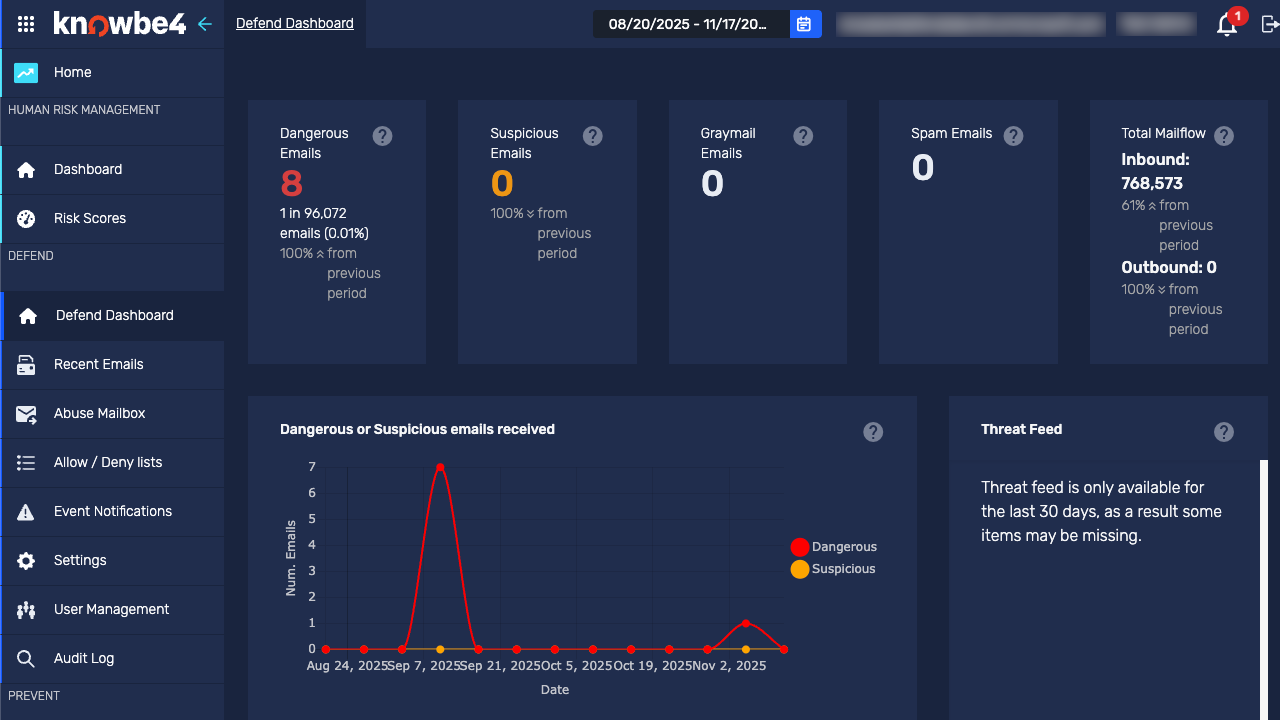
The console is comprised of the following pages:
- Dashboard
- The dashboard provides an overview of the email activity observed by Defend. The information on the dashboard is displayed in easy-to-read graphs and charts.
- For further information, see the Defend - Dashboard article.
- Recent Emails
- The Recent Emails page allows admins to view and analyze emails processed by Defend.
- For further information, see the Defend - Recent Emails article.
- Allow or Deny List
- These lists can specify what happens when a specified email address, domain, or IP address sends an email to a user in your organization.
- For further information, see the Defend - Allow or Deny Lists article.
- Event Notifications
- Event notifications can be used to trigger admin notifications when specific actions occur.
- For further information, see the Defend - Event Notifications article.
- Settings
- The Settings page allows admins to customize Defend settings to suit an organization's needs.
- For further information, see the Defend | Post-Delivery Settings article.
- URL Rewriting or Decoding
- Add URL exceptions that Defend will no longer rewrite. Use the decode tool to view Defend’s rewritten URLs in their original form.
- For further information, see the Defend - URL Rewriting Exceptions and Defend - URL Decoding articles.
- User Management
- The User Management page allows you to add, edit, and remove Defend admins.
- For further information, see the Defend - User Management article.
- Audit Log
- View changes in your Defend console made by all admins.