If you have an SAT Advanced or Diamond subscription, you can use our Vishing campaigns to call your users' phones and play a pre-recorded or text-to-speech message. This message asks the user to provide personal information, such as a PIN or Social Security number, in numeric form.
What Is Vishing?
Vishing is a type of social engineering attack that combines voice and phishing. Cybercriminals use phone calls or voice messages to trick victims into revealing sensitive personal or financial information, such as:
- Social Security numbers
- Bank account details
- Credit card information
- Login information, such as usernames and passwords
- Personal identification numbers (PINs)
How Vishing Failures Are Tracked
Vishing templates are programmed to expect a specific number of characters, so your KnowBe4 console can track failures. See below for how each outcome is recorded:
- Pass: If the user hangs up without entering any data, they pass the vishing test.
- Fail: If the user enters the requested number of digits into their phone, this action is considered a failure.
Vishing Terms of Use
KnowBe4 allows you to test each user with vishing calls up to 12 times per year. Only answered calls count toward this usage. Calls that fail, receive a busy tone, or go to voicemail do not count against this usage.
Aside from your normal subscription fee, KnowBe4 does not charge for vishing your users. However, domestic or international call rates may apply. KnowBe4 is not liable for any charges incurred by your users as a result of this feature. Check with your telephone service provider for more information about any charges you might receive.
By using KnowBe4's vishing service, you agree to these terms of use.
Before You Start Vishing Campaigns
Before you run a vishing test, you will need to add your users' phone numbers to SAT. You can add phone numbers in the Phone Number field of your users' profiles.
For users in the United States, area codes are required for a vishing call to be successful. Our system will be able to determine the phone number of the user and dial correctly based on any of the following formatting options:
- (###) ### ####
- ##########
- ###-###-####
- (###) ###-####
For users located outside the United States, numbers must meet E.164 formatting specifications. These specifications are outlined below:
- A + (plus) sign
- International country calling code
- Local area code
- Local phone number
Non-U.S. phone numbers that do not meet E.164 standards might be interpreted as U.S. phone numbers or incorrectly dialed by our vishing service.
Vishing Regions, Languages, and Area Codes
Vishing, along with support for local dialing, is currently available in the following regions:
- Australia
- Brazil
- Canada
- Israel
- Netherlands
- Singapore
- South Africa
- United Kingdom
- United States
The following vishing languages and voices are supported:
- Arabic
- Danish
- German
- English (Australia)
- English (Great Britain)
- English (South Africa)
- Spanish (Latin America)
- Spanish (Europe)
- Finnish
- French (Canada)
- French (Europe)
- Italian
- Japanese
- Korean
- Malay
- Norwegian (Bokmål)
- Dutch
- Polish
- Portuguese (Brazil)
- Romanian
- Russian
- Swedish
- Turkish
- Chinese (Mandarin) - Simplified
- Chinese (Cantonese) - Traditional
The following area codes are supported:
- 203 (Connecticut)
- 207 (Maine)
- 212 (New York)
- 214 (Texas)
- 217 (Illinois)
- 226 (Ontario)
- 281 (Texas)
- 305 (Florida)
- 341 (California)
- 404 (Georgia)
- 438 (Quebec)
- 702 (Nevada)
- 703 (Virginia)
- 713 (Texas)
- 727 (Florida)
- 929 (New York)
- Australia (AU): 7
- Brazil (BR): 15
- United Kingdom (GB): 20, 28, 1995
- Israel (IL): 4
- Netherlands (NL): 31
Creating a Vishing Campaign
To create a vishing campaign, go to your KnowBe4 console and navigate to Phishing > Vishing. Then, select + Create Vishing Campaign. On the New Vishing Campaign page, you can customize your vishing campaign.
To create a New Vishing Campaign, follow the steps below:
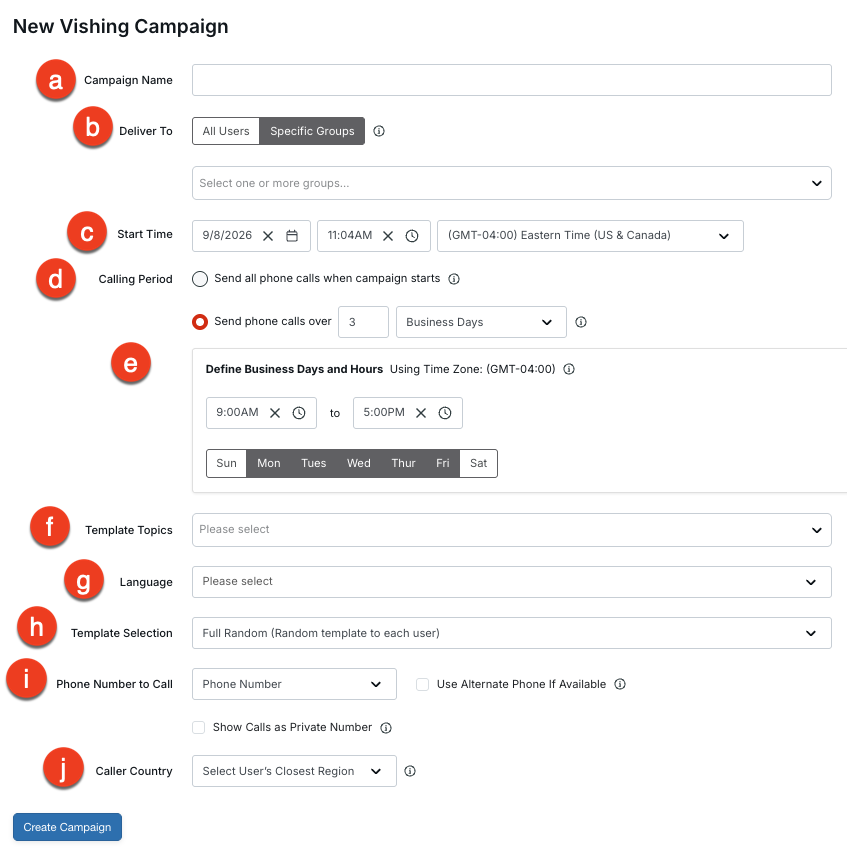
- Campaign Name: Enter a name for your vishing campaign. This is a required field.
- Deliver To: Select which users you would like to receive a vishing test. You can select either All Users or Specific Groups. If you choose Specific Groups, you must select a group from the drop-down menu. This is a required field.
- Start Time: Set the date, time, and time zone for when your vishing campaign starts. Your default time zone is the one set in your Account Settings.
-
Calling Period: Select when to start delivering vishing tests. You can choose to send all the phone calls at once or over time. For more information about the available options, see below:
- Send all phone calls when campaign starts: If you select this option, vishing tests will be delivered to all selected users when the campaign starts. Users will not receive the phone calls at the same time, but they will receive them on the same day.
- Send phone calls over: If you select this option, vishing tests will be delivered to users at random during the selected time period. If you choose to send phone calls over time, after the campaign starts, your users will be dialed randomly, and each call will be placed about 20 seconds apart. Each user will receive one call per vishing campaign. You can enter up to four weeks or 30 business days.
- Define Business Days and Hours: By default, your campaign will deliver phone calls only during the business hours set in your Account Settings. You can change the hours when your calls are delivered by entering a start and end time in this field. You can also choose which days you would like phone calls to be delivered by selecting the date check boxes.
- Template Topics: Select the type of vishing template you want to send. You can select one or more vishing template topics from the first drop-down menu. This is a required field.
- Language: Select your vishing language and preferred voice from the drop-down menu. For more information on available regions, see Vishing Regions and Languages in the Before You Start Vishing Campaigns section in this article.
-
Template Selection: Select the vishing template you want to send. Full Random is selected by default, which will deliver a random vishing template to each user. Random will deliver the same random vishing template to all users. Specific Template will send a specific vishing template to your users.
-
Specific Template: This drop-down menu appears when you select Specific Template in Template Selection and lets you use a specific vishing template of your choosing.

-
-
Phone Number to Call: Select the phone number to use when calling your users. This setting will use either the Phone Number or Mobile Phone Number field in your users' profiles. These user profile fields can be imported using a CSV file, added manually, or synced automatically when using user provisioning.
- Use Alternate Phone if Available: If this check box is selected, an alternate phone number will be used if the primary phone number field is empty. If an extension is included in the user's profile, the extension will be automatically applied.
-
Show Calls as Private Number: Call recipients will see “Private Number” instead of the number the call comes from. This feature may be useful for countries that do not yet have their own Caller Country available. Some carriers may display this differently.

- Caller Country: The calling number is matched to your users' country by default. You can also select a country to override the default. For more information on available regions, see Vishing Regions and Languages in the Before You Start Vishing Campaigns section in this article.
Once you’ve finished customizing your vishing campaign, select Create Campaign to save all changes.
Managing Vishing Campaigns
To manage your vishing campaigns, go to your KnowBe4 console and navigate to Phishing > Vishing > Campaigns.
On the Vishing Campaigns page, you can view and edit your vishing campaign details. In the campaign table, you can find campaigns sorted by Start Time, with the most recent at the top. You can see each campaign’s Groups, Vish-prone Percentage (the percentage of users prone to failing a vishing call), Start Time, Status, and Duration. You can also use Actions to Edit, Clone, Deactivate, and Delete vishing campaigns.
For more information about the Vishing Campaigns page, follow the steps below:
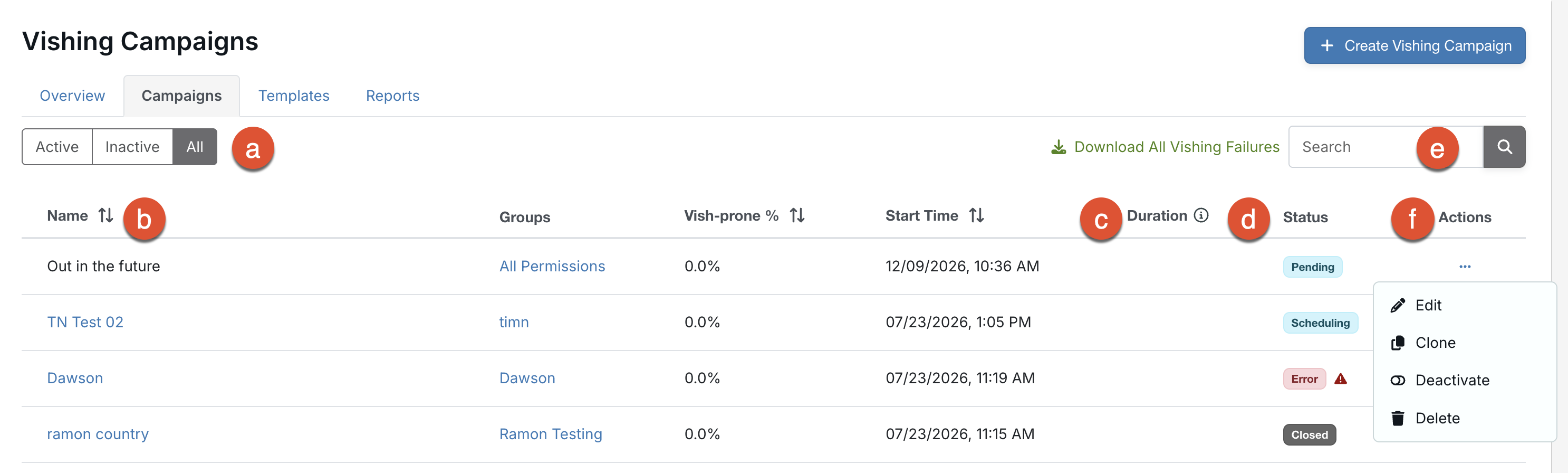
- Filters: Use these filters to sort campaigns by Active, Inactive, or All.
- Name: Select the campaign’s name to view its details. For more information, see the Monitoring Your Vishing Results section below.
- Duration: This column displays the campaign’s duration.
-
Status: This column displays the campaign’s status. The status can be Scheduling, Pending, Active, Closed, or Error:
- Scheduling: The vishing campaign’s calls are being scheduled for delivery.
- Pending: The vishing campaign is scheduled and awaiting delivery.
- Active: The vishing campaign is active and ongoing.
- Closed: The campaign is inactive. If the campaign is in the Active subtab and has the Closed status, the campaign is temporarily inactive until the next vishing test begins. If the campaign is in the Inactive subtab and has a Closed status, either it had a one-time frequency and ended, or an admin manually deactivated it.
- Error: The campaign has an issue that may prevent it from operating as expected. For more information about what may be causing the error, hover over the error icon.
- Search: Here you can search for your vishing campaign.
-
Actions: Select the drop-down arrow in this column to edit, clone, deactivate, or delete a campaign. For more information about these options, see below:
- Edit: This option opens the Edit Vishing Campaign page. You can adjust your campaign as needed and select Update Campaign to save your changes. Options that are grayed out cannot be changed.
- Clone: Select this option to create a copy of an existing campaign. Your cloned campaign will have the same settings, except for a new start time and the word "Clone" in the campaign name. You can edit the campaign to remove the word “Clone.”
- Deactivate: Select this option to stop your campaign from running. Once a campaign is deactivated, it cannot be reactivated.
- Delete: You can select this option to permanently delete a campaign and all of its data, including recipients, failures, reports, and more. This action cannot be undone.
Monitoring Your Vishing Results
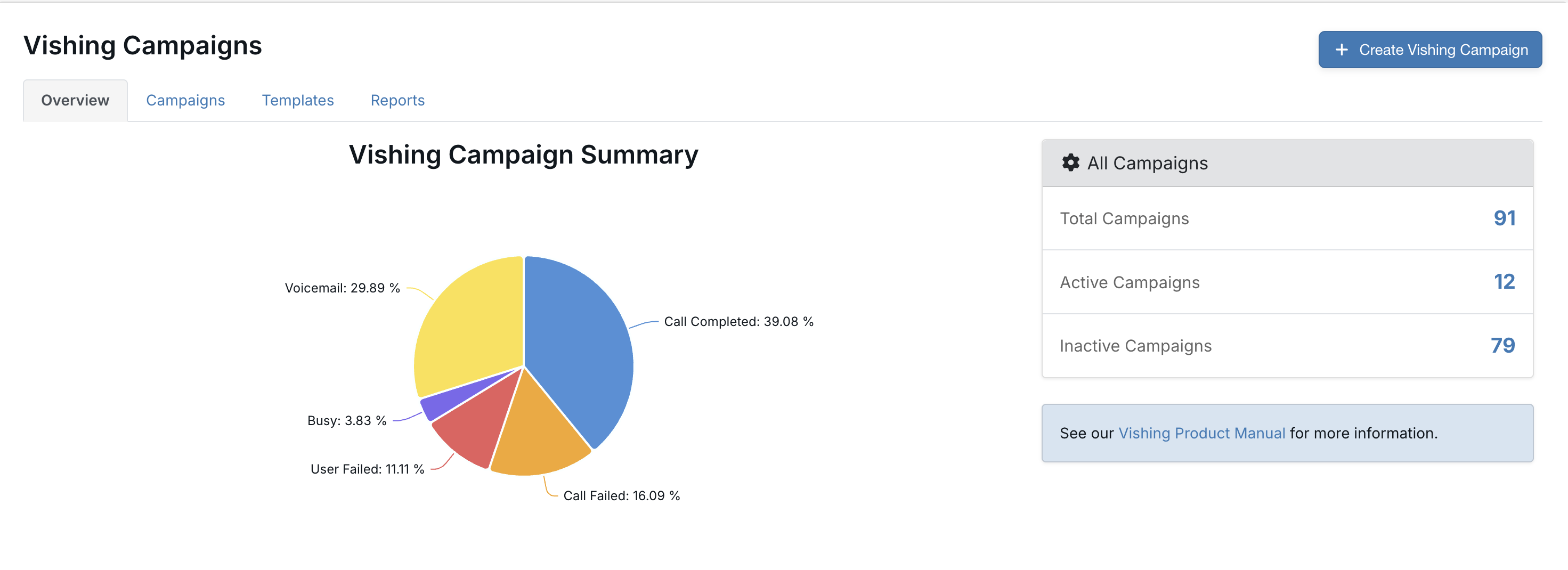
An Overview of your vishing campaigns is available by navigating to Phishing > Vishing. The Overview subtab displays a summary of your vishing campaign calls, along with information on your total, active, and inactive campaigns.
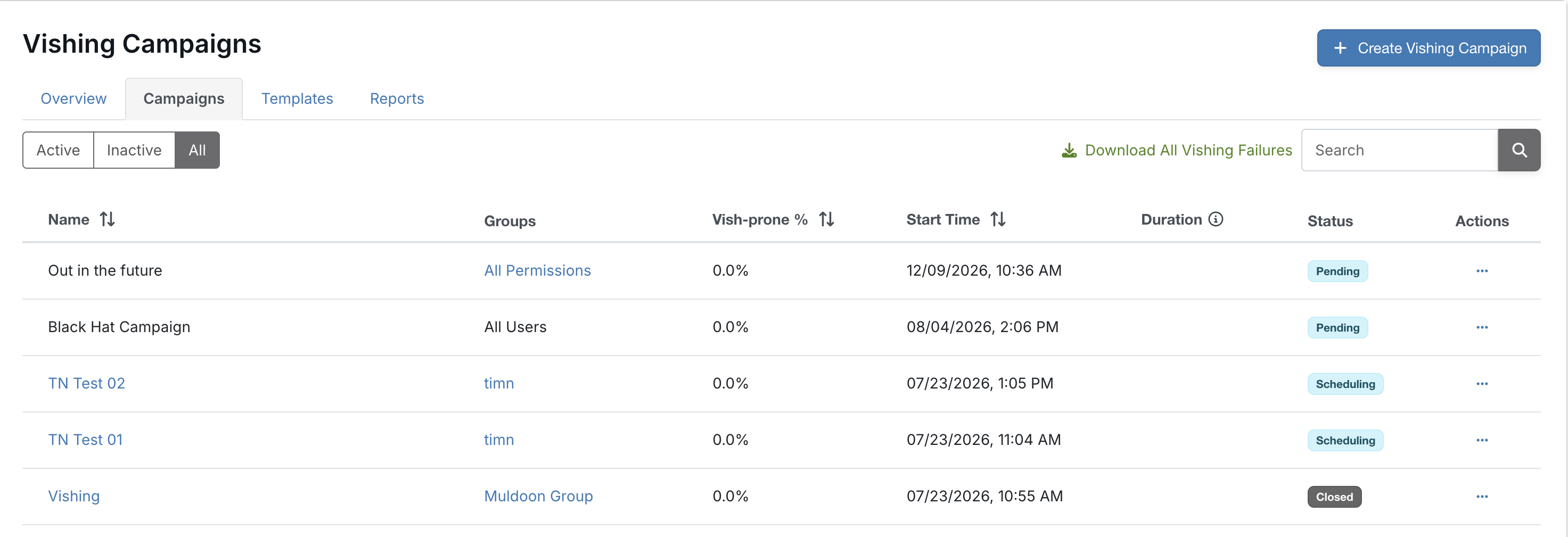
You can monitor individual vishing campaigns by navigating to Phishing > Vishing > Campaigns. In the Campaigns subtab, select the campaign you wish to view from active, inactive, or all vishing campaigns. You can also use the Search box to search for a specific campaign.
The individual campaign page view shows you how many recipients received the vishing call and whether the call was completed, failed, or was sent to voicemail. You can also view how many users failed and passed the vishing test, the campaign’s status, its Vish-prone Percentage, and its start date.
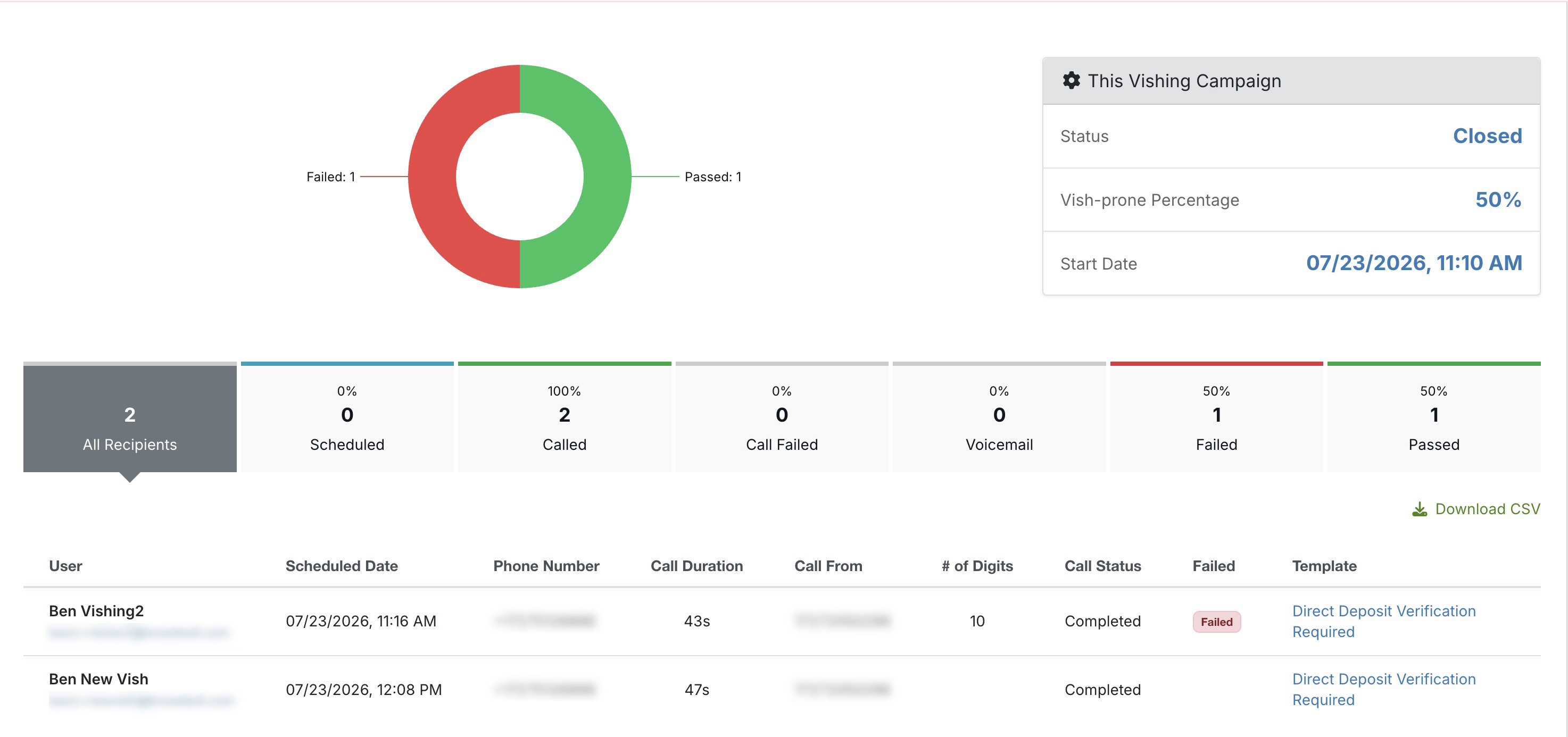
In addition you can view user data, including the user’s name, the date of the scheduled call, the phone number the vishing call was made to, the call’s duration, the vishing phone number of origin, the number of digits entered during the call, the call status, and the vishing template used, can be viewed.
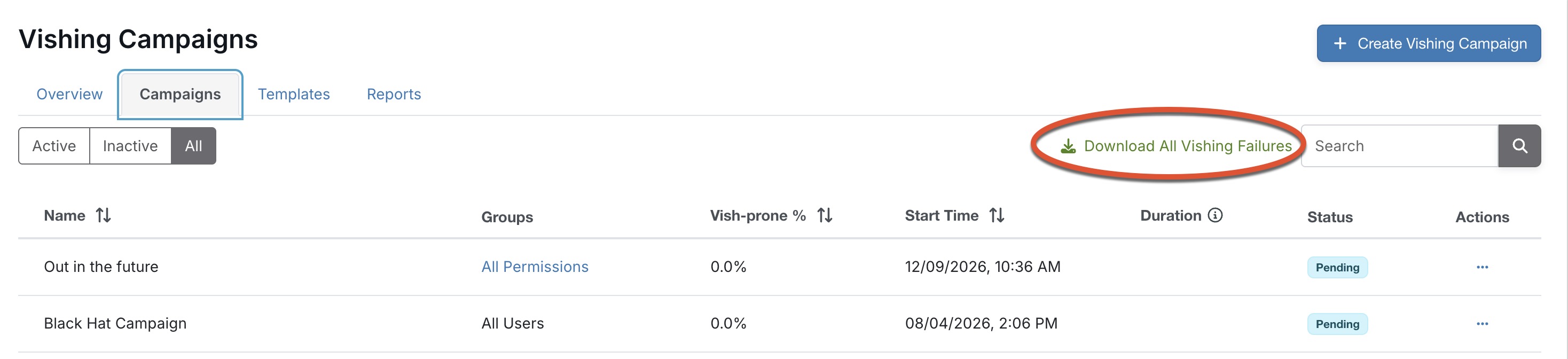
To download a CSV file of your vishing campaign results, select Download CSV on the right side of the individual campaign page. To download a list of all users who have failed any of your vishing campaigns, navigate to the main Campaigns subtab by selecting Back to Campaigns and select Download All Vishing Failures.
You can also monitor your organization’s vishing campaigns by navigating to Phishing > Vishing > Reports. In the Reports subtab, you can view specific campaign results by using the Include Selected Campaigns drop-down menu and selecting the vishing campaign you want to view.
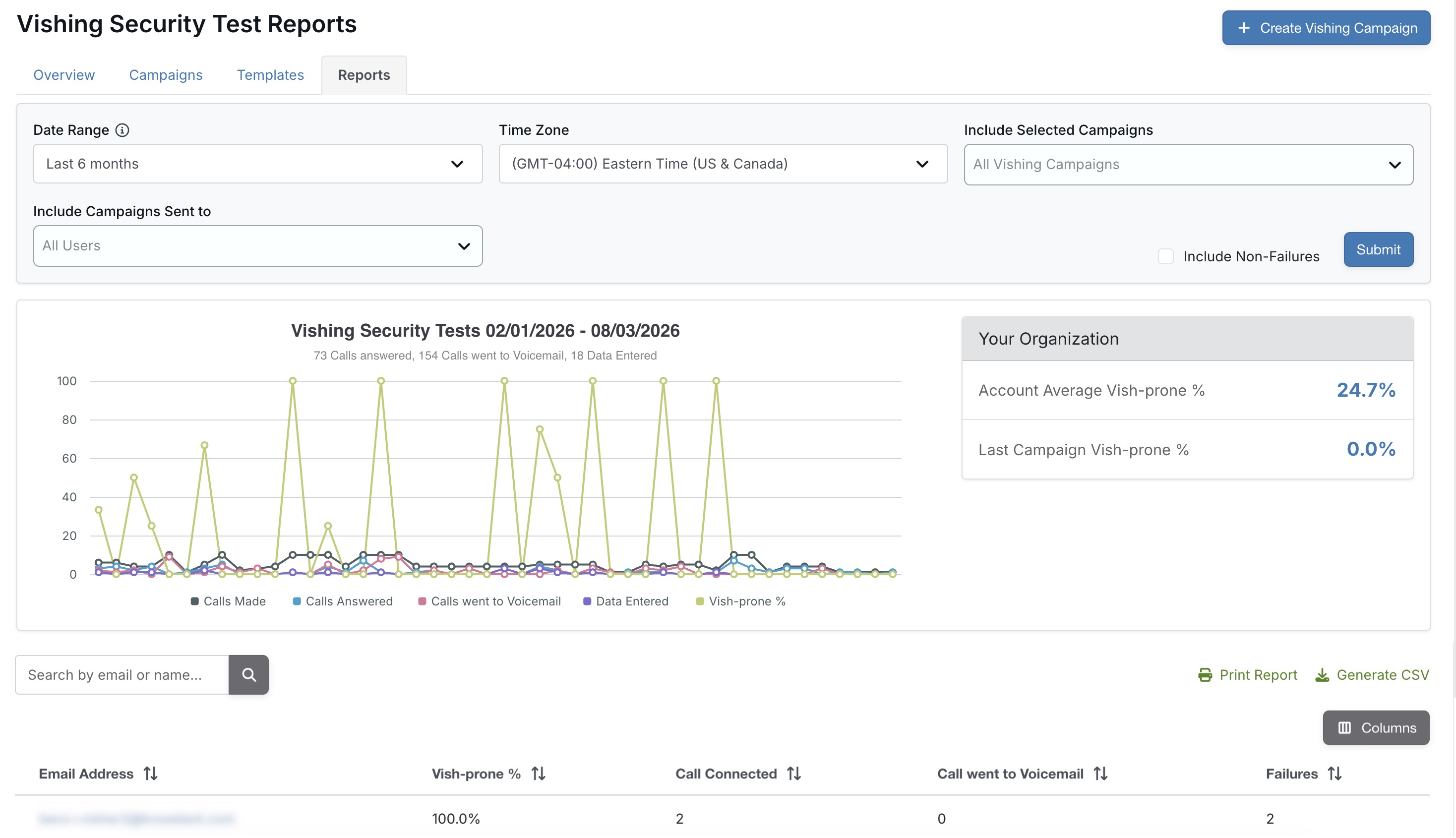
To generate and download a CSV file of your vishing campaign reports, select Generate CSV on the right side of the Vishing Security Test Reports page. You can also print these reports by selecting Print Report.
Recommended Vishing Training
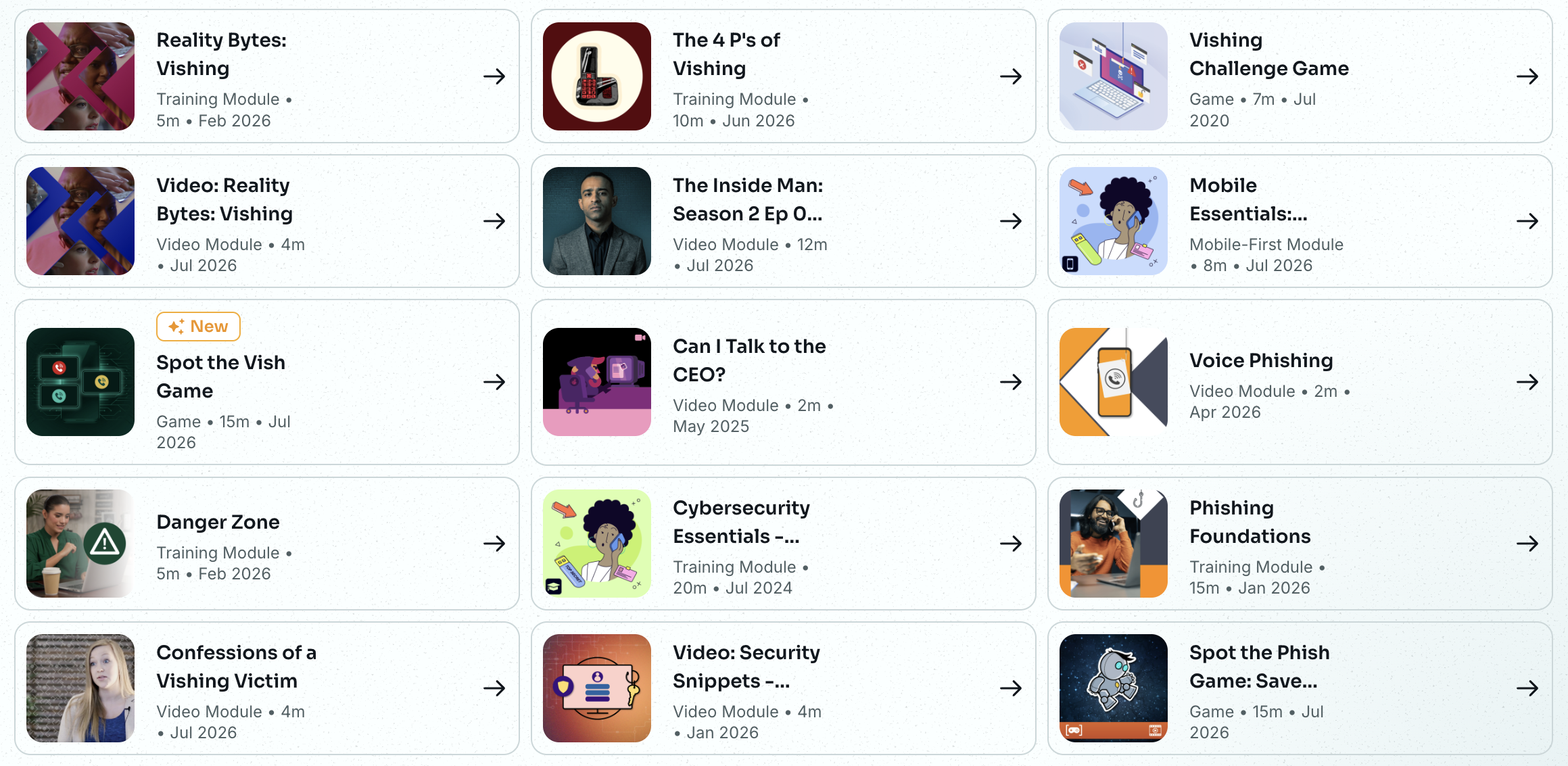
If you are configuring a remedial training campaign for vishing, there are currently 20 vishing-related modules in our ModStore that you can add to the training. These training modules can help educate your users about vishing attacks and strengthen your organization’s human firewall. If you have additional questions about training recommendations for your organization, we recommend contacting your Customer Success Manager.
For more information on setting up remedial training, see our Create a Remedial Training Campaign article.
Create and Customize Vishing Templates
Our vishing feature includes customizable built-in templates. Additionally, you can create vishing templates by using text-to-speech or by importing MP3 files. For information about creating, editing, and customizing vishing templates, see our Create and Customize Vishing Templates article.