Our Vishing feature has customizable built-in vishing templates. Additionally, you can create vishing templates by using text-to-speech or by importing MP3 files.
For information about vishing templates, see the sections below. For more information about vishing campaigns, including how to create and monitor your vishing campaigns, see our Vishing Product Guide.
Create a Vishing Topic
You can create vishing topics. You will need to create at least one topic in My Topics to use customized system templates in a vishing campaign. To create a vishing topic, follow these steps:
- Navigate to Phishing > Vishing > Templates.
- Select My Templates. Under My Templates, you will see My Topics. To the right of My Topics, you will see an + Add button.
-
Select the + Add button. You will be prompted to enter
a
topic name. For this article’s purpose, we will create a topic called
“Whistleblower
Topic”.
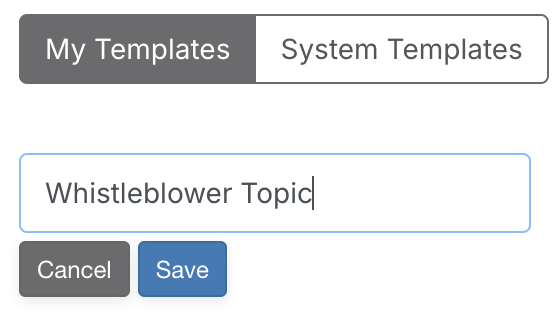
- When you are finished naming your topic, select the Save button.
- Your newly created topic will be located under My Topics.
Create a Vishing Template
You can create your own vishing templates. To create a vishing template, follow these steps:
- Navigate to Phishing > Vishing > Templates.
-
Select the + Create Vishing Template button on the top-right side of the My Templates page.
- Enter a name in the Template Name field.
- In the Topics field, use the drop-down menu to select the topic you would like to save this template in. This template will be saved to the Drafts folder by default.
- Select the language of the template in the Language drop-down field. The selected language is what will be used to interpret the text you include in any Say steps included in this template. To view a list of supported languages, see our Vishing Product Guide.
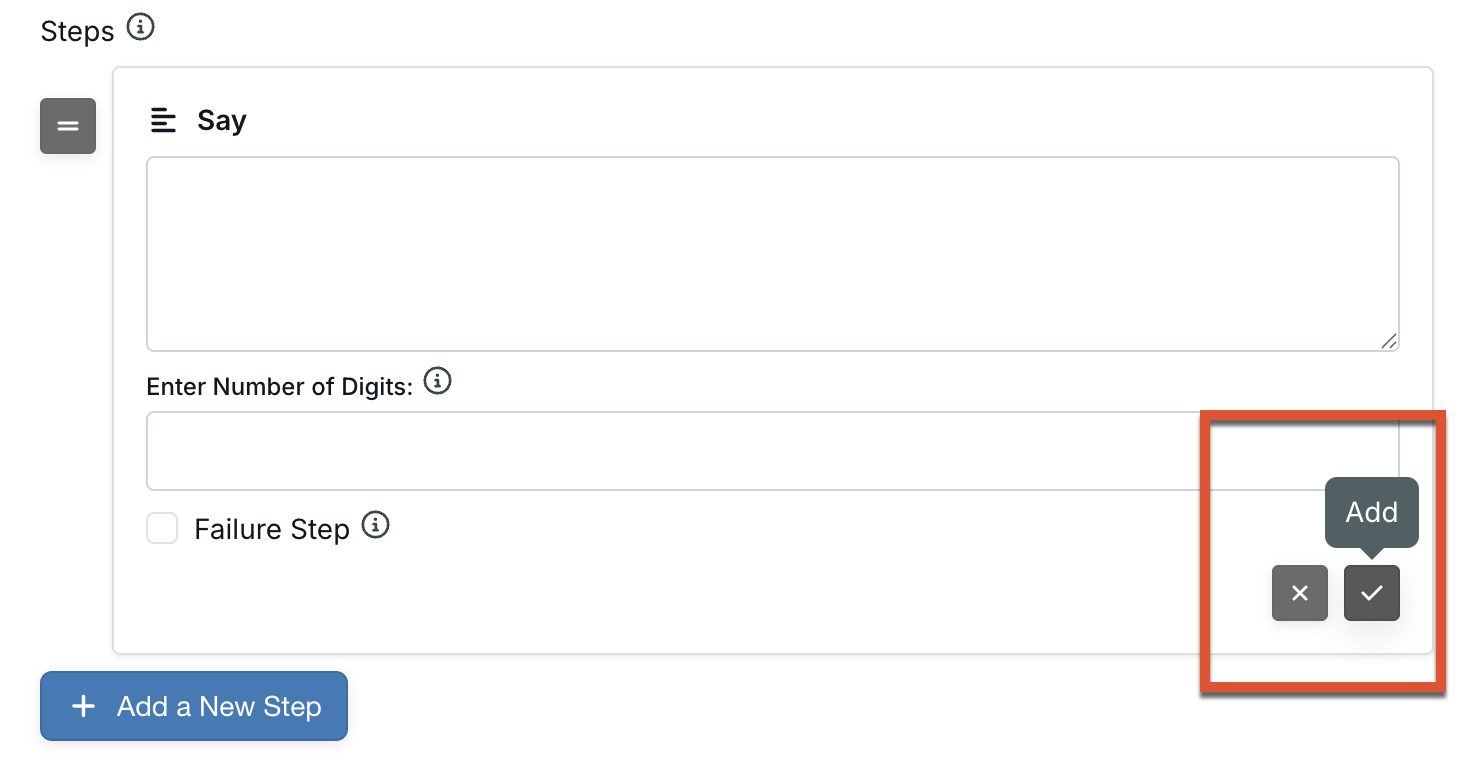
- Select the + Add a New Step button to begin creating the template. First, you will need to select which type of step you would like to create. The options are defined below:
- Say: This option uses a text-to-speech feature. Text-to-speech interprets the text you include to create an audible vishing script that will play during the vishing attempt. If this step is your failure step, be sure to include the number of digits you are prompting your user to enter into their phone. For more information on creating a failure step, please see the Create A Failure Step section of this article.
- Play: This option will play an imported MP3 file during your vishing call. The MP3 files you import must be less than one MB. Enter an audio description if desired. If this step is your failure step, be sure to include the number of digits you are prompting your user to enter into their phone. For more information on creating a failure step, please see the Create A Failure Step section of this article.
- Pause: This option pauses the call for the specified number of seconds.
-
After you have defined all the fields for that step, select the check icon below the step to add it. Continue to add steps until you have all the steps you want for the call.
- When you are finished creating your steps, select Save.
- Be sure to move the template from the Drafts topic to your desired topic so it's available for use in a vishing campaign.
Create a Failure Step
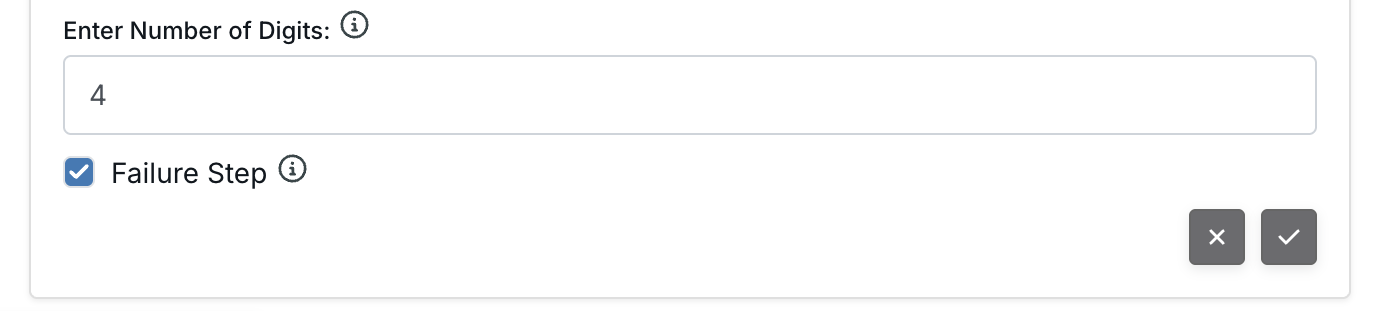
Templates must include a designated failure step that requires the call recipient to enter a specific number of digits. Ensure you enable the Failure Step check box on the step where you're prompting the user to enter personal information, such as a PIN. A minimum of four digits and a maximum of 20 digits can be entered in the failure step.
Clone and Customize a System Vishing Template
You can customize our built-in system vishing templates. To customize vishing templates, follow these steps:
- Navigate to Phishing > Vishing > Templates.
- Select System Templates. System Templates are pre-recorded templates created by KnowBe4. On the left side of the page, you can explore a variety of pre-recorded System Templates under System Topics.
-
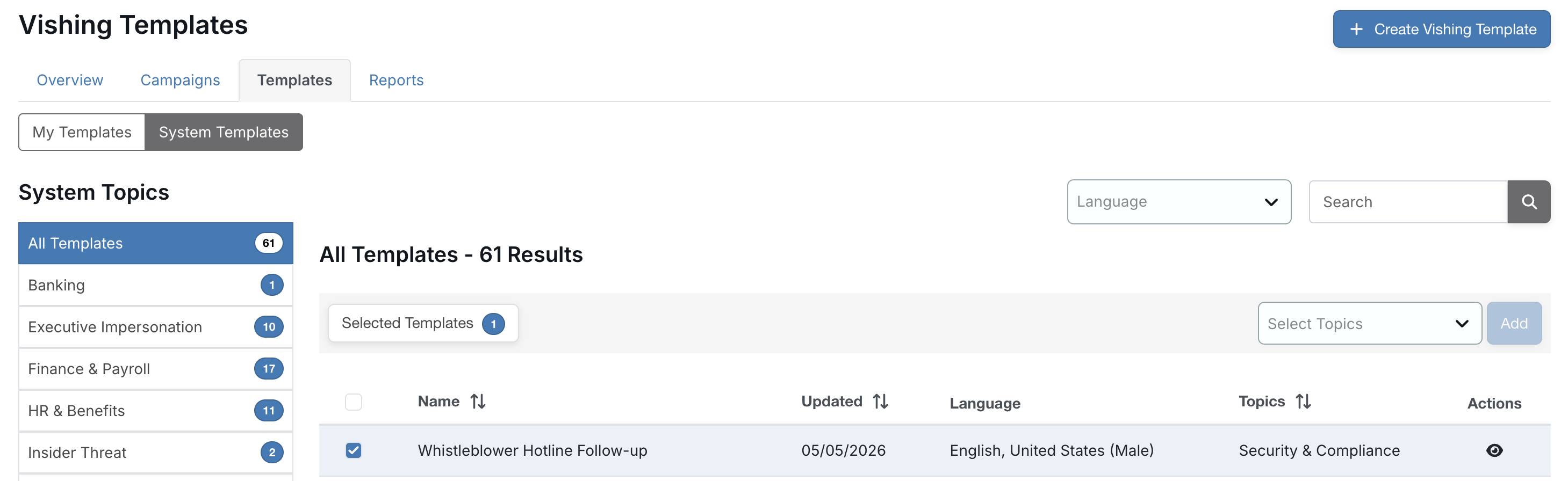
For this article’s purpose, select the Whistleblower Hotline Follow-up template under All Templates in System Templates by selecting the check box to the left of the template.
-
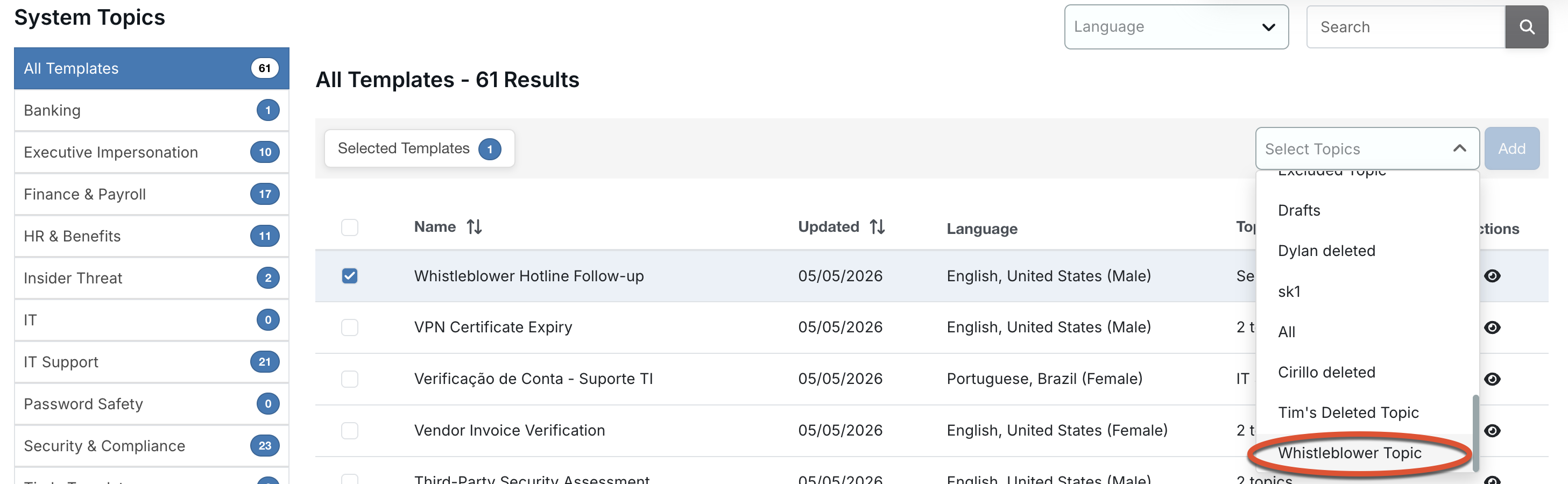
Next, on the right side of the page, you will see a Select Topics drop-down menu. Find the topic you previously created, in this instance, Whistleblower Topic. When you’ve selected that topic, select the Add button to the right of the Select Topics drop-down menu.
- You should see a notification stating “The selected templates were successfully cloned.”
- When you navigate to the topic you created under My Topics, you can edit and further customize the system vishing template you just cloned as desired using the steps outlined in this article’s Create a Vishing Template section.
Preview and Test Vishing Templates
The preview window will display all steps in the selected vishing template, including the failure step and the number of digits the user must enter to fail the vishing test. The bottom of the preview will include a text box where you can enter your phone number to test out the vishing template. Follow our phone number formatting requirements to ensure the call will be successful.
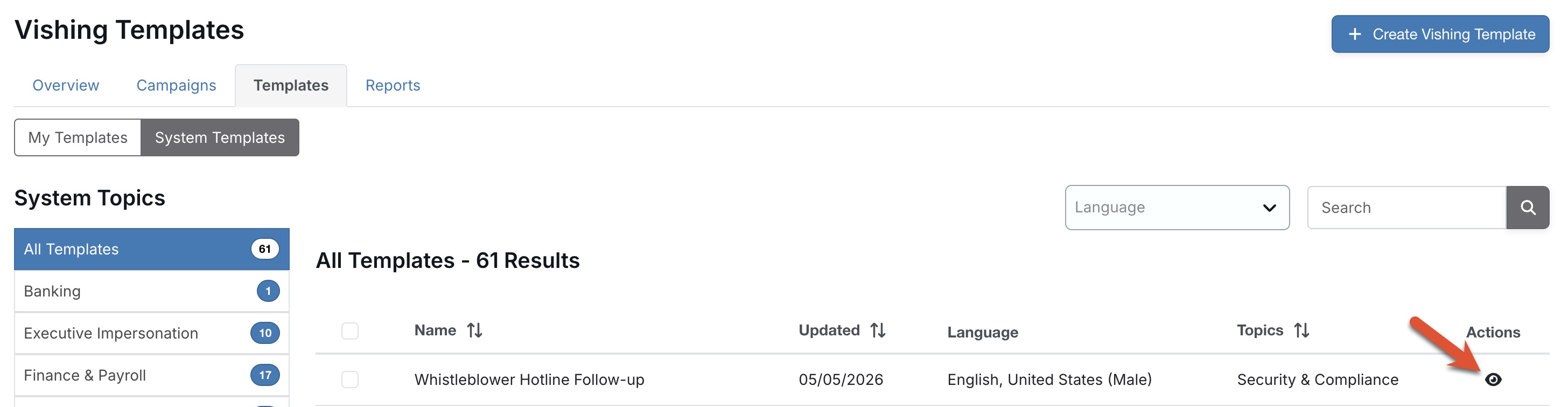
Once you have entered your phone number in the text box, you can test your template by selecting the Initiate Test Call button.
