The Phish Alert Button (PAB) Chrome Extension for Google Apps or Google Workspace gives your end-users the ability to report suspicious emails and empowers your employees to take an active role in managing the problem of phishing and other types of malicious emails. The tool can also provide your IT or risk management team with early warning of possible phishing attacks or malicious emails so they may take timely and effective actions to prevent security breaches or network compromise.
Paid Integration: If you have a paid account, the PAB will also track whether your users report our simulated phishing emails, so you can see which users successfully identify potentially malicious emails.
We encourage you to inform all of your users of this tool before making it accessible. To help inform your users, here are helpful resources that you can use to assist with the implementation of the PAB:
- For admins - Best Practices: Phish Alert Button (PAB) Implementation
- For end users - Phish Alert Button (PAB) in Gmail for Google Chrome Guide
For instructions on how to enable and configure your PAB in the admin portal, see our Phish Alert Button (PAB) Product Manual.
Installation Prerequisites
Below are some prerequisites for installing the Google Chrome PAB:
- If you have not already whitelisted the Google Chrome PAB, please see the Whitelist the KnowBe4 Phish Alert Button (PAB) for Chrome article.
- For the Chrome extension only, you must have the extension installed on a Windows, Mac, Linux, or Chrome operating system managed by Google Workspace.
- End users must be logged in to Google Chrome and their Gmail account.
- End users' profiles must be synced with Google Workspace while using Google Chrome.
- You'll need the following Custom URL or Chrome App Extension ID:
- Custom URL: https://chrome.google.com/webstore/detail/knowbe4-phish-alert/hfokdlmjeppdmpbngjpnlnijogcecaop
- Chrome App Extension ID: hfokdlmjeppdmpbngjpnlnijogcecaop
- You must have administrative rights to your organization's Google Apps or Google Workspace account.
- Chrome Management must be enabled for your domain or Organizational Units.
- You must enable and configure your PAB in the KnowBe4 admin portal. You’ll also need to download the following file to begin installation:
- phish_alert_configuration.json file
Cloud Policy Installation Method
If you are having trouble installing the Google PAB through the Chrome Web Store, you can also install the PAB through a cloud policy. Please note that this step will authorize the necessary permissions for the PAB to function on a domain-wide level so that your users aren't required to allow the permissions when they receive the Google PAB extension.
- In the Google Workspace Admin Console, go to Devices > Chrome > Apps & extensions > Users & browsers.
-
Click the plus icon at the bottom of the page and select Add Chrome App or extension by ID.

- Provide the Extension ID found in step 7 of the Chrome Web Store Installation Method section below.
-
Paste the JSON details into the Policy for extension field and click Save.

- Whitelist the PAB following the instructions listed in the Whitelist the KnowBe4 Phish Alert Button (PAB) for Chrome article.
-
Go to Security > API Controls and select the Domain Wide Delegation option.


-
Click Add New and paste the following Client ID and OAuth Scopes:
Client ID:
682409154127-0iivv9sj7c06t2niq3cb54l8tshdj0gq.apps.googleusercontent.com
OAuth Scopes:
https://www.googleapis.com/auth/gmail.modify,
https://www.googleapis.com/auth/gmail.send,
https://www.googleapis.com/auth/userinfo.profile
-
Click Authorize.

-
In the Apps & extensions window, click your top-level domain to edit the App settings for users at that domain.
Tip:If your organization uses Google Groups for Business, you can select specific Groups for Business that you would like to force the PAB Chrome extension to. - Under the Installation policy header, select Force Install for the domain you selected, or your selected organizational units (OUs).
- Click Save.
Chrome Web Store Installation Method
Follow the steps below for installing the Google Chrome PAB with the Chrome Web Store:
- Whitelist our application using Whitelist the KnowBe4 Phish Alert Button (PAB) for Chrome article. You will not be able to use the Google Chrome PAB unless you have whitelisted.
-
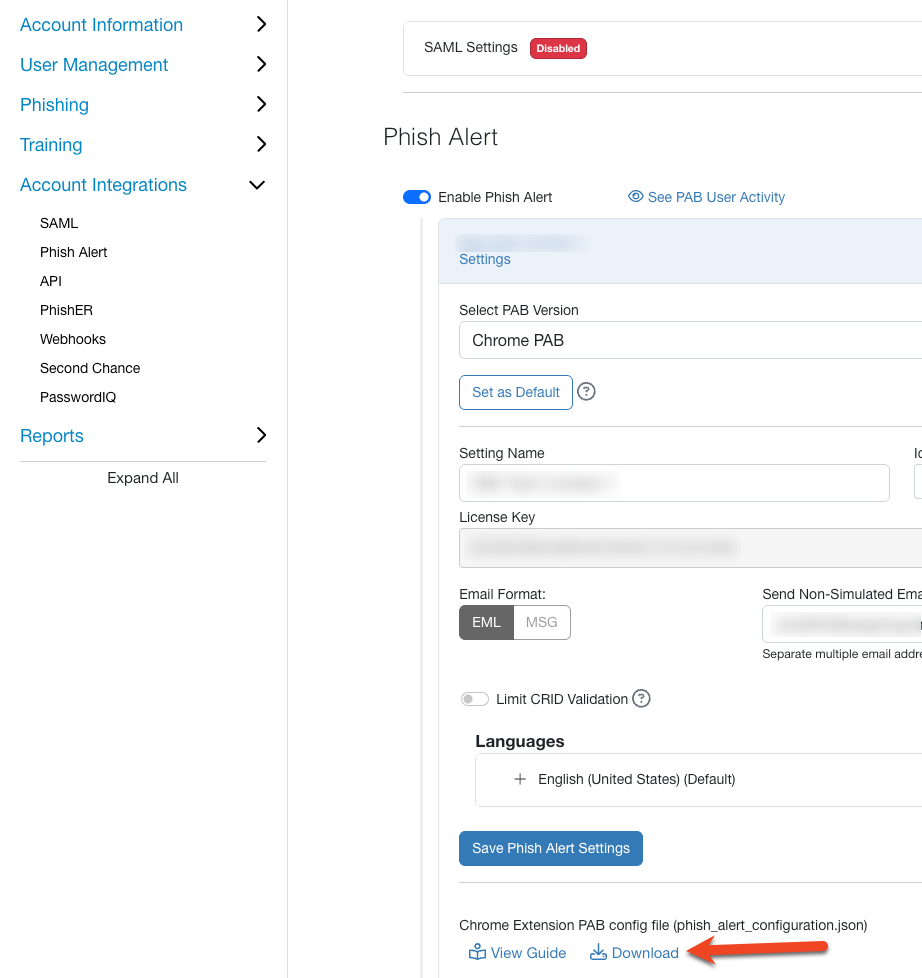
Log in to your KnowBe4 account and download the phish_alert_configuration.json file from your Account Settings.
-
Ensure you're logged in as an Admin to your organization's Google Apps or Google Workspace account. When you're in Gmail, click the top-right button to access your Admin area.

-
Click the Admin icon to access your Google Workspace Admin area.

-
Click Devices > Chrome > Apps & Extensions > Users & browsers.

-
First, click the plus icon on the bottom right of your screen, then click the Add Chrome App or extension by ID button.
- On the Add Chrome app or extension by ID screen, enter the extension ID and then click Save.
-
Extension ID: hfokdlmjeppdmpbngjpnlnijogcecaop

-
-
Click your top-level domain in the left-hand panel to edit the App settings for users at that domain. If you want to install the PAB Chrome extension for only specific organizational units (OUs), click that specific OU instead of your top-level domain.

-
Click the drop-down menu next to the ID and select Force install. Force install will prompt your users to allow the PAB to be installed during their next Chrome restart with a pop-up window. Ensure you inform your users you'll be installing the PAB Extension, so they know to approve the install. If you would like a customizable email template you can use to inform your users about the PAB, check out our Best Practices: Phish Alert Button (PAB) Implementation article.
Note:If you are installing on an OU, install the Phish Alert Button with the allow install on the top-level domain and the force install option on the OU.
-
Click on the application name to open the settings menu. This menu will open on the right-hand side of your screen. Copy and paste the contents of your configuration file phish_alert_configuration.json into the Policy for extensions field of the settings.

How to Uninstall
Follow the steps below to uninstall the Google Chrome PAB:
-
Ensure you're logged in as an admin to your organization's Google Apps or Google Workspace account. When you're in Gmail, you can click the top-right button to access your Admin area.
-
Click the Admin icon to access your Google Workspace Admin area.
-
Click Devices > Chrome > Apps & Extensions > Users & browsers.
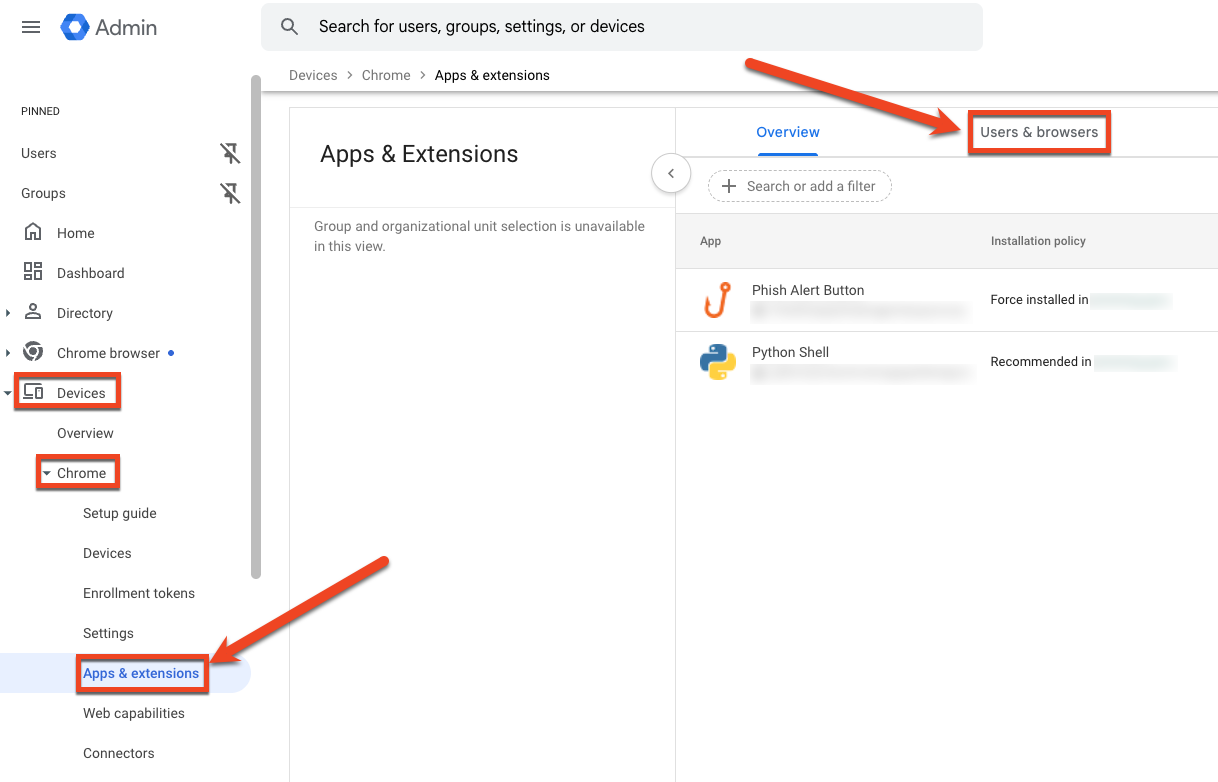
- Click on the PAB Extension ID in your list of apps: hfokdlmjeppdmpbngjpnlnijogcecaop.
-
Your settings will open on the right-hand side of your screen. Click the trash can icon to remove the app.

User Experience
Once the PAB add-in is installed, upon their next Chrome restart, your users will be prompted with a pop-up message to allow the KnowBe4 PAB app to access Gmail. They must click Allow on this pop-up message.
After allowing the PAB app, your users will see the PAB as an orange Phish Hook within Gmail.


A user can use the Phish Hook to report any email as a phishing email. The reported email will be moved to the user's Sent Items as a forwarded message and deleted from the user's Inbox. If the user incorrectly reported the email, they can retrieve it from their Deleted Items or Trash folder.
To instruct your users on how to use the PAB, you can provide our Phish Alert Button (PAB) in Gmail for Google Chrome Guide article.
Additional Resources
Below are some additional resources about the Google Chrome PAB: