After you integrate your KCM GRC platform with KnowBe4's Security Awareness Training (KSAT) console, you can create KCM GRC tasks to automate evidence collection from KSAT. Then, your users' training completions will automatically be used as evidence for the tasks.
To learn how to create tasks for KSAT and work with integrated tasks, see the sections below. For general information about the KSAT integration, see our How to Integrate KnowBe4's KSAT Console with KCM GRC article.
Creating Integrated Tasks
To create a KCM GRC task that collects evidence from KSAT, follow the steps below:
- Log in to your KCM GRC platform.
- From your navigation panel, select the Controls tab.
- In the Name column, select the control that you would like to create a task for.
- On the View Control page that opens, scroll down to the Recurring Tasks subtab.
- Click the Create Task Schedule button.

- Next to Integration, select KnowBe4 KSAT Console.
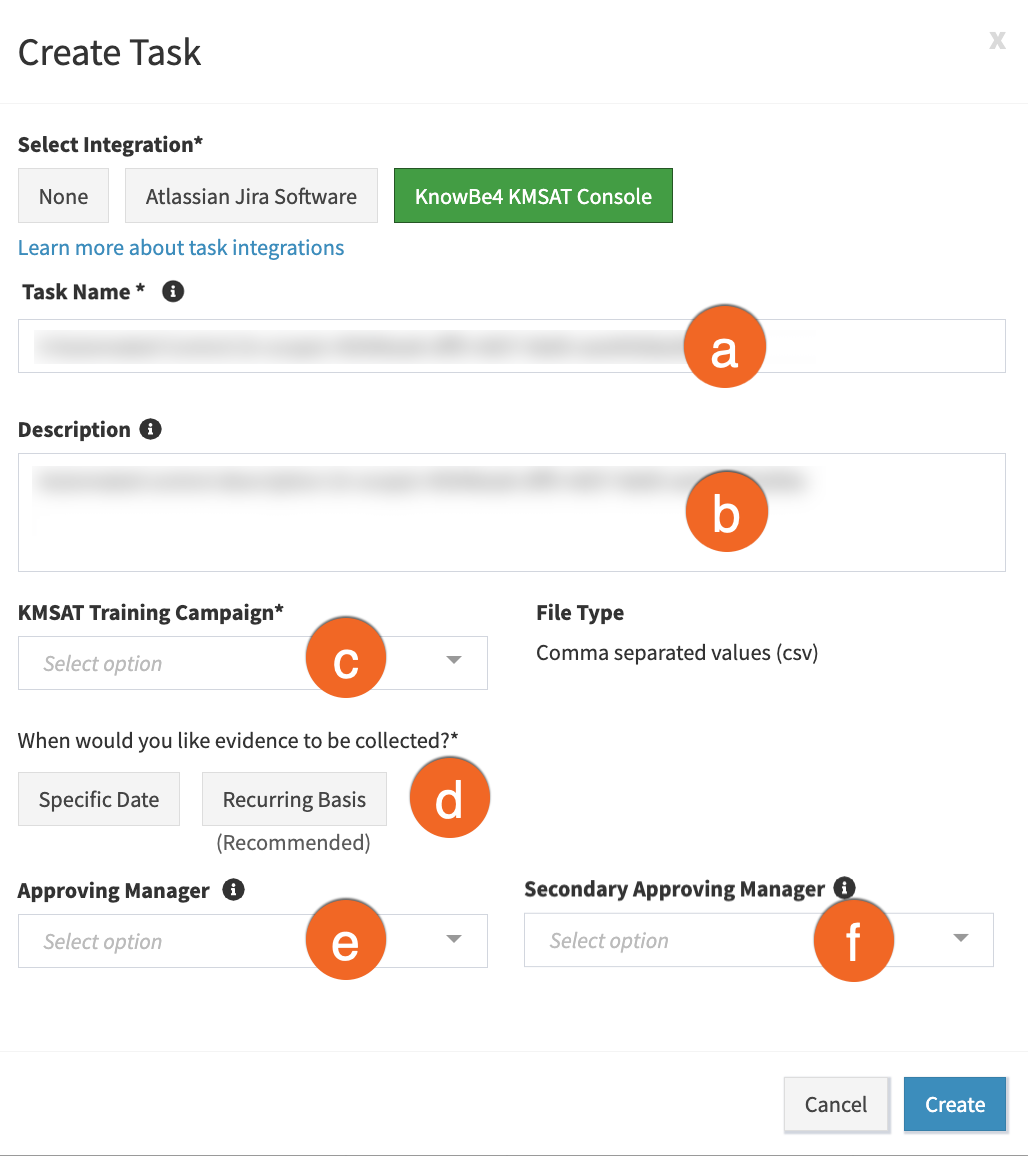
- Fill out the rest of the fields on the Create Task pop-up window. For more information about these fields, see the screenshot and list below:
- Task Name: By default, the control name will display in the Task Name field. You can customize the name by entering up to 255 characters in this field.
- Description: By default, the control description will display in the Description field. You can customize the description by entering up to 10,000 characters in this field.
- KSAT Training Campaign: In this field, select the KSAT training campaigns that you would like to collect evidence for. For more information about training campaigns, see our Creating and Managing Training Campaigns article.
-
When would you like evidence to be collected?: From this field, select the time frame that you would like to collect evidence during. For more information about these options, see the list below:
- Specific Date: Select this option to generate evidence once, on a specific date. In the Date field that displays, enter or select a date to collect evidence on.
- Recurring Basis: Select this option to continually generate evidence based on a schedule. From the Task Frequency field that displays, select how often to generate evidence. In the Starting On field that displays, enter or select the date that evidence will start being generated on. For information about the start dates of recurring tasks, see the Recurring Task Frequencies section of our How to Work with Tasks for Controls article.
- Approving Manager: Select the name of the user responsible for approving the task evidence before the task can be closed. This user will receive an email notification when this task is marked as Complete. For more information about approving tasks, see our How to Monitor and Approve Tasks article.
- Secondary Approving Manager: Select the name of the user responsible for approving the task evidence after the Approving Manager. This user will receive an email notification after the Approving Manager approves the task. For more information about approving tasks, see our How to Monitor and Approve Tasks article.
- Click the Create button.
After you create an integrated task, the evidence will automatically generate during the selected time frame. If you would like, you also have the option to generate evidence instantly. After your evidence generates, you can view the evidence. For more information, see the sections below.
Generating Evidence Instantly
If you've created an integrated task, you can generate evidence for our KSAT training campaigns instantly. For example, this feature would be helpful if you created a recurring task that happens once a year, but you unexpectedly need to generate evidence early.
To generate evidence instantly, navigate to the Supporting Evidence section of the task's View Task page. Then, click the Generate Evidence button.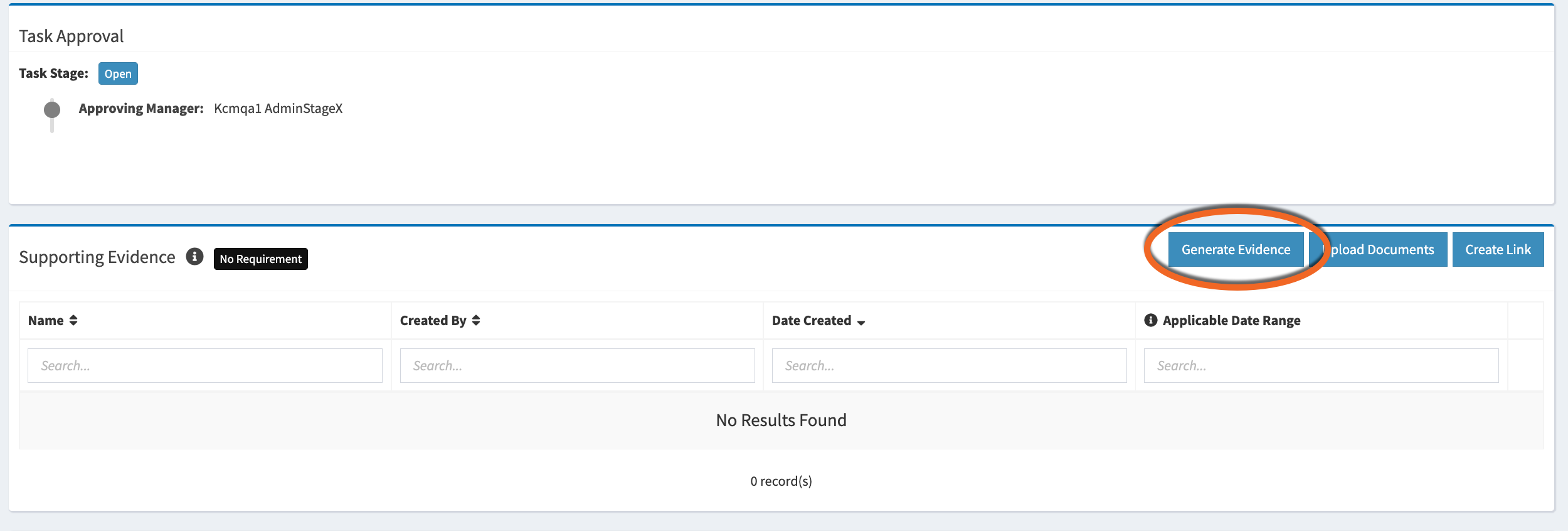
Viewing Evidence CSV Files
After the evidence is generated, a CSV file will display in the Supporting Evidence section of the View Task page. This CSV file contains information about the KSAT training campaigns included in the task. The rows in the CSV file contain data for each user who is enrolled in the campaign.
For more information about the CSV file, see the table below:
| Header | Description |
| Campaign Name | This column displays the name of the training campaign. |
| Campaign Start Date |
This column displays the date that the training campaign started. This date is based on Coordinated Universal Time (UTC). |
| Campaign End Date |
This column displays the date that the training campaign ended. This date is based on Coordinated Universal Time (UTC). |
| Training Status | This column displays the status of the training campaign. |
| Completion Status | This column displays the user's training completion status. |
| Enrolled On |
This column displays the date that the user was enrolled in the training. This date is based on Coordinated Universal Time (UTC). |
| Due Date |
This column displays the date that the training is due. This date is based on Coordinated Universal Time (UTC). |
| Date Completed |
This column displays the date that the user completed the training. This date is based on Coordinated Universal Time (UTC). |
| Time Spent | This column displays the amount of time the user spent on the training. |
| Score | This column displays the score that the user received for the training. |
| This column displays the user's email address. | |
| First Name | This column displays the user's first name. |
| Last Name | This column displays the user's last name. |
| Job Title | This column displays the title of the user's job. |
| Manager Name | This column displays the name of the user's manager. |
| Manager Email | This column displays the email address of the user's manager. |
| Department | This column displays the department that the user is in. |
| Division | This column displays the division that the user is in. |
| Organization | This column displays the name of the user's organization. |
| Location | This column displays the user's location. |
| Employee Start Date |
This column displays the date that the user started at their organization. |
| Title | This column displays the title of the training. |
| Content Type | This column displays the content type of the training. For example, this column could display Training Module. |
| Description | This column displays the description of the training. |