KnowBe4’s Security Awareness Training (SAT) has Real-Time Coaching categories that enable you to coach users in real time about safe and risky behavior. When user activity is detected, your user will receive a SecurityTip containing best-practice guidance for the activity. The Real-Time Coaching subtab allows you to enable and manage these Real-Time Coaching categories.
We recommend following the steps in our quickstart guide to prepare your console for coaching. For general information about Real-Time Coaching, see our overview article.
Activating Category Coaching
Depending on which security vendors you have integrated, different supported Categories will be available for you to enable in the Active subtab. To utilize categories in the Vendor Required section, we recommend integrating more of your vendors.
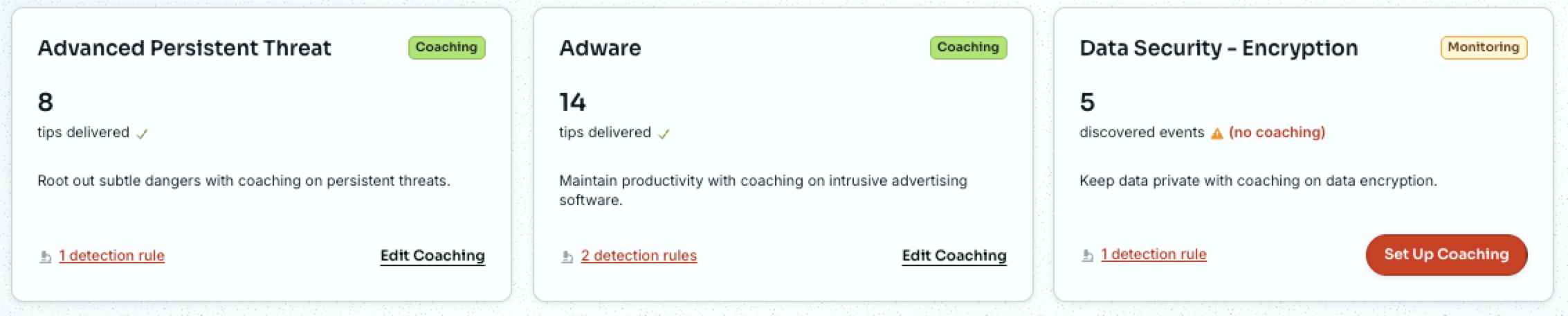
Categories start out in the Monitoring status and will have a Monitoring badge. While in monitoring, your users are not being coached on their behavior, but statistics for the categories are still tracked. We recommend enabling coaching for all available categories, as leaving a category in monitoring increases the risk for that category.
When you are ready to start coaching your organization for a category, simply select Set Up Coaching to configure and start user coaching. You’ll be taken to a category Review page, where the category comes pre-configured with curated and effective SecurityTips. We recommend reviewing and verifying that the default options meet your organization’s needs.
If you don’t need to make any changes, select Start Coaching at the bottom to activate the category.
If you do need to make changes, see the Editing Categories section below for more information, then select Start Coaching to activate the category.
Editing Categories
Categories have a Review page where you can modify SecurityTip content, text, delivery method, and delivery frequency to meet your organization’s needs.
To activate new categories, navigate to Coaching > Real-Time Coaching, find your preferred category, and select Set Up Coaching.
To manage active categories, navigate to Coaching > Real-Time Coaching, find your preferred category, and select Edit Coaching.
For more information on the category Review page, see the sections below.
Detection Rules
Choose which security vendor detections should trigger coaching. System detection rules are automatically enabled to increase your organization’s security awareness and reduce risk. To disable or re-enable specific detection rules, select the check box next to the detection rule’s name. For more information, see our Detection Rules Guide.
We optimize detection rule contents, but you can customize them using the options below to better fit your organization's needs. For more information, see the following screenshot and list:
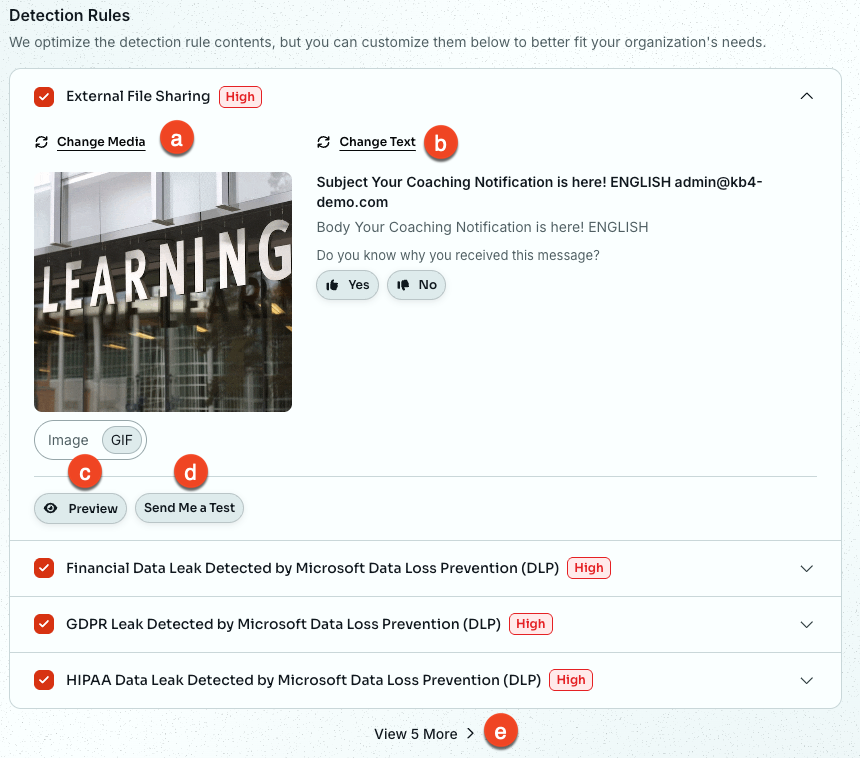
- Change Media: Select your preferred content for the SecurityTip. For more information, see our SecurityTips Guide.
- Change Text: Select your preferred text notification for the SecurityTip. For more information, see our SecurityTips Guide.
- Preview: Open a pop-up window to see what the SecurityTip will look like when sent to your users with your selected options.
- Send Me a Test: Send the SecurityTip to yourself via email to see what the SecurityTip will look like when sent to your users with your selected options.
-
View More: View additional detection rules available for the security category.
Note:The View More option will only appear if there are more than six detection rules available.
Audience
Choose who should receive the SecurityTips for the category. For more information, see the following screenshot and list:
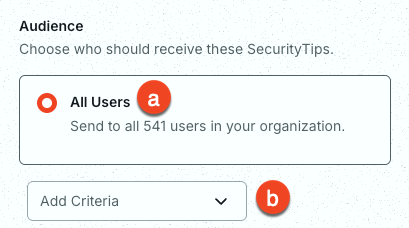
- All Users: Send these SecurityTips to all integrated users. This option is selected by default.
- Add Criteria: Create your own custom criteria to determine which specific users should receive these SecurityTips.
Delivery Method
Choose how your targeted users should receive their SecurityTips. For more information, see our delivery method articles, as well as the following screenshot and list:
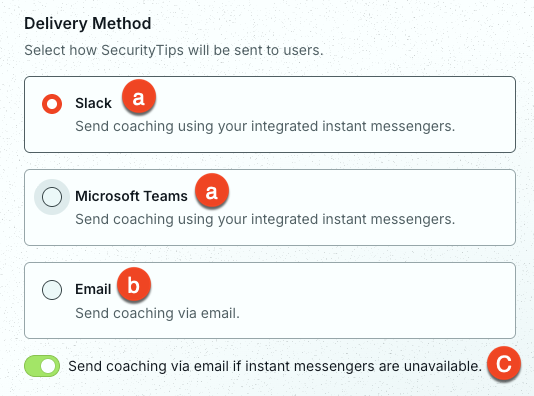
- Real-time via Instant Messenger: Send SecurityTips in real-time using your integrated instant messenger vendors. We recommend using one of these options for primary delivery.
- Real-time via Email: Send SecurityTips in real time to your users' email addresses from the KnowBe4 SAT console.
- Send coaching via email if instant messengers are unavailable: Send SecurityTips over email if your integrated messenger vendor is unable to deliver. We recommend enabling this option to ensure consistent delivery.
Delivery Limit
Choose how often your targeted users should receive their SecurityTips. For more information, see the following screenshot and list:
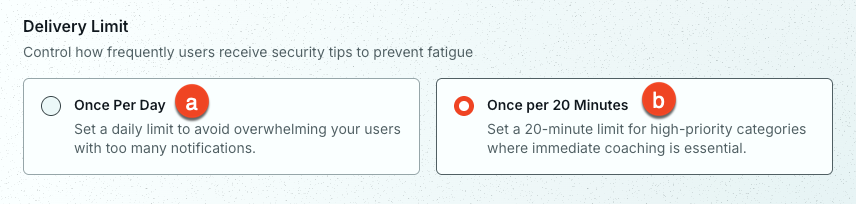
- Once per Day: Send no more than one SecurityTip each day.
- Once per 20 Minutes: Send no more than one SecurityTip every 20 minutes. We recommend this option for critical or urgent categories.
Once you have finished customizing your category, remember to Save Changes.
Managing Coaching
From the Real-Time Coaching subtab, you can select the name of a category to view its Overview, Category Activity, and Feedback Activity. For more information, see the subsections below.
Overview
In the Overview subtab, you can see a summary of important data for the category. To learn more, see the screenshot below:
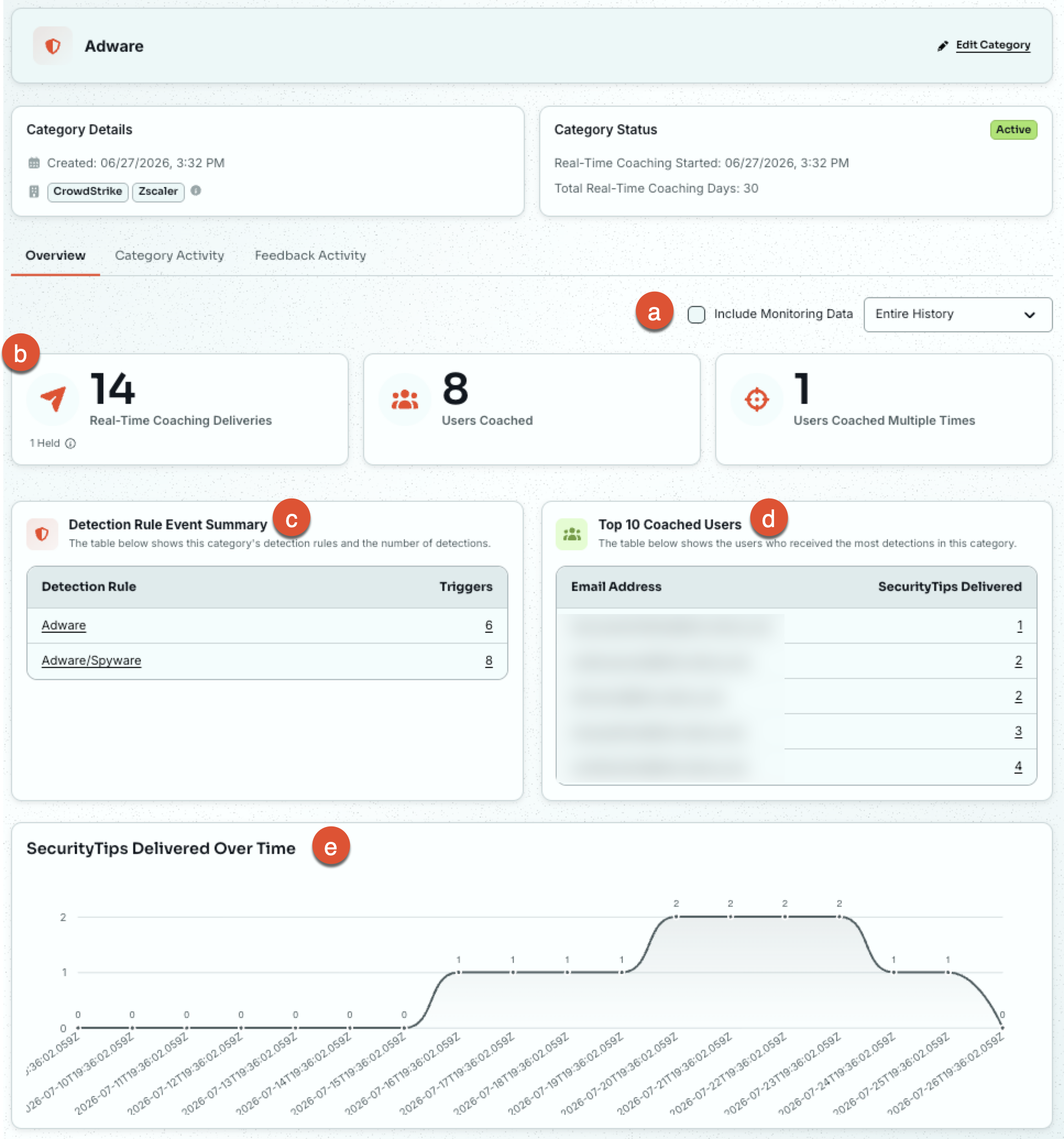
- Entire History: Select this drop-down menu to select a date range for your data.
- Category Activity Information: Displays the number of SecurityTips delivered, of users coached, and of users coached multiple times during the selected date range.
- Detection Rule Event Summary: This table displays the selected category’s detection rules and the number of detections for each rule.
- Top 10 Coached Users: This table lists the users who received the most SecurityTips during the selected date range.
- SecurityTips Delivered Over Time: This graph displays the number of SecurityTips delivered for the selected category during the selected date range.
Category Activity
In the Category Activity subtab, you can use filters to customize and generate reports for the category. To learn more, see the screenshot below:
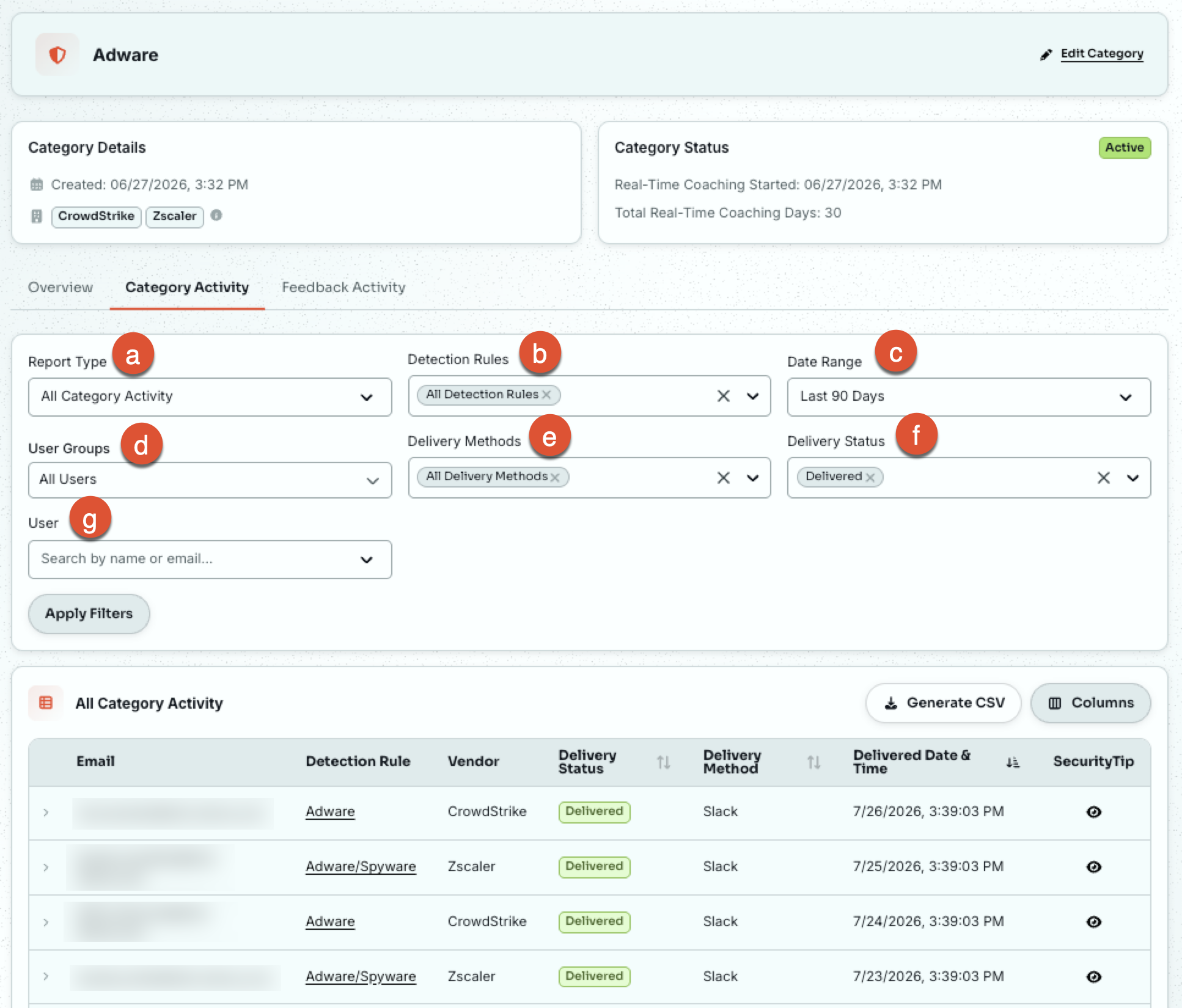
- Report Type: Select the report type. Options include All Category Activity and All Category Activity Grouped by User.
- Detection Rules: Select the category’s detection rules that you would like to display in this report.
- Date Range: Select the date range of this data. By default, this tab shows activity from the last 90 days.
- User Groups: Select the user groups to include in this report.
- Delivery Methods: Select the delivery methods to include in this report. Options include All Delivery Methods, Email, Slack, Microsoft Teams, and Google Chat.
- Delivery Status: Select a delivery status to include in this report. You can choose Delivered, Held, or Failed.
- User: Search for a specific user.
Feedback Activity
In the Feedback Activity subtab, you can use filters to customize and generate reports for your optional user feedback. To learn more, see the screenshot and list below:
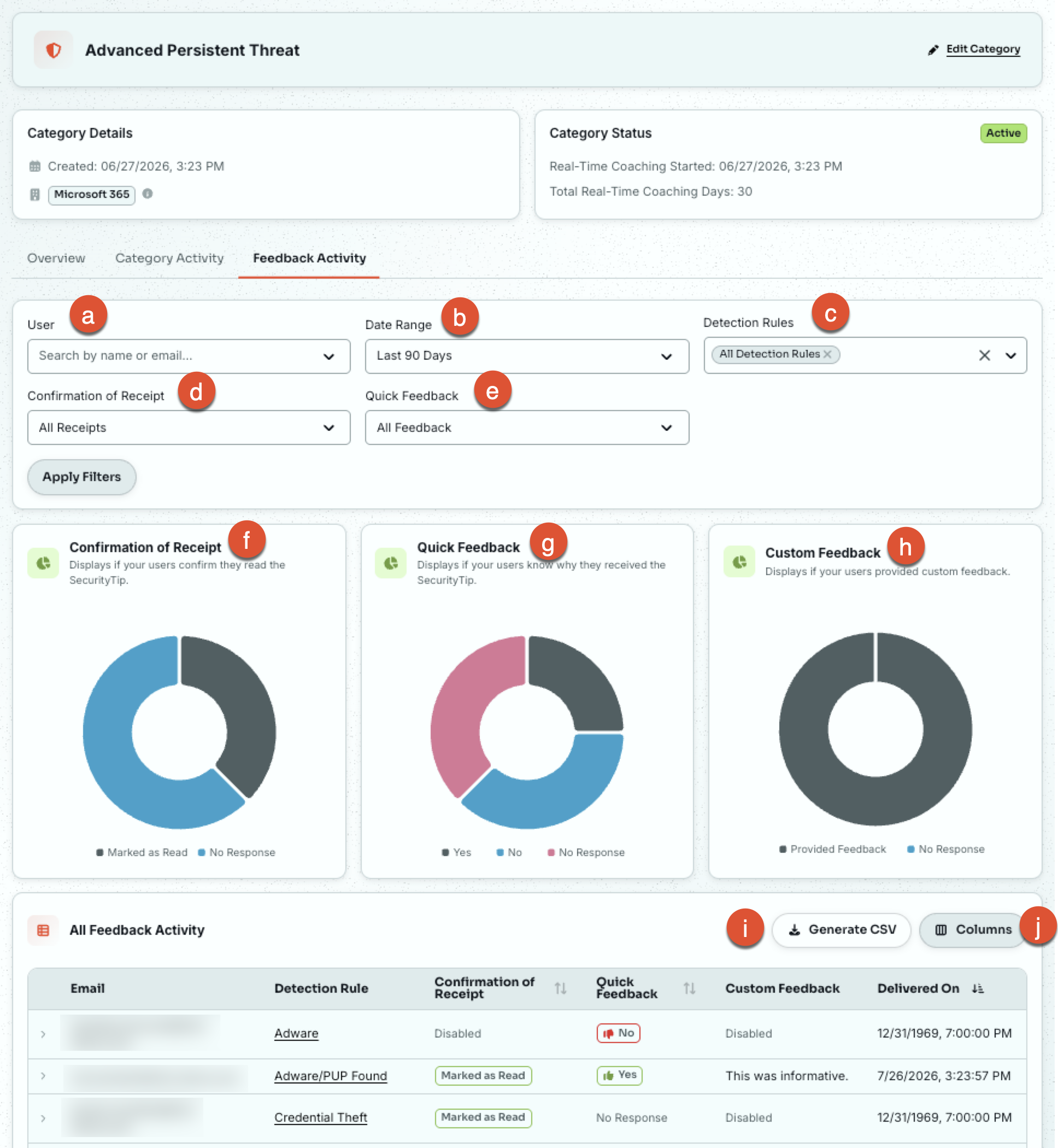
- User: Search for a specific user.
- Date Range: Select the date range of this data.
- Detection Rules: Select the category’s detection rules that you would like to display in this report.
- Confirmation of Receipt: Select the Confirmation of Receipt feedback from your users that you would like to display in this report.
- Quick Feedback: Select the Quick Feedback from your users that you would like to display in this report.
- Confirmation of Receipt Chart: Displays how many users confirmed they read the SecurityTip. This optional feedback is provided when your users select the Mark as Read button for their SecurityTip.
- Quick Feedback Chart: Displays how many users know why they received the SecurityTip. This optional feedback is provided when your users select the Yes or No buttons for their SecurityTip.
- Custom Feedback Chart: Displays how many users provided custom feedback. This optional feedback is provided when your users fill out and submit the text field for their SecurityTip.
- Generate CSV: Generate a CSV file of the selected table columns in the report.
-
Add or Remove Columns: Select which columns to display in the table.
Stopping Coaching
Once you have activated a category, you can stop its coaching at any time. To stop user coaching for an active category, navigate to Coaching > Real-Time Coaching > Edit Coaching for the category, then select Stop Coaching at the bottom of the page. The category will then revert to Monitoring mode and will stop sending out SecurityTips.
Real-Time Coaching with Phishing Campaigns
Real-Time Coaching supports integration with your KnowBe4 Security Awareness Training (SAT) phishing campaigns so that you can send Real-Time Coaching SecurityTips to your users after a phishing failure. For a list of these KnowBe4 system detection rules, see our guide.
Coaching with Social Engineering Indicators
Real-Time Coaching also offers a Social Engineering Indicators coaching integration with your phishing campaigns. If your users fail a phishing test, Real-Time Coaching can send them a SecurityTip GIF highlighting the red flags they missed in the exact phishing test they failed. Once enabled, these notifications will be sent from the system category named Social Engineering Indicators. For more information, see our Real-Time Coaching with Social Engineering Indicators article, SecurityTips Guide, and Social Engineering Indicators (SEI) Guide.