This article will show you how to integrate the Phish Alert Button (PAB) with KnowBe4 Defend.
This integration connects the PAB with KnowBe4 Defend's email classification system to provide expanded email reporting capabilities. It enables users to report emails using multiple disposition types and to correct previously classified messages. User-submitted classifications feed back into Defend's machine learning system to improve classification accuracy over time.
Configure the PAB Defend Integration in the KnowBe4 Console for Microsoft 365
To install the PAB Defend Integration in your KnowBe4 console for Microsoft 365, follow the steps below:
Accepting Required Permissions
Before configuring the PAB Defend Integration for KnowBe4, follow the steps below:
- Log in to your KnowBe4 console.
- Select your email address in the top-right corner of the page, and select Account Settings.
- Navigate to Account Integrations > Phish Alert.
- If it is not enabled, select the Enable Phish Alert check box.
- From the Select PAB Version drop-down menu, select Hybrid PAB or Microsoft Ribbon PAB.
-
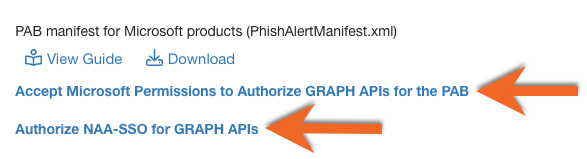
Select Accept Microsoft Permissions to Authorize GRAPH APIs for the PAB. You will be redirected to the Microsoft 365 login page.
- Log in to your Microsoft 365 account using your admin credentials.
-
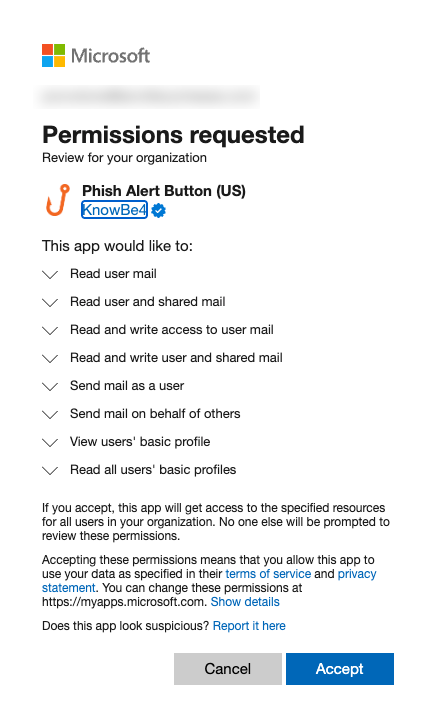
Once you log in, the Permissions requested pop-up window will display. Read the permissions, then select Accept.
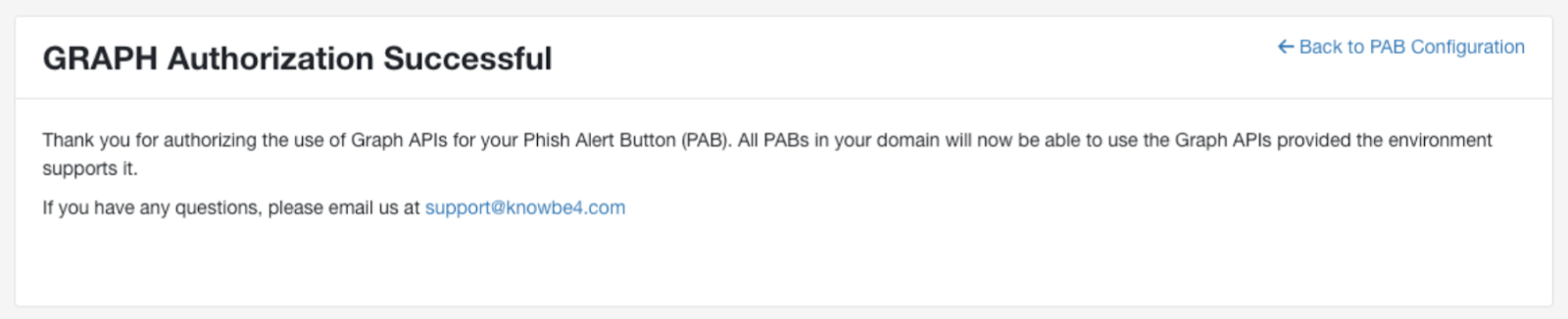
- Once you accept the permissions, the GRAPH Authorization Successful window will display. Select Back to PAB Configuration to return to the Phish Alert settings.
-
Select Authorize NAA-SSO for GRAPH APIs and repeat steps 6 through 9.
Configure the PAB Defend Integration in Your KnowBe4 Console
To configure the PAB Defend Integration in your KnowBe4 console, follow the steps below:
- Log in to your KnowBe4 console.
- Select your email address in the top-right corner of the page, and select Account Settings.
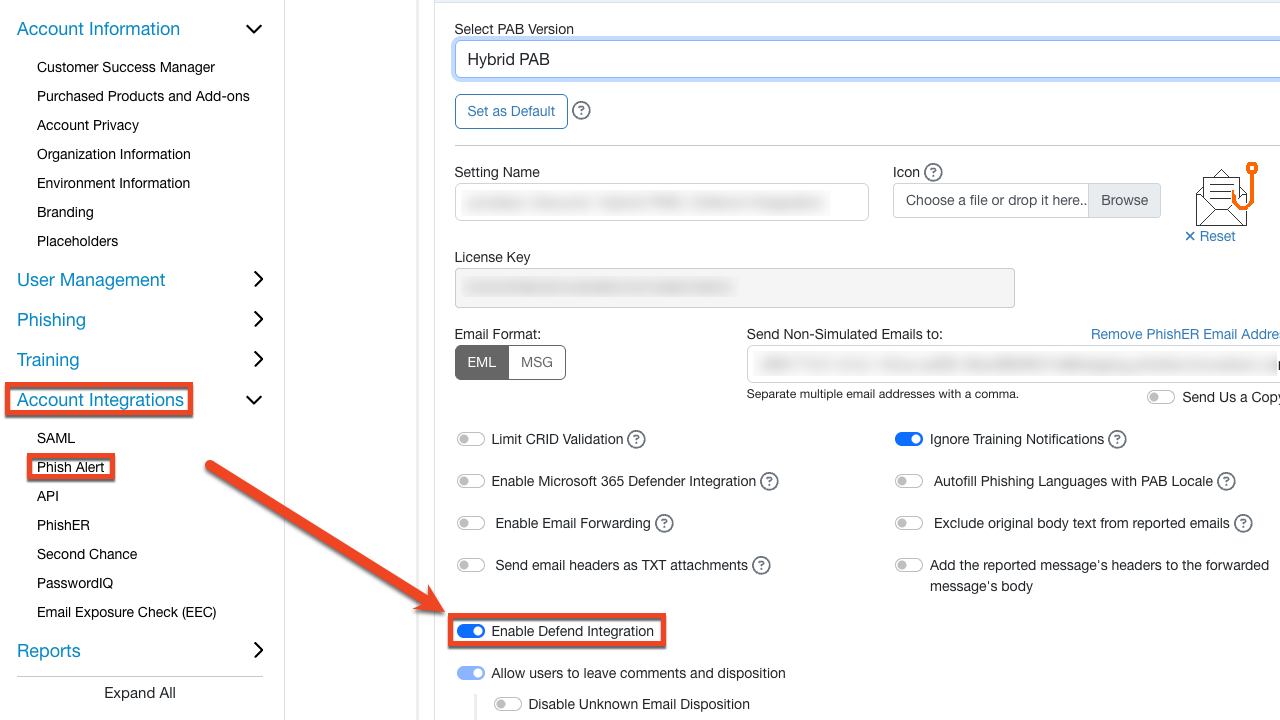
- Navigate to Account Integrations > Phish Alert.
- Select the name of your Phish Alert Button (PAB) instance.
-
Select Enable Defend Integration.
-
New disposition options will become available.
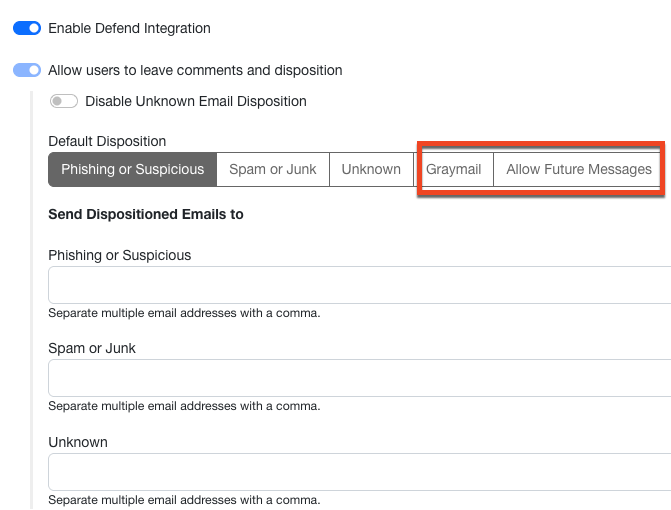
- Select the Save Phish Alert Settings button.
- At the bottom of the page, select the Save Changes button.
- Install the Hybrid PAB or Microsoft Ribbon PAB in your email environment. See our Hybrid Phish Alert Button (PAB) Product Manual or Microsoft Ribbon Phish Alert Button (PAB) Product Manual for installation instructions.
Configure the PAB Defend Integration in the KnowBe4 Console for Gmail
To install the PAB Defend Integration in your KnowBe4 console for Gmail, follow the steps below:
Configure the PAB Defend Integration in Your KnowBe4 Console
- Log in to your KnowBe4 console.
- Select your email address in the top-right corner of the page, and select Account Settings.
- Navigate to Account Integrations > Phish Alert.
- Select the name of your Phish Alert Button (PAB) instance.
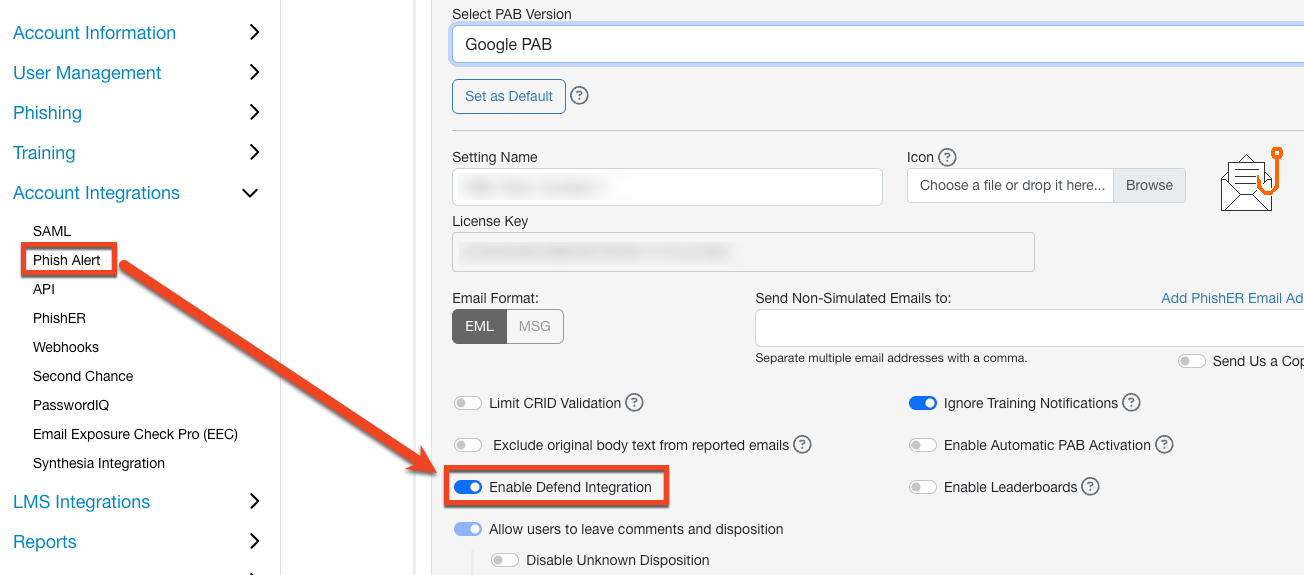
- Select Enable Defend Integration.
-
New disposition options will become available.
- Select the Save Phish Alert Settings button.
- At the bottom of the page, select the Save Changes button.
- Install the Gmail PAB Add-on in your email environment. See our Gmail Phish Alert Button (PAB) Add-on Product Manual for installation instructions.
KnowBe4 Defend Configuration
To configure your Defend console for the PAB Defend Integration, follow the steps below:
General Settings
- Log in to your KnowBe4 Defend console.
- Select the Defend drop-down menu on the left side of the page.
- Select Settings.
Microsoft 365 Inline Pre-Delivery Settings
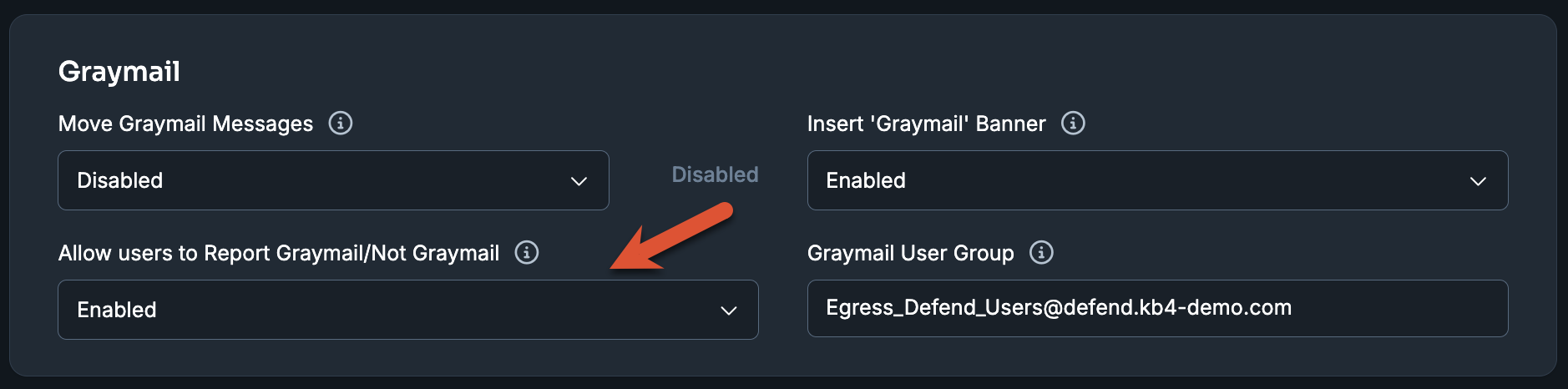
- Scroll down to the Graymail section.
-
Select the drop-down menu under Allow users to Report Graymail/Not Graymail and change it to Enabled.
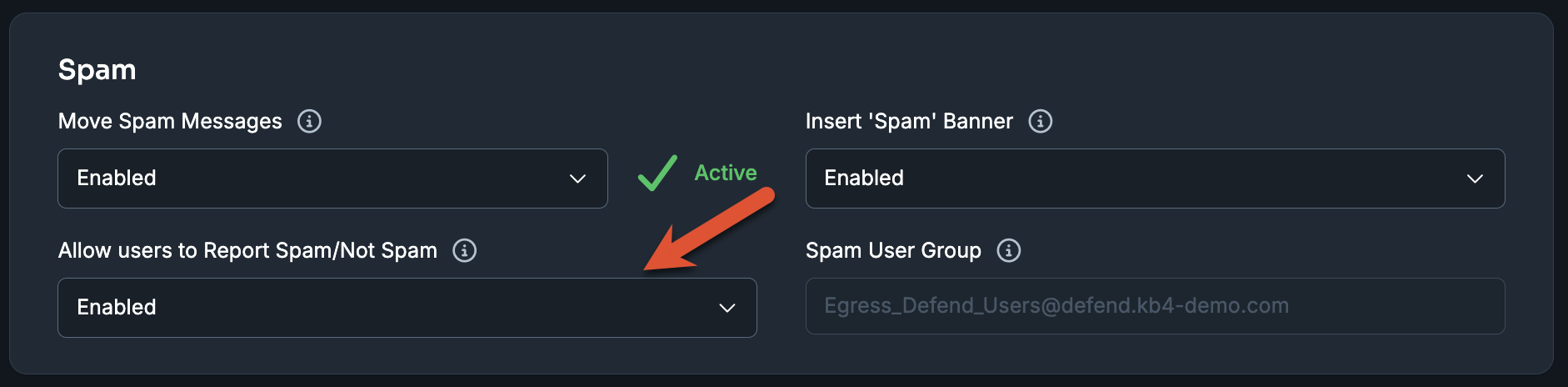
- Scroll down to the Spam section.
-
Select the drop-down menu under Allow users to Report Spam/Not Spam and change it to Enabled.
- Scroll down to the Summary Page section.
- Select the drop-down menu under Display Report Phish/Not Phish Option.
-
Select Hide report phish/not phish.

- Select the Save Changes button in the top-right corner.
- Scroll back to the top of the page.
Microsoft 365 Graph Post-Delivery Settings
- Scroll down to the Email Productivity section.
- Set Graymail Management to Enabled.
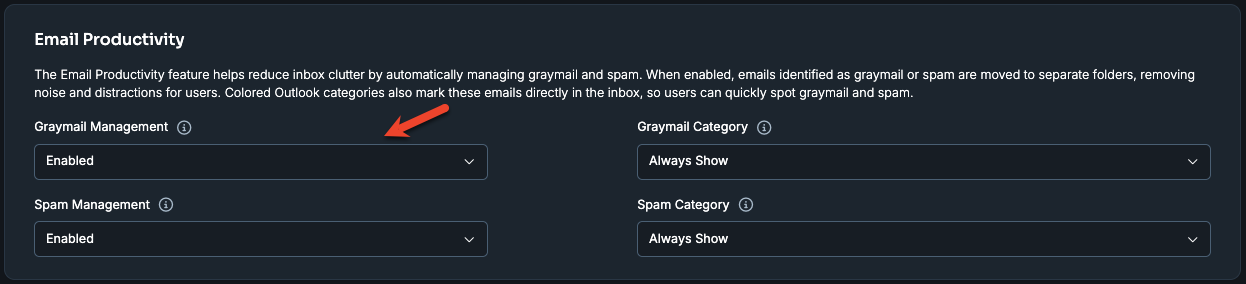
-
Set Spam Management to Enabled.
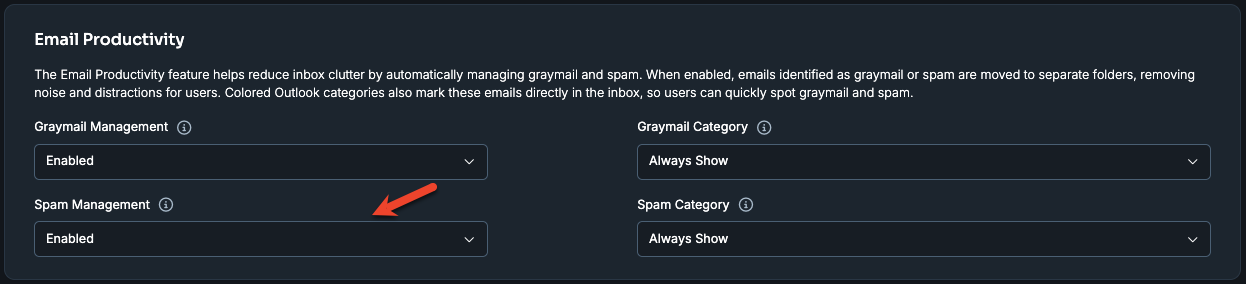
- Select the Save Changes button in the top-right corner.
Google Post-Delivery Settings
- Scroll down to the Email Productivity section.
-
Set the Graymail Label drop-down to Apply Label and Skip Inbox.

-
Set the Spam Label drop-down to Apply Spam Label and Skip Inbox.

- Select the Save Changes button in the top-right corner.
Add Phishing Link Domains to Defend's Link Rewriting Exceptions
This section will show you how to add your phish link domain's root domain to Defend's link rewriting exceptions. This ensures simulated phishing test clicks are registered correctly in your KnowBe4 Security Awareness Training console.
Note:Enabling the Permit users to access potentially harmful links from the Warning Page setting is no longer recommended. While it allows simulated phishing test clicks to be tracked, it also allows users to click through real, dangerous links. To change that to our recommended setting, see our Defend - Settings article.
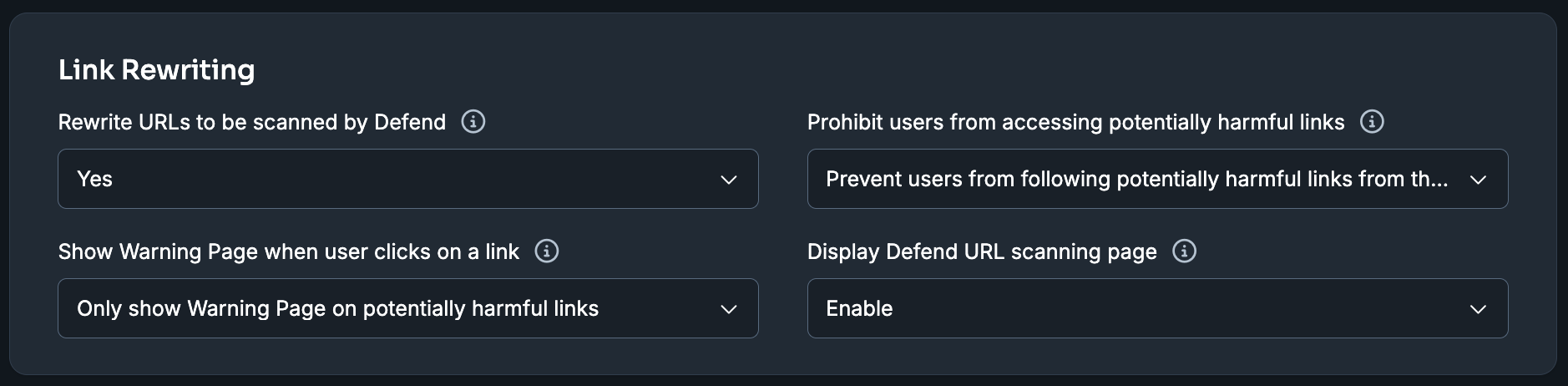
To add phishing link domains to Defend's link rewriting exceptions, follow the steps below:
- Select URL Rewriting / Decode.
-
Click Add Exception.
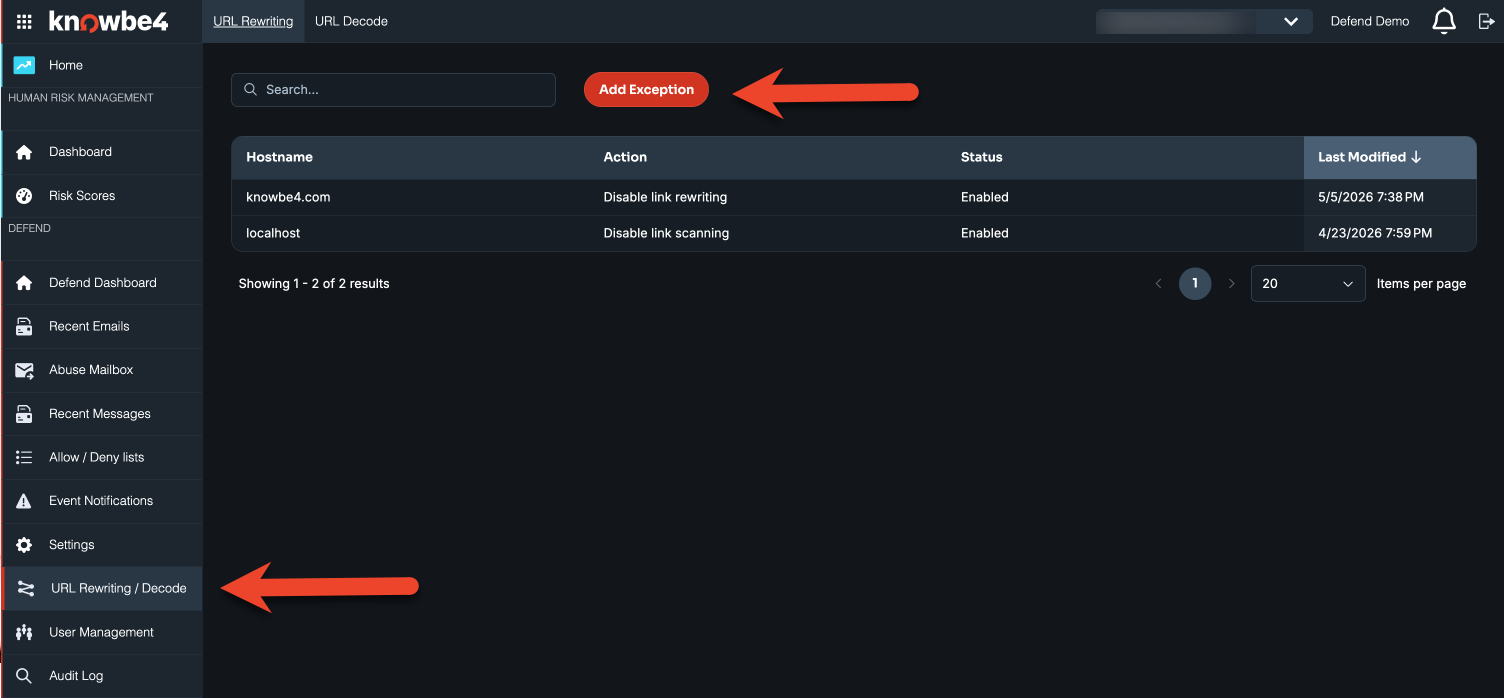
-
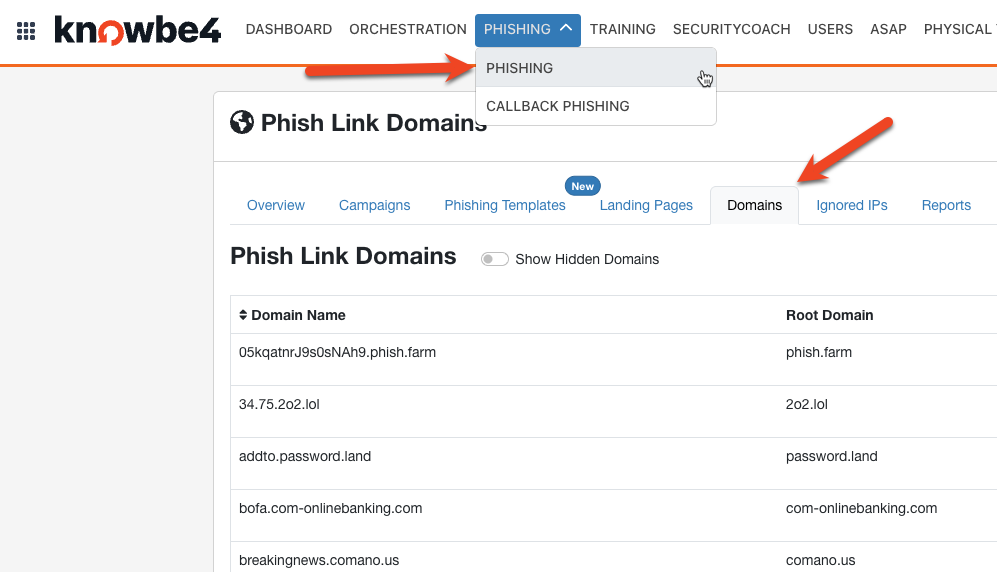
In a separate browser tab, log in to your KnowBe4 console and navigate to Phishing > Domains.
-
Add the Root Domain of your Phish Link Domains (KnowBe4 console) to the Hostname field of your New Rewriting Exception (Defend console).
Note:You will need to do this for each of your unique Root Domains.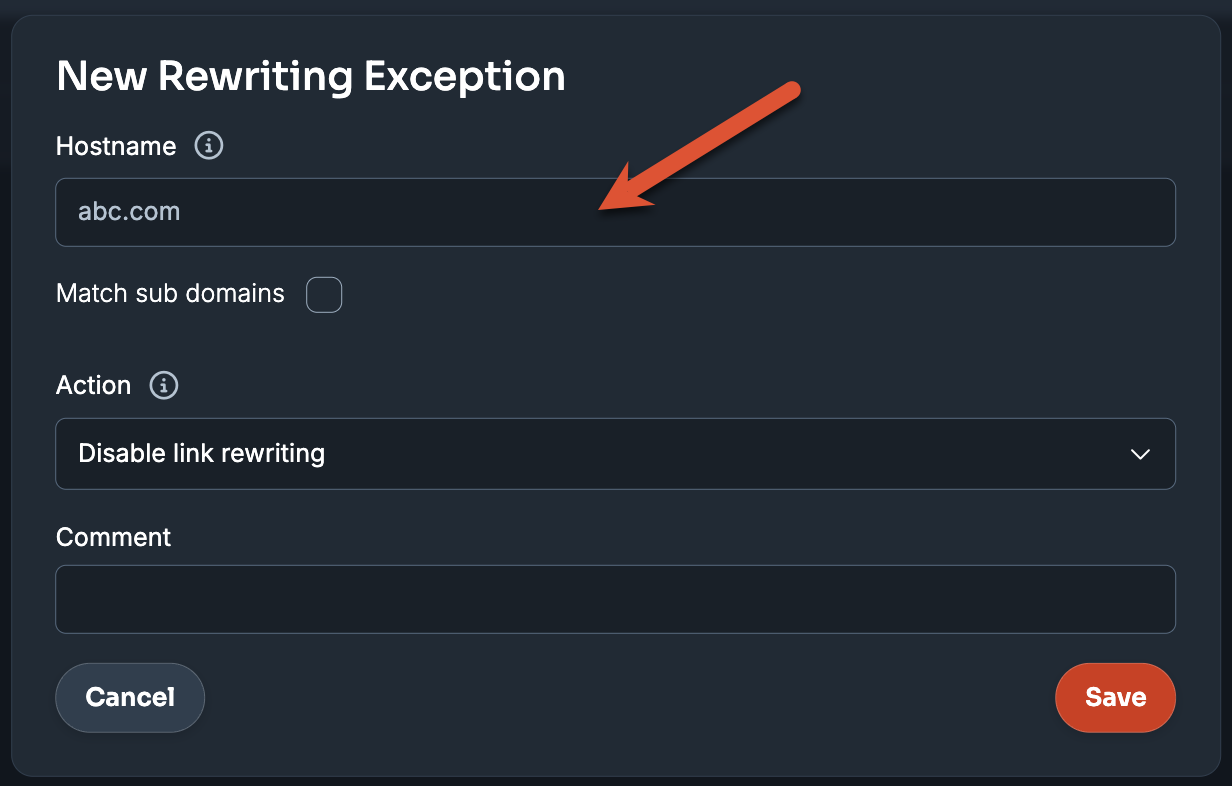
- Click Save.
User Experience
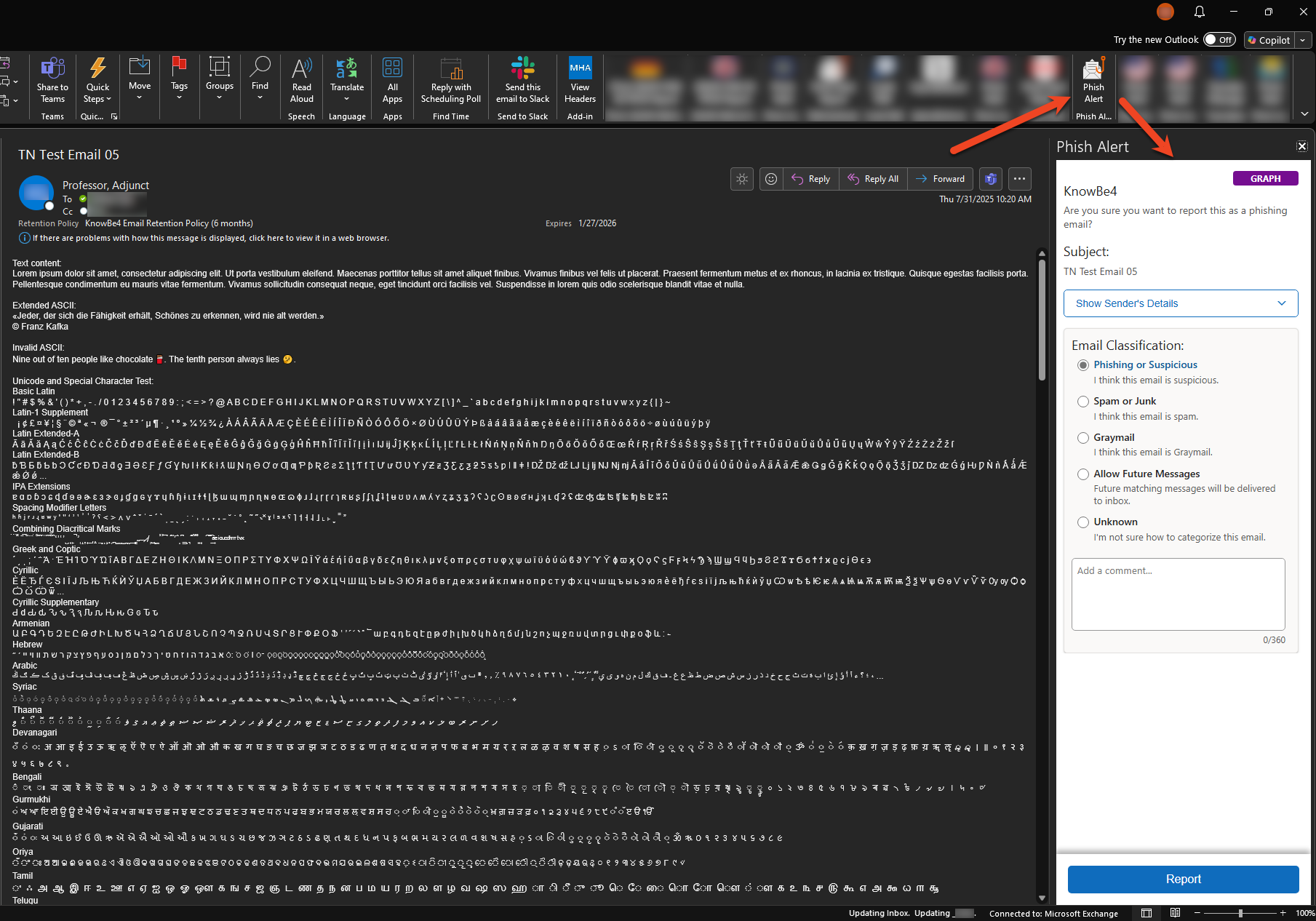
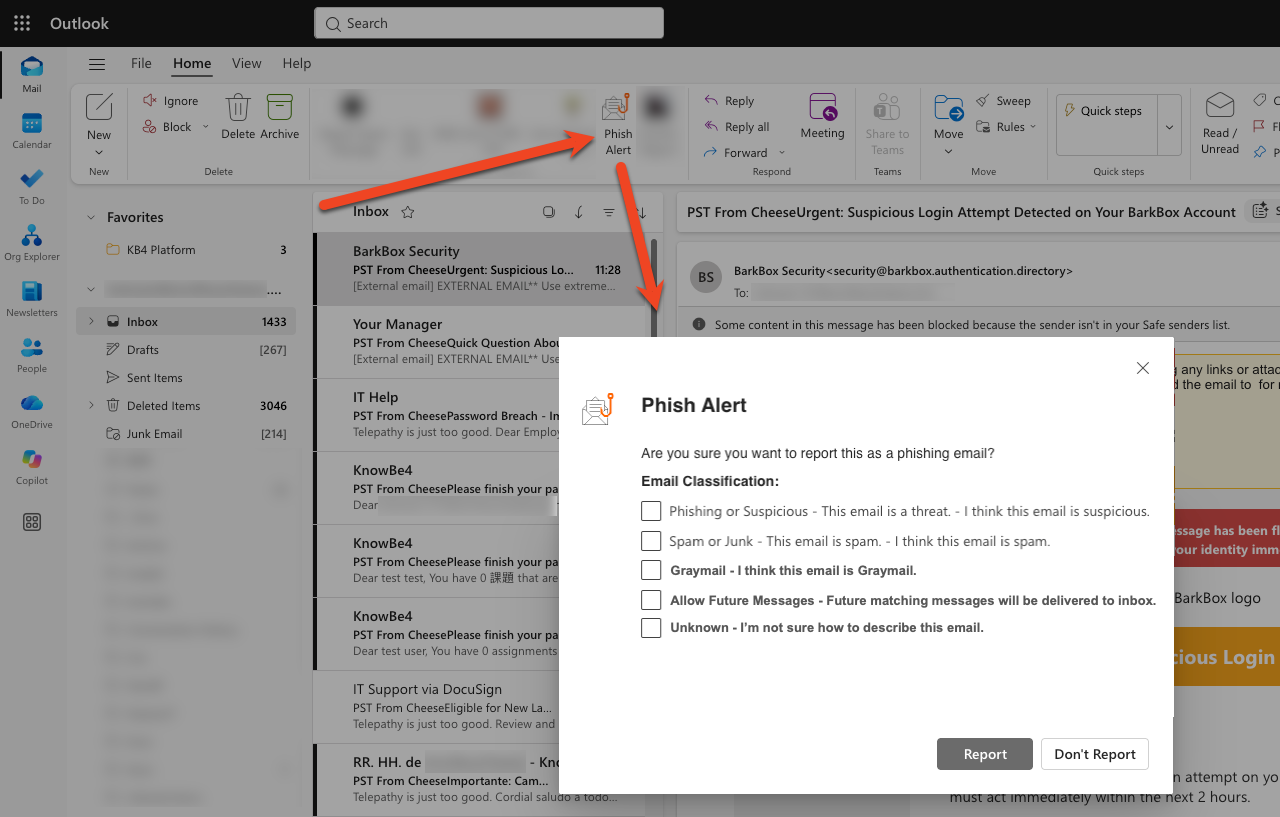
Once the PAB Defend Integration is configured, users will see the KnowBe4 Defend email classifications when they select the PAB.
Hybrid PAB User Experience
This section shows the user experience for the Hybrid PAB.
Microsoft Ribbon PAB User Experience
This section shows the user experience for the Microsoft Ribbon PAB.
Gmail PAB Add-on User Experience
This section shows the user experience for the Gmail PAB Add-on.
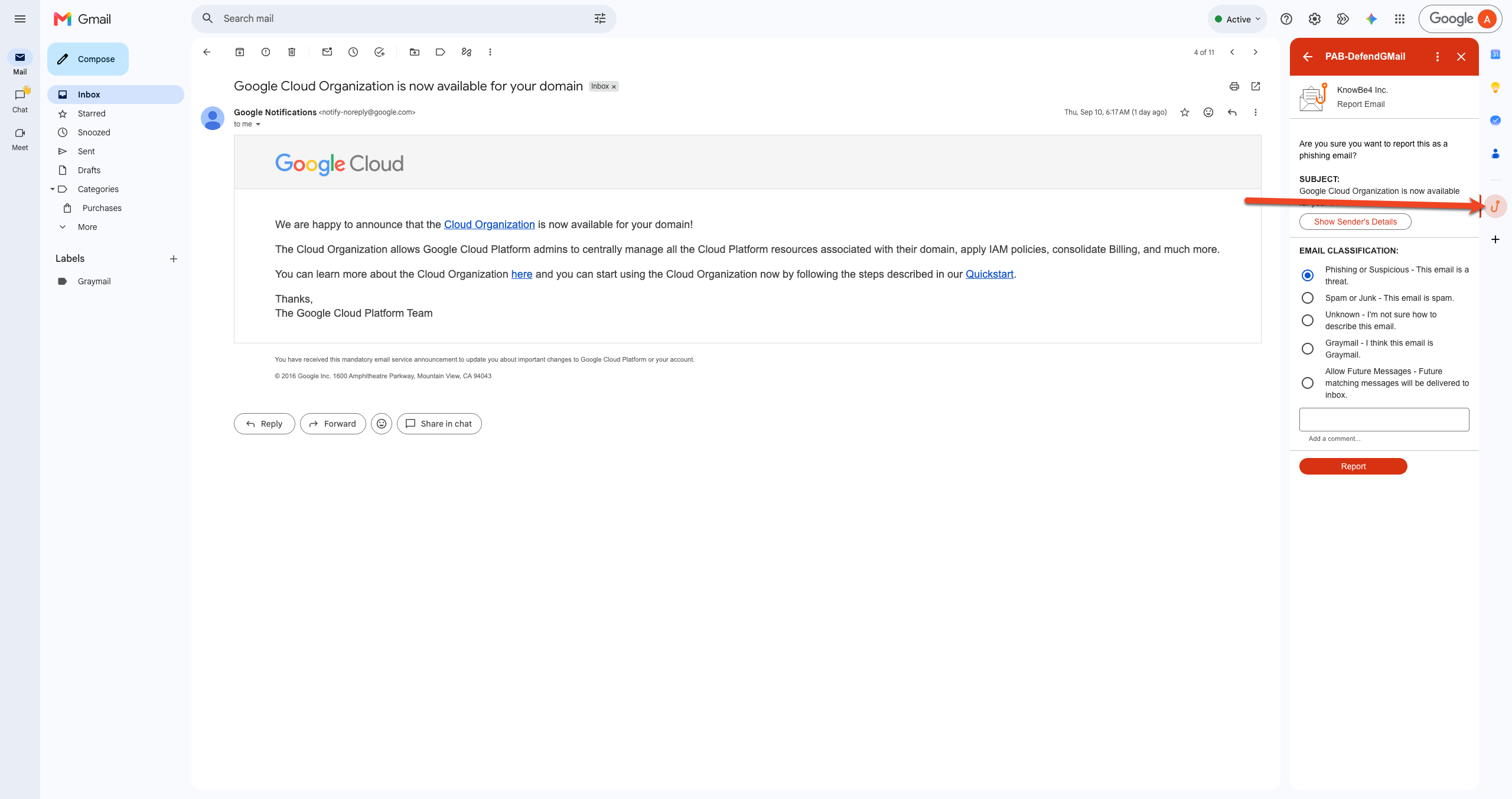
Selecting the Allow Future Messages disposition will update messages marked by Defend as spam or graymail. Defend will remember this for future similar messages, so that they are delivered directly to the inbox.
Troubleshooting
Question: Why am I getting a "404 Resource Not Found" error when I report a message with the PAB?
Answer: This error indicates that the PAB was unable to find the resources needed to report the message successfully. Please contact our support team for further assistance.