In your Account Management console, you can find the Phishing Templates subtab under the Phishing tab. This subtab allows you to search through our System Templates selection to meet your managed accounts' needs. To learn more about this subtab, see the sections below. You can also exclude system templates from your managed phishing campaigns, manage templates, create new templates, and manage template topics.
Managed Templates
In the Managed Templates section of the Phishing Templates subtab, you can search through your templates and manage your template topics.
How Managed Phishing Topics Work
The visibility of phishing templates depends on who is viewing the account and how the templates are being used.
- Partner and Multi-Account: When you access a client's account to manage their security, you will see your full list of partner-level managed topics in the campaign creation form, provided the client is opted in to Phishing Topics. You can use any of these to create a campaign immediately.
- Child Accounts: Child accounts that log in to their own accounts will not have access to your full partner library by default. They will only gain visibility into a specific topic or template after it has been deployed in one of their campaigns.
Searching for Your Templates
In the Managed Templates section, you can use filters to search for your templates. For more information about these filters, see the screenshot and list below.
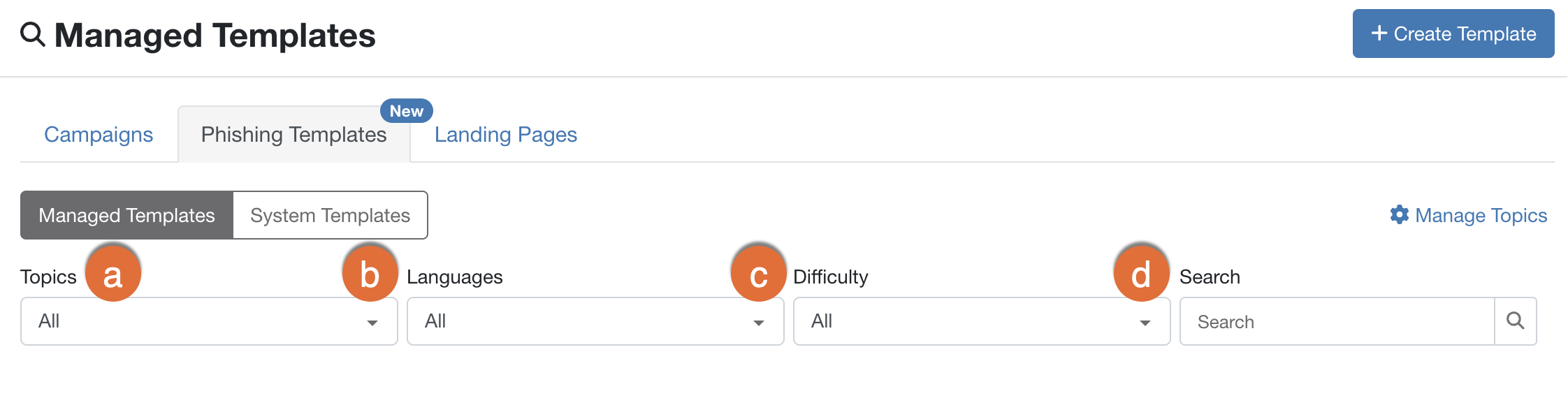
- Topics: Select the phishing template topics you want to use. You can select one or more phishing template topics. By default, all template topics are selected, and your templates will be random.
- Languages: You can use this filter to find localized templates in the selected languages.
- Difficulty: You can use this filter to find templates with the selected difficulty ratings. For more information, see our Template Difficulty Ratings Overview article.
- Search: You can use this filter to find templates with a specific keyword in the title.
Viewing Your Search Results
As you select filters in the Managed Templates section, the templates that meet your criteria will be displayed in the results table. This table shows the template's name, when it was last updated, language, difficulty rating, and topics. You can also preview templates and clear your filters. For more information, see the screenshot and list below:

- Clear Filters: You can click this link to remove all of your selected filters and reset the template list.
- Preview: You can click the eye icon to preview the template.
System Templates
In the System Templates section of the Phishing Templates subtab, you can search through system templates by using filters and clone templates for your managed phishing campaigns.
Searching for System Templates
See the screenshot and list below to learn how you can search for templates in the System Templates section:
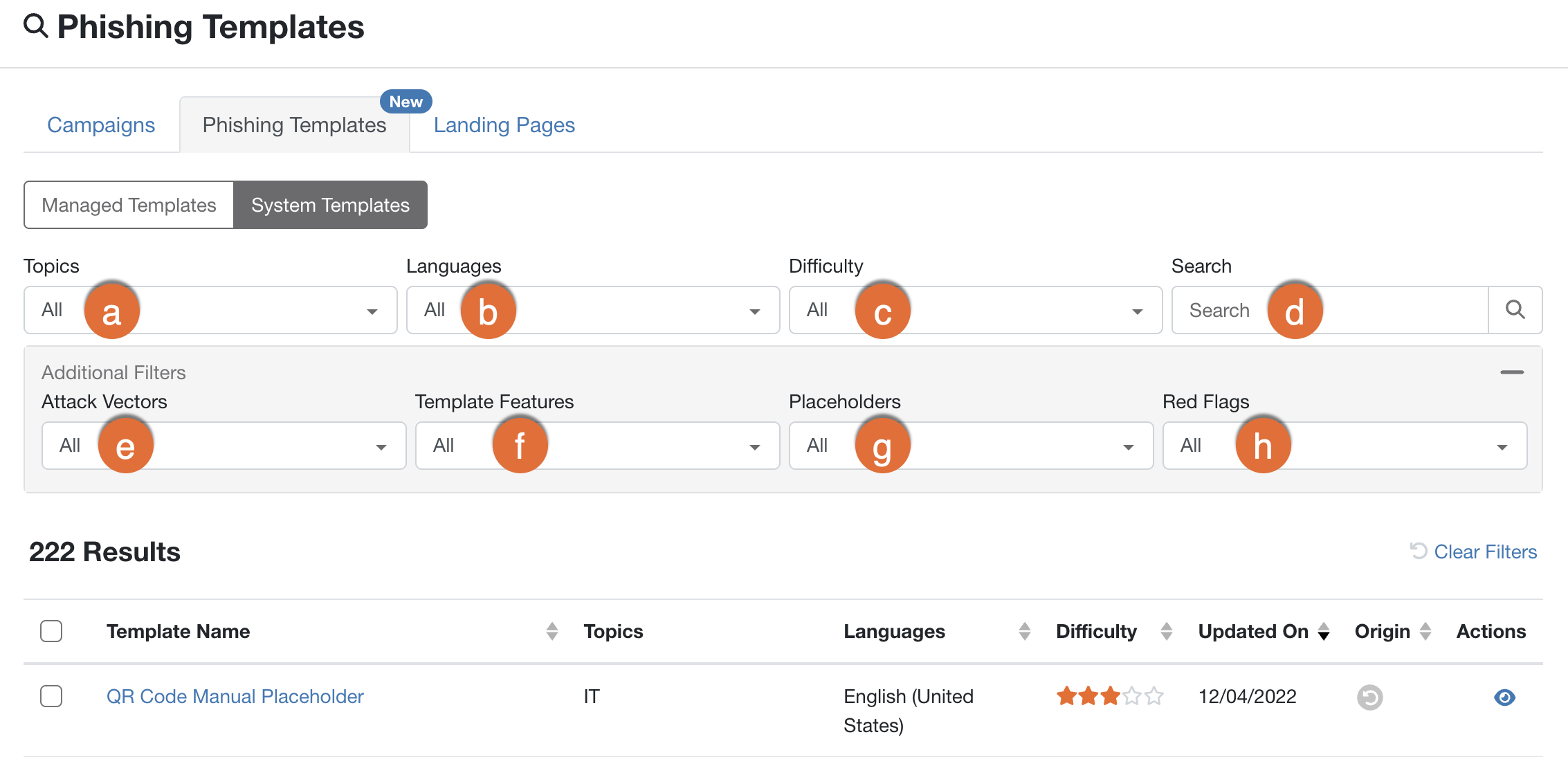
- Topics: Select the phishing template topics you want to use. You can select one or more phishing template topics.
- Languages: You can use this filter to find localized templates in the selected languages.
- Difficulty: You can use this filter to find templates that have the selected difficulty ratings. For more information, see our Template Difficulty Ratings Overview article.
- Search: You can use this filter to find templates with a specific keyword in the title.
- Attack Vectors: You can use this filter to find templates that include specific attack vectors, such as data entry templates. To view this filter, you'll need to click the + Additional Filters button.
- Template Features: You can use this filter to find templates with specific features, such as fake attachments. To view this filter, you'll need to click the + Additional Filters button.
- Placeholders: You can use this filter to find templates that contain specific placeholders, such as the Company Name placeholder. To view this filter, you'll need to click the + Additional Filters button.
- Red Flags: You can use this filter to find templates that contain specific red flags, such as the Aggressive Content red flag. To view this filter, you'll need to click the + Additional Filters button.
Viewing Your Search Results
After selecting your filters, you’ll see a list of templates that meet your criteria in the results table. Here, you can view information about the template, including the template’s name, topics, language, difficulty rating, when it was last updated, and origin. You can also clone templates, preview templates, and clear your filters.
For more information, see the screenshot and list below:
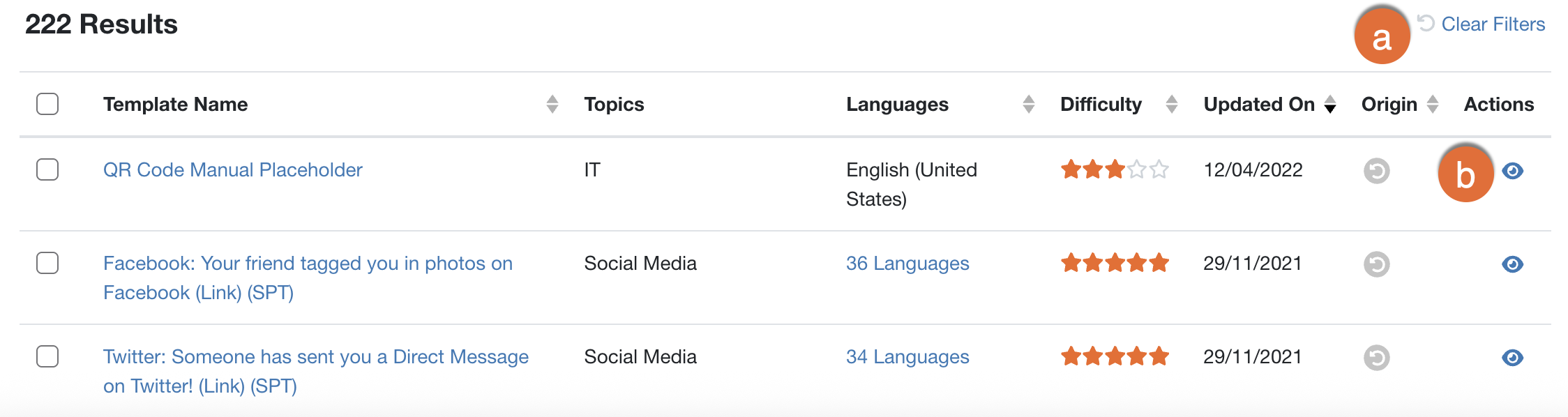
- Clear Filters: You can click this link to remove all of your selected filters and reset the template list.
- Preview: You can click the eye icon to preview the template.
Cloning Templates for Use
On the Phishing Templates subtab, you can clone a template to use in your managed phishing campaigns. When you clone a template, it will automatically be saved to the Managed Templates section of the Phishing Templates subtab.
To clone a template for use, follow the steps below:
- Log in to your KSAT console.
- Navigate to Phishing > Phishing Templates.
-
Select the check box next to the template or templates you want to clone. Then, click Clone Selected Templates.
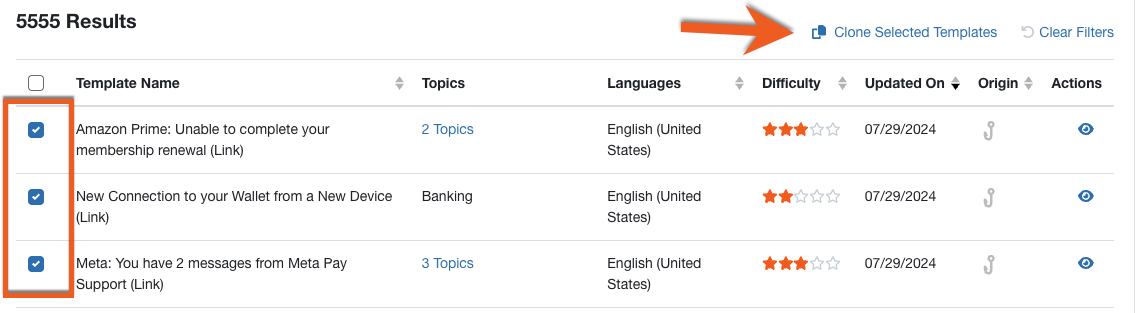
- The Clone Selected Templates pop-up will open. Select a language and topic for the templates.
-
Once you've made your selections, click Clone at the bottom of the pop-up window.
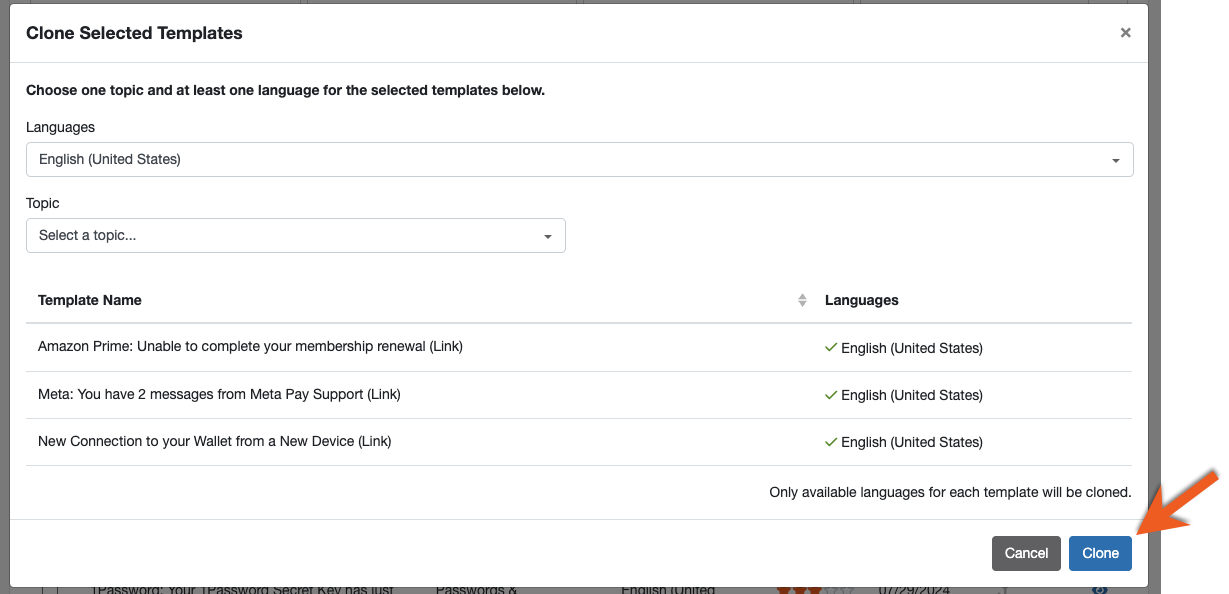
- These templates will now appear in the Managed Templates section.
Creating Managed Phishing Campaigns with Template Topics
When you create phishing campaigns, you'll have access to an updated New Managed Phishing Campaign page, which includes a Template Topics drop-down menu. This drop-down menu allows you to select topics for your phishing templates instead of selecting Template Categories.
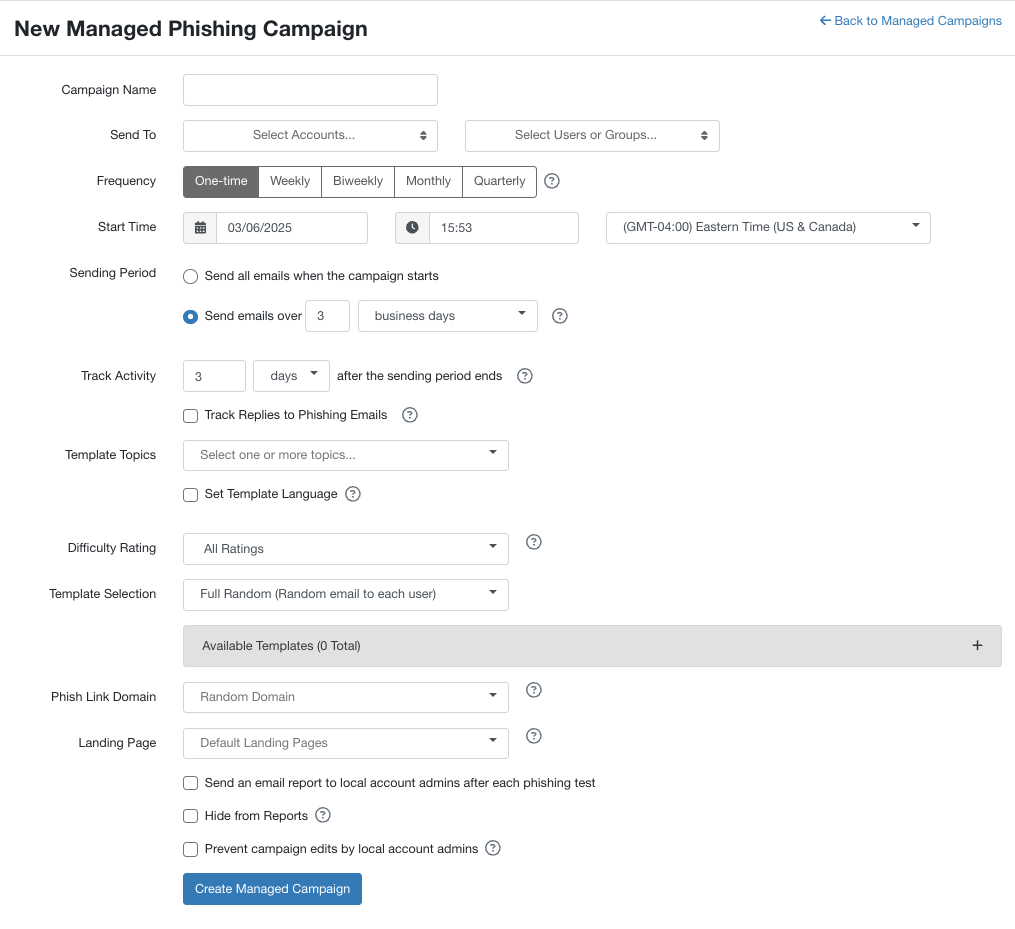
There is also a new Template Selection drop-down section where you can select how your users will receive their emails. Your choices are from Random, Full Random, and AIDA Selected. To learn more about Template Selection options, see our Automated Template Selection Overview article.
This section also includes an Available Templates drop-down subsection, which you can expand to view the list of templates that will be sent to your users. From this list, you can view the languages that the templates are available in and preview them.
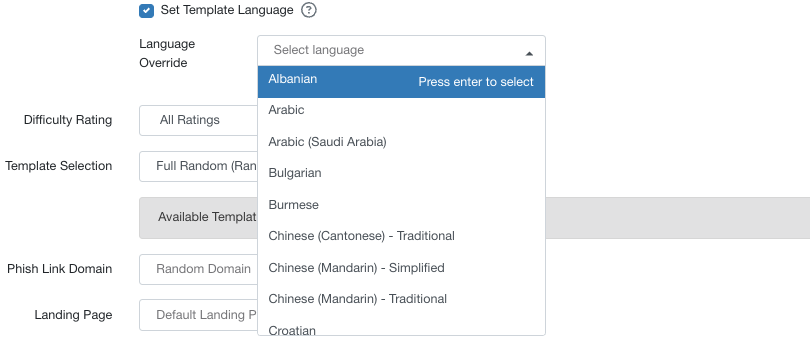
You can also set your organization’s template languages using the Set Template Language setting. Use this check box to select the languages you want to use in this phishing campaign. If multiple languages are selected, users will receive templates in any of the selected languages. This setting will override the account’s default phishing language and the language set in the user’s profile. When this check box is selected, the Language Override Selection drop-down menu will appear. You can select a maximum of five languages.
For more details about how to customize phishing email templates, see our Create and Edit Email Templates and Landing Pages article or watch our Customization of Phishing Templates and Landing Pages video.