If you’re a SAT Foundation, SAT Advanced, Platinum, or Diamond-level customer, you can use our Smart Groups feature to automate workflows, such as remedial training enrollments, in your KnowBe4 account.
This article offers a general approach to automating remedial training for users who fail your Phishing Security Tests. If you would like to automate your simulated phishing tests and remedial training enrollments, we suggest following the plan outlined in this article instead: Smart Groups Phishing Automation Guide.
For general and additional information about Smart Groups, please see the Additional Smart Group Resources section.
Before You Begin
To build this automated remedial training plan, you'll create several Smart Groups and training campaigns. The progression of this plan depends on two user events:
- The user has completed their previous remedial training assignment
- The user failed a phishing test after completing their previous remedial training assignment
Before you can create the necessary Smart Groups, you must decide what training content you'd like to assign for each round of remedial training. From your account, browse the ModStore, or refer to your Automated Security Awareness Program (ASAP) to decide which training assignments you would like to assign.
Step One: Create a Smart Group for Each Round of Remedial Training
Begin by creating a Smart Group for each round of remedial training you would like users to be enrolled in when they fail additional phishing tests. Go to the Users tab and the Groups subtab. Select the + Create New Group button and create your Smart Group. Name the first remedial training Smart Group something descriptive of its purpose, such as “Remedial Training - Round 1”.
Follow this section to add the appropriate criteria rules to each of your remedial training Smart Groups.
Remedial Training - Round 1
Find your Smart Group in the Groups tab and select the Smart Group’s name. You’ll be taken to a page similar to the one in the screenshot below.
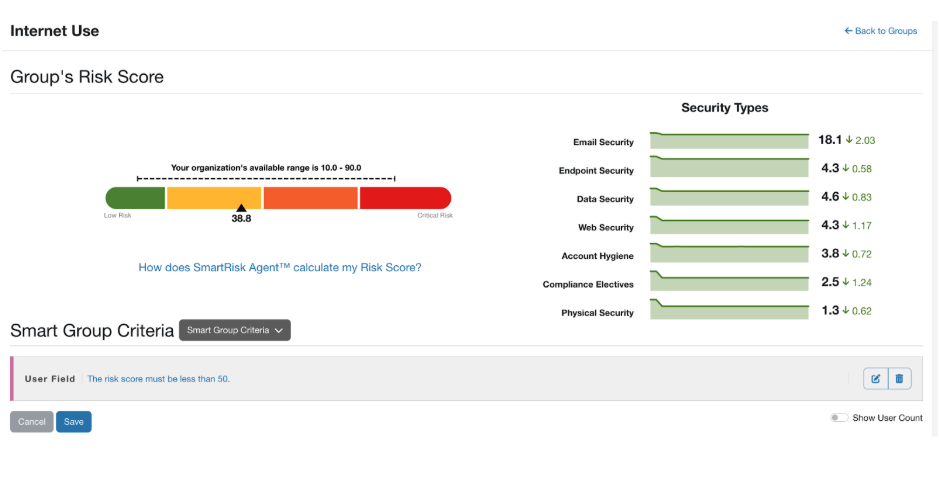
Add the following criteria for this Smart Group by clicking the Smart Group Criteria drop-down menu:
| Phish Event | User must have failed a phishing test more than 0 times on or after XX/XX/XXXX. |
|---|---|
| Training | User must not have completed [insert Remedial Round 1 training assignment(s) here]. |

This set of criteria creates parameters for all users who have failed a Phishing Security Test after the baseline or other phishing test and have never completed the specified training assignment.
As one of our best practices for implementing the KnowBe4 platform, we suggest conducting a blind baseline phishing test to determine your organization's Phish-prone Percentage. In the Phish Event criteria rule, by specifying any failures after the baseline test, you're omitting failures that may have taken place before users had taken any security awareness training. See our Best Practices Guide: Integrate KnowBe4 into Your Organization to learn more about integrating KnowBe4 into your organization.
Remedial Training - Round 2
Now, set up the second Smart Group for the users who failed an additional Phishing Security Test after completing the first round of remedial training.
Give the second remedial training Smart Group a descriptive name, such as “Remedial Training - Round 2.”
Add the following criteria for this Smart Group:
| After Training | User must have failed a phishing test after completing [insert Round 1 remedial training assignment(s) here]. |
|---|---|
| Training: | User must not have completed [insert Remedial Round 2 training assignment(s) here]. |
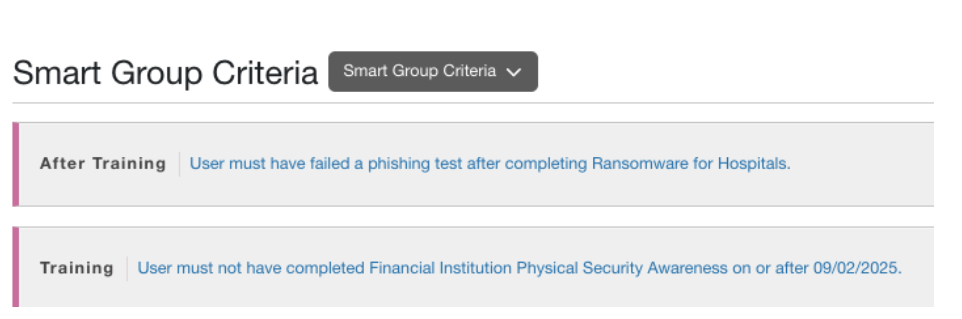
These criteria create parameters for users who failed a phishing test again, after taking the first round of remedial training.
The Training criteria rule considers that users have not completed any of the assignments included in the second round of remedial training. It is important to include the Training rule because this parameter will automatically remove users from this Smart Group once they complete their second round of remedial training.
Remedial Training - Round 3, 4, etc.
This workflow can be continued to create as many remedial training Smart Groups as you feel necessary.
When deciding how many additional groups you should create, consider the following:
- How frequently do you phish your users
- How often do you like to reevaluate the content you assign to replace it with new content

Refer to the table below to create additional remedial training Smart Groups.
Smart Group Remedial Training
| Remedial Training Campaign Title | Smart Group Title | Smart Group Criteria |
|---|---|---|
| Remedial Round 1 | Remedial Training- Round 1 | Phish Event: User must have failed a phishing test more than 0 times on or after XX/XX/XXXX. |
| Training: User must not have completed [insert Remedial Round 1 training assignment(s) here]. | ||
| Remedial Round 2 | Remedial Training- Round 2 | After Training: User must have failed a phishing test after completing [insert Remedial Round 1 assignment(s) here]. |
| Training: User has not completed all of [insert Remedial Round 2 training assignment(s)]. | ||
| Remedial Round 3 | Remedial Training- Round 3 | After Training: User must have failed a phishing test after completing [insert training assignment(s) used in Remedial Round 2 campaign]. |
| Training: User has not completed all of [insert Remedial Round 3 training assignment(s)] ever. | ||
| Remedial Round 4 | Remedial Training- Round 4 | After Training: User must have failed a phishing test after completing [insert training assignment(s) used in Remedial Round 3 campaign]. |
| Training: User has not completed all of [insert Remedial Round 4 training assignment(s)] ever. | ||
| Remedial Round 5 | Remedial Training- Round 5 | After Training: User must have failed a phishing test after completing [insert training assignment(s) used in Remedial Round 4 campaign]. |
| Training: User has not completed all of [insert Remedial Round 5 training assignment(s)] ever. |
If you would like to create additional rounds of remedial training, continue with the criteria rule pattern demonstrated in the table above.
Once you've created your remedial training Smart Groups, proceed to the next section to create remedial training campaigns.
Step Two: Create Training Campaigns for Each Remedial Training Smart Group
Now, set up remedial training campaigns to correspond with each remedial Smart Group.
Below, you'll find details on the training campaign settings applicable to automated remedial training with the Smart Groups you’ve set up.
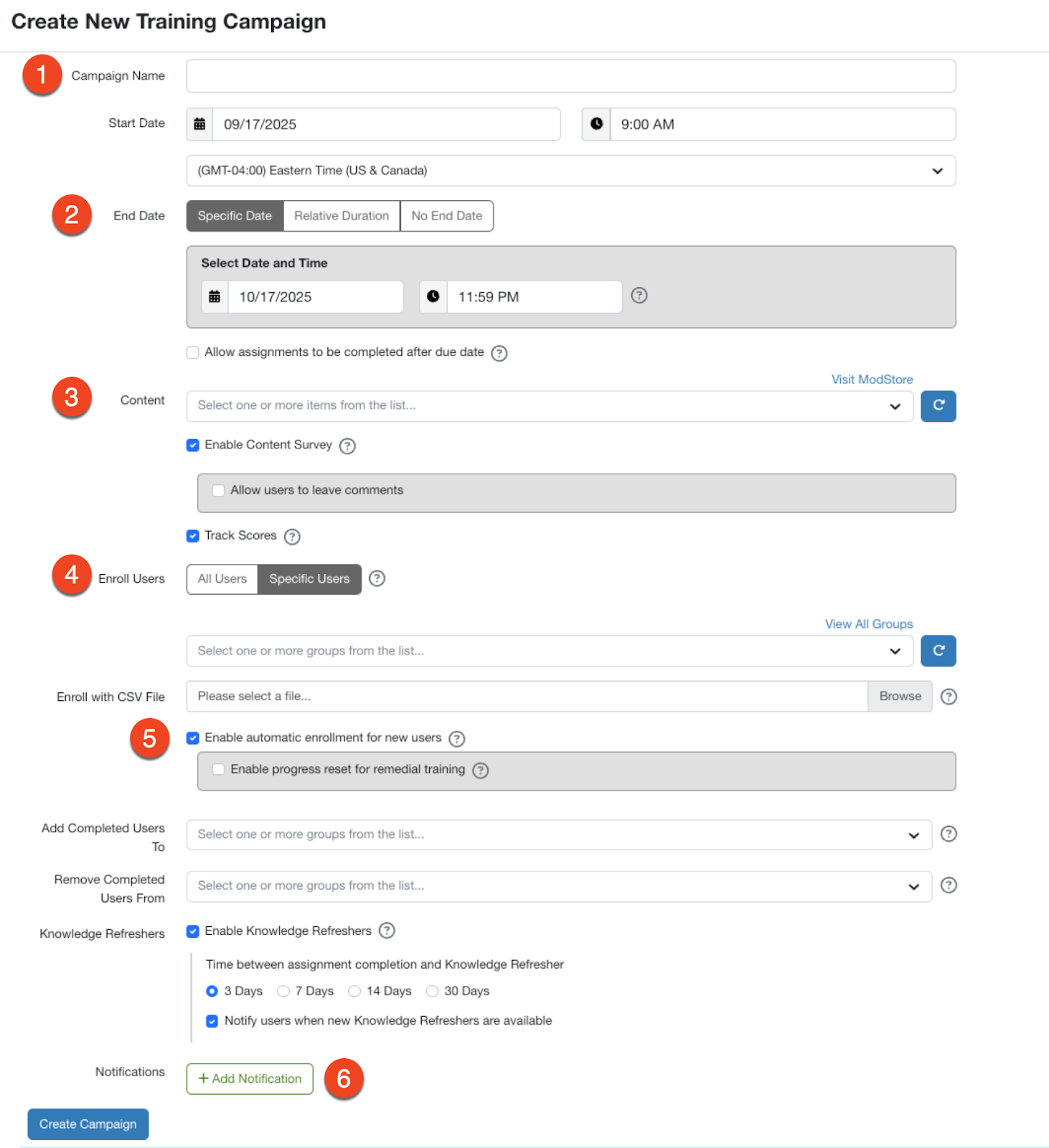
- Campaign Name: Name the training campaign something that specifies the round of remedial training and the Smart Group it is intended for. See the table above for an example.
- End Date: Be sure to choose a Relative Duration end date so this campaign will be ongoing, and each user will have the same amount of time to take the training once enrolled.
- Content: The training content you select here must match the criteria you've selected in the associated Smart Group, as detailed in the table above.
- Enroll Users: Select Specific Users and be sure to select the appropriate Smart Group for the round of remedial training you are creating, as detailed in the table above.
- It is important to select the check box for Enable automatic enrollment for new users. This allows users to be automatically enrolled in training after failing and being added to a Smart Group.
- Notifications: At a minimum, you’ll want to add a Welcome notification here to notify your users upon their enrollment in remedial training. We would also recommend adding one to two reminder notifications to encourage the user to complete the training prior to their due date. For your Welcome notification, we recommend using a template indicating that the user failed a phishing test. This lets them know why they've been enrolled in this training campaign. We have a sample template in the system, "Oops, you failed a phishing test", that you can make edits to by clicking the Manage Notification Email Templates link. For more on training notifications, click here.
Continue to create training campaigns for each Smart Group you have created. Once you've set up these Smart Groups and training campaigns, users will be automatically enrolled in remedial training after each phishing test failure, once they've completed their previous round of remedial training, if applicable.
Additional Resources
See the following resources to learn more about what you can do with Smart Groups: