The Scam of the Week is a weekly message written by KnowBe4. The message summarizes a recent real-world scam and provides tips on how to stay safe from similar scams. To send the message to your users, you can use our user messaging feature to create and send a recurring message.
If you want your users to be able to view any Scam of the Week sent to them, we encourage you to set it up as a message. Every message will remain listed in the KSAT admin console under Users > Messages and in the Messages tab of the Learner Experience (LX). When you send a Scam of the Week message to your users, the message will remain in the Messages tab of the LX until you hide it.
Set Up a Scam of the Week Message
Users will be able to view the Scam of the Week on the Messages tab of the Learner Experience (LX). You can customize the frequency you send these messages, and you have the option to send a copy of the message to each user via email. For general information about messages, see our User Messaging Guide.
To create a Scam of the Week message, follow the steps below:
- From your KnowBe4 console, navigate to Users > Messages.
- Click the +Create New Message button at the top-right corner of the page.
- Select Scam of the Week.
-
Customize your settings. For more information about each setting, see the screenshot and list below:
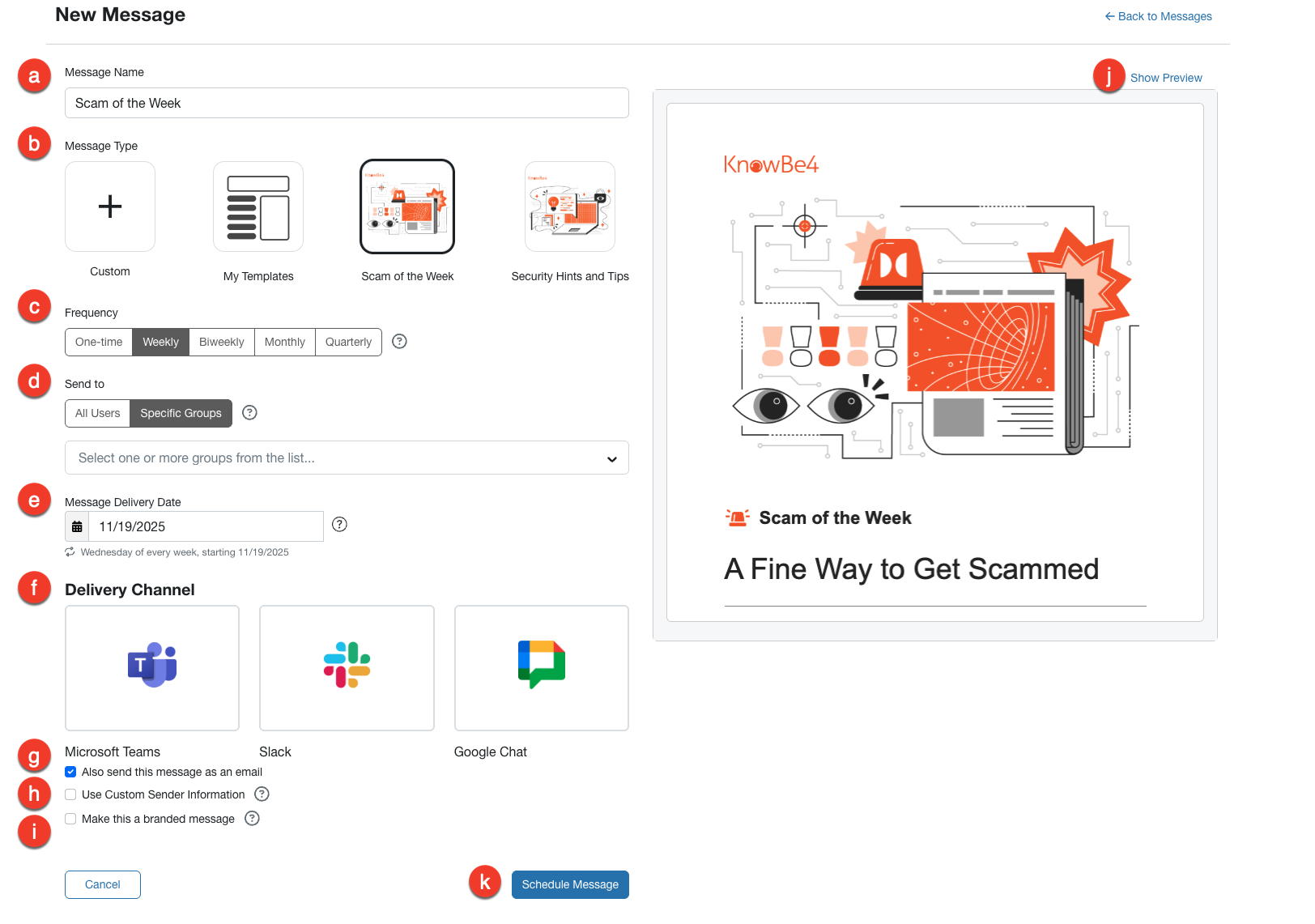
- Message Name: Keep the message name Scam of the Week.
- Message Type: Select Scam of the Week from the menu.
- Frequency: Choose how often Scam of the Week messages should be sent.
- Send to: To send the Scam of the Week to your entire organization, select All Users. To only send the Scam of the Week to part of your organization, select Specific Groups and choose one or more groups from the drop-down menu.
-
Message Delivery Date: In this field, select when you would like to send your message.
Note:When using a frequency other than One-time, each subsequent message will be sent on the day of the week that was selected. -
Delivery Channel:Choose Microsoft Teams, Slack, or Google Chat as your delivery method for the Custom, Scam of the Week, or Security Hints and Tips message types. You can preview your message before sending it. If an error occurs through the selected delivery method, messages will be sent through email.
Note: To send a message through one of these delivery channels, you must have a SecurityCoach subscription with these delivery methods enabled. -
Also send this message as an email: Select this check box to send a copy of the Scam of the Week message to each user via email. This message will still be listed on the Messages tab of the LX.
Tip:Emails sent using the User Messaging feature are not tracked and will not be included in any message-related data. - Use Custom Sender Information: Enable this option to customize the sender's name and email address. The email address must match one of the allowed domains on your account.
- Make this a branded message: Enable this option to add your organization’s logo, name, and domain to the message. This option is only available if you have the Company Logo URL setting configured in your Account Settings.
- Show Preview: This option displays a preview of the Scam of the Week message to be sent. If you want to edit this message, go to Manage Templates, then clone it from the System Templates. Edit it and select it using the My Templates section when creating a message.
- Schedule Message: Review your selections, then select Schedule Message. You’ll see a preview of that week’s Scam of the Week message.