Real-Time Coaching is part of the KnowBe4 console’s Security Awareness Training (SAT), and allows you to deliver immediate, targeted coaching to your users. In this guide, you’ll learn how to set up Real-Time Coaching in three easy steps to start detecting user behavior and coaching your users.
Step 1: Integrate Security Vendors
To detect coaching opportunities, Real-Time Coaching requires connections from security vendors. To configure and connect security vendors to Real-Time Coaching, see the sections below.
Foundation Customers
Real-Time Coaching integrates automatically with your KnowBe4 console’s SAT. No further vendor setup is needed, so you can proceed straight to the Activating Coaching Categories section below.
Advanced Customers
Real-Time Coaching integrates automatically with your KnowBe4 console’s SAT. To get the most out of Real-Time Coaching, we recommend integrating your other security vendors as well. To connect additional third-party security vendors, follow these steps:
- Log in to your KnowBe4 SAT console.
-
Use the left sidebar to navigate to Coaching > Setup > Security Vendor Integrations. From the Security Vendor Integrations page, navigate to Add Integrations.
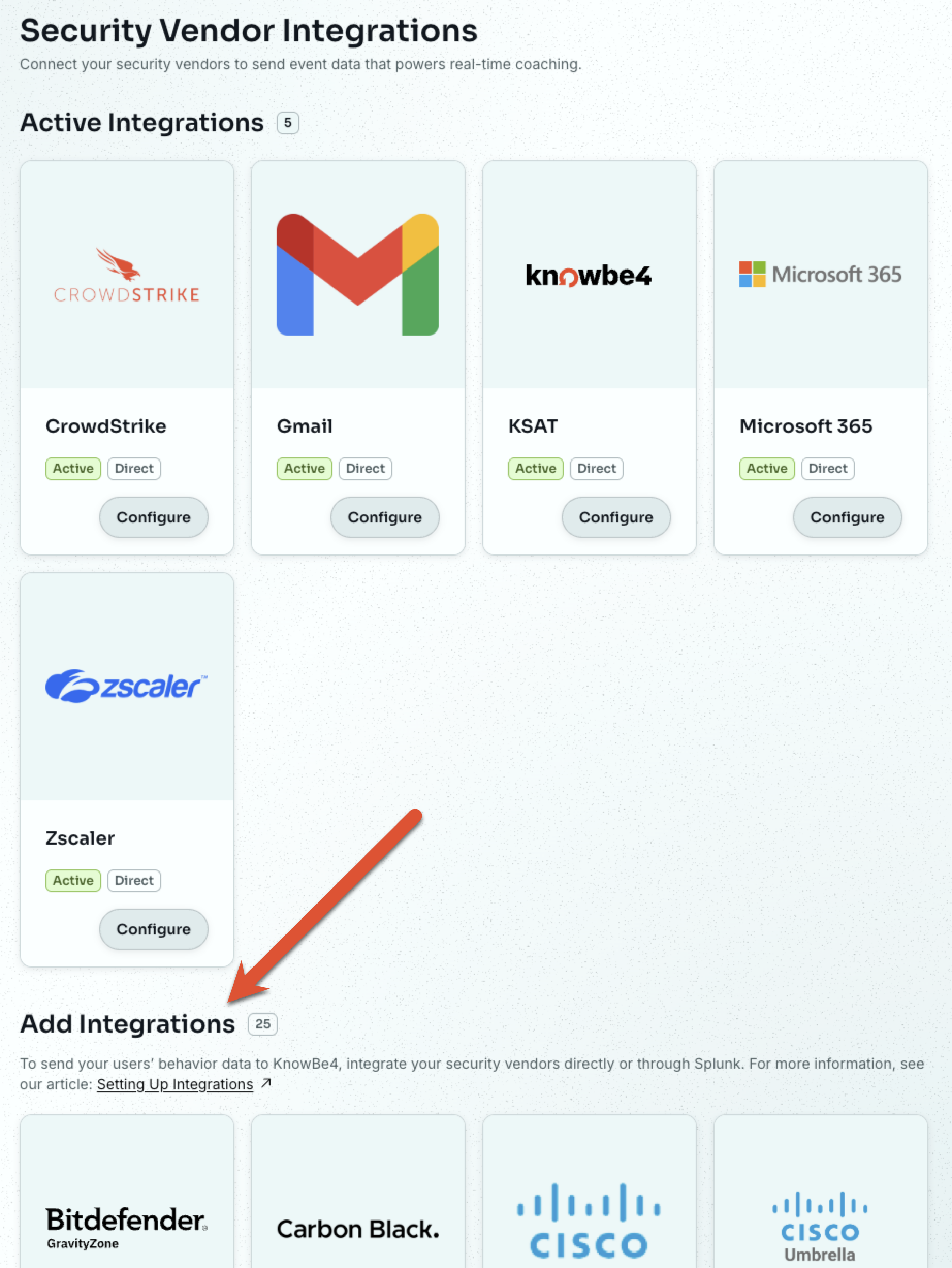
- Locate your security vendor and select Configure on the vendor’s card.
- A configuration page will open with instructions specific to your security vendor. Follow the required steps to configure your vendor.
For more information on setting up specific integrations, see our integration guides.
Step 2: Set Up Delivery Methods
Real-Time Coaching works best when it's connected to your users’ preferred communication methods. Email is automatically available as a delivery method. However, we also recommend adding Google Chat, Microsoft Teams, or Slack to coach your users where they communicate most.
To set up your preferred delivery method, follow these steps:
- Log in to your KnowBe4 console.
- Use the left sidebar to navigate to Coaching > Setup > Delivery Setup.
- Locate your preferred communications delivery method and select Configure on the vendor tile.
- A configuration page will open with instructions specific to your delivery method. Follow these required steps to configure your delivery method.
For more detailed instructions, see our delivery method guides.
Step 3: Activate Coaching Categories
To target accurately and effectively coach specific user behaviors and risks, Real-Time Coaching offers a variety of system categories for coaching. These categories target specific user behaviors and deliver handpicked coaching for each behavior. Categories start in Monitoring mode, so you can see how much activity your organization has before you start coaching.
KnowBe4 SAT natively targets three coaching categories: Social Engineering Indicators, Simulated Phishing, and Password Safety.
To move your chosen categories to Coaching mode and start coaching your users in real time, follow these steps:
- Log in to your KnowBe4 SAT console.
- Use the left sidebar to navigate to Coaching > Real-Time Coaching.
- Locate the category you want to activate and select Set Up Coaching on the category card.
-
Review the category configuration and verify that it meets your organization’s needs.
Tip:System categories come preconfigured and ready for activation, but you can also customize them to suit your organization’s needs. - At the bottom of the page, select Start Coaching to move your category into Coaching mode.
Once a category is in Coaching mode, your users will receive tailored SecurityTips that coach the targeted user behaviors. For more information, see our categories guide.