In this guide, you’ll learn how to integrate Slack with Real-Time Coaching. You can use Slack to send Real-Time Coaching notifications to your users when risky activity is detected on their devices.
For general information about Real-Time Coaching, see our overview article.
Adding Real-Time Coaching to Slack
Before you can begin coaching your users in Slack, you must add Real-Time Coaching to your Slack workspace. To add Real-Time Coaching to Slack, follow the steps below:
- Log in to your KnowBe4 SAT console.
- Navigate to Coaching > Setup > Delivery Methods.
-
Select + Add Workspace to open the Slack OAuth screen.

-
Select Allow to grant Real-Time Coaching the needed permissions to view information and perform actions in Slack.

The following Slack permission scopes are needed for the integration with Real-Time Coaching:
- "chat:write"
- "team:read"
- "users:read"
- "users:read.email”
- "links.embed:write"
- “links:write"
- "links:read"
-
Verify that the bot is deployed by logging in to your Slack account and navigating to the Home tab > Apps subtab. KB4-SecurityAwareness should be displayed under Apps.

Renaming the Bot in Slack
To rename the KB4-SecurityAwareness bot in Slack, follow these steps:
- Log in to your Slack admin account.
- Navigate to Apps > KB4-SecurityAwareness.
-
Select the three dots icon on the top-right corner of the screen to open a drop-down menu. From the menu, Open App Details. A KB4-SecurityAwareness pop-up window will appear.
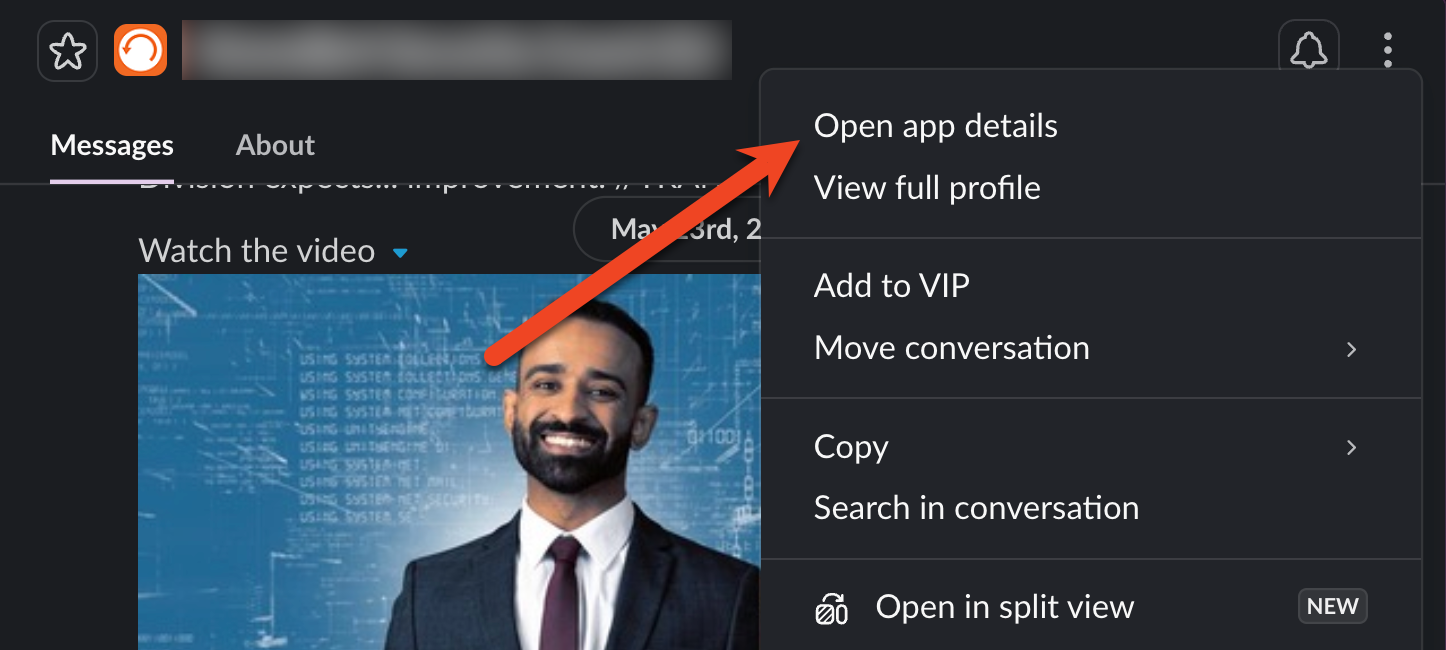
- In the KB4-SecurityAwareness pop-up window, select Configuration. A KB4-SecurityAwareness details page will open.
-
In the KB4-SecurityAwareness details page, navigate to the Configuration subtab > Bots section and select Edit. An Edit bot name pop-up window will appear.
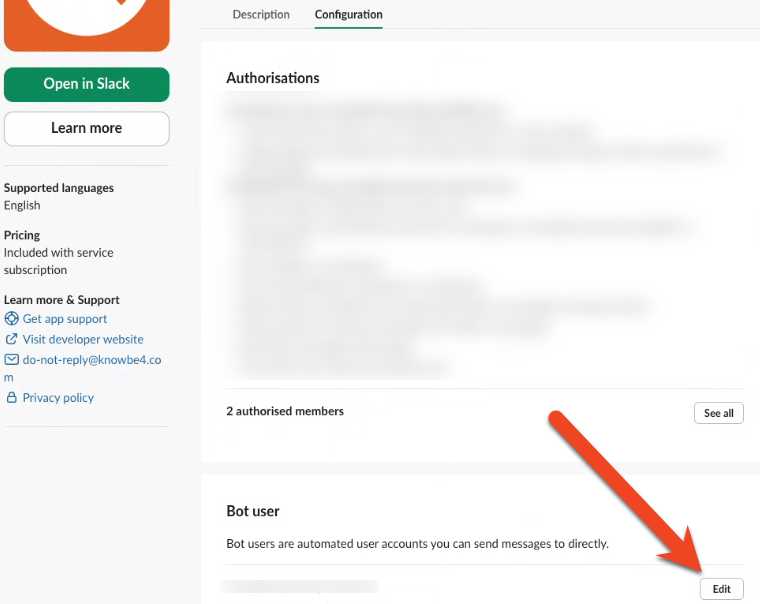
- Enter your preferred bot name and select Save changes to confirm.
Syncing Slack Users with Real-Time Coaching
After you add Real-Time Coaching to Slack, your Slack team members will automatically be synced with Real-Time Coaching. The initial sync may take a few minutes to complete. After the initial sync, your Slack team members will be resynced daily.
You can also manually sync users for each Slack Workspace by using the Run User Sync button.
Sending Real-Time Coaching Notifications Using Slack
To coach your users in Slack, we recommend setting up a Real-Time Coaching category. For more information, see our Categories Guide.
Deleting a Slack Workspace Integration
To delete a Slack workspace integration from Real-Time Coaching, follow the steps below:
- Log in to your KnowBe4 SAT console.
- Navigate to Coaching > Setup > Delivery Setup.
- Select Configure for the Slack vendor tile.
-
Locate the name of the workspace you want to delete. Select the three dots icon in the Actions column, then select Delete Workspace.
Note:Deleting the Slack workspace will automatically revoke the authentication token for SecurityCoach.