Overview
Prevent now offers two delivery modes for outbound email advice, giving admins control over how quickly and where users see Prevent's guidance. Previously, Prevent could only nudge users in real time inside the Microsoft Outlook add-in before a message sent, which meant every outgoing email waited a moment for a response from Prevent.
With this release, admins can choose between Real-Time Mode and Hybrid Mode, which are explained in detail below.
Requirements
Below are the items needed for the nudge delivery experience:
- A Prevent (Outbound Email Security) subscription
- KnowBe4 Security Center (KSC) admin access to configure the delivery mode
- Microsoft 365 with Outlook (Web or Desktop) for Real-Time Mode and Hybrid Mode
- KnowBe4 Email Security add-in (KESa)
How the Delivery Modes Work
This section explains how the nudge delivery experience modes work for the Hybrid and Real-Time modes.
Hybrid Mode
The KnowBe4 Email Security add-in (KESa) keeps showing informational guidance in the side panel while a user is writing a message, but it doesn't hold the message at send time. Instead, the message is sent immediately, and Prevent Gateway evaluates it afterward. If Prevent Gateway finds a concern, the user receives a follow-up email notification with clear next steps. Hybrid Mode removes the one to three second send-time delay that some users experience while Prevent evaluates a message, and they let organizations that can't deploy an add-in to every mailbox still benefit from Prevent's protection.
Real-Time Mode
This is Prevent's original behavior. When a user sends an email, the add-in checks the message against Prevent's advice engine and, if needed, shows the user a nudge before the message is sent. Admins can configure how long Prevent waits for a response, from one to a few seconds, before releasing the message.
What Changes for Users
See the table below for the differences between the two modes:
| Real-Time Mode | Hybrid Mode | |
|---|---|---|
| KnowBe4 Email Security Add-in (KESa) required | Yes | Yes |
| Message held at send time | Yes | No |
| Side panel guidance while composing | Yes | Yes |
| Prevent advice delivered | In Outlook UI, via real-time prompt/nudge before sending | By email, after sending |
Configuring Delivery Mode
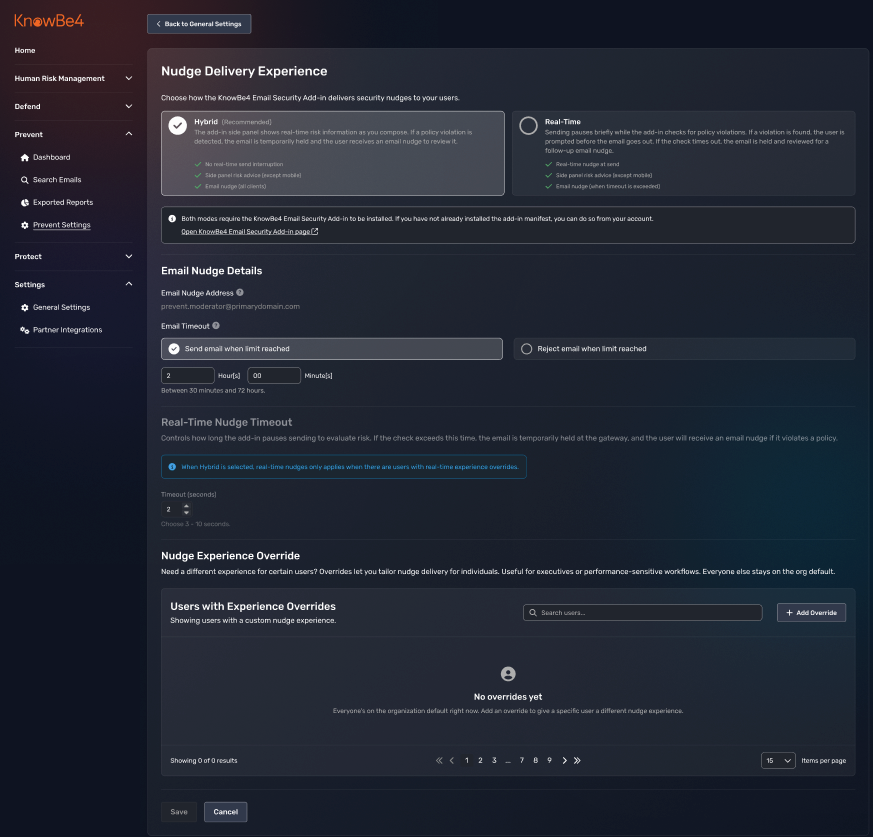
Admins choose between Real-Time Mode and Hybrid Mode at the organization level, with the option to set individual exceptions for specific users.
Both the organization-wide setting and per-user overrides are configured from Prevent Settings in your KnowBe4 Security Center (KSC) console, under Nudge Delivery Experience and Nudge Experience Override. For step-by-step instructions, see the Nudge Delivery Experience and Nudge Experience Override sections of the Prevent - Nudge Delivery Experience User Guide article.
Configuring the Real-Time Mode Timeout
Organizations using Real-Time Mode can also configure how long Prevent waits for a response before releasing a message. The minimum timeout is now one second (previously three seconds), and the default is three seconds (previously five seconds) for new organizations and for existing organizations that haven't customized their timeout.
Timeout configuration applies only to Real-Time Mode. It's ignored for users in Hybrid Mode since those messages aren't held at send time.
Frequently Asked Questions
Do I need to redeploy the Prevent add-in to use Hybrid Mode?
No. Hybrid Mode uses the same add-in deployment. Switching modes doesn't require a new manifest or redeployment.
Can I move a user back to Real-Time Mode after switching them to Hybrid Mode?
Yes. Use the Nudge Experience Override list to move individual users between modes at any time, or change the organization-wide setting.