Overview
The Nudge Delivery Experience page lets you choose how Prevent delivers advice to your users and set individual overrides for specific users.
See the screenshot and the list below for details:
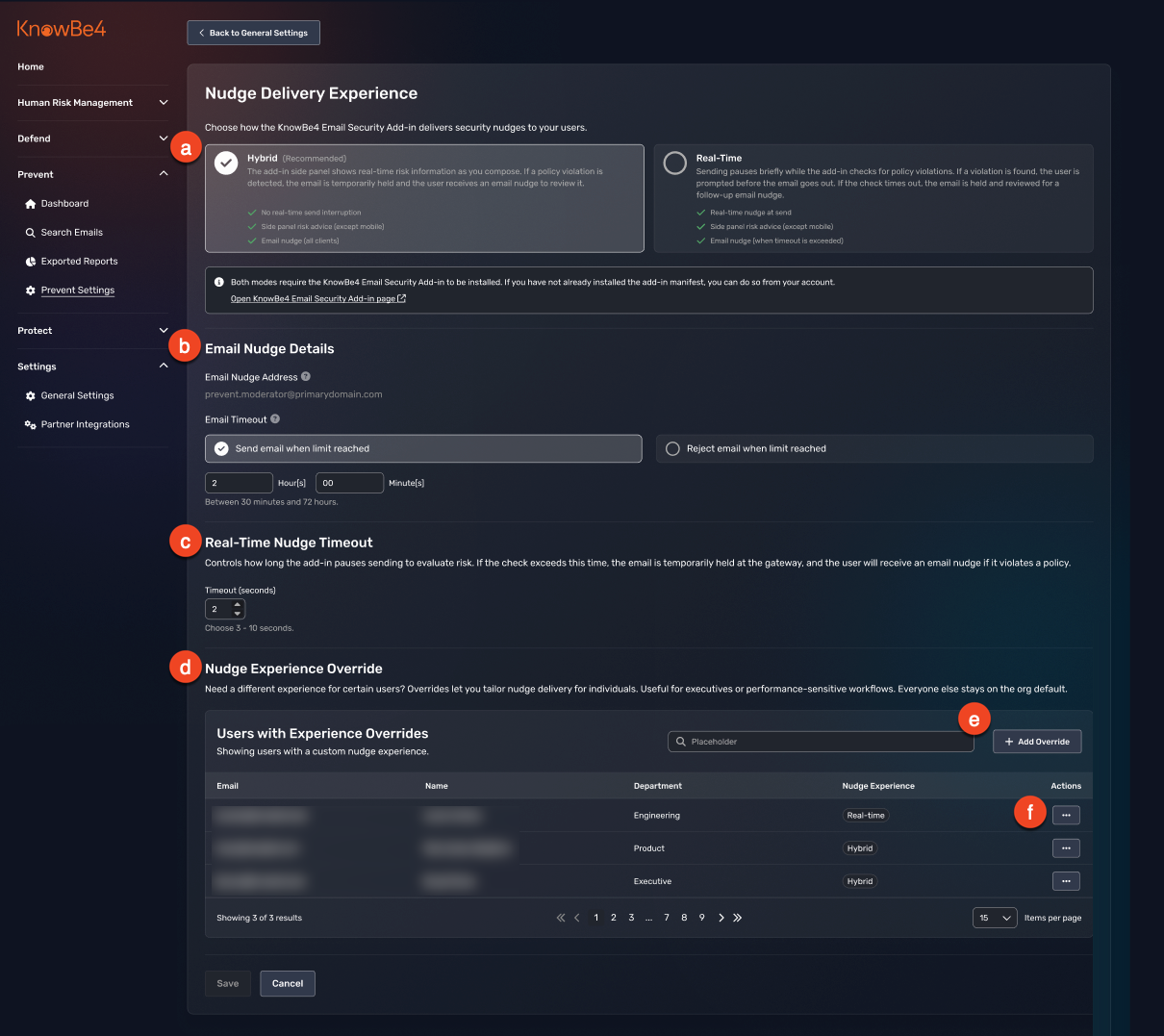
- Delivery Experience: Choose the delivery experience for your organization. Select Real-Time to nudge users in Outlook before a message sends, or Hybrid (Recommended) to let messages send immediately and follow up by email if Prevent finds a concern. Each option lists a short description of its behavior.
- Email Nudge Details: This section shows the email address Prevent uses to send nudges to your users. You can set the default action Prevent should take if a user doesn't respond to a nudge within the configured Email Timeout duration.
- Real-Time Nudge Timeout: Set how long Prevent waits for a real-time check to complete before releasing a message, in seconds. This setting only applies to users in Real-Time Mode.
- Nudge Experience Override: View and manage the list of users assigned a different delivery experience than the rest of your organization.
- + Add Override: Click this button to add a user to this list.
- Actions: Click the three ellipses icon, then choose to Edit a user's nudge experience or Remove the user from the Nudge Experience Override list.
Configuring Your Nudge Delivery Experience
To configure your organization's Nudge Delivery Experience, follow the steps below:
- Log in to your Prevent console.
- Select Prevent from the left menu, then select Prevent Settings.
- Under Nudge Delivery Experience, select Manage.
- Under Delivery Experience, select Real-Time or Hybrid for your organization.
- Under Email Nudge Details, select the default action to take if a user doesn't respond.
- If your organization uses Real-Time, set your preferred Real-Time Nudge Timeout value in seconds.
- Select Save.
Adding a Nudge Experience Override
To assign an individual user a different delivery experience than the rest of your organization, follow the steps below:
-
On the Nudge Delivery Experience page, under Nudge Experience Override, select + Add Override.
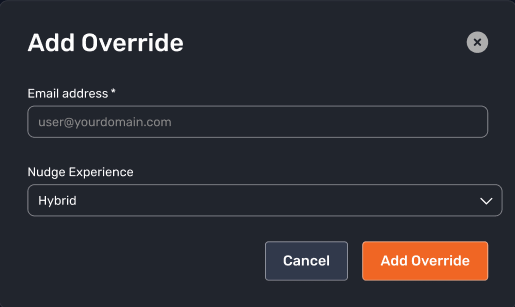
- Enter the email address of the user you want to add.
- Select the delivery experience to assign to this user.
- Select Add Override.
The user will now appear in the Users with Experience Overrides table.