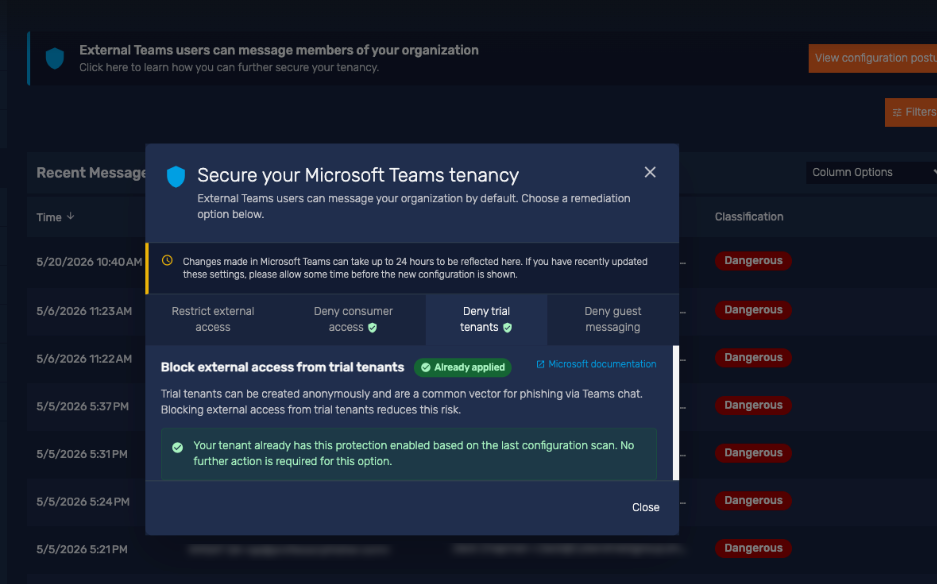
From your Defend Settings, you can configure the Microsoft Teams Message Security and Security Posture integration for your Defend console. This integration includes the Message Security and Teams Security Posture features. For Message Security, Defend scans your organization’s Teams chat messages to flag suspicious messages. For Teams Security Posture, Defend automatically monitors your Microsoft Teams configuration settings to identify areas that don't follow recommended security best practices.
Configure the Integration
To configure your Defend console for the Message Security integration, follow the steps below:
-
Log in to your Defend console and navigate to Settings > Message Security. Or, click Set up Message Security under the Message Security option at the top-right corner of the Dashboard.
-
From the Message Security section at the bottom of the page, click Set up to open the Set up Teams Collaboration Security pop-up window. Then, click Set up now.

- Log in to your Microsoft 365 account using your admin credentials.
- Once you log in, the Permissions requested pop-up window will display. Read the permissions, then select Accept.
- Once you accept the permissions, the Link to Microsoft 365 window will display. Once the API connection is complete, you will be redirected to the Settings page in your Defend console, and an Active indicator will display in the Message Security section.
- From the Microsoft Teams Message Scanning Scope drop-down menu, you can select one of the following options:
- Disabled: Select this option to disable the integration.
- Entire Tenancy: Select this option to scan the messages for your organization’s entire Microsoft tenant. This option is selected by default.
- To configure the Security Posture feature, click Set up Teams configuration posture monitoring to open the Set up Teams Configuration Posture Monitoring pop-up window. Then, click Set up now.
- Log in to your Microsoft 365 account using your admin credentials.
- Once you log in, the Permissions requested pop-up window will display. Read the permissions, then select Accept.
- Once you accept the permissions, you will be redirected to the Settings page in your Defend console.
- From the Configuration Posture Monitoring drop-down menu, you can select Enabled or Disabled. The Enabled option is selected by default.
Message Security
Once the integration is configured, the Message Security option will be displayed on your Defend Dashboard, and the Recent Messages page will be available.
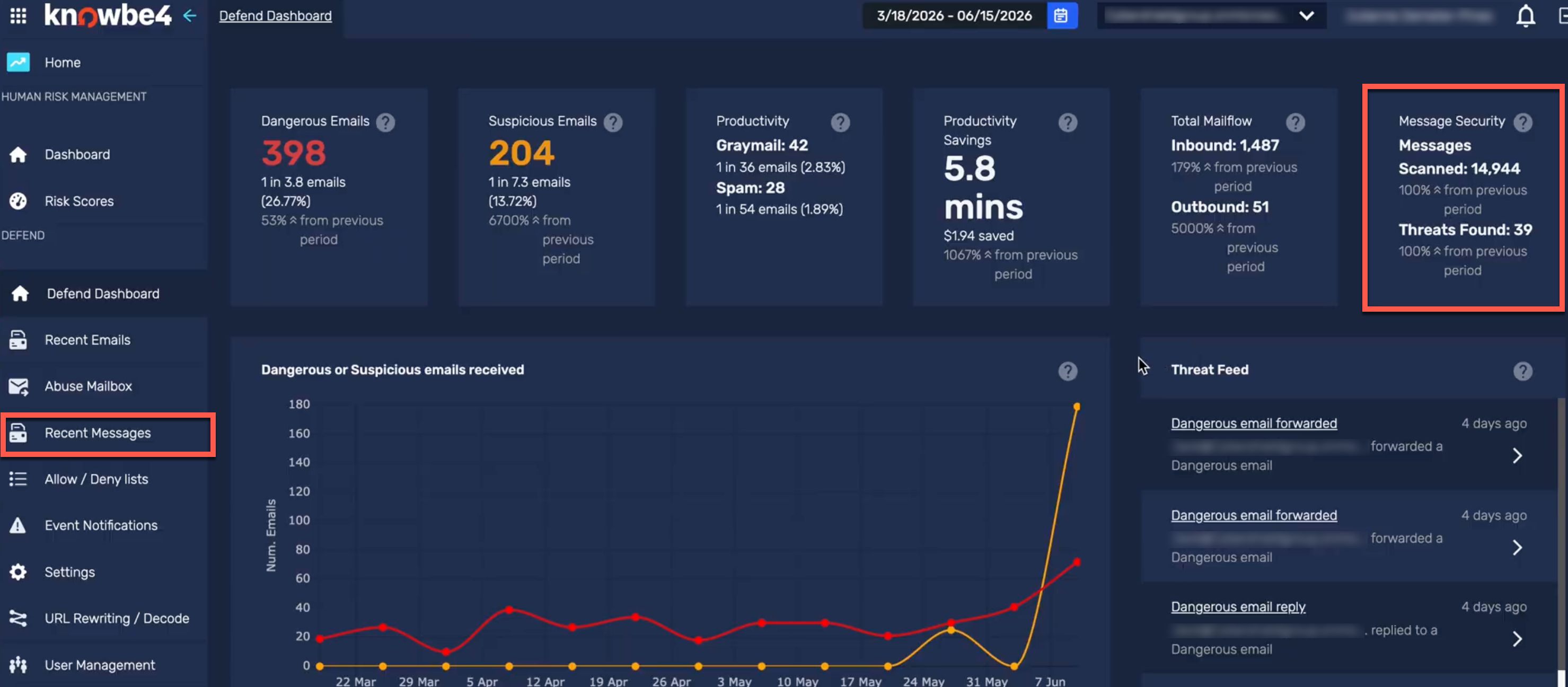
The Message Security option displays the following metrics:
- Messages Scanned: The total number of messages scanned during the selected time period.
- Threats Found: The total number of threat messages found during the selected time period.
The Threat Feed will also display events related to the threat messages and provide a synopsis of activity.
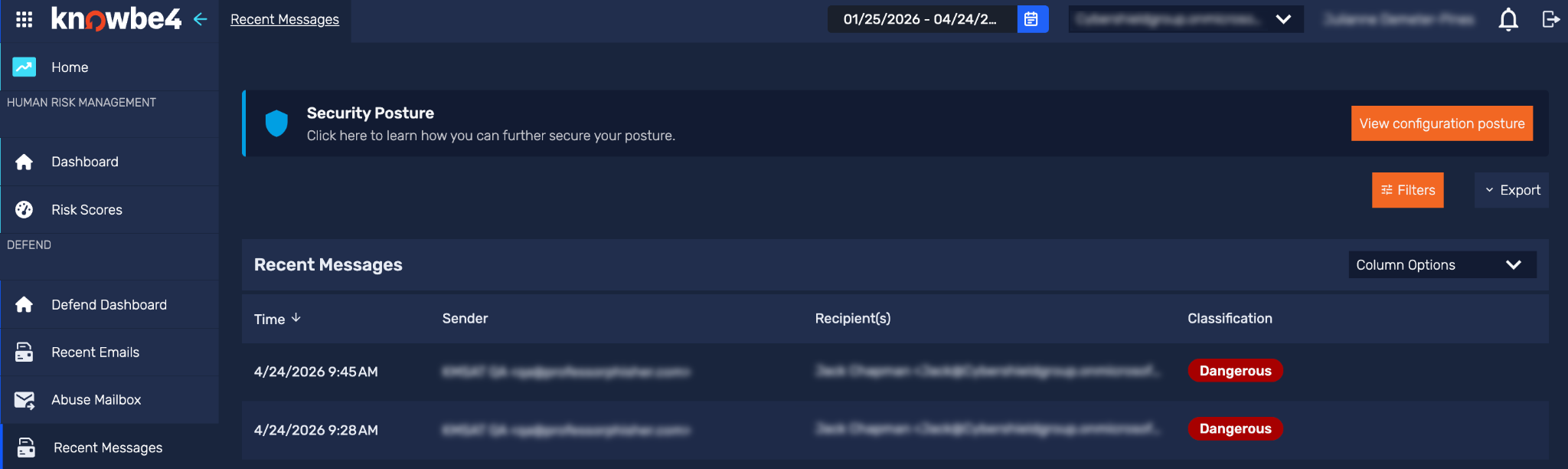
From the Recent Messages page in your console, you can manage all the Teams messages that have been scanned and flagged by Defend. You can also view the results of the Security Posture monitoring. For more information, view the screenshot and list below:
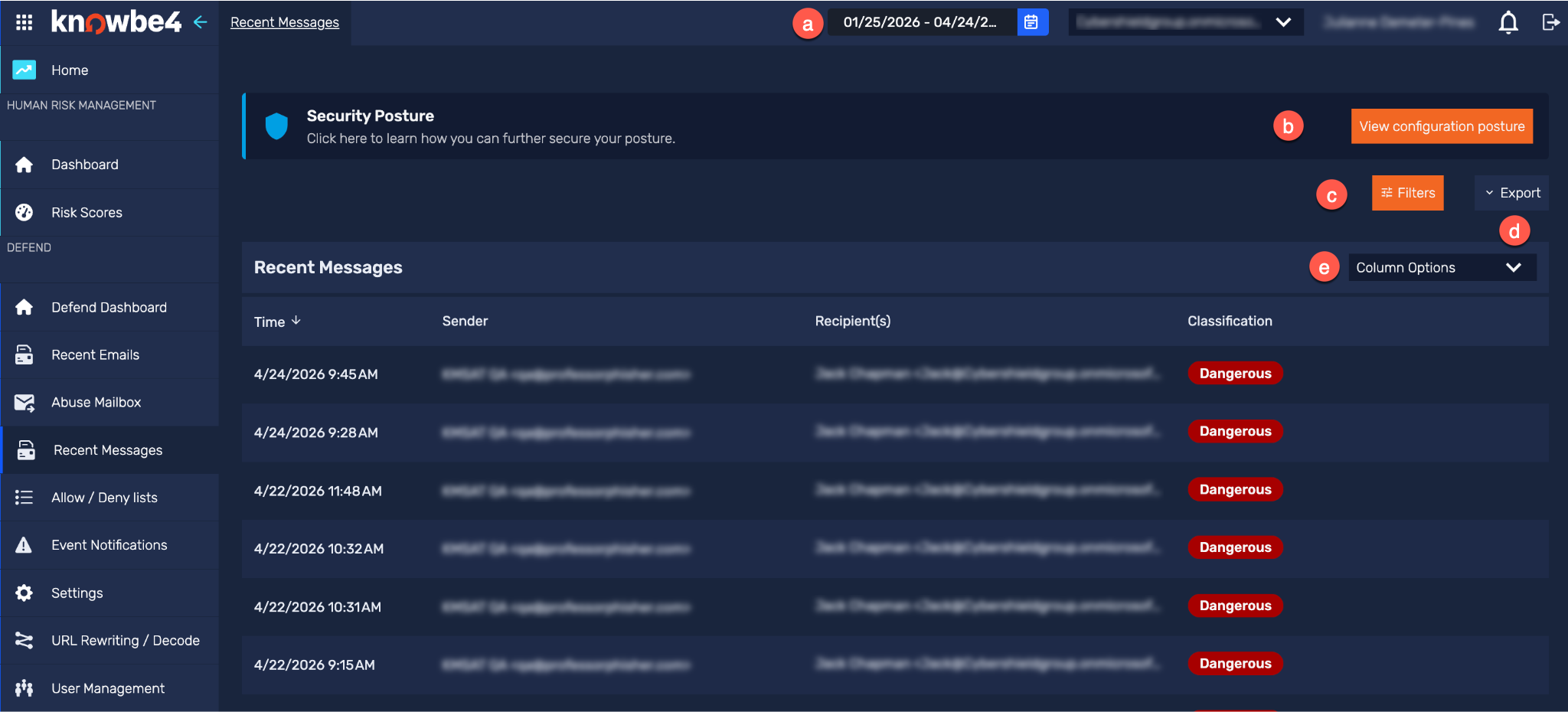
- Date selection: Select the date range for which you want to view messages.
- View configuration posture: Click this button to open the Security Posture results. For more information, see the Security Posture section below.
-
Filters: To narrow your message search results, you can use the following filters:
- Sender Email: Filter by the sender’s email address
- Sender Name: Filter by the sender's name
- Recipient Email: Filter by the sender's email address
-
Recipient Name: Filter by the recipient's name
Note: By default, the Dangerous and Exclude Phishing Security Tests filters are applied. To use wildcards (*) in your search, you can enter an asterisk before or after your text. For example, to find all messages sent from example.com addresses, enter "*@example.com" in the Sender Email field.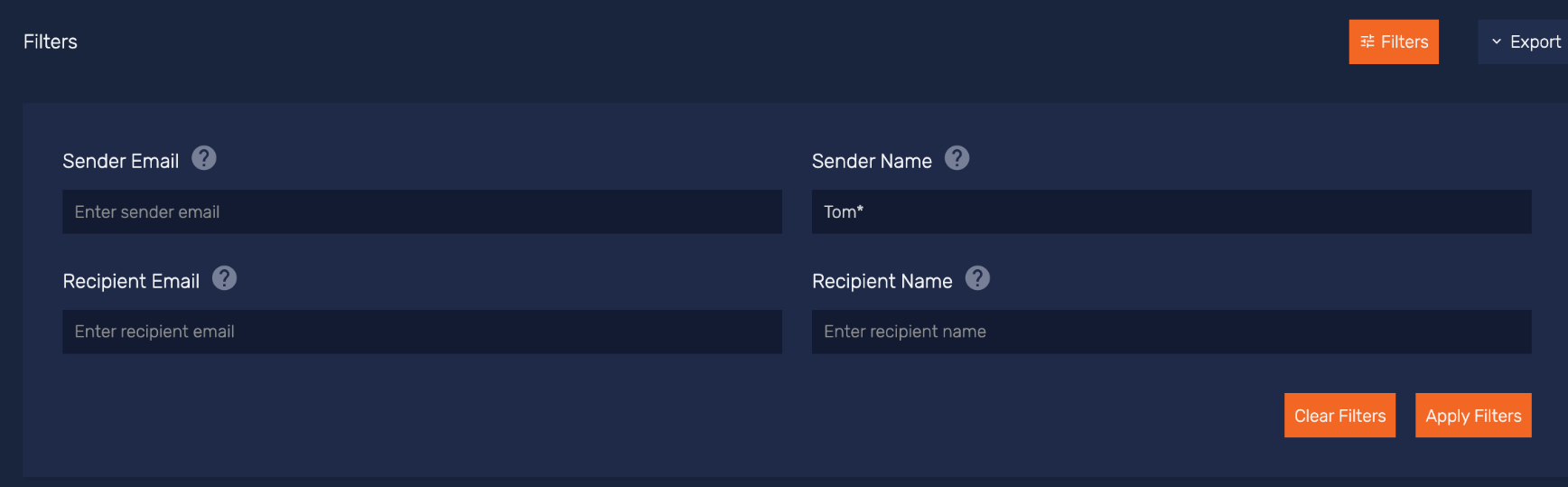
-
Export: From the drop-down menu, you can select an option to export your search results. The following options are available:
- Export Page As CSV: Choose this option to export only the messages displayed on the current page. Data is exported in CSV format.
- Export Current Filter As CSV: Choose this option to export all messages matching your current filter criteria. Data is exported in CSV format.
- Export Page As JSON: Choose this option to export only the messages displayed on the current page. Data is exported in JSON format.
- Export Current Filter As JSON: Choose this option to export all messages matching your current filter criteria. Data is exported in JSON format.
-
Column Options: From the drop-down menu, you can customize which columns are displayed on the Recent Messages page. Your selected preferences will be saved and applied each time you return to this page. The following columns are displayed by default:
- Time
- Sender
- Recipient(s)
- Classification
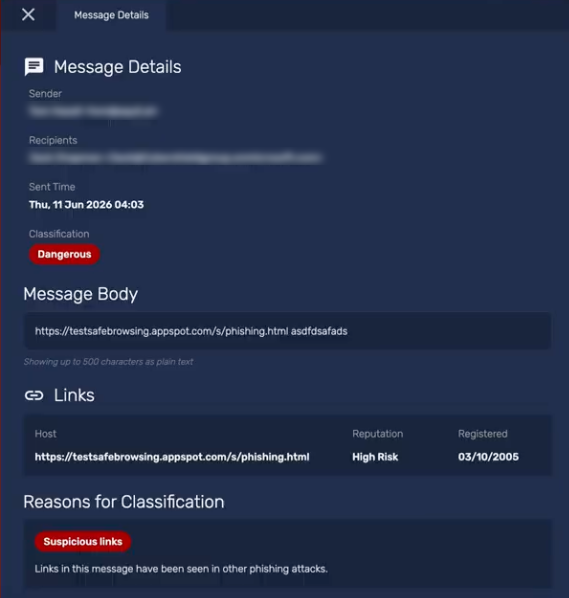
Message Details Tab
When you select a message from the list, a detailed pane opens on the right side of the screen and displays the Message Details tab. This tab displays key information such as sender and recipient information, sent time, classification, message body, any links found with a reputation score, and the reasons for classification. The reputation score indicates if a URL is known to be high risk, suspicious, malicious, low risk, or trustworthy.
Security Posture
The Security Posture banner is displayed at the top of the Recent Messages page. To review the Security Posture results, click View configuration posture.
In the pop-up window that displays, you can view Defend’s analysis of your Microsoft Teams external collaboration settings. The results are provided under the following subtabs:
- Restrict external access
- Deny consumer access
- Deny trial tenants
- Deny guest messaging
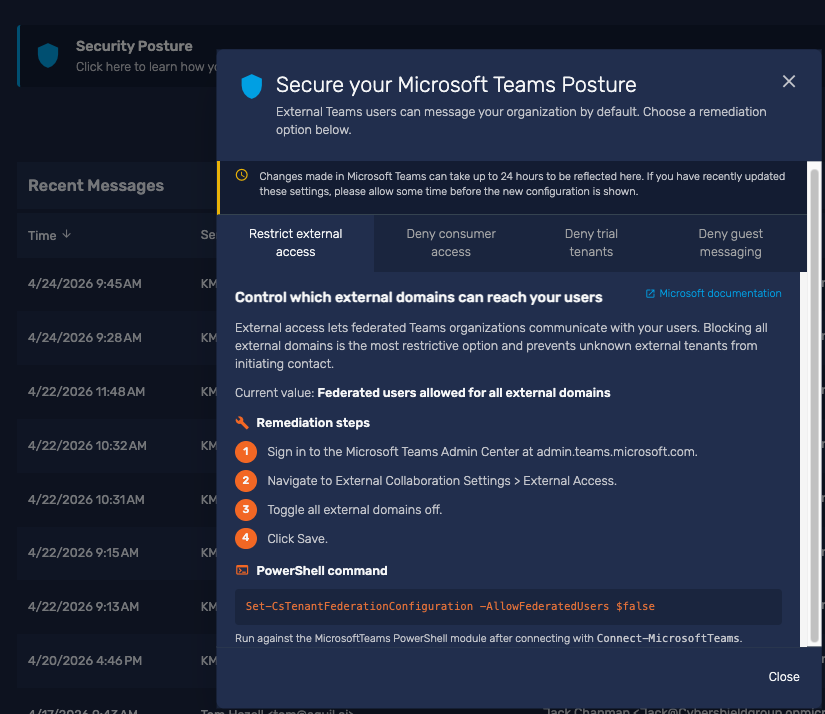
When Defend finds vulnerabilities in your settings, recommended remediation options are displayed, including PowerShell commands and a link to Microsoft documentation. Once you complete the remediation steps, your results are updated, and a green badge is displayed on the subtab.