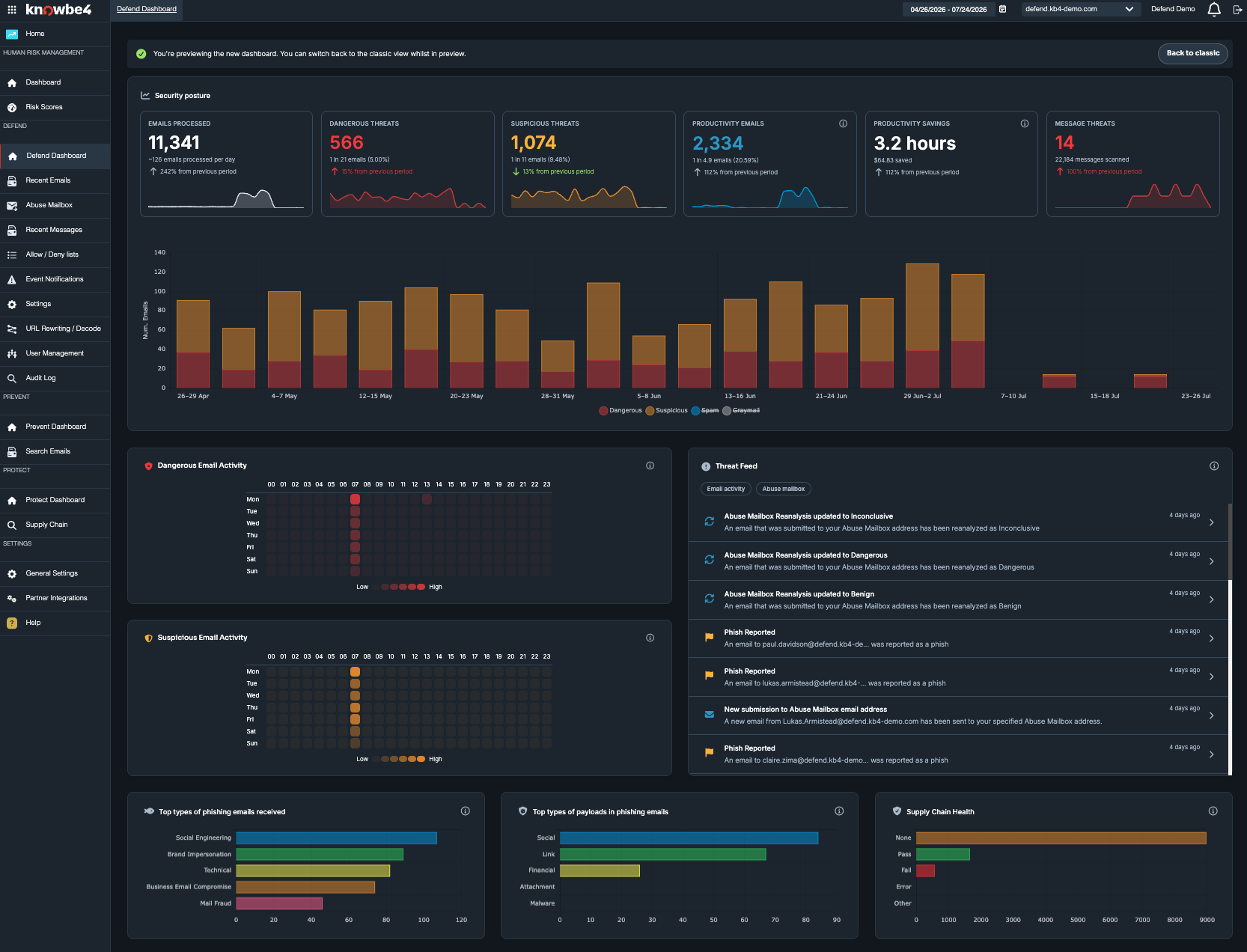
The dashboard screen provides an overview of the email activity observed by Defend. This information is displayed in easy-to-read graphs and charts. A side menu also allows you to navigate to other areas of the portal.
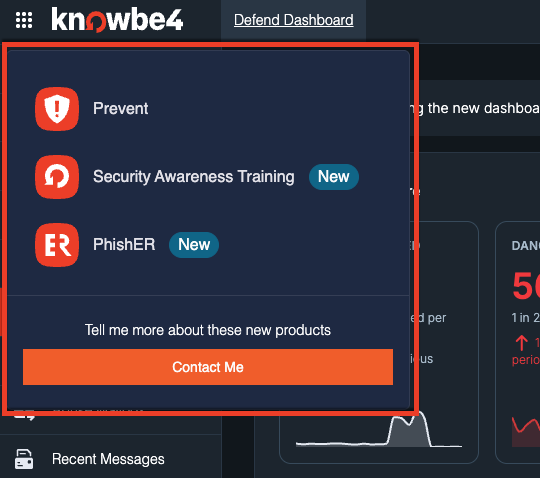
Navigation Menu
By selecting the navigation menu in the top-left corner of the page, you can access other KnowBe4 products, including Prevent, Security Awareness Training, and PhishER. For more information, see our Login Page and Navigation Menu Overview article.
Timeline
By default, the timeline displayed is two weeks before the current date.
This section can be altered at the top-right corner of the screen with the following settings:
- Day
- Week
- Month
- Quarter
- Year
- Custom Range
Export Dashboard Report
You can export the dashboard as a report to share with stakeholders or keep for your records. The report covers the timeline that is currently selected on the dashboard, and you can choose which sections to include. You can export it as a PDF file or an HTML file.
To export the dashboard as a report, follow the steps below:
- Select the timeline that you want to include in the report. For more information, see the Timeline section.
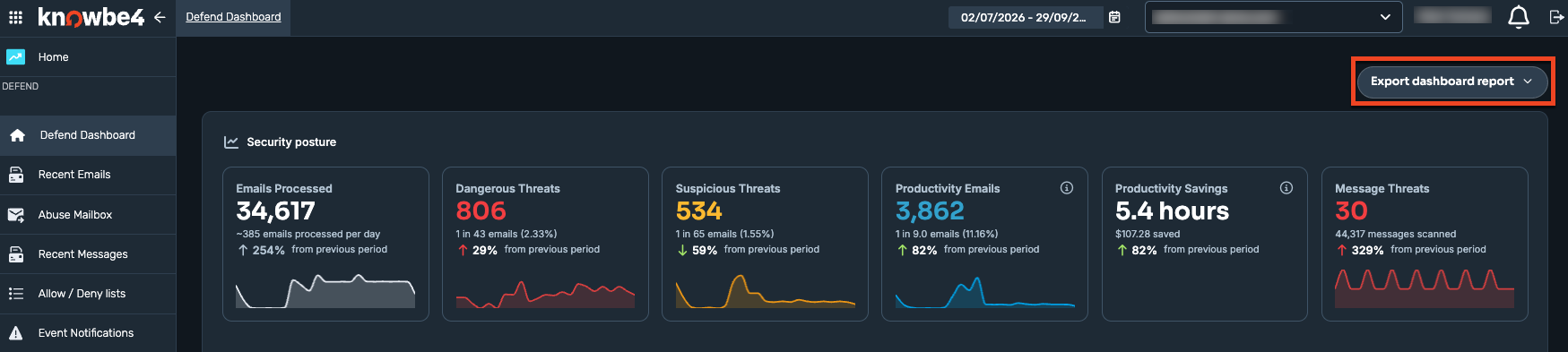
- In the top-right corner of the screen, select Export dashboard report.
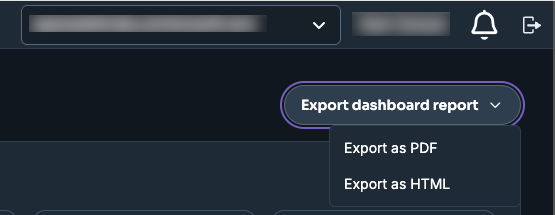
- Select Export as PDF or Export as HTML.
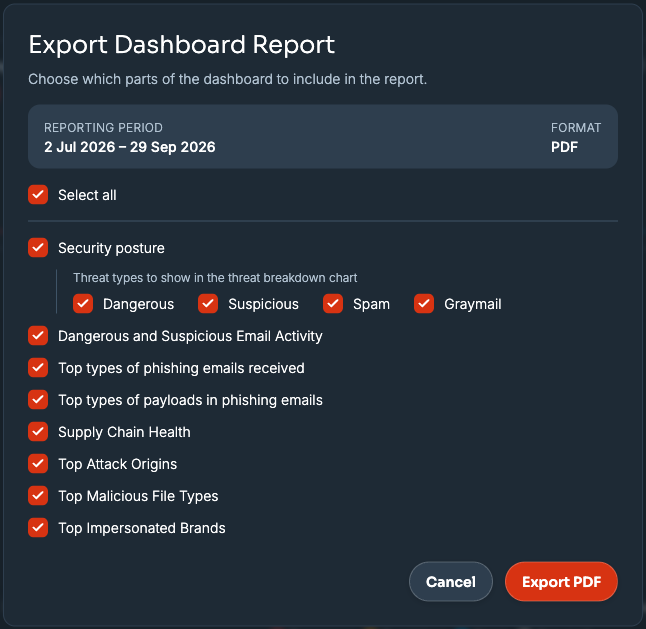
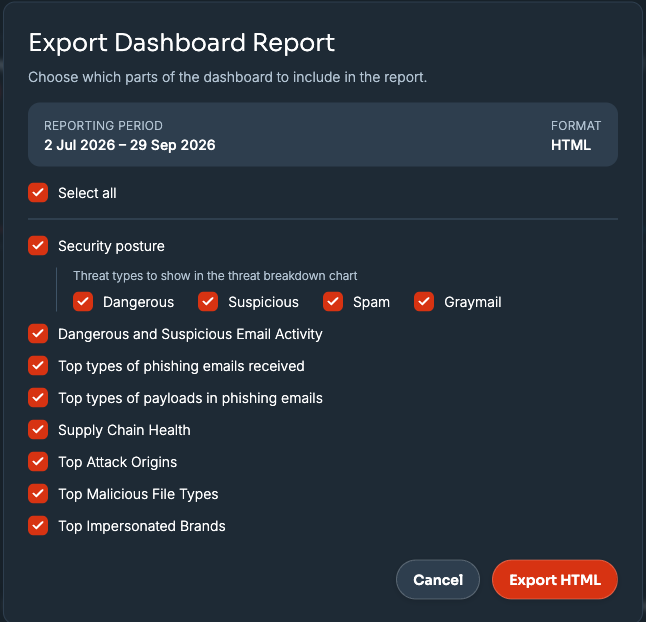
The Export Dashboard Report pop-up window displays the Reporting Period (the timeline that you selected on the dashboard) and the Format you selected. All sections are selected by default.
Select or clear the check boxes for the sections that you want to include in the report:
- Security posture
- Dangerous and Suspicious Email Activity
- Top types of phishing emails received
- Top types of payloads in phishing emails
- Supply Chain Health
- Top Attack Origins
- Top Malicious File Types
- Top Impersonated Brands
If you select Security posture, use the Dangerous, Suspicious, Spam, and Graymail check boxes to choose which threat types display in the chart.
Export as PDF
The PDF file is a static report you can print or attach to an email. The PDF file includes the sections you selected. A cover page showing the reporting period, the date and time that the report was generated, and the user who generated it.
- Select Export as PDF.
- In the Export Dashboard Report pop-up window, select the sections that you want to include.
- Select Export PDF. The PDF report downloads to your computer.
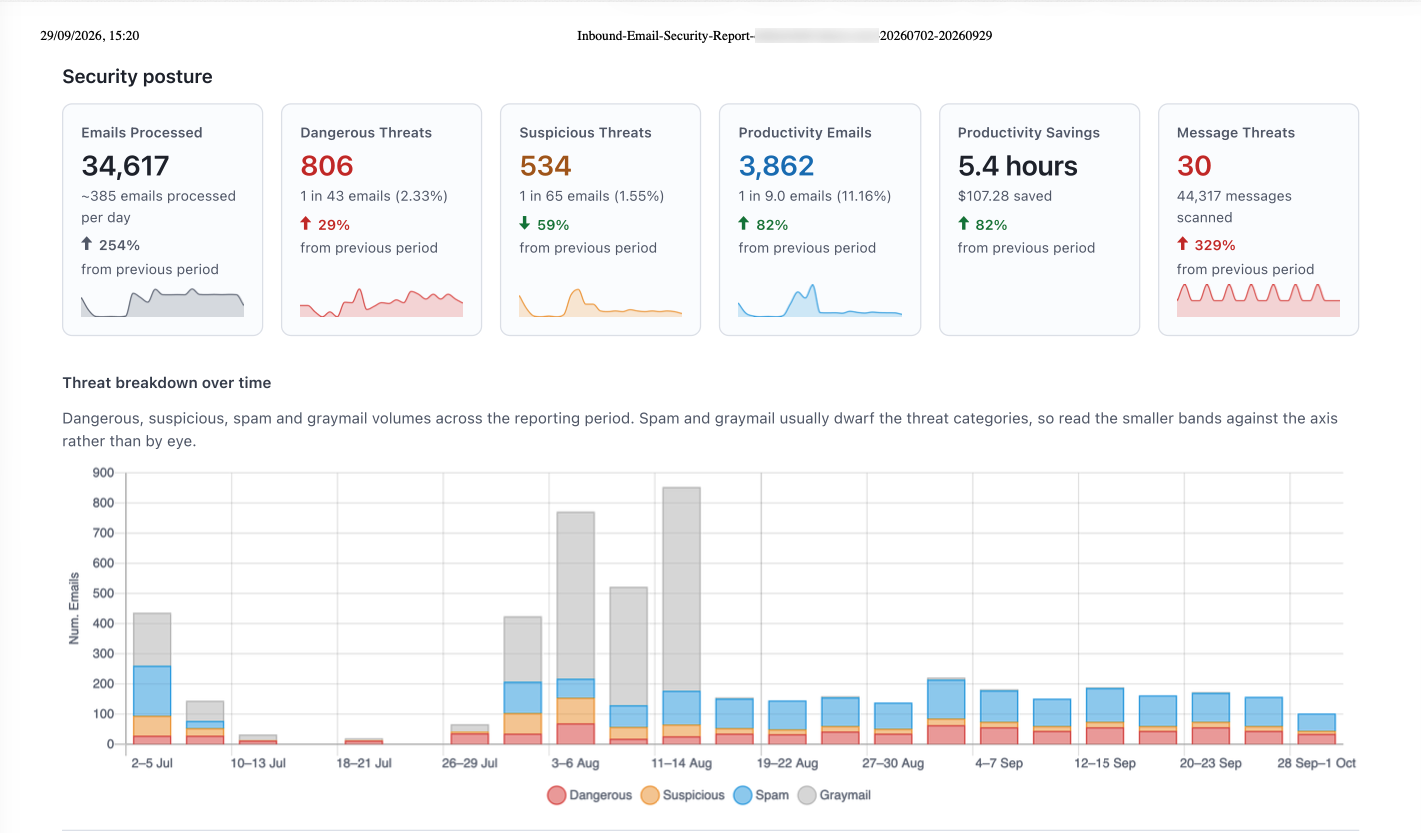
The following image shows an example of the Security posture page in a PDF report.
Export as HTML
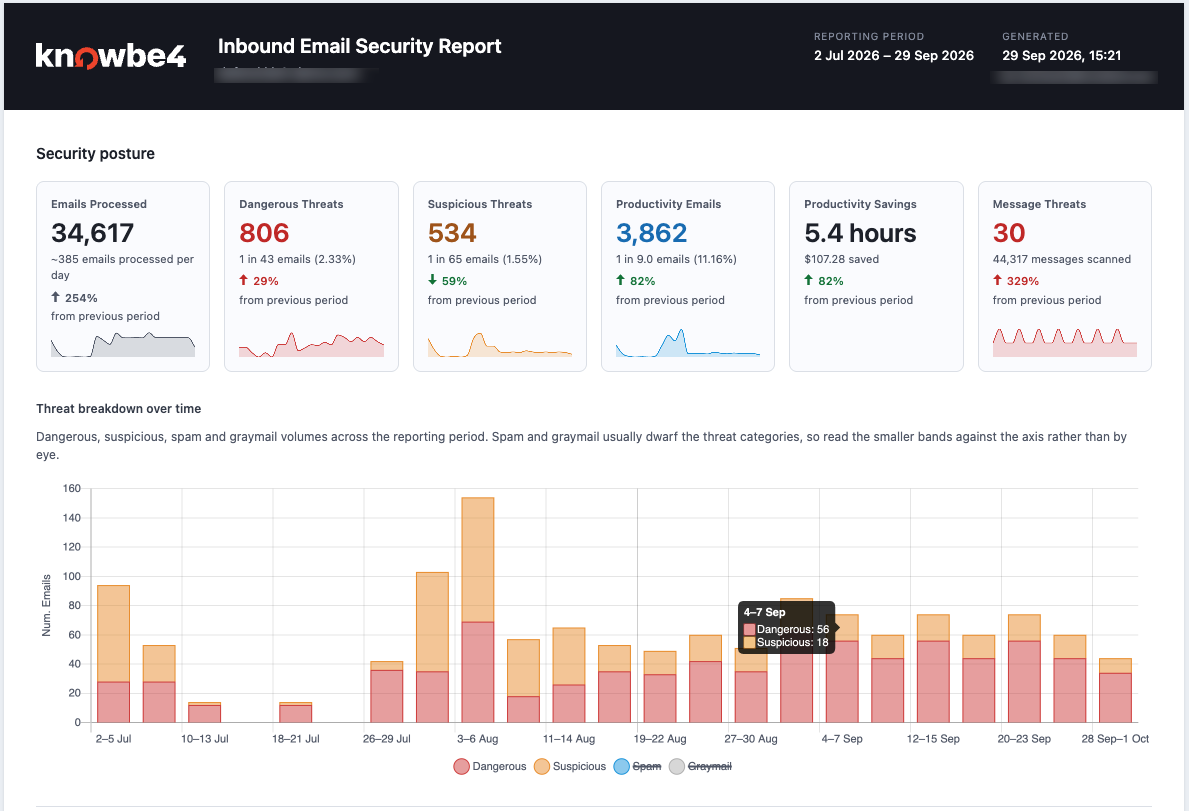
The HTML report opens in a web browser and is interactive. You can hover over the charts to see exact values. You can also select a category in the chart legend to show or hide that category. For example, select Spam and Graymail in the chart legend to hide them and see the Dangerous and Suspicious bars more clearly. The Supply Chain Health chart legend (SPF, DKIM, and DMARC) works the same way.
- Select Export as HTML.
- In the Export Dashboard Report pop-up window, select the sections that you want to include.
- Select Export HTML. The HTML report downloads to your computer. Open the file in a web browser to view the interactive report.
The following image shows an example of the HTML report with Spam and Graymail turned off. Hover over a bar to see exact counts.
Security Posture
At the top of the Dashboard screen, the Security Posture card displays counts and trends for the selected timeline.
Email Totals
At the top of the Security Posture card, a selection of boxes displays counts and trends for the selected timeline.
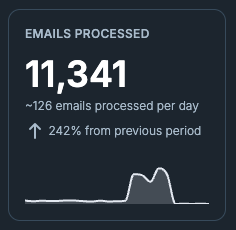
The Emails Processed card shows the total number of emails Defend analyzed during the selected time period.
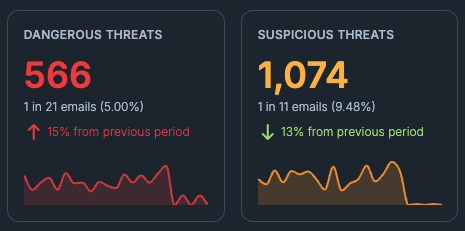
The Dangerous Emails and Suspicious Emails cards are clickable. Selecting either takes you to a filtered view of the Recent Emails page and shows you the individual emails detected in the time period. You can select these emails to see more information.
Productivity Tools
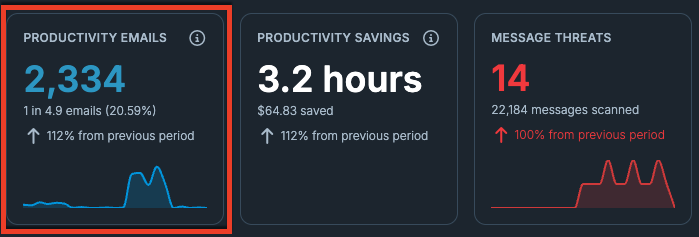
The Productivity card combines counts of emails that were flagged as spam or graymail. This helps you understand how much of your organization's total email volume reduces productivity.
The Productivity Savings option shows the estimated time and money your organization saved by filtering spam and graymail. This metric helps you quantify the return on investment (ROI) of your email security.
We calculate the time saved by multiplying the number of filtered emails by the average time saved per email. The card dynamically displays this value in seconds, minutes, hours, or days. We calculate the cost saved by multiplying the total time saved by the average employee's hourly wage.
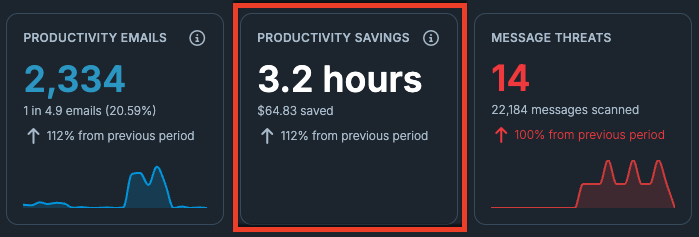
Note: If there’s no change in data from the previous period, this option won’t display a percentage indicator.
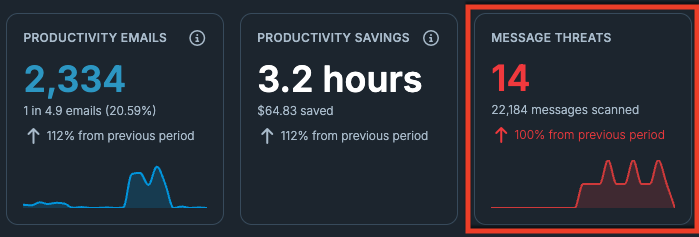
The Message Threats card shows the total number of messages Defend scanned during the selected time period, for example, Microsoft Teams messages, and how many were confirmed as threats.
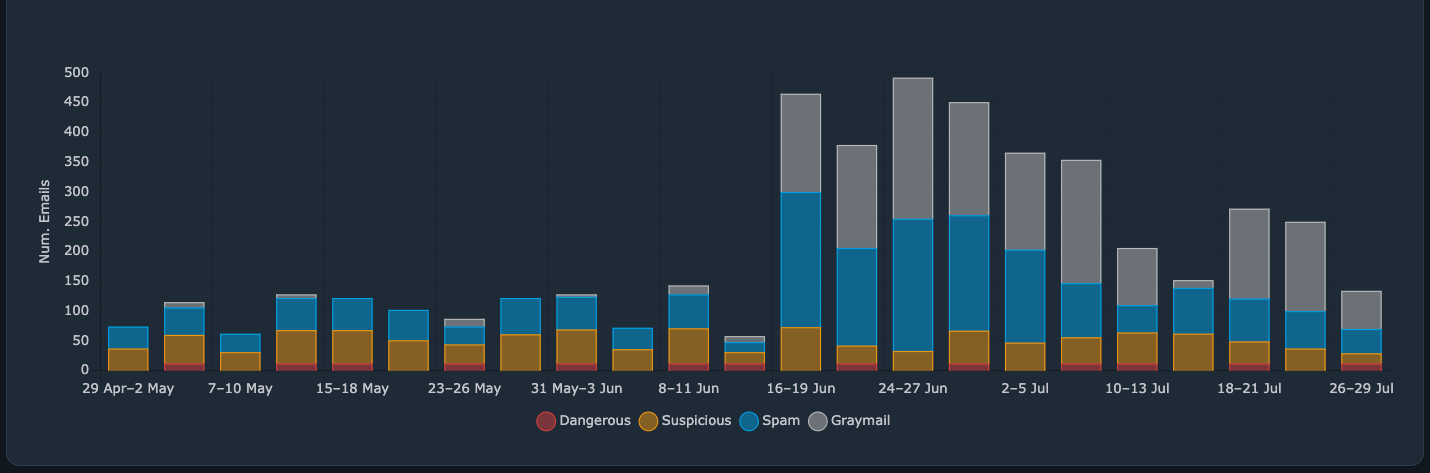
Dangerous or Suspicious Emails Received
This chart displays the count of emails classed as Dangerous, Suspicious, Spam, or Graymail for the selected timeframe, broken down by category so that you can compare volume across all four classifications in one view. The data points are interactive. Clicking a bar segment will take you to a filtered view in Recent Emails.
Phishing Heat Maps
The Dangerous Email Activity and Suspicious Email Activity heat maps visualize the frequency of phishing attempts received by your organization. These charts help you identify peak volume periods so you can improve your security response strategy.
- Dangerous Email Activity: This heatmap shows when dangerous emails arrive. Brighter cells highlight peak times for your organization, helping you spot patterns across the week.
- Suspicious Email Activity: This heatmap shows when suspicious emails arrive. Brighter cells highlight peak times for your organization, helping you spot patterns across the week.
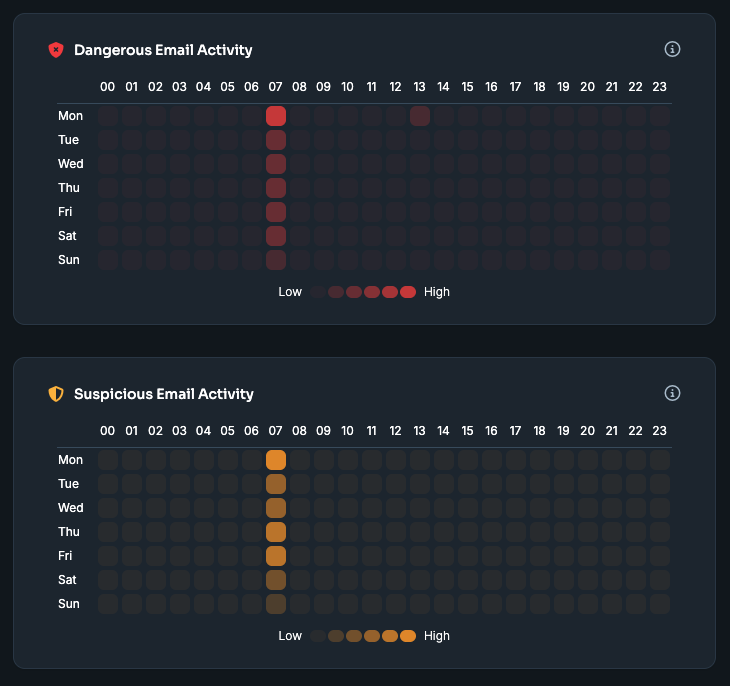
The heat maps display data aggregated by the hour of the day for your selected time period.
- Time Zones: All times are automatically adjusted to your specific time zone.
- Color Scale: The intensity of the color in each block reflects the volume ratio for that specific hour. Darker colors indicate a higher volume of emails received.
- Averages: The data represents averages over the selected date range. Because these are averages, the individual blocks are not clickable and do not link to the Recent Emails page.
Threat Feed
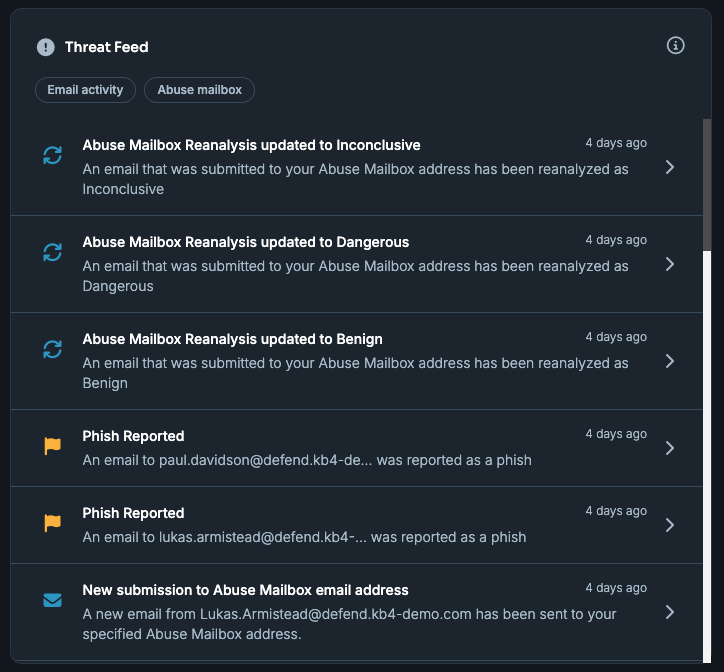
The Threat Feed displays events related to Dangerous or Suspicious emails and provides a synopsis of activity. An example of this would be: “User has clicked a link in a Dangerous email”. Use the Email activity and Abuse mailbox tabs to filter which events the Threat Feed shows.
Select the arrow on the right of the activity to go to a filtered view of recent emails for further analysis.
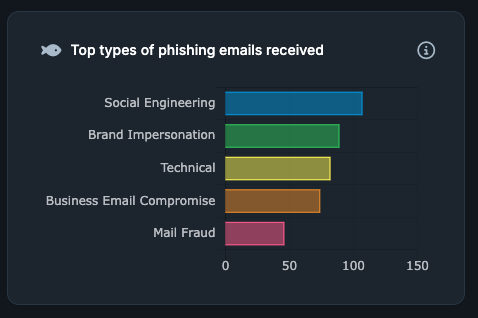
Types of Phishing Emails Received
This graph displays the various types of phishing emails detected by Defend. Clicking on the question mark icon provides more information about the different classifications of emails.
Note: Clicking the info icon provides more information about the types of phishing emails received.
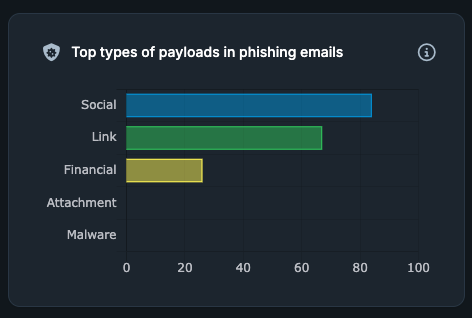
Types of Payloads in Phishing Emails
This graph shows the different types of payloads identified in phishing emails detected by Defend.
Note: Clicking the info icon provides more information about the types of payloads in phishing emails.
Supply Chain Health
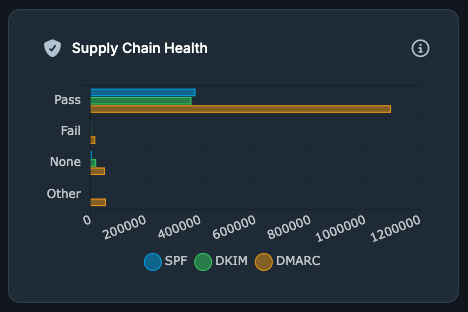
This graph shows the current timeline of authentication status for all received emails, broken down by SPF (Sender Policy Framework), DKIM (DomainKeys Identified Mail), and DMARC (Domain-based Message Authentication, Reporting, and Conformance). Each incoming email is checked against the sending domain's authentication and policy records, which helps protect the domain from being spoofed. Phishing security tests aren't included in this data.
- SPF: Confirms the email was sent from an IP address authorized by the sending domain.
- DKIM: Confirms the message was signed by the sending domain and wasn't altered in transit.
- DMARC: The sending domain's policy for handling mail that fails SPF or DKIM.
Each protocol is broken down into the following statuses:
- Pass: Authentication passed.
- Fail: Authentication was present but failed.
-
None: No authentication was present. Other: An error occurred, or the result was unrecognized.
Note: Clicking the info icon provides more information about the different statuses.
Top Attack Origins
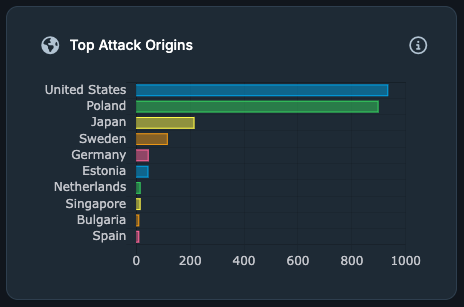
This graph shows which countries the dangerous emails were sent from. Each email classified as Dangerous is traced to the country it was sent from using the sender's IP address, and the ranking shows where the most attacks originate.
Unknown: The sender's location couldn't be determined from its IP address.
Note: Clicking the info icon provides more information about the Top Attack Origins graph.
Top Malicious File Types
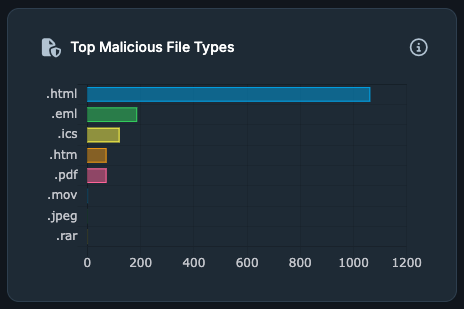
This graph shows the most common file types found attached to dangerous emails. Each email classified as Dangerous is checked for the file types of its attachments, and the top 10 are ranked by volume. Use this to see which attachment formats attackers are targeting your organization with the most.
Other: File types outside the tracked list, grouped together.
Note: Clicking the info icon provides more information about the Top Malicious File Types graph.
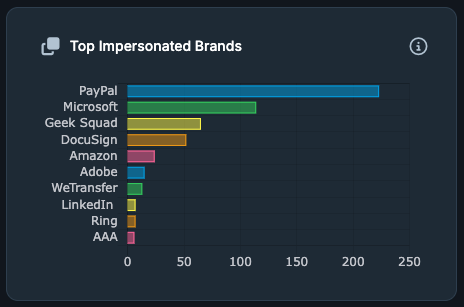
Top Impersonated Brands
This graph shows the brands most frequently impersonated in dangerous emails. Each email classified as Dangerous is checked for the brand it's impersonating, and the top 10 are ranked by volume. Attackers imitate trusted brands to trick recipients, so this helps you see which brands are being spoofed most often against your organization.
Note: Clicking the info icon provides more information about the Top Impersonated Brands graph.