This article provides an overview of the System Policies and Library sections of the Prevent console.
System Policies
In the System Policies section, you can manage the policies that Prevent uses to monitor and nudge your users' outbound emails.
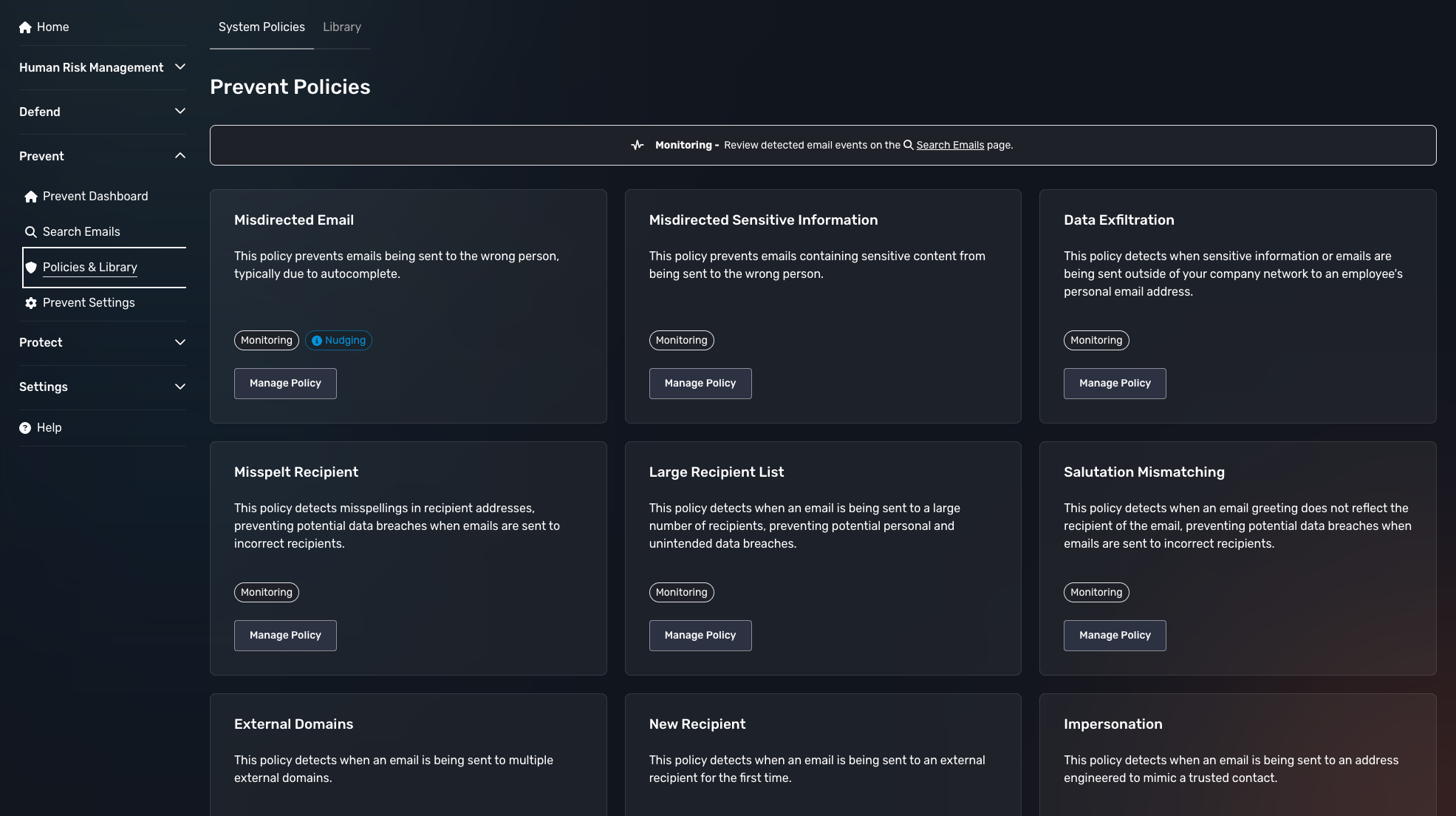
The data types in your Prevent Library use the Misdirected Content policy to monitor and nudge your users.
To access this policy:
- Log in to your Prevent console.
- Click Policies & Library in the menu on the left side of the screen.
-
Under the System Policies tab, click Manage Policy on the Misdirected Content policy card.
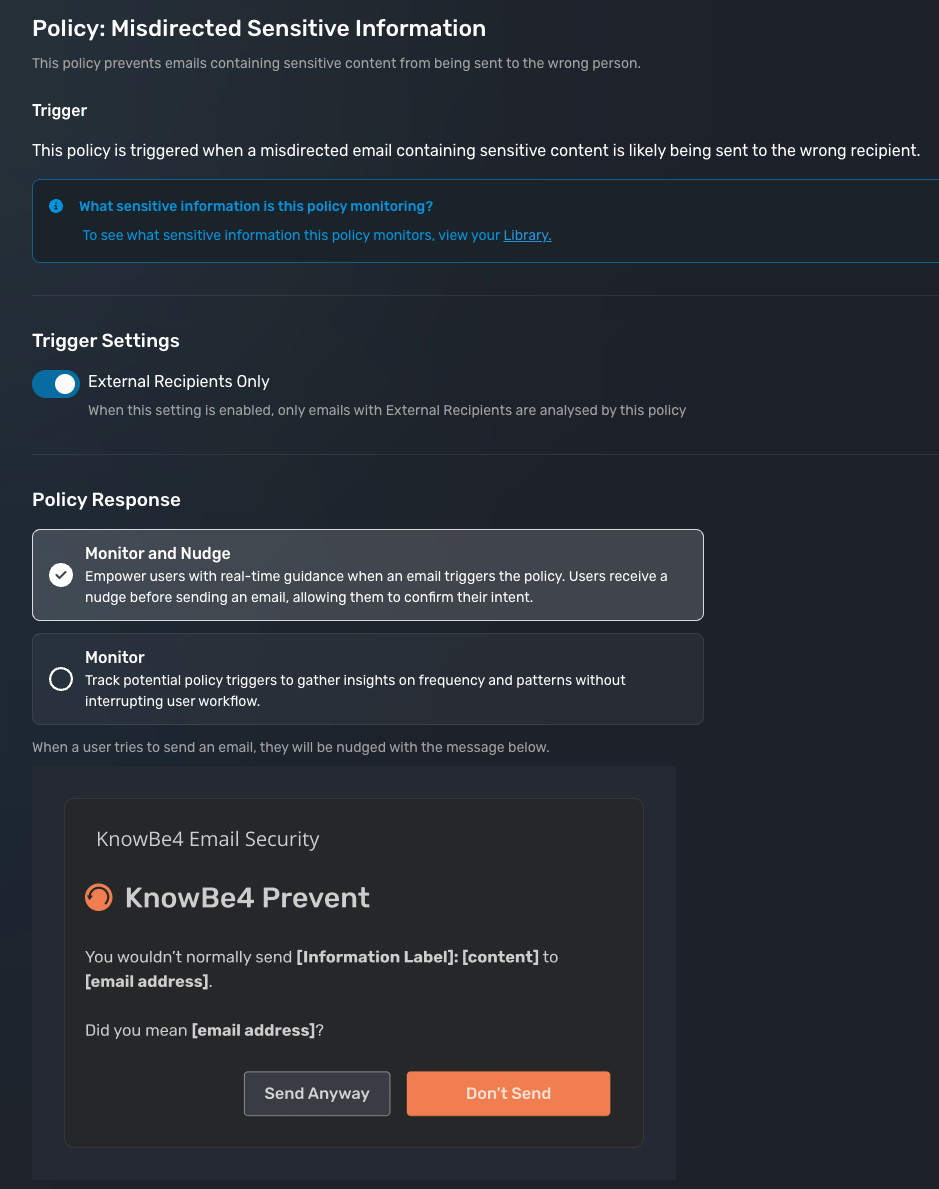
Library
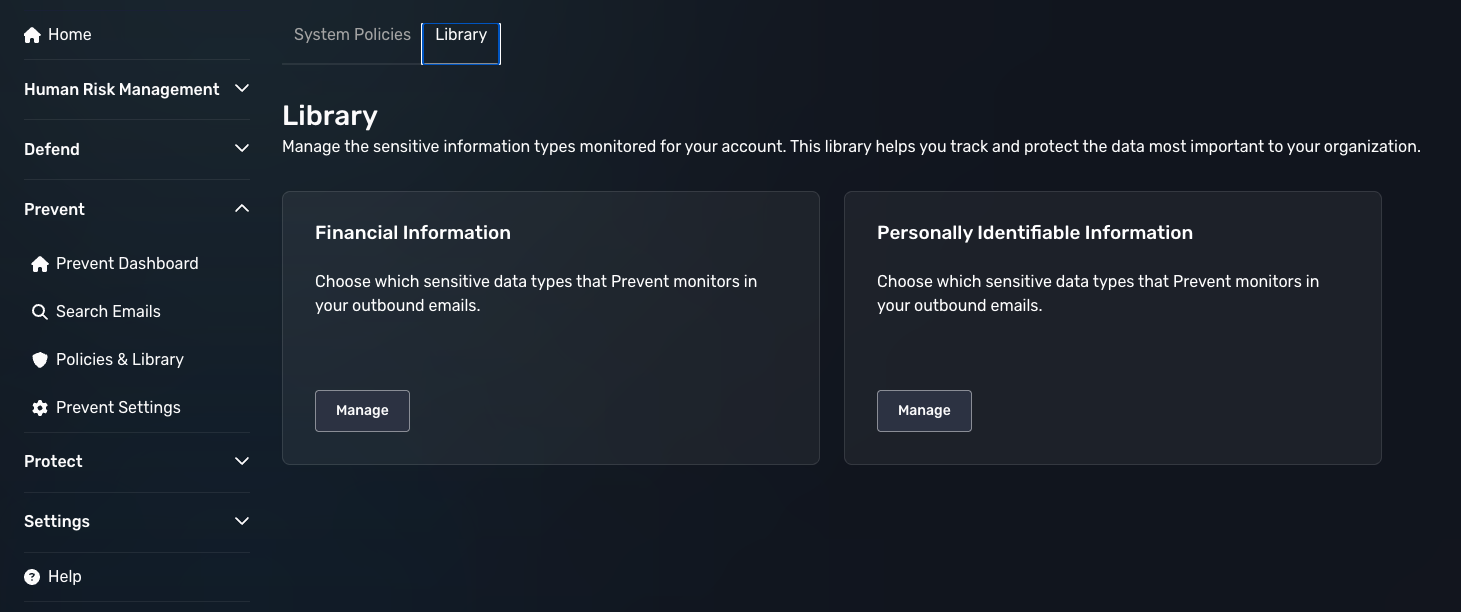
In the Library, you can manage the types of Financial Information and Personally Identifiable Information that Prevent monitors in your outbound emails.
To access the Library:
- Log in to your Prevent console.
- Click Policies & Library in the menu on the left side of the page.
-
Click the Library tab.
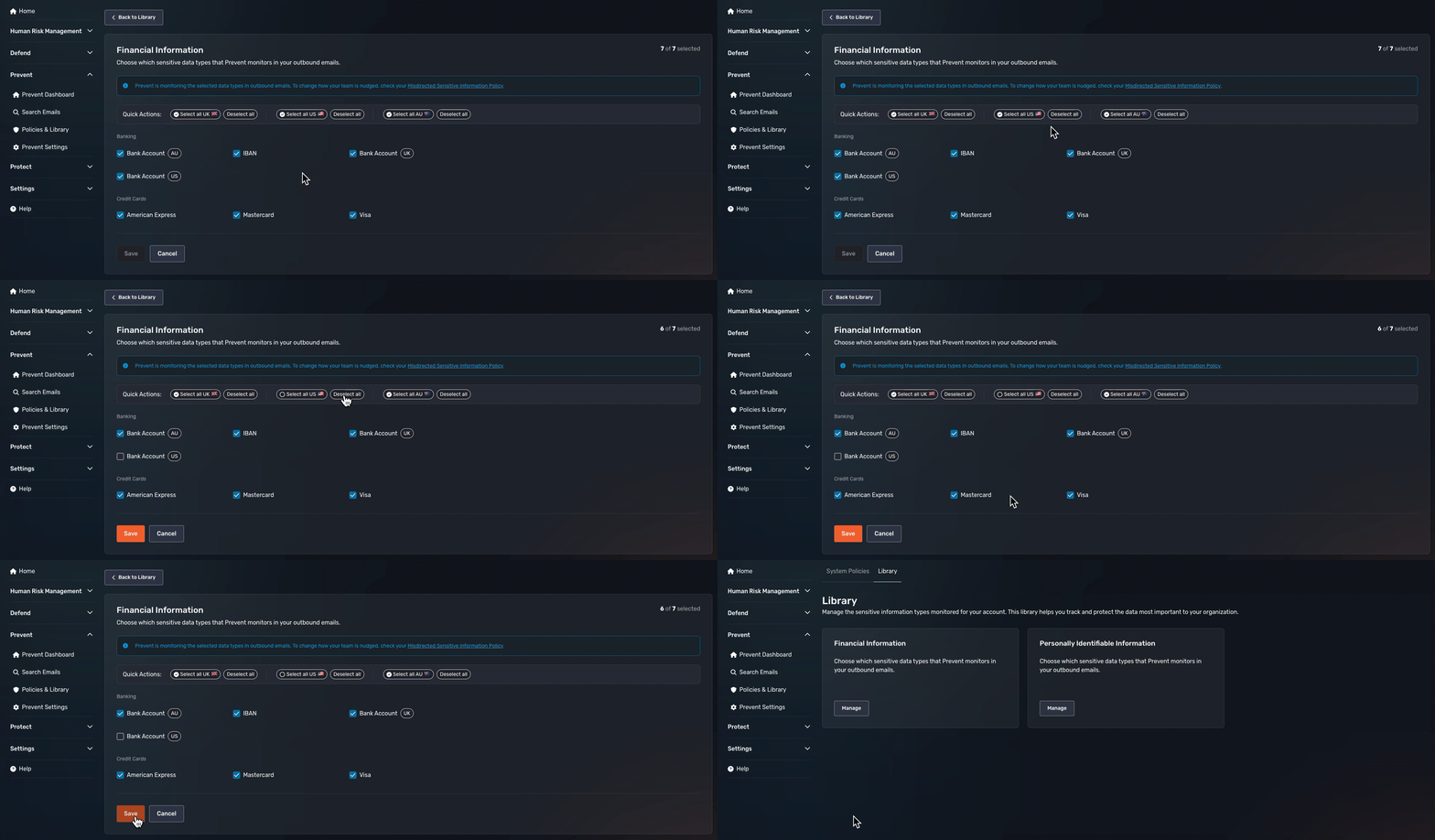
Financial Information
Select the financial information types that you would like Prevent to monitor in your outbound emails. By default, all financial data types will be selected. Deselect any that you don't want, and then click the Save button to save changes.
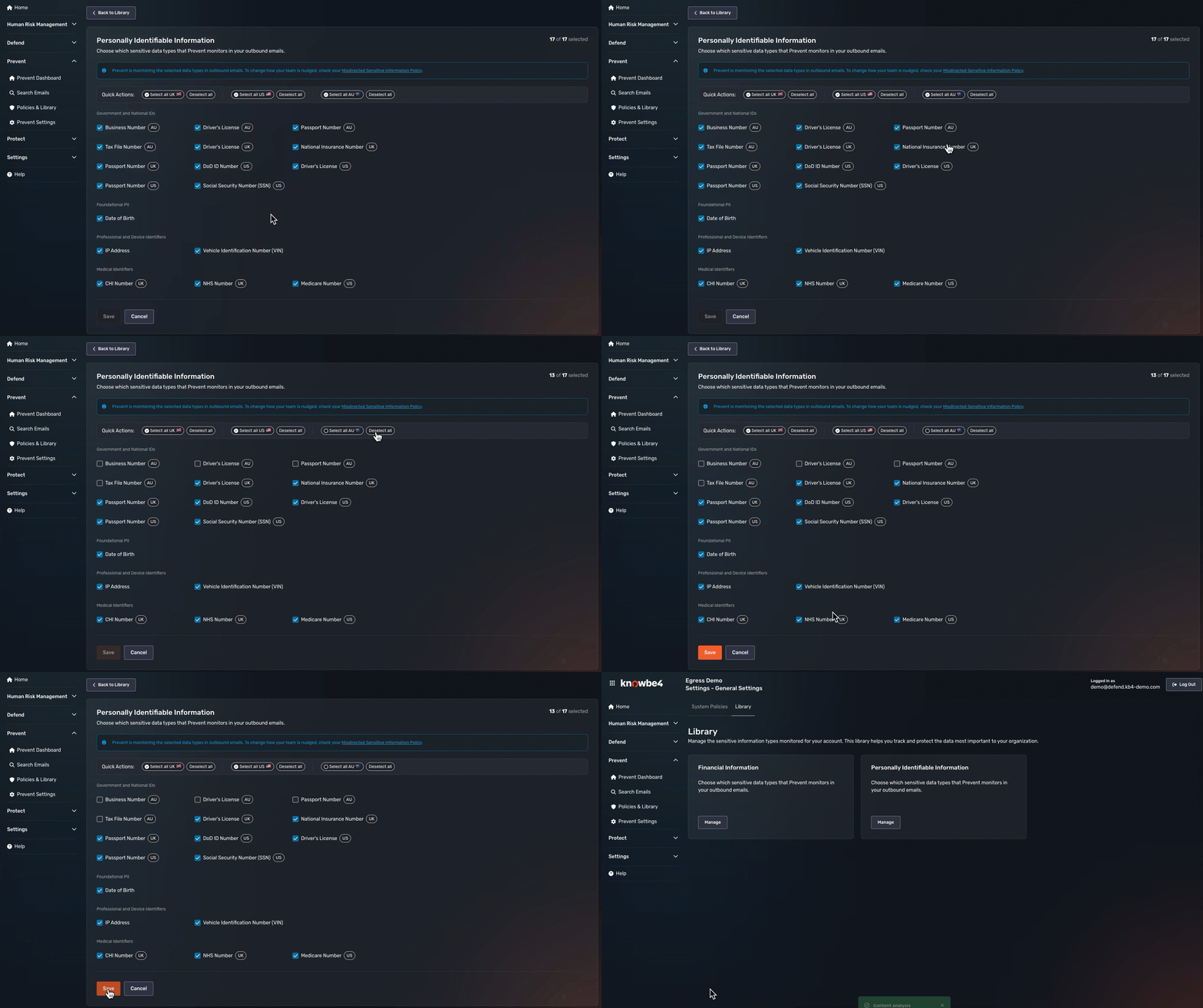
Personally Identifiable Information
Select the Personally Identifiable Information (PII) types that you would like Prevent to monitor in your outbound emails. By default, all PII data types will be selected. Deselect any that you don't want, and then click the Save button to save changes.
Custom Information
Create and configure custom information types that Prevent monitors in your outbound emails.
- + Create Custom Pattern: Click this button to create a custom information type using the Custom Pattern Builder. For more information on the Custom Pattern Builder, see our Prevent - Custom Pattern Builder User Guide.
- Pattern Name: This is what you named your custom pattern in the Pattern Name field of the Custom Pattern Builder.
- Data Type: This column shows the data type of the custom pattern.
- Description: This is the description of the custom pattern you created in the Custom Pattern Builder.
- Actions: Select the ellipses icon to Edit or Delete your custom pattern.
- Items per page: By selecting the drop-down menu, you can choose how many patterns will display per page.