KnowBe4 has added allowed domains to managed accounts. Partner and managed accounts can now manage partner-allowed domains directly within their console.
Prerequisites
Before you can add allowed domains to your managed KSAT console, make sure you meet the following prerequisites:
- You own or control the partner domains.
- You can whitelist emails sent to the partner domains.
- You or someone in your organization has permission to add a TXT record to your DNS records for the partner domains.
Adding Partner Level Subdomains
To add allowed domains to your managed KSAT console, follow the steps below:
- Log in to your KSAT management console.
- Navigate to Account Settings at the top-right corner of the page.
- Navigate to Account Information > Organization Information.
-
Select the Allowed Domains link. When you select this link, the Allowed Domains page will open.
-
Select + New Allowed Domain at the top-right corner of the page.
-
On the New Allowed Domain page, you have the option to enter a New Subdomain or New Root Domain. The New Subdomain option is selected by default. This option indicates that you’re adding a subdomain to your root domain.
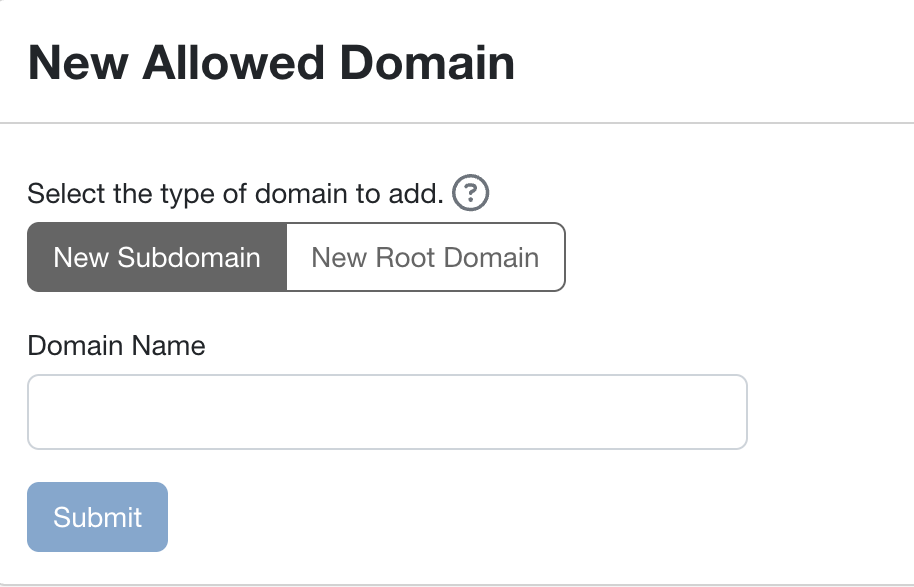
- Enter the subdomain in the Domain Name field. You must enter the subdomain followed by your root domain. For example, “subdomain.example.com”.
-
Select Submit. Once you select Submit, the subdomain will be added to your managed KSAT console.
Adding Partner Level Root Domains
To add a root domain to your managed KSAT console, follow the steps below:
- Log in to your KSAT console.
- Navigate to Account Settings at the top-right corner of the page.
- Navigate to Account Information > Organization Information.
-
Select the Allowed Domains link. When you select this link, the Allowed Domains page will open.
-
Select + New Allowed Domain at the top-right corner of the page.
-
On the New Allowed Domain page, you have the option to enter a New Subdomain or New Root Domain. Select the New Root Domain option.
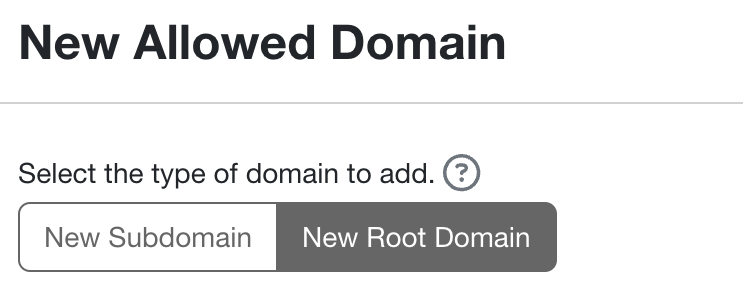
- Enter the root domain in the Domain Name field. For example, “mydomain.com”.
-
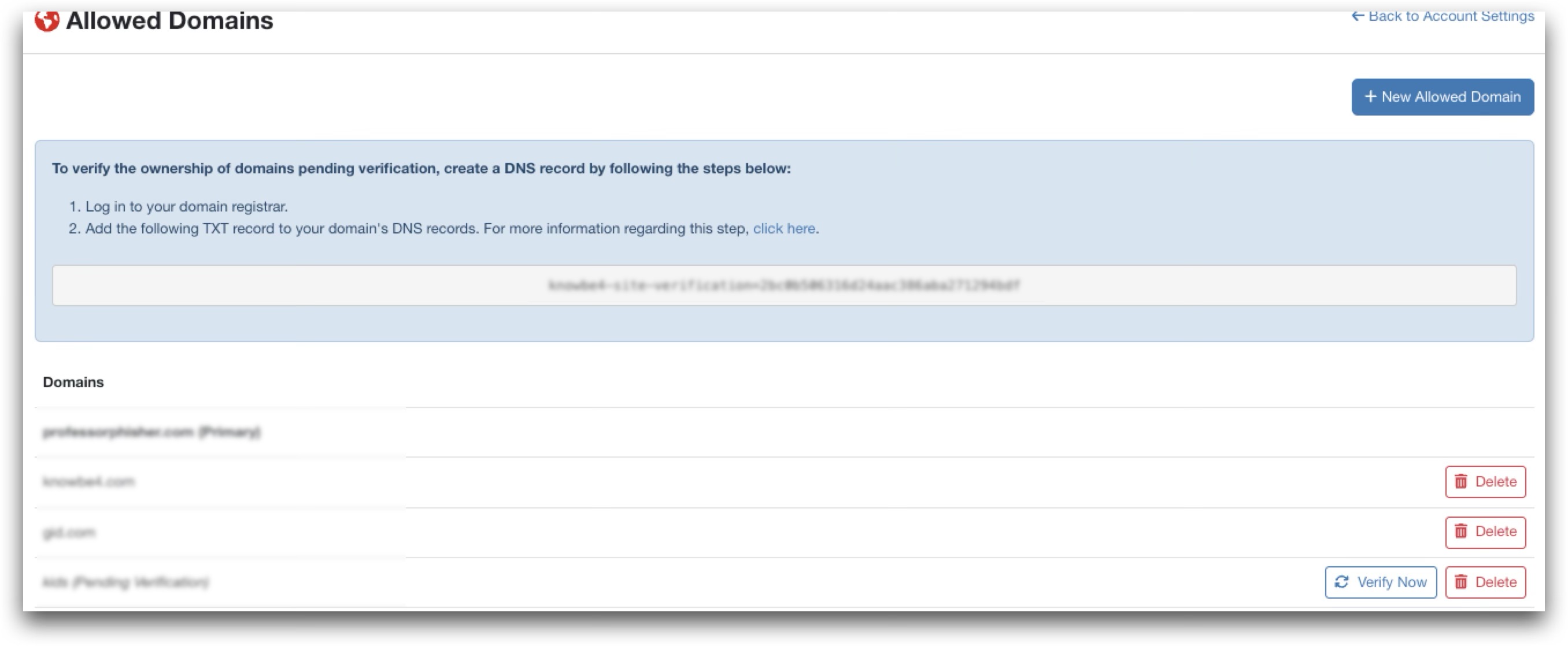
Copy the TXT record in the gray box in the middle of the page. Then, add this TXT record to your DNS records. This TXT record is unique for your KSAT console and can be used for any additional root domains that you add. For instructions on adding a TXT record to your DNS records, see our Add a TXT Record to Your DNS Records article.
- After you add the TXT record to your DNS records, choose when to verify your domain. You can either select Verify Now or Verify Later.
- If you select Verify Now, KnowBe4 will attempt to confirm that you’ve added the TXT record as instructed. If KnowBe4 can confirm that you’ve added the TXT record, the new root domain will be added to your KSAT console. If KnowBe4 cannot confirm that you’ve added the TXT record, we recommend trying again later. Your DNS record may still be updating.
- If you select Verify Later, the root domain will be added to the Allowed Domains page and will have a Pending Verification status. We recommend that you select this option if you’re unable to add the TXT record to your DNS records immediately. Once you’ve added the TXT record to your DNS records, you can return to the Allowed Domains page and select Verify Now.
-
Select Submit.
Removing Partner Level Domains
You can remove existing domains or pending domains from your managed KSAT console. To remove a domain from your account, follow the steps below:
- Log in to your managed KSAT console.
- Navigate to Account Settings at the top-right corner of the page.
- Navigate to Account Information > Organization Information.
- Select the Allowed Domains link. When you select this link, the Allowed Domains page will open.
- On this page, select the Delete link next to the domains that you would like to remove.
Troubleshooting
If you’ve followed the steps in the Adding Partner Level Root Domains section of this article, but your root domain is not added to your Allowed Domains page, we recommend trying the following troubleshooting methods:
- Verify that your TXT record entry is accurate and matches the TXT record on the Allowed Domains page. For more information, see step 8 in the Adding Partner Level Root Domains section of this article.
- Contact your domain name registrar or domain host for specific instructions or assistance.
- Use a service such as MxToolbox MxToolbox (link opens in new window) to look up the TXT records for your domain. You can verify your TXT record on this website to ensure it was added correctly.
- Use a command prompt to verify manually that your TXT record was updated. See below for example command prompts. If your updates were successful, the output of your command prompt entry should return the TXT record from the Allowed Domains page:
-
Unix or Linux:
$ dig TXT examplehere.com -
Windows:
c:\> nslookup -type=TXT examplehere.com
-
If you follow these troubleshooting methods but experience further issues, please contact our support team please contact our support team (link opens in new window) for assistance.