You can integrate your VMRay VMRay (link opens in new window) platform into your PhishER console. VMRay specializes in advanced malware sandboxing and threat analysis. VMRay allows you to analyze potential phishing emails and send the results back to PhishER via the Product API.
Before You Connect VMRay to PhishER
You will also need to create a Product API key to integrate VMRay with PhishER. For more information on how to create a Product API token, please visit the Creating a Product API Token section of our Product API Overview article.
Then, you'll need to save this token somewhere you can easily access.
Connect VMRay to Your PhishER Console
You can connect your VMRay platform to your PhishER console by following the steps below.
- Log in to your VMRay platform.
- Navigate to Console > Settings > Analysis > KNOWBE4 CONNECTOR.
- Select the CREATE KNOWBE4 CONNECTOR button.
- Enter the name of your connector, such as “KnowBe4 Phishing”.
- Make sure the Enable check box is selected.
- Enter your geographic region’s base URL in the KnowBe4 URL field.
- Enter the Product API token from the previous steps into the KnowBe4 Service API Token field.
- Enter a time interval in the Query Interval field. You can enter the time interval in minutes to determine the frequency of sending requests to the integrated KnowBe4 connector, fetching sample files, and processing them. We recommend using the default value of 10 minutes.
- Enter a daily quota limit for the connector in the Enable Quota Limit field. For example, by setting the quota to 50 items, the daily integrated phishing connector's enrichments will not exceed this limit.
- Select the Test Connection button.
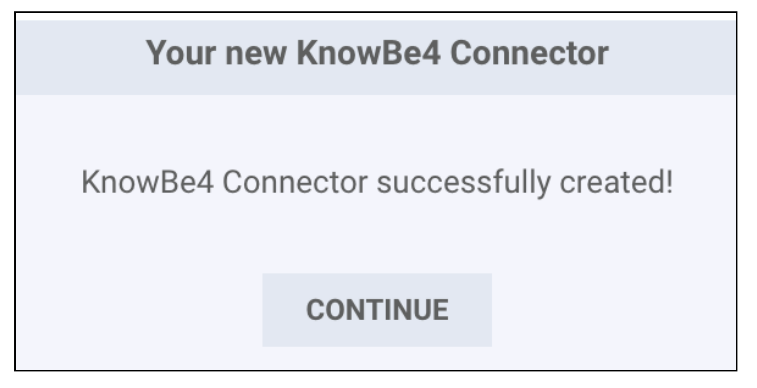
- After reviewing your settings, select Save. You should see a confirmation message showing your integration was successfully created.
Submit Your First Email to PhishER
Once the VMRay integration is configured, you can begin submitting suspicious emails to the PhishER console for automated processing and analysis. Follow the steps below to submit your first email to PhishER.
- Access PhishER. For more information on how to access PhishER, please visit the Accessing PhishER section of our PhishER Product Manual.
- Select the Settings icon in the lower-left corner of PhishER’s Dashboard.
- Select Reporting Emails.
- Follow the on-screen guidance to either use the existing reporting email address or create a new one.
- Copy the generated reporting email address. This address is the one you will use to submit suspicious or user-reported messages.
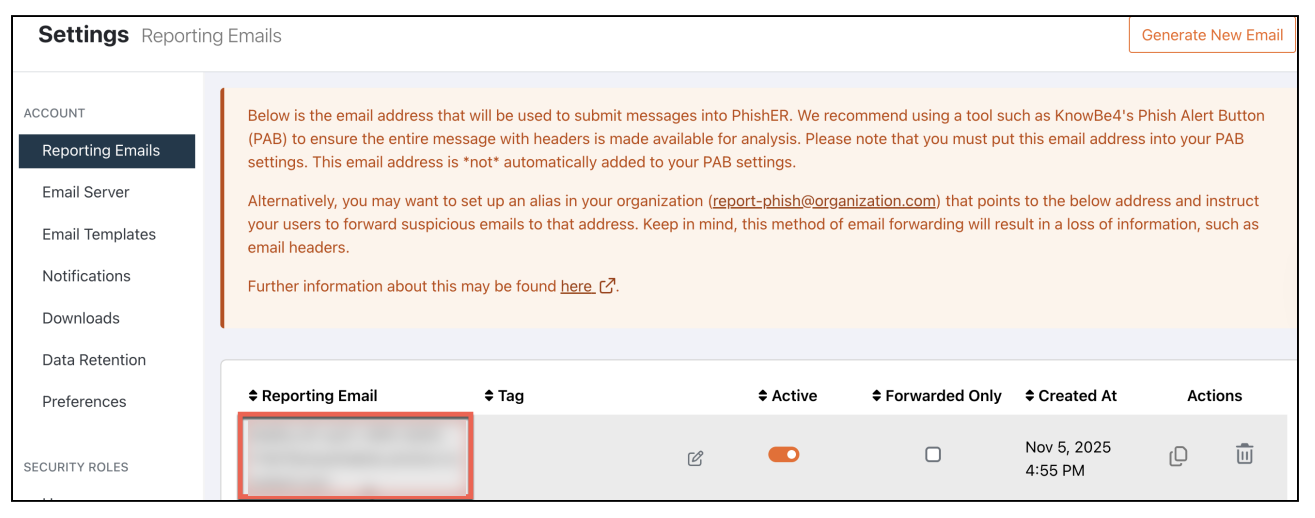
- Using your preferred email client, forward or send the message you want to analyze to the reporting email address. Allow a short time for KnowBe4 to ingest the message and for VMRay to complete the analysis.
- Navigate to the Inbox in the PhishER console. Your submitted email, or the email attachment if included, will appear once processing is complete.
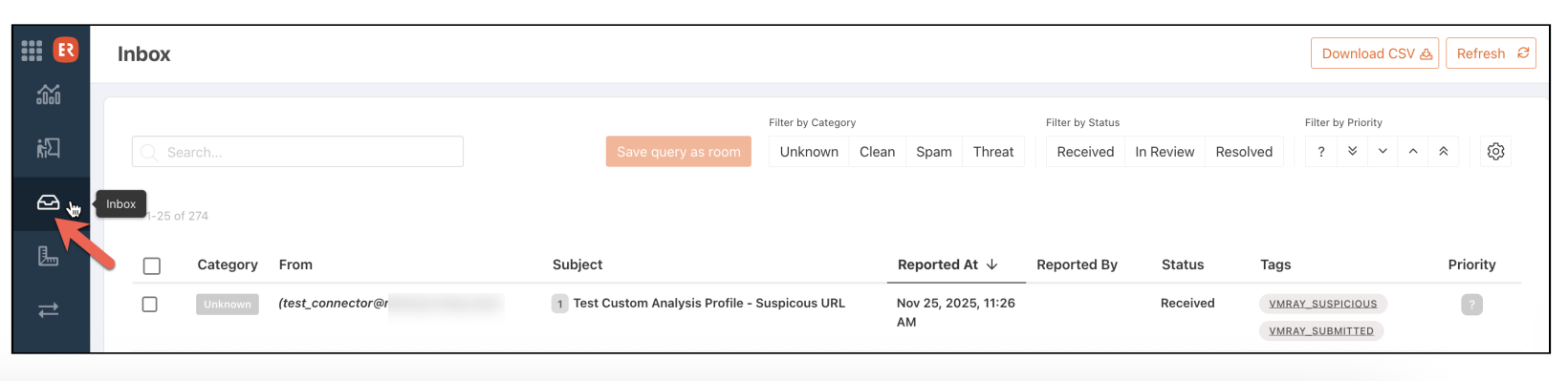
- Under Tags, you will see a VMRay verdict label, such as VMRAY SUSPICIOUS, VMRAY MALICIOUS, or VMRAY CLEAN.
- To view the Full VMRay report regarding the email, select the submitted email to open it, and then select the Discussion panel.
Access Submitted Emails to PhishER in VMRay
You can access emails submitted to PhishER in the VMRay platform by following the steps below.
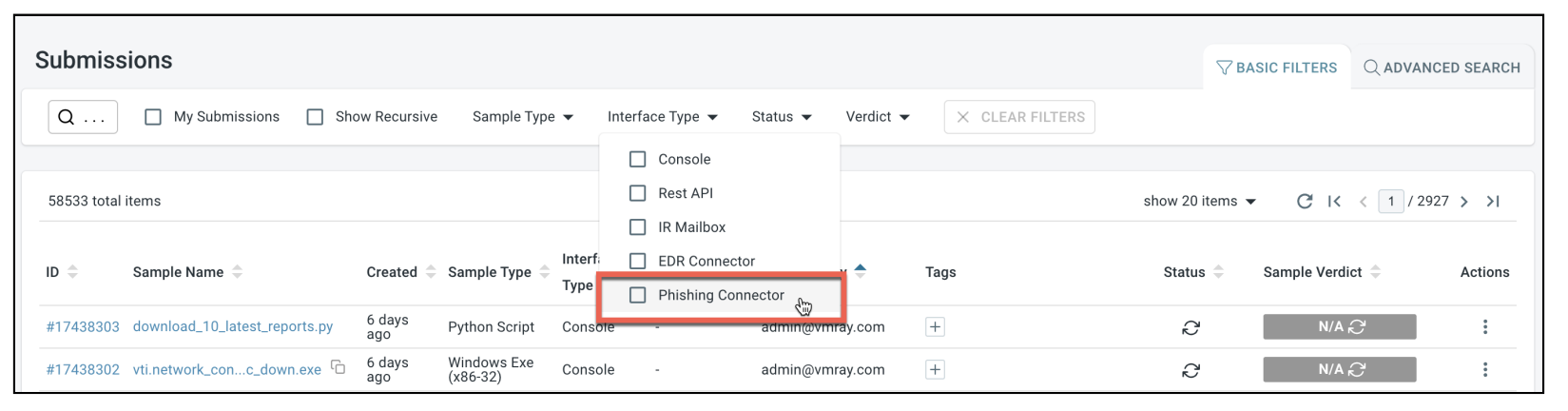
- From the left navigation menu, navigate to the Submissions dashboard.
- Under the Interface Type drop-down menu, select Phishing Connector.
- Navigate to Submissions or Analyses > Advanced Search. Select Category as Automation, Operator as ==, and Value as Phishing.
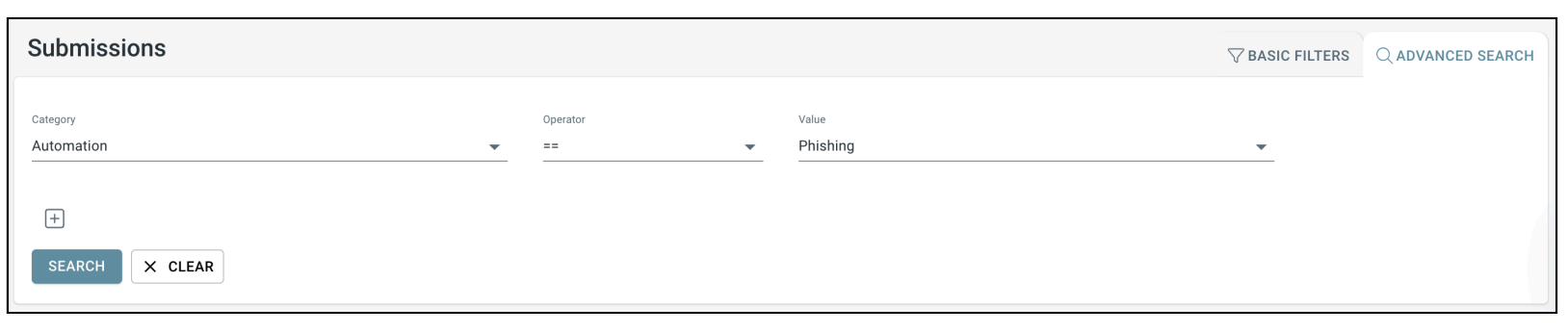
- Again, use the left navigation menu to navigate to Submissions > Advanced Search. Select Category as Interface Name, Operator as ==, and enter the Value as “%KnowBe4 Phishing%”.
