Understanding your team’s security readiness is the first step toward building a stronger security culture. This guide shows you how to track your Custom Security Awareness Proficiency Assessment (SAPA) results and how to filter reports to turn data into action. You’ll learn how to monitor participation, review scores across seven knowledge areas, and find the right training content to help your team stay safe.
Monitoring Custom SAPA Campaigns
After you launch your campaign, you can track your team's progress and manage participation from the Campaigns tab.
To see how your campaign is moving along:
- Track progress: See how many users have completed, started, or not yet begun the assessment. If you notice some users haven't finished, you can send a friendly nudge to help them stay on track.
- Identify trends early: Keeping a regular pulse on participation helps you ensure you’re getting a representative sample of data from across your organization.
- Offer proactive support: If you notice specific groups are falling behind, you can reach out to offer help or adjust your communication strategy to keep the momentum going.
Use the following steps to see how your users are progressing:
- Log in to your KnowBe4 account and navigate to Training > Campaigns.
- On the Campaigns subtab, click the name of the campaign where the assessment was assigned.
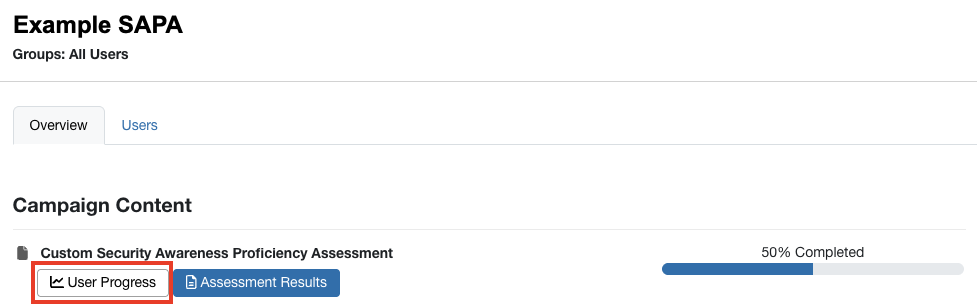
- On the Campaign Overview page, locate the assessment.
- Click User Progress under the assessment title.
On the User Progress page, you can see information about your users' progress, including their assessment scores and status, as well as how much time they've spent on the assessment. See below for more information about the User Progress page:
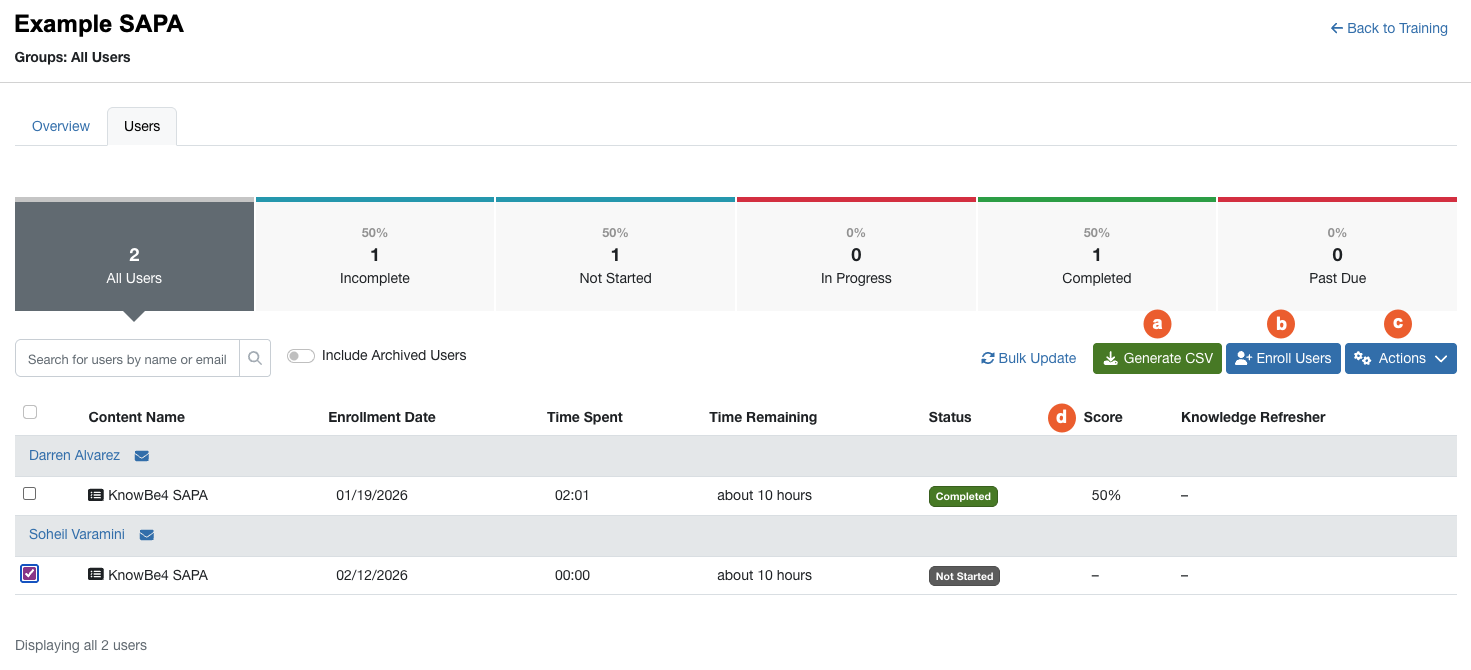
- Generate CSV: Click this button to download a CSV file of the information displayed in the table below.
- Enroll Users: Click this button to enroll additional users into the campaign.
-
Actions: Click this drop-down menu to select the action you'd like to perform on the selected user or users. Options include:
- Send Notification: Send a manual notification to the user about their assessment.
- Mark as Completed: Manually mark the user's assessment as complete.
- Reset Progress: Allow the user to restart the assessment.
- Remove Users: Remove the user from the assessment.
- Score: Displays the user's assessment score.
For more information about managing your users' progress, see our User Management in Training Campaigns article.
Reviewing Custom SAPA Results
Once your team finishes the assessment, it's time to see what the data says about your security culture. These results show what your team knows and how they might handle real-world threats.
To see your results, follow these steps:
- Log in to your KnowBe4 account and navigate to Training > Campaigns.
- On the Campaigns subtab, click the name of the campaign in which the assessment was assigned.
- On the Campaign Overview page, find the assessment and click Assessment Results under the assessment's title.
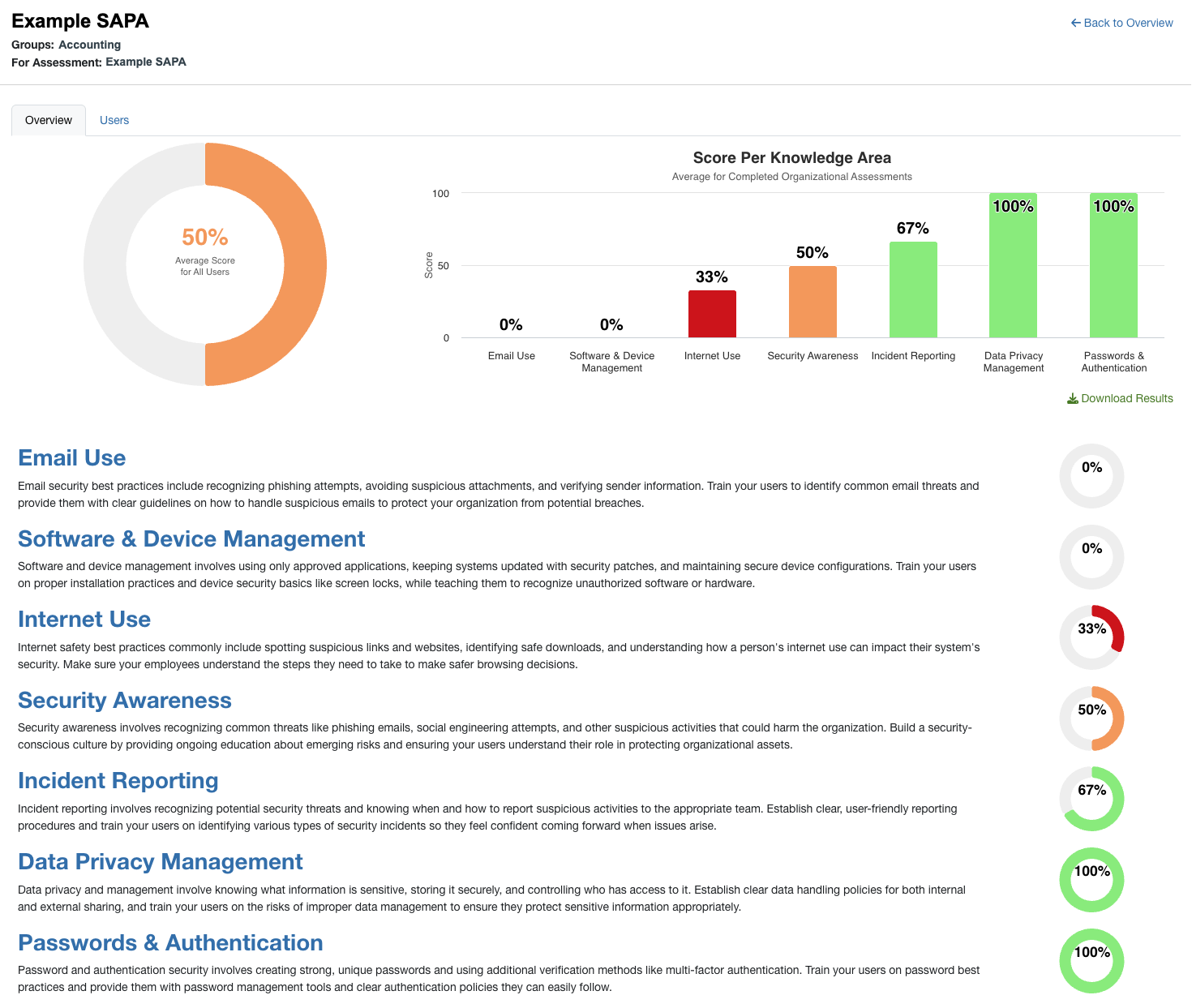
The first graph on this page shows the average assessment score for all your users. The second graph shows the average assessment score for each knowledge area.
There are seven knowledge areas:
- Passwords & Authentication
- Email Use
- Data Privacy & Management
- Security Awareness
- Internet Use
- Incident Reporting
- Software & Device Management
- You can find an explanation of each knowledge area below the graphs.
Click a knowledge area's name to find related training in the ModStore. You'll see suggestions you can assign to help your team improve in specific areas. For example, if your team’s score is low in Email Use, they might need more training on staying safe while using email.
Viewing Custom SAPA Reports
On the Reports tab of your console, you can view and customize reports to fit your organization’s needs. The Reports subtab includes cards for each type of report.
Click the star icon next to a report's name to add it to your favorites at the top of the page.
Scroll through the cards or search for Custom Security Awareness Proficiency Assessment to find your results.
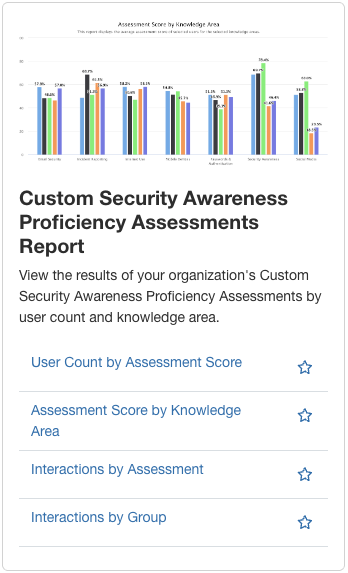
You have four reports to choose from. The User Count by Assessment Score shows your team's overall performance at a glance. The Assessment Score by Knowledge Area shows exactly which topics your team needs more help with.
The other two interaction reports are specific to Custom SAPA and provide deeper insights: Interactions by Assessment and Interactions by Group. Both are described in more detail below.
Interactions by Assessment
This report shows exactly how your users answered each question. By seeing the percentage of correct and incorrect responses, you’ll find the specific topics where your team needs more support.
To learn more about the options in this section, see the screenshot and the list below:
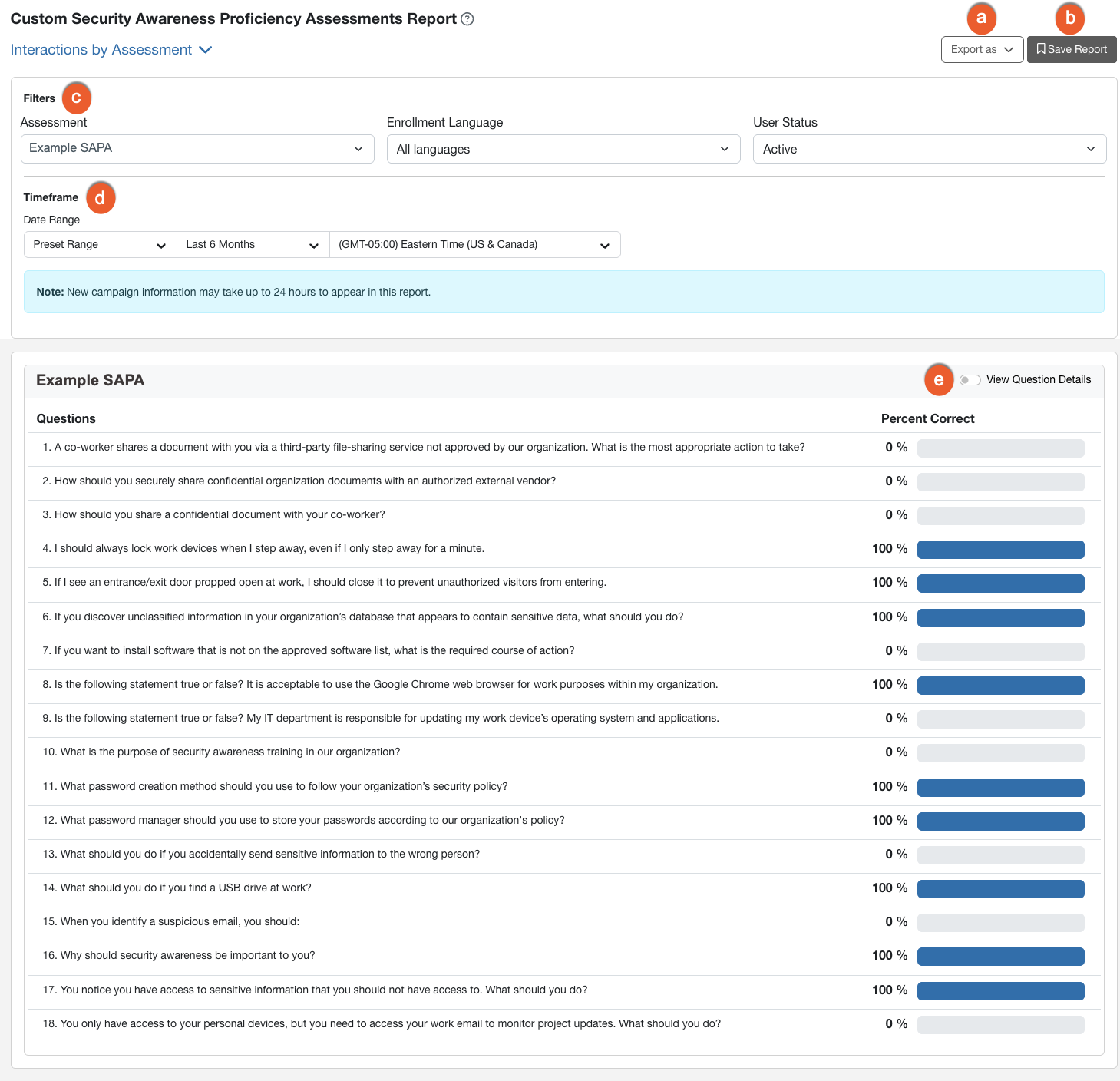
- Export as: Select this drop-down menu to download your report as a CSV file.
- Save Report: Click this button to save your current report. You can view your saved reports at any time under the Saved Reports subtab.
-
Filters: Use these options to narrow down the information in your report:
- Assessment: Filter the report to show activity for a specific assessment.
-
Enrollment Language: View activity based on the language the learner used.
Note: Only English (US) is available at this time. - User Status: Choose to see activity for either active or archived learners.
- Timeframe: Select the specific date range and time you want to see data for.
- View Question Details: Enable this toggle to see more information about each question. You’ll see exactly which correct and incorrect answers your team chose. If you notice many users selecting the same incorrect response, it highlights a specific gap where targeted training can help.

Interactions by Group
This report shows exactly how different groups answered each question. By seeing the percentage of correct and incorrect responses, you’ll find which groups need more support on specific security topics.
To learn more about the options in this section, see the screenshot and the list below:
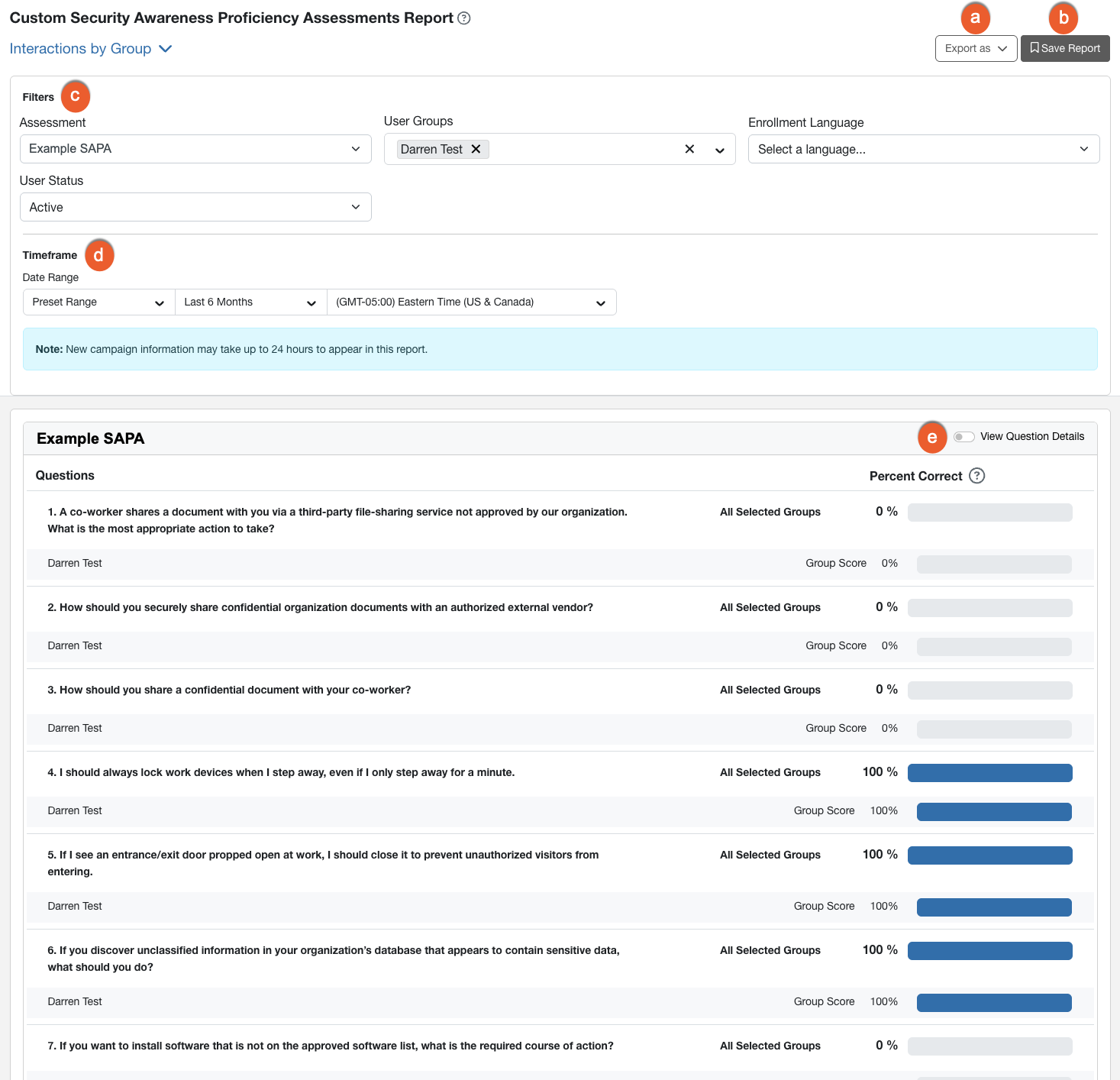
- Export as: Select this drop-down menu to download your report as a CSV file.
- Save Report: Click this button to save your current report. You can view your saved reports at any time under the Saved Reports subtab.
-
Filters: Use these options to narrow down the information in your report:
- Assessment: Filter the report to show activity for a specific assessment.
- User Groups: Filter the report for specific user groups.
-
Enrollment Language: View activity based on the language the learner used.
Note: Only English (US) is available at this time. - User Status: Choose to see activity for either active or archived learners.
- Timeframe: Select the specific date range and time you want to see data for.
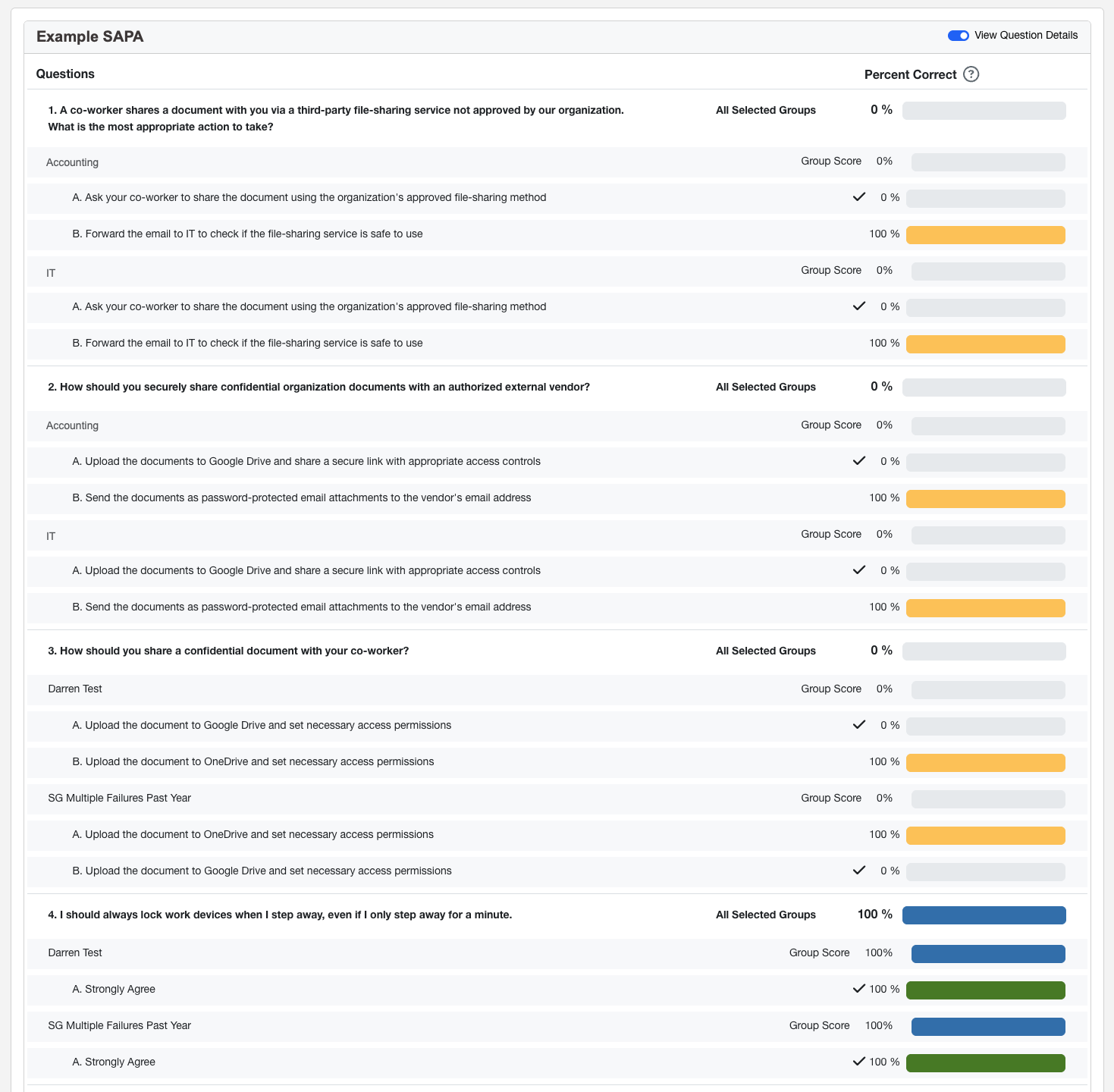
- View Question Details: Enable this toggle to see how each group responded to each question. You’ll see the specific correct and incorrect answers chosen. If many users in a group pick the same wrong answer, it’s a good sign they need more training on that topic.
For more information about the available report types, see our Reporting Guide.