In this article, you’ll learn how to integrate TrendAI (formerly Trend Micro) with SecurityCoach. Once you set up this integration, data provided by TrendAI will be available in the SecurityCoach tab of your KnowBe4 Security Awareness Training (KSAT) console. This data can be viewed in SecurityCoach reports and used to create detection rules for real-time coaching campaigns. For general information about SecurityCoach, see our SecurityCoach Product Manual.
Prerequisites
In order to use this TrendAI integration with SecurityCoach, the following is required:
- Access to a TrendAI admin account.
- Cyber Risk Exposure Management must be enabled in your Trend Vision One console. For more information, see TrendAI’s website.
Setting Up the Integration in TrendAI
To set up the SecurityCoach integration in your TrendAI admin console, follow the steps below:
- Log in to your TrendAI admin console.
-
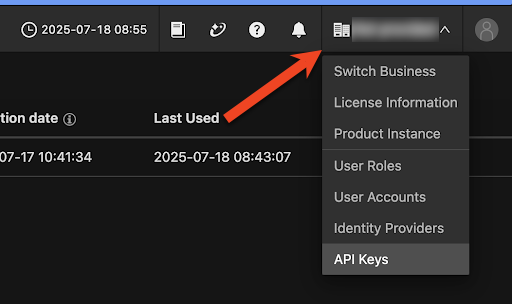
At the top-right of the page, select your organization name. A drop-down menu will appear.
-
Select API Keys. A new page will load.
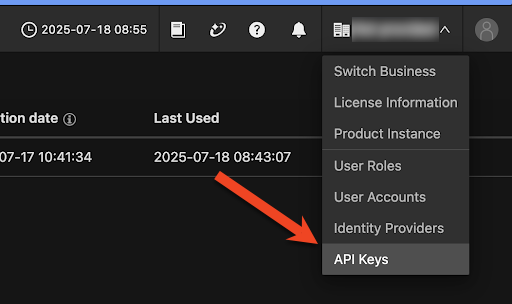
- Select Add API Key. A new Add API Key pop-up window will appear.
-
See the image and list below to fill out the required fields:
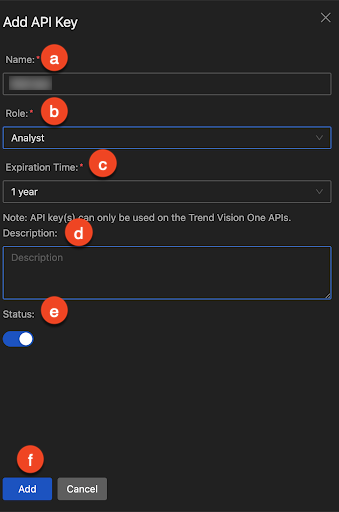
- Name: Enter your desired name for the API key.
- Role: Select Analyst.
- Expiration Time: Enter your desired API key expiration time. We recommend selecting 1 year.
- Description: Enter your desired description for the API key.
- Status: Ensure the status toggle is enabled.
- Add: Select this button to save your changes and add the API key.
-
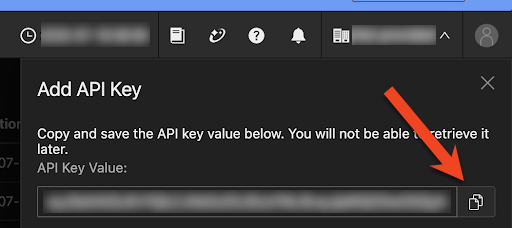
An API Key Value window will appear. Copy and save the API key value somewhere that you can easily access. You’ll need this value later to complete the Setting Up the Integration in KSAT section below.
To complete your integration, proceed to the Setting Up the Integration in KSAT section below.
Setting Up the Integration in KSAT
To set up the TrendAI integration in your KSAT console, follow the steps below:
- Log in to your KSAT console.
- Navigate to SecurityCoach > Setup > Security Vendor Integrations.
- Locate the TrendAI vendor card and select Configure > Direct Integration. The direct integration setup page will open.
-
In the API Domain field, enter the correct API domain for your TrendAI API instance. To find your correct API domain by region, refer to the table below:
Region API Domain Australia api.au.xdr.trendmicro.com European Union api.eu.xdr.trendmicro.com India api.in.xdr.trendmicro.com Japan api.xdr.trendmicro.co.jp Singapore api.sg.xdr.trendmicro.com United States api.xdr.trendmicro.com - In the API Token field, enter the API Key you saved in the Setting Up the Integration in TrendAI article section.
- Select Save to complete the integration setup.
Mapping Your Users
After you’ve finished integrating TrendAI, we recommend mapping your users through mapping rules or through a CSV file upload. For more information about user mapping, see our Map Users in SecurityCoach article.
Deleting the Integration in SecurityCoach
If you want to delete the TrendAI integration from SecurityCoach, follow the steps below:
- Log in to your KSAT console.
- Navigate to SecurityCoach > Setup > Security Vendor Integrations.
- Locate the TrendAI vendor tile and select Edit.
- Select Delete Integration near the bottom of the page. A new pop-up window will open.
- If you are sure you want to delete the integration, click Confirm.