Organizations using Microsoft 365 alongside KnowBe4’s Phishing Simulation Tests (PSTs) and Defend must complete additional configuration steps to ensure proper email delivery and accurate testing results. This article outlines the recommended best practices for configuring Defend while using PSTs.
Microsoft Advanced Delivery Policy Configuration
To avoid PSTs from being quarantined, add Defend’s sending IP addresses to an advanced delivery in Microsoft 365. All of Defend’s regional sending IP addresses can be found below:
-
- 18.130.212.176
- 18.135.85.199
- 13.43.19.144/29
- 3.253.208.184/29
-
- 52.71.53.79
- 34.204.210.91
- 52.0.5.153
- 44.216.154.56/29
- 18.246.145.200/29
-
- 54.252.196.160
- 13.210.31.177
- 13.237.163.139
- 16.51.86.24/29
-
- 54.220.109.92
- 34.253.34.167
- 34.250.90.89
- 3.78.201.96/29
Defend Banners
By default, PSTs will have a red Defend banner added to them. This default behavior simulates a real-world scenario for when Defend adds a red banner to a legitimate phishing email.
If you want to see if users still click on phishing emails without banners, you can remove banners from any PSTs by adding KnowBe4's sending IP addresses to Defend's Allow List.
For full details, see the Whitelisting Guide and Defend - Allow or Deny Lists articles.
Defend URL Rewriting
The default and recommended setting for URL rewriting is not to allow users to continue through rewritten URLs if they are found to be dangerous. When a user clicks on the phishing simulation link, a warning page is displayed, but they will not be able to click through to the URL page.

The warning page skews the phishing test results by preventing users from clicking through and failing the simulation. However, this warning page is the intended security feature because it educates users about suspicious links.
There are two different options that organizations can take depending on the desired outcome:
- Allow users to click through the warning page and access the phishing URL. This action will be tracked within Defend, and if it is a PST, the user will register as a failure. This feature can be enabled by setting the Prohibit users from accessing potentially harmful links drop-down menu to Permit users to access potentially harmful links option.
 Warning: Adjusting this setting will apply to all rewritten URLs, not just PST test URLs.
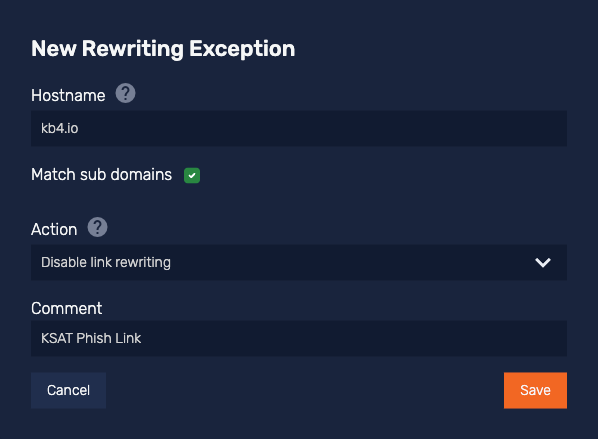
 - Disable URL rewriting for the phishing simulation URL domain in the Defend console. The URLs can be found in the KSAT console under Phishing > Domains. The URL rewriting exception should be added using the root domain, and the Match sub domains option should be enabled. For further information, see the Defend - URL Rewriting Exceptions article. An example rewriting exception can be seen in the screenshot below:
Abuse Mailbox
Organizations using KSAT and Defend can use the abuse mailbox feature, but it must be configured as follows to work with the Phish Alert Button (PAB):
- In the PAB settings, set emails to be sent as EML attachments.
- In PAB settings, the abuse mailbox email address should be added to the Send non-simulated emails to option.
Organizations using PhishER and Defend should use the PAB and either disable or not use the abuse mailbox.
All customers should ensure that users only use the PAB and that reporting within Defend is disabled. Defend reporting can be disabled by following the steps below:
- Navigate to Settings > Summary Page.
- Set the Display Report Phish/Not Phish Option to Hide report phish/not phish using the drop-down menu.
- Click Save Changes.