Custom SAPA lets you create customized security assessments tailored to your organization's environment. Rather than using generic questions, this custom assessment is generated based on the actual tools, policies, and industry requirements your team encounters daily.
The assessment results provide you with an overview of your organization's strengths and weaknesses. You can use this information to create targeted phishing and training campaigns that fit your users' needs.
By using your responses from the Environment Survey, Custom SAPA intelligently selects relevant questions from our expert-curated question bank. This ensures your learners face scenarios that match their work environment while you maintain the scientific rigor of a validated assessment.
Getting Started
Log in to your KnowBe4 console and navigate to Training > Assessments, then click the Create Assessment button. A pop-up message will prompt you to take the Environment Survey.
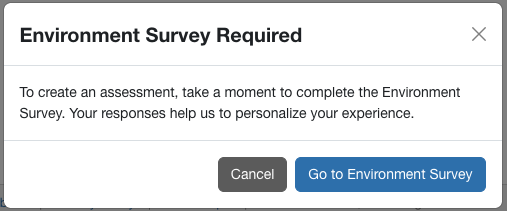
Click the Go to Environment Survey button. The Environment Survey page opens.
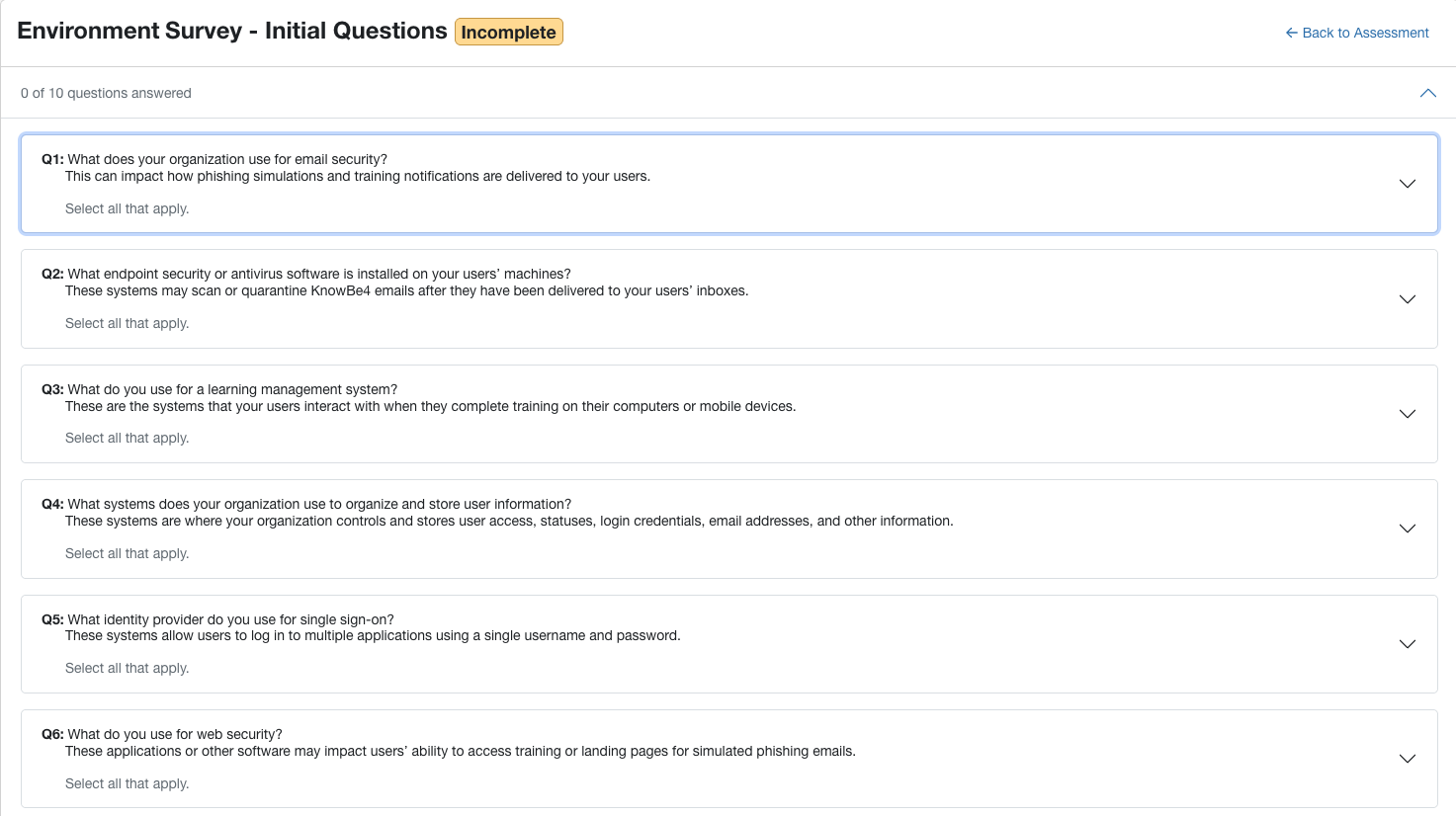
The survey is the foundation of your experience. It helps us understand your organization's security tools, policies, and industry context so we can provide the most relevant questions for your team.
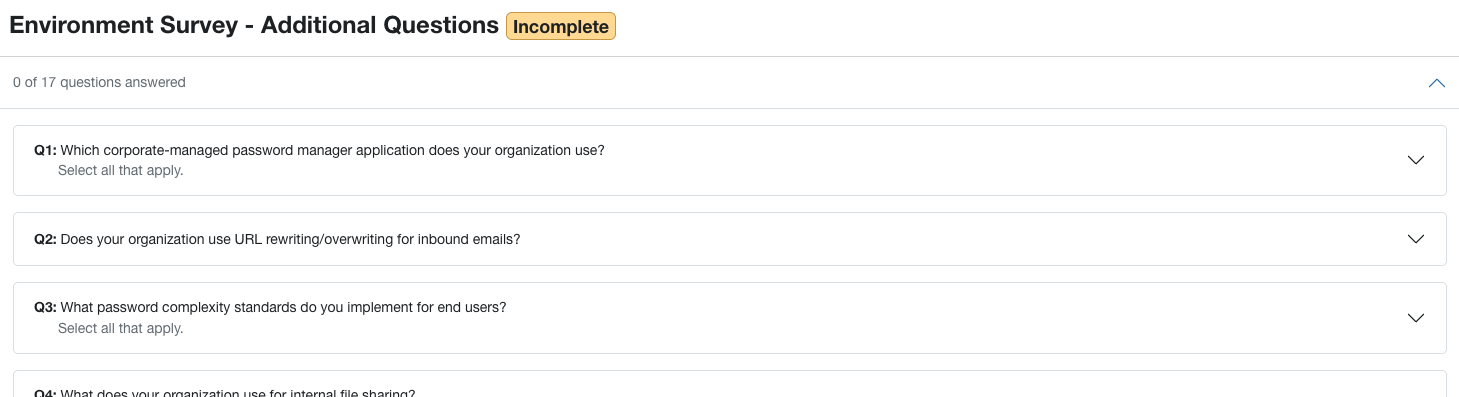
There are two sets of questions: Initial Questions and Additional Questions. We recommend answering these as accurately as possible so we can curate the best assessment questions for your team’s unique security journey.
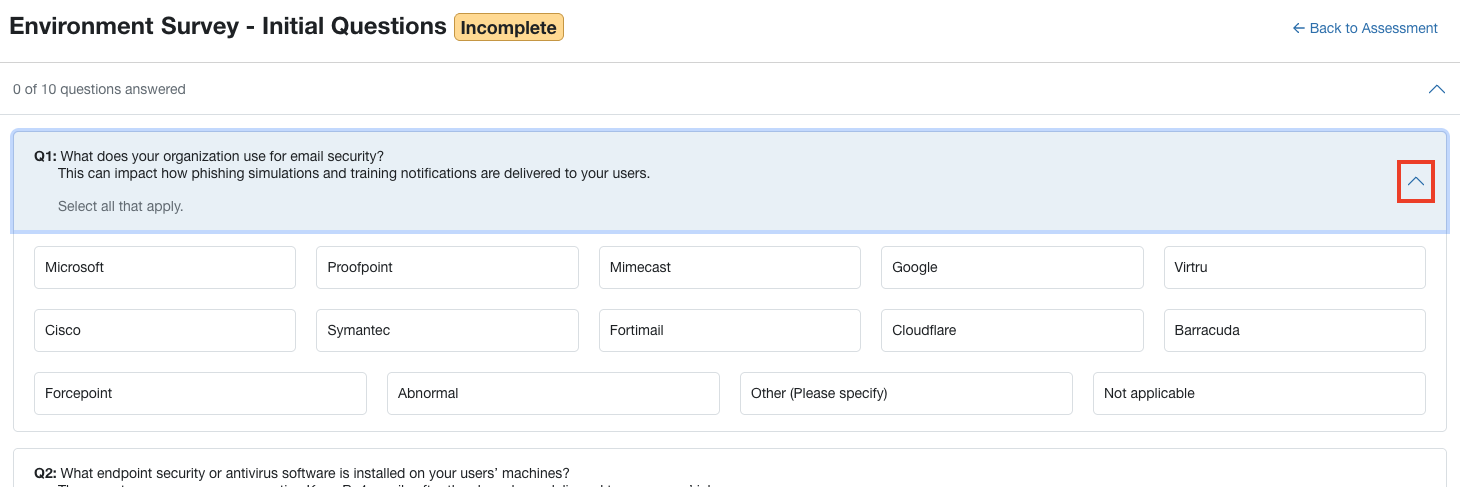
To reveal the responses to a question, click the arrow to the right of the question. You can also click this arrow to hide the responses.
After you answer each question, it will be highlighted in green.
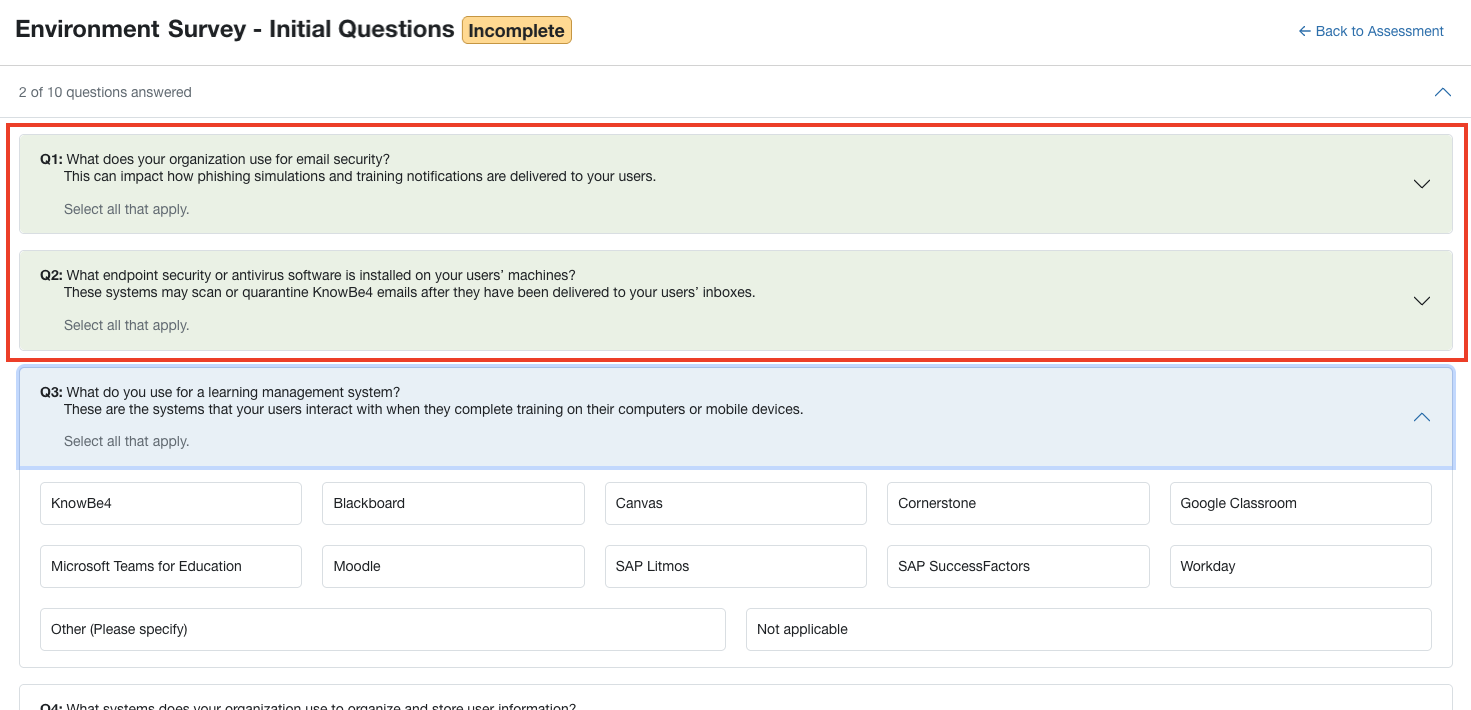
After you answer all of the Initial Questions, you must answer all of the Additional Questions.
At the bottom of the page, you have two options:
- Save Progress: Click this button to save your progress and return to the survey later to either complete it or adjust your answers.
- Save and Complete: Click this button if you are comfortable with your answers and are ready to create an assessment. You'll automatically be directed to the Assessments page, where you can create your first custom assessment. For more information, see the Creating an Assessment section.
Creating an Assessment
After completing the Environment Survey, you're automatically taken to the Create Assessment page.
To learn more about the options in this section, see the screenshot and the list below:
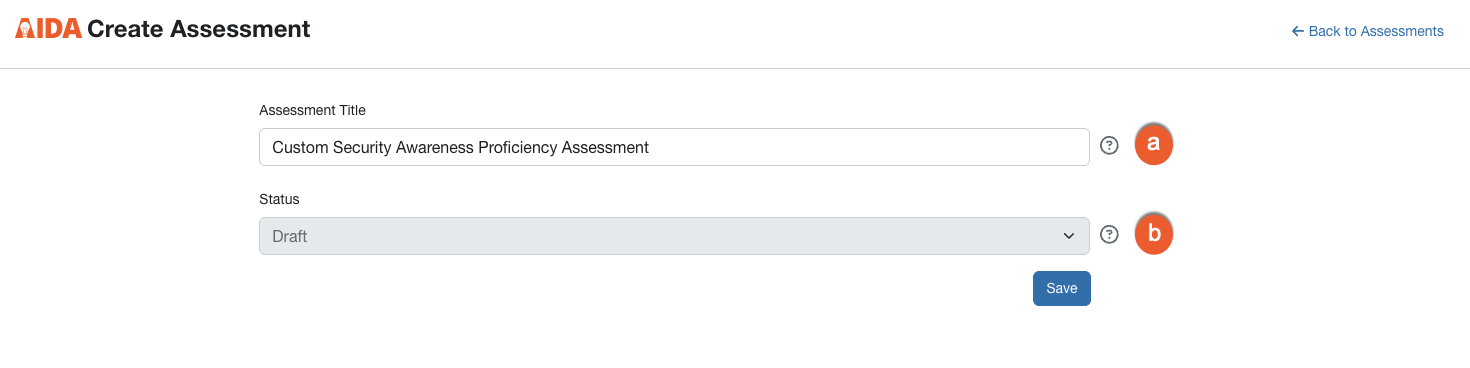
- Assessment Title: Enter a descriptive name for your assessment. Don't worry, your learners won't see this name when the assessment is assigned to them; it's just to help you easily identify the assessment on this page. We recommend using the following format: [Company Name] [Name for the assessment]. A good example would be: MyCorp Security Awareness Proficiency Assessment, or MyCorp Accounting Dept. SAPA.
- Status: This drop-down menu cannot be changed at this time. It will remain in Draft status until you build your assessment and publish it.
Click the Save button to open the Assessment Builder.
Using the Assessment Builder
The Assessment Builder is where you curate the specific questions for your assessment. The questions listed are based on your responses to the Environment Survey.
Question Limits
To ensure the assessment is valid and your learners have the best experience, keep these limits in mind:
- Minimum: You must select at least 10 questions.
- Maximum: You can select up to 35 questions.
To learn more about the options in this section, see the screenshot and the list below:
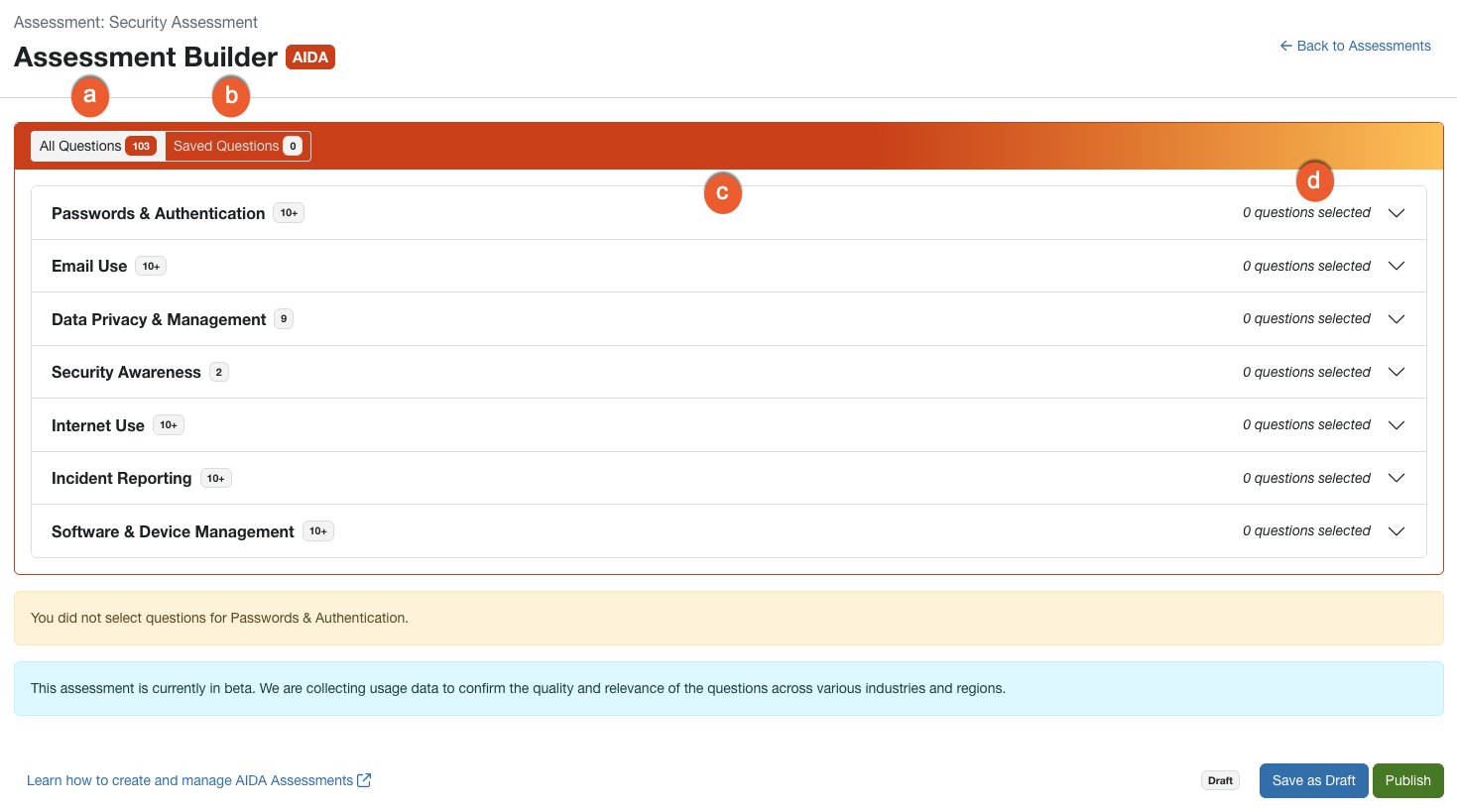
- All Questions: This is the default view of the page. It lists all of the quiz questions available.
- Saved Questions: Click this subtab to view the questions you have saved.
-
Knowledge Areas: The knowledge areas serve as the foundational framework for the Custom SAPA, representing the core security topics your assessment measures. Their primary role is to organize and categorize specific security risks into a structured format that helps you track your team's overall security readiness. There are seven specific areas:
- Passwords & Authentication: Focuses on creating strong, unique passwords and using extra verification methods like multi-factor authentication (MFA).
- Email Use: Covers spotting phishing attempts, avoiding suspicious attachments, and verifying sender information before taking action.
- Data Privacy & Management: Includes identifying sensitive information, storing it securely, and managing who has access to it.
- Security Awareness: Explores how to recognize broad threats like social engineering and other common tricks used to target organizations.
- Internet Use: Highlights online safety best practices, such as spotting risky links and understanding how browsing habits impact system security.
- Incident Reporting: Ensures users know how to identify potential threats and exactly how to report them to your security team.
- Software & Device Management: Focuses on using approved applications, keeping systems updated with the latest patches, and maintaining secure device settings.
- Down Arrow: Click this arrow to expand a knowledge area and reveal the available questions for that area.
To learn more about the options in this section, see the screenshot and the list below:
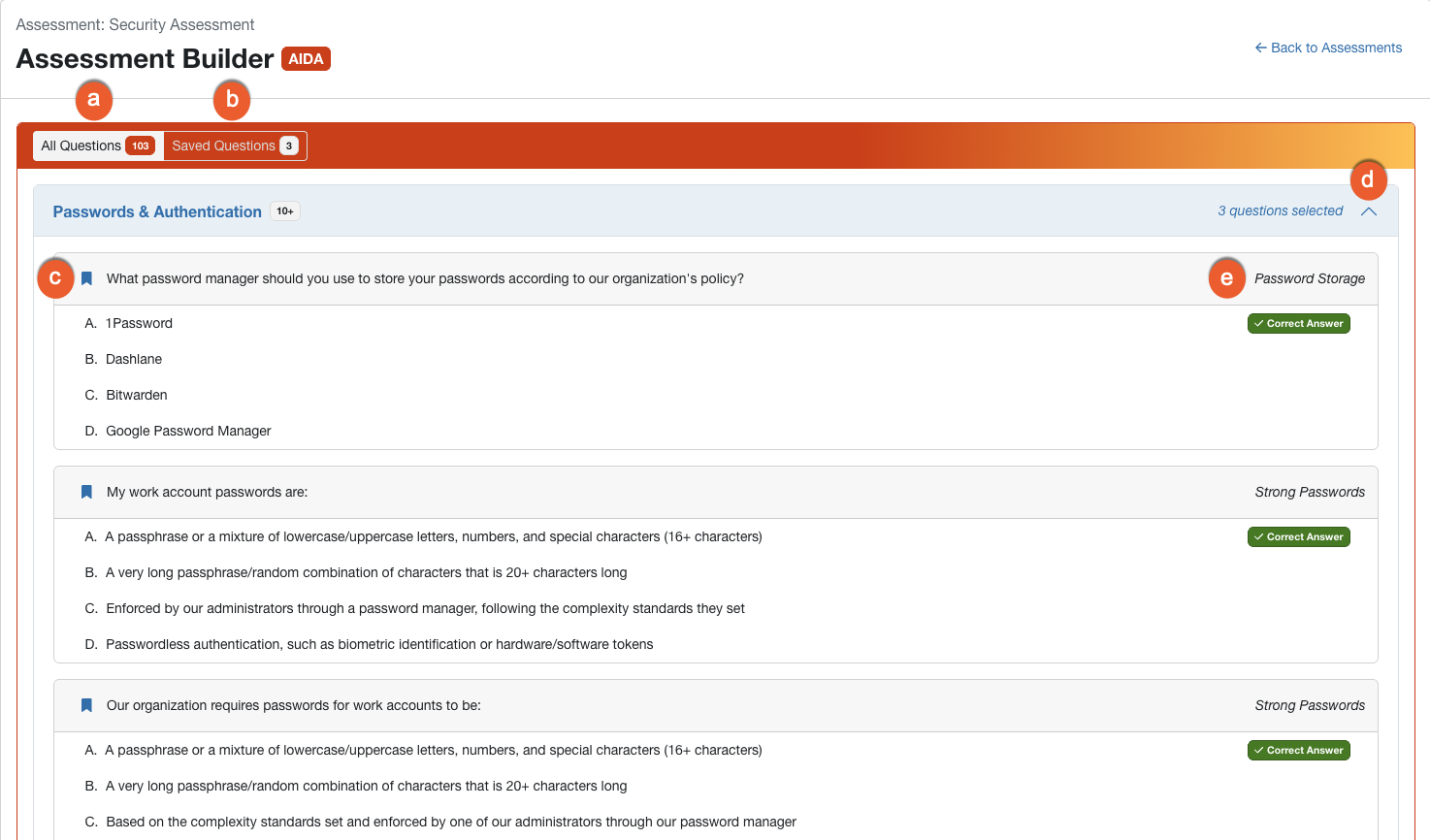
- All Questions: This is the default view of the page. It lists all of the quiz questions available.
- Saved Questions: Click this subtab to view the questions you have saved.
- Bookmark: Blue bookmark icons next to a question indicate that the question has been saved. Clear bookmark icons indicate that the question has not been saved. Select or clear bookmarks to save and unsave questions you want to use in your assessment.
- Up Arrow: Click this icon to collapse a knowledge area and hide the questions for that area.
- Subdomains: Each question is labeled with a subdomain. These labels show you the specific security skill each question focuses on. By choosing questions from different subdomains, you can ensure your assessment covers a wider variety of topics within a single knowledge area.
Publishing Your Assessment
After you are satisfied with the assessment questions, scroll to the bottom of the page, then follow the steps below to publish your assessment.
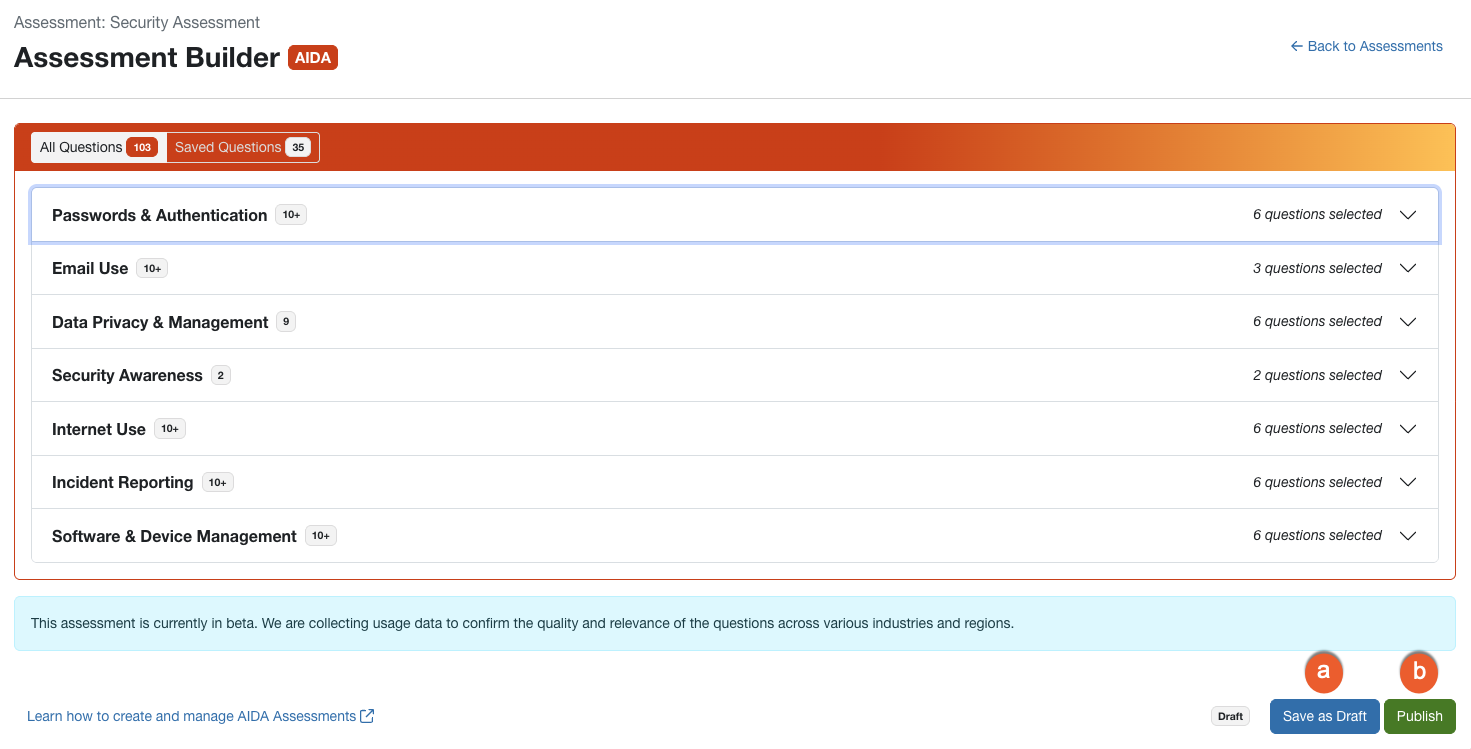
Make a selection:
- Click Save as Draft to save your changes and come back to edit your quiz when you're ready.
- Click Publish to publish the quiz for use in the console.
Your new assessment is now available for assignment in a training campaign.
Updating the Survey
You can update the Environment Survey at any time. Your new answers will apply to future assessments, giving you flexibility as your environment evolves.

Managing Your Assessments
You can view and manage all your assessments from the Assessments page. Here, you can see the status of your assessments, when they were last updated, and how many questions they contain. You can also update the Environment Survey and create a new assessment.
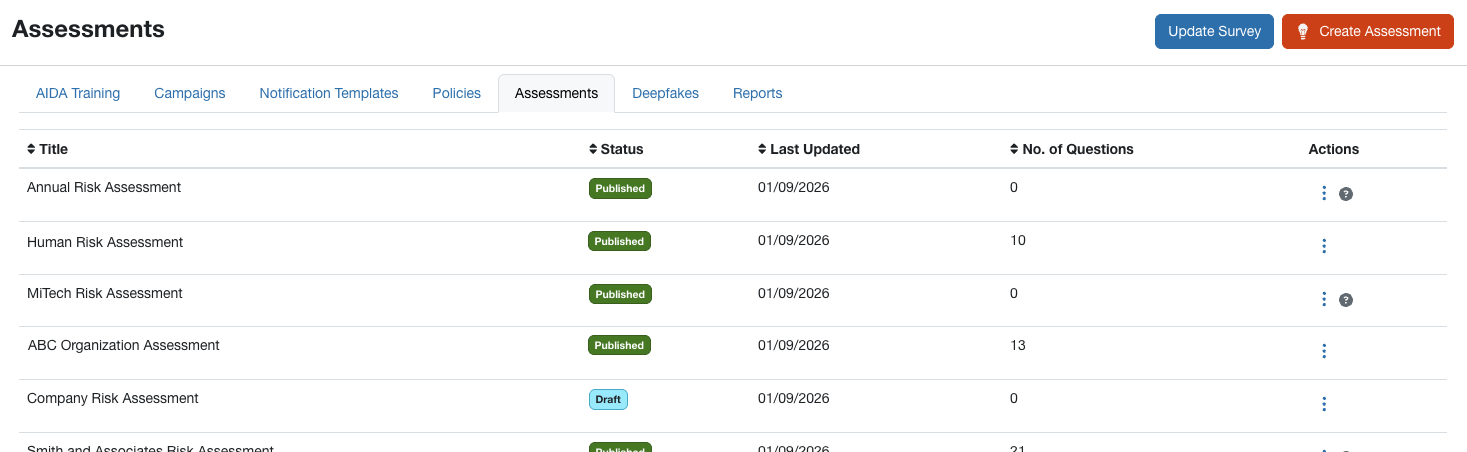
Editing a Draft Assessment
After saving your assessment as a draft, you can edit it to make sure it fits your organization’s needs.
Follow the steps below to make changes to a Draft assessment:
- Log in to your KnowBe4 console and navigate to Training > Assessments.
- Find the draft assessment you would like to edit.
-
Click the three dots icon in the Actions column.

Make a selection:
- Select Edit Title to edit the title of your assessment or change the status.
- Select Edit Questions to open your assessment and change the questions.
Archiving and Deleting an Assessment
You can archive published assessments or delete draft versions. You can also delete archived assessments as long as they haven’t been part of a current or past campaign.
If you no longer need an assessment:
- Click the three dots icon in the Actions column next to the assessment.
- Select Archive for a published assessment or Delete for a draft assessment.
- Click Confirm in the confirmation window.
An archived assessment will remain visible in your assessment list. You can restore an archived assessment to the Published status, unless the Environment Survey has been updated since the assessment was created.
Assigning Assessments
You can create a training campaign with the assessment as the selected content by following the steps below:
- Log in to your KnowBe4 console and navigate to Training > Campaigns.
- Click + Create Training Campaign.
-
From the Content drop-down menu, select the assessment you would like to assign.
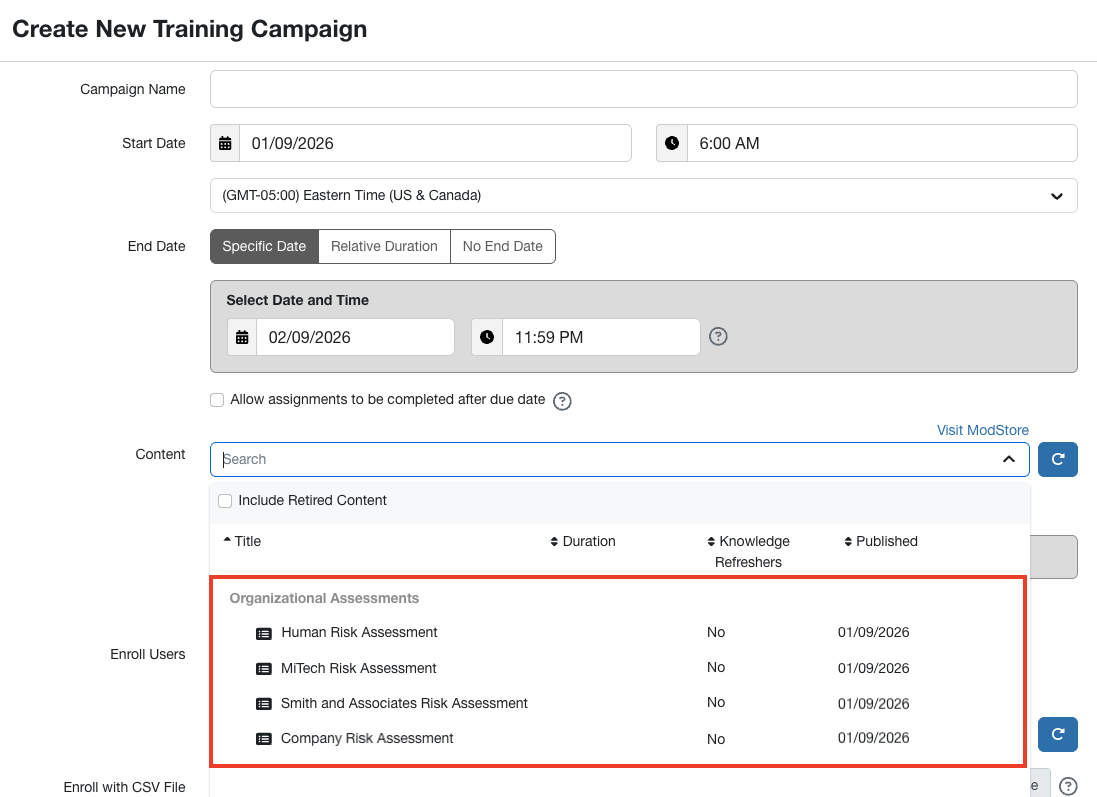
- Fill out all required fields for the campaign. For more information on how to create a new campaign, see our Training Campaigns Guide.
- Click Create Campaign.
To learn how to monitor and review your campaign results as well as view Custom SAPA reports, see the Custom Security Awareness Proficiency Assessment Results and Reporting Guide.