In this article, you'll learn how to integrate Microsoft Edge for Business with Real-Time Coaching. Once the integration is complete, data provided by Microsoft Edge for Business will be available under the Coaching tab of your KnowBe4 Security Awareness Training (SAT) console. This data can be viewed in Real-Time Coaching reports and used to create detection rules for Real-Time Coaching categories. For more information about Real-Time Coaching, see our overview article.
Set Up the Integration in Real-Time Coaching
To set up the Microsoft Edge for Business integration in Real-Time Coaching, follow the steps below:
- Log in to your KnowBe4 SAT console.
- Navigate to Coaching > Setup > Security Vendor Integrations.
- Locate the Microsoft Edge for Business vendor tile and select Configure. The Microsoft Edge for Business integration page will open.
- Select Enable Integration to enable the integration in Real-Time Coaching and generate your Organization Key.
- Copy and save your Organization Key value to use later. You'll need your Organization Key to set up the integration in Microsoft 365.
Set Up the Integration in Microsoft 365
Once you've set up the integration in Real-Time Coaching, you'll need to set up a Business policy and set up reporting in your Microsoft 365 account. For more information, see the subsections below.
Set Up a Business Policy in Microsoft 365
To set up a Business policy in Microsoft 365, follow the steps below:
- Log in to your Microsoft 365 admin center.
- From the navigation menu on the left side of the screen, navigate to Settings > Microsoft Edge.
- Navigate to the Configuration policies subtab, then select Create Policy.
- In the Basics section, use the list below to fill in the required details:
- Name: Enter your preferred policy name.
- Description: Enter your preferred policy description.
- Policy type: Choose Cloud from the dropdown menu.
- In the Settings section, select Add setting, then add the following settings:
- SmartScreenEnabled
-
PasswordProtectionLoginURLs
Important:To use this setting, you must first configure your preferred URLs. For more information, see Microsoft's documentation Microsoft's documentation (link opens in new window). - PasswordProtectionWarningTrigger
- In the Extensions section, use the default settings, then select Next.
- In the Assignments section, use either Select group to select and add the specific security groups for this policy, or select Add all users. Then select Next.
- In the Finish section, verify that your selections are accurate, then select Review and create to create the new policy.
Set Up Reporting in Microsoft 365
To set up reporting in Microsoft 365, follow the steps below:
- Log in to your Microsoft 365 admin center.
- From the navigation menu on the left side of the screen, navigate to Settings > Microsoft Edge.
- Navigate to the Connectors subtab, then navigate to Discover > KnowBe4 > Set up. A new KnowBe4 Real-Time Coaching window will appear.
-
Use the screenshot and list below to fill in the required fields:
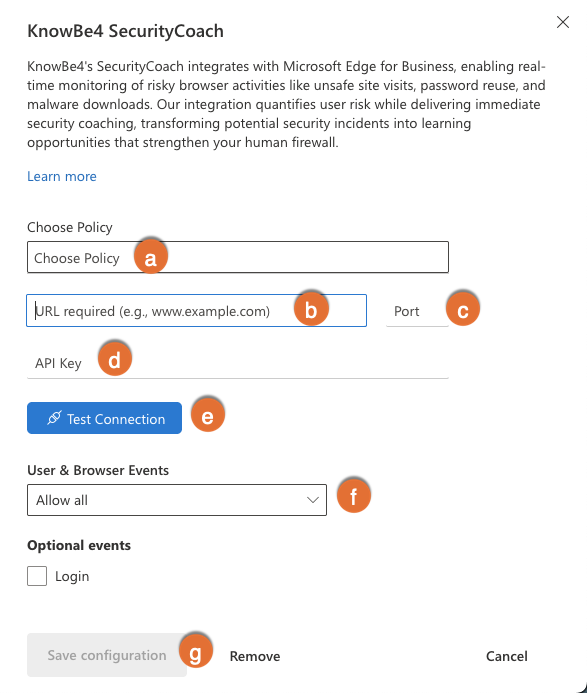
- Choose Policy: Select the policy you configured earlier.
-
URL field: Use the table below to enter the URL for your KnowBe4 instance.
KnowBe4 Instance URL United States https://msedge.vendor.training.knowbe4.com/v1/webhook/msedge European Union https://msedge.vendor.eu.knowbe4.com/v1/webhook/msedge Canada https://msedge.vendor.ca.knowbe4.com/v1/webhook/msedge United Kingdom https://msedge.vendor.uk.knowbe4.com/v1/webhook/msedge Germany https://msedge.vendor.de.knowbe4.com/v1/webhook/msedge - Port field: Enter "443" for the port number.
- API key field: Enter the Organization Key you copied earlier.
- Test Connection: Use this button to verify the connection. Verifying the connection is required to save the configuration.
-
User & Browser Events: Use this drop-down menu to select Allow selected events, then verify the following events are enabled: Unsafe Site Visit, Malware Transfer, and Password Reuse.
Tip:These User & Browser Events enabled are supported by Real-Time Coaching system detection rules. To coach your users on additional User & Browser Events, first enable the additional events, then create associated custom detection rules in Real-Time Coaching. For more information, see our Detection Rules Guide. - Save Configuration: Use this button to save your configuration.
-
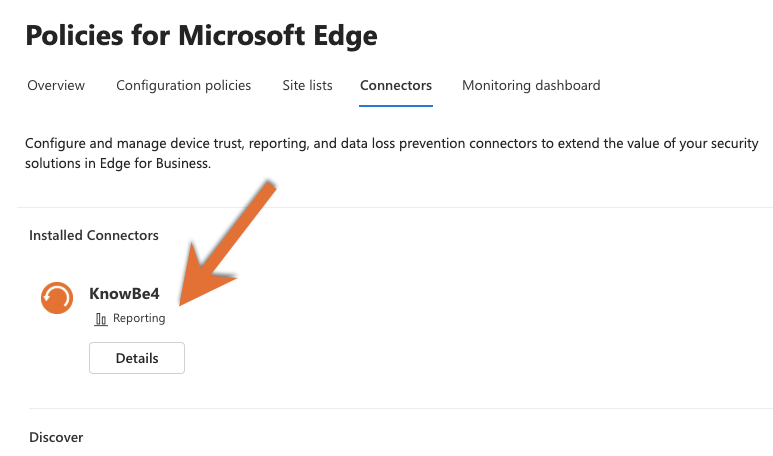
The saved reporting connector will now be visible in the Connectors subtab, under Installed Connectors.
Map Your Users
Events from Microsoft Edge for Business are automatically mapped to users using their usernames.
Manage Detection Rules
Once you've successfully authorized this integration, you can also manage Microsoft Edge for Business detection rules from Coaching > Detection Rules. For a full list of available system detection rules for this vendor, see our System Detection Rules by Vendor article.
Delete the Integration in Real-Time Coaching
If you want to delete the Microsoft Edge for Business integration from Real-Time Coaching, follow these steps:
- Log in to your KnowBe4 SAT console.
- Navigate to Coaching > Setup > Security Vendor Integrations.
- Locate the Microsoft Edge for Business vendor tile and select Edit.
- Select Delete Integration near the bottom of the page. A new pop-up window will open.
- Select Confirm to delete the integration.