The Defend quarantine feature leverages Microsoft's quarantine to determine what happens when Defend classifies an email as a dangerous phishing email. Quarantining dangerous phishing emails reduces the risk of users having access to click on potentially dangerous links and attachments.
The following options are available:
-
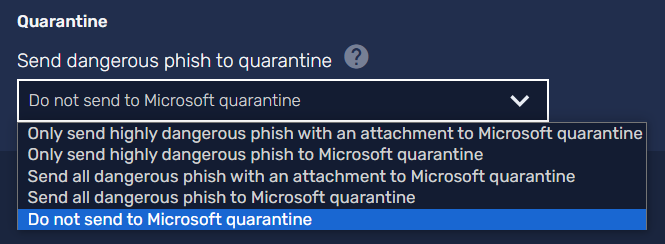
Do not send to Microsoft quarantine (default)
- Enabled by default, emails will not be sent to quarantine but will have appropriate Defend banners attached and delivered to the recipient.
-
Send all phishing emails with an attachment to Microsoft quarantine
- When enabled, this will quarantine emails classified as dangerous phishing emails that contain an attachment.
-
Send all phishing emails to Microsoft quarantine
- When enabled, all emails classified as dangerous phishing emails will be sent to quarantine, regardless of attachments.
-
Send high confidence phishing to Microsoft quarantine
- When enabled, only emails classified as high-confidence phishing will be sent to quarantine.
-
Send high confidence phishing emails with attachments to Microsoft quarantine
- When enabled, only emails that contain an attachment and are classified as high-confidence phishing emails will be sent to quarantine.
To enable the Defend quarantine feature, follow the steps below:
- Log in to your Defend console.
- Navigate to Settings > Quarantine.
-
Select the relevant option from the drop-down menu options.
- Select Save at the top of the page.

Notifications
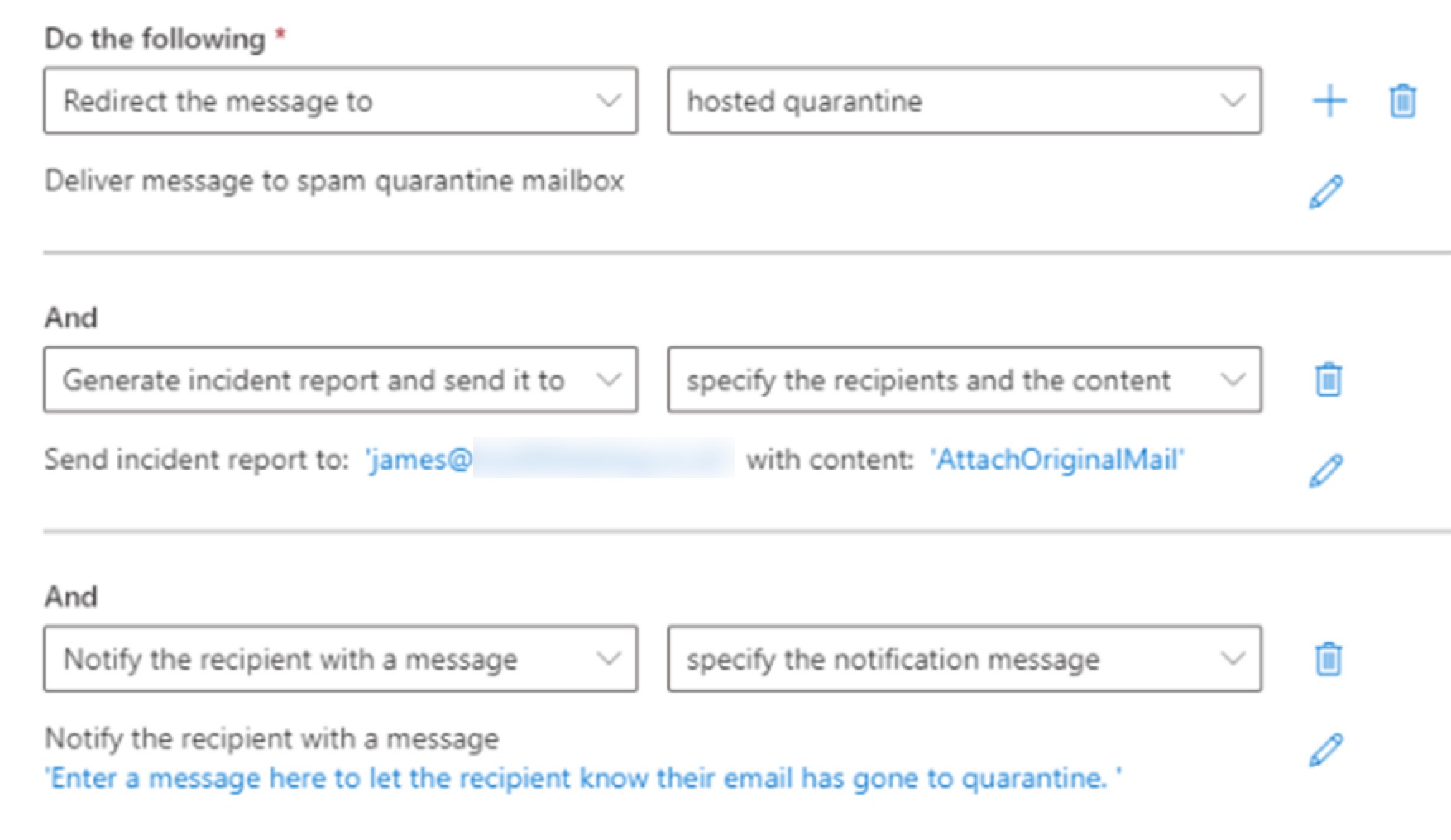
Since the Defend quarantine process leverages Microsoft's quarantine, this feature does not natively alert or notify when an email has been quarantined. This process is due to the fact that Defend uses a transport rule to send dangerous emails to quarantine. However, should you wish to be alerted, there is an additional Microsoft transport rule you can create, which will create an incident report that alerts an admin or specified address.
To do this action, the additional mail flow rule needed should look like the screenshot below:
User Release Compatibility
Since Defend uses a transport rule to send dangerous emails to quarantine, please note that any user release policies you have in place within Microsoft will not apply. This policy means only admins will be able to release quarantined emails.
Enabling User Notifications and Release Workaround
If you want users to receive notifications about quarantined emails and be able to release messages themselves, you can modify your Defend quarantine rule configuration as listed below:
-
Change the Defend rule quarantine action
- Edit the Defend Quarantine transport rule so that the action is "Set the spam confidence level (SCL) to 9" instead of "Send to Quarantine".
-
Configure or edit your Microsoft quarantine policy
- Ensure you have a Microsoft anti-spam policy that quarantines emails with SCL=9.