The below steps will allow you to configure single sign-on (SSO) with OneLogin SSO. This will enable your users to automatically log in to their KnowBe4 account to take their security awareness training.
Note: Make sure the email address that your users use to authenticate with SAML is either entered into the Email field or Email Aliases field of their user profile. However, only the email address listed in the Email field will receive training notification emails. For more information about adding information to user profiles, see our User Profile Guide.
You'll need a OneLogin subscription to follow the steps below.
Add KnowBe4 from the Apps Tab
First, you'll need to add KnowBe4 to your OneLogin account. To add KnowBe4 to your OneLogin apps, follow the steps below:
- Log in to your OneLogin account.
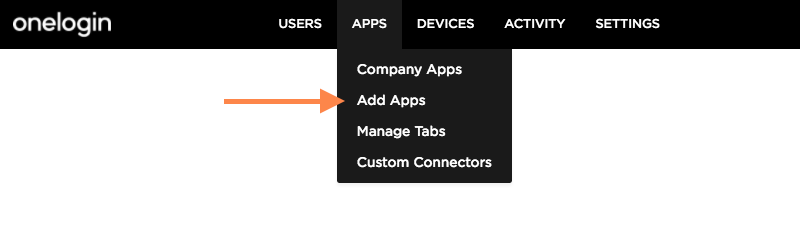
- In the Apps tab, select Add Apps.
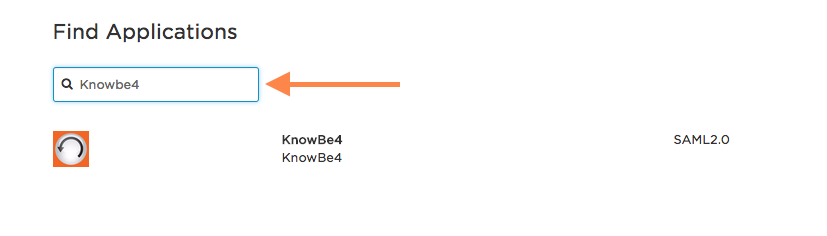
- In the search box, enter KnowBe4. Then, select the KnowBe4 SAML 2.0 app.
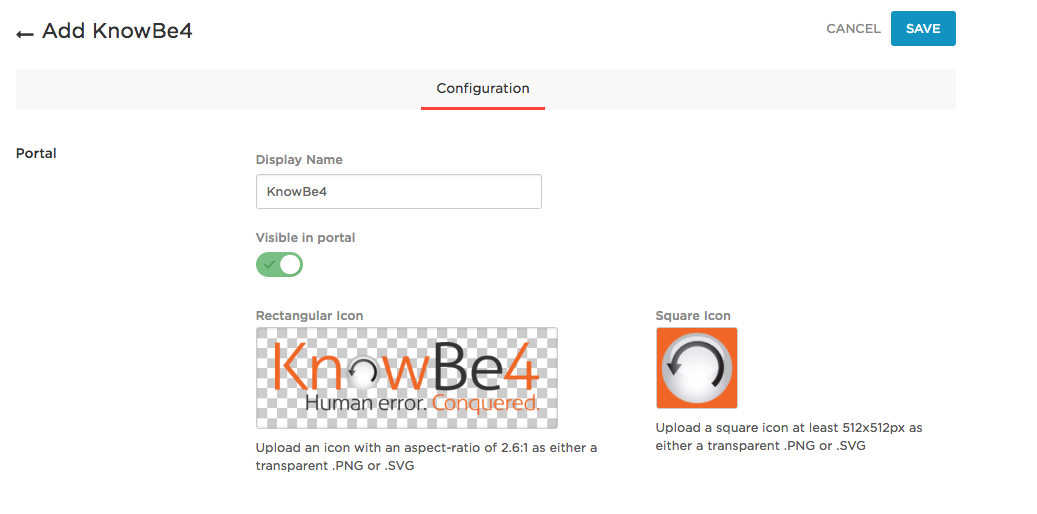
- Enter a name for the app, then select the Save button in the top-right corner of the page.
Obtain Your KnowBe4 SSO Sign-In URL
Once you’ve added the KnowBe4 app to OneLogin, you’ll need to obtain your unique SSO sign-in URL from your KSAT console. To obtain this URL, follow the steps below:
- Log in to your KSAT console.
- Select your email address in the top-right corner of the page and select Account Settings.
- Navigate to Account Integrations > SAML and expand the SAML Settings tab.
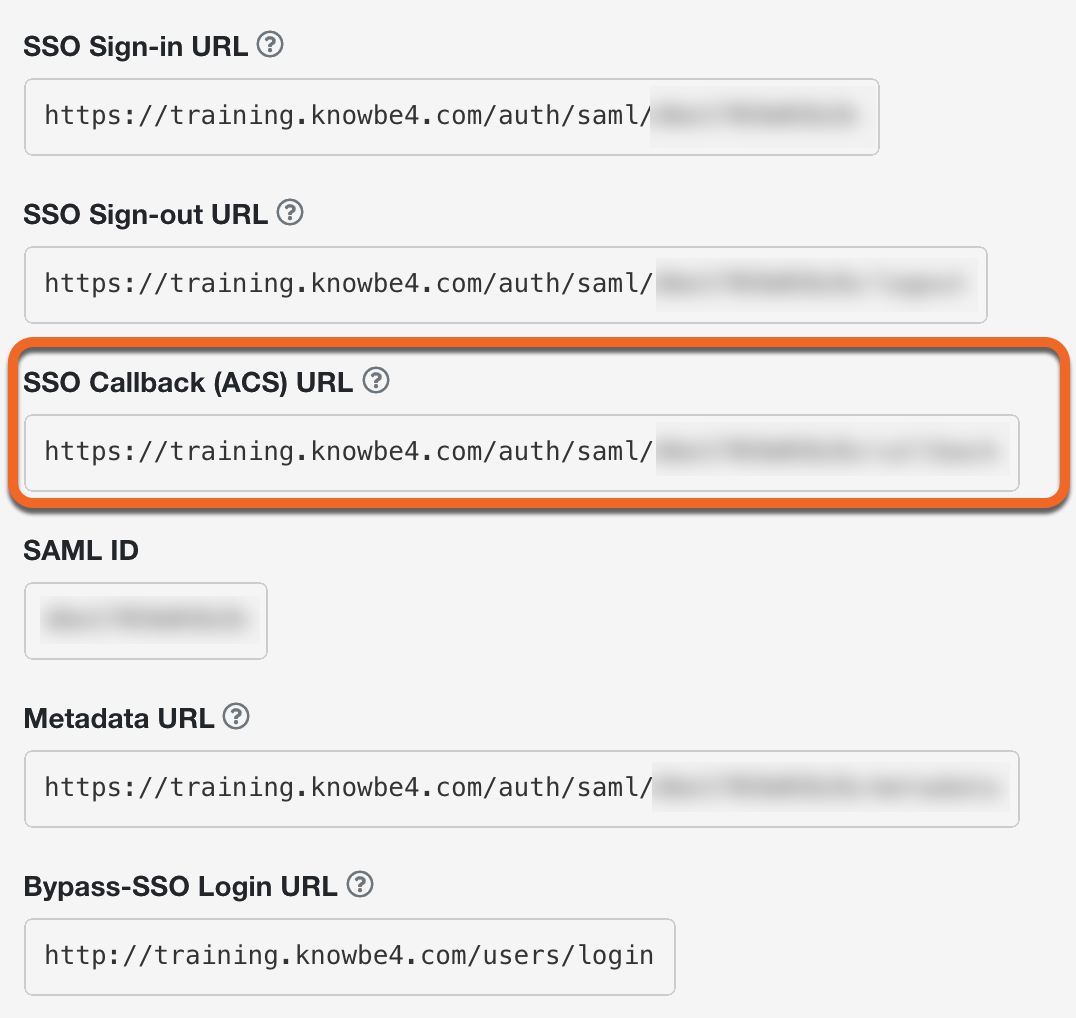
- Copy the text in the SSO Callback (ACS) URL field.
Configure Your Single Sign-On
To configure your SSO in OneLogin, follow the steps below:
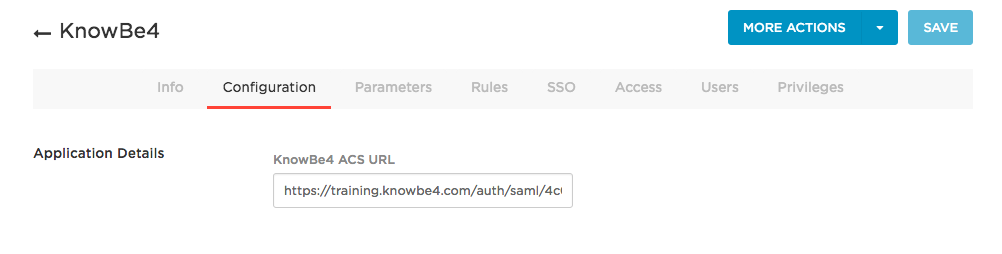
- Navigate to the Configuration tab in your OneLogin account.
- Paste the callback URL that you copied from your KSAT account settings and select the Save button in the top-right corner.
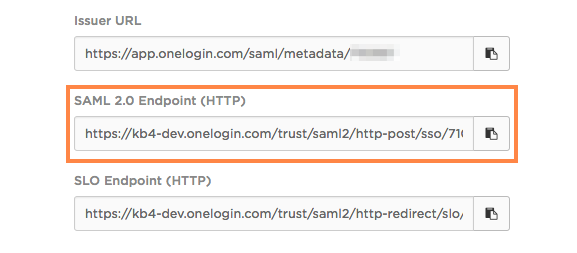
- Select the SSO tab of your OneLogin console and gather the information below. You’ll use this information to finish the setup process.
- SAML 2.0 endpoint (HTTP) URL
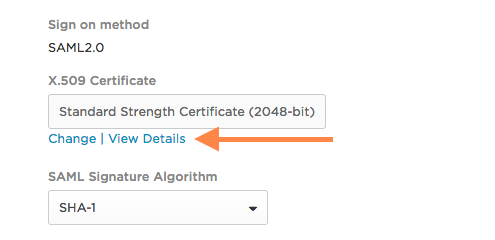
- SHA-1 fingerprint (select View Details under X.509 Certificate)
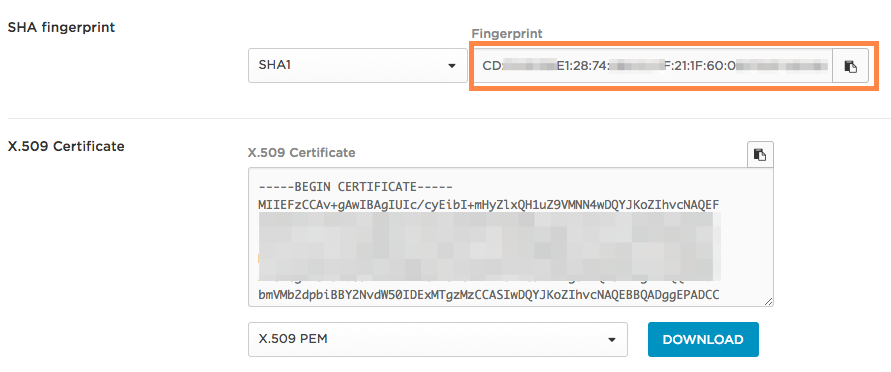
- SAML 2.0 endpoint (HTTP) URL
- Follow the instructions listed in the Add Your SAML Provider Information section of our Set Up SAML Single Sign-on (SSO) for the Security Awareness Training Console article to complete the setup.
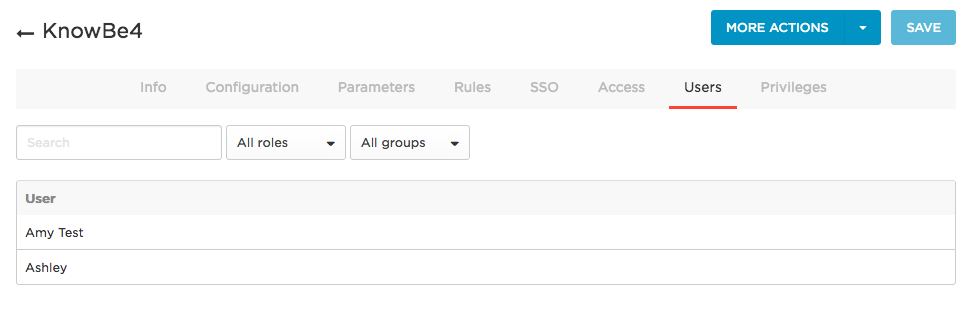
- Select the Users tab.
- Add the users or groups for whom you would like to enable KnowBe4 SSO. Then, select the Save button in the top-right corner of the page.