In this article, you will learn how to integrate Code42’s Incydr product with Real-Time Coaching. Once the integration is complete, data from Code42 will be available in the Coaching tab of your KnowBe4 Security Awareness Training (SAT) console. This data can be viewed in Real-Time Coaching reports and used to create detection rules for Real-Time Coaching categories. For general information about Real-Time Coaching, see our overview article.
Set Up the Integration in Code42
Before you can set up this integration in Real-Time Coaching, you'll need to create an API client in your Code42 console by following these steps:
- Log in to your Code42 console.
- Navigate to Administration > Integrations > API Clients.
- Select Create new API client. A Create new API client pop-up window will display.
- In the Client name field, enter a name for your new API client.
-
Under API Permissions, enable the Read option for both Alert Rules and Alerts and Sessions.
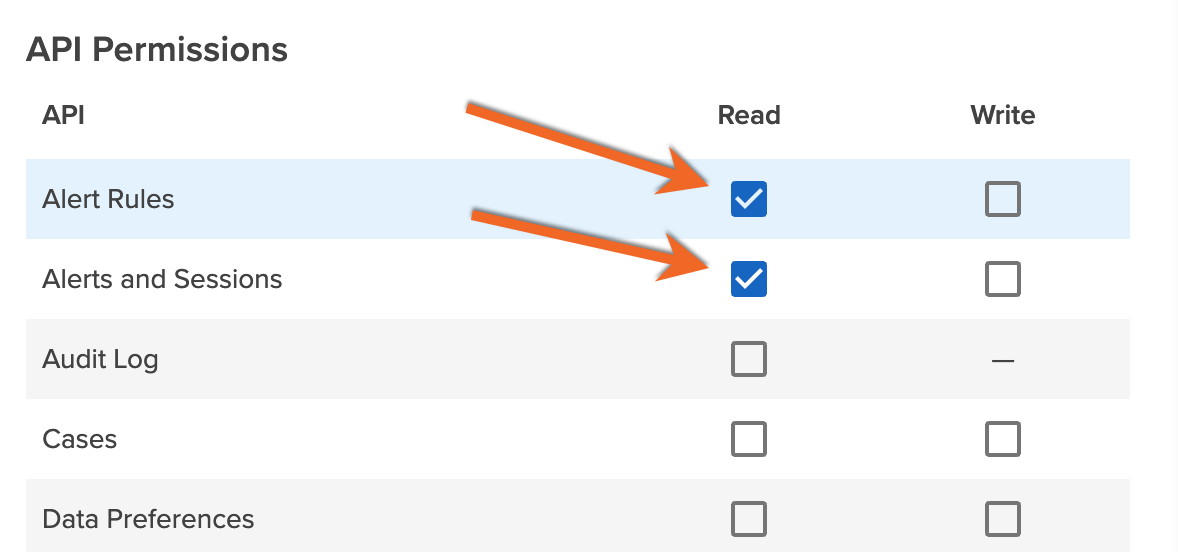
- Select Save to create your new API client.
- Copy and save the Client ID, Client Secret, and Base URL values somewhere that you can easily access. You will need these credentials to complete the setup in Real-Time Coaching.
Set Up the Integration in Real-Time Coaching
Once you have created your API Client in your Code42 console, you can set up the integration in Real-Time Coaching by following these steps:
- Log in to your KnowBe4 SAT console
- Navigate to Coaching > Setup > Security Vendor Integrations.
- Locate the Code42 vendor tile and select Configure.
- Enter the Client ID, Client Secret, and Base URL that you saved earlier.
- Select Authorize.
Map Your Users
After you’ve finished integrating Code42, we recommend mapping your users using mapping rules or by uploading a CSV file. For more information, see our user mapping article.
Manage Detection Rules
Once you’ve successfully authorized this integration, you can also manage Code42 detection rules from Coaching > Detection Rules. For a full list of available system detection rules for this vendor, see our System Detection Rules by Vendor article.
Delete the Integration in Real-Time Coaching
If you want to delete the Code42 integration from Real-Time Coaching, follow these steps:
- Log in to your KnowBe4 SAT console.
- Navigate to Coaching > Setup > Security Vendor Integrations.
- Locate the Code42 vendor tile and select Edit.
- Select Delete Integration near the bottom of the page.