From the Google Threat Intelligence subtab of your PhishER Settings, you can set up the Google Threat Intelligence (GTI) integration for your PhishER console. GTI is a Google service that scans attachments and URLs for malicious content. For each scan, GTI provides a threat score, a verdict, and a severity assessment to help you decide how to handle a reported message.
To integrate GTI with PhishER, you need an active GTI API key. Each PhishER account uses its own API key, which you get from your GTI account. For more information, see Google's Google Threat Intelligence API key Google Threat Intelligence API key (link opens in new window) article.
Configuring the Integration
To open your GTI settings, click Settings in your PhishER console, then select Google Threat Intelligence under Integrations. Then, fill out the fields on the Google Threat Intelligence subtab. For more information, see the screenshot and list below:
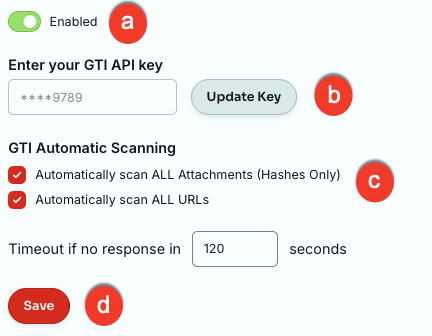
- Enabled: Use this toggle to enable or disable the integration.
- Enter your GTI API key: Enter your GTI API key in this field. After you save your key, the field hides most of the key and shows only the last four characters. To change your key, click Update Key and enter your new key.
-
GTI Automatic Scanning (optional): In this section, you can choose which parts of a message GTI scans automatically. To learn about these options, see the list below:
- Automatically scan ALL Attachments (Hashes Only): If you select this check box, GTI will receive a hash of every attachment in your PhishER Inbox. GTI receives only the hash, not the file itself.
- Automatically scan ALL URLs: If you select this check box, GTI will automatically receive every URL in your PhishER Inbox.
- Timeout if no response in [ ] seconds: Enter the number of seconds PhishER should wait for GTI scan results. You can enter a value from 5 to 259,200 seconds (72 hours). By default, the timeout is 120 seconds. If GTI doesn't return results within this time, a GTI_Bypassed tag is added to the message. When GTI is enabled, this timeout also applies to Threat Intel scans. To learn more about tags, see the GTI Tags section of this article.
- Save: Click this button to save your GTI settings.
Shared Integrations Settings
The Shared Integrations Settings section appears below your GTI settings. To learn about these settings, see the list below:
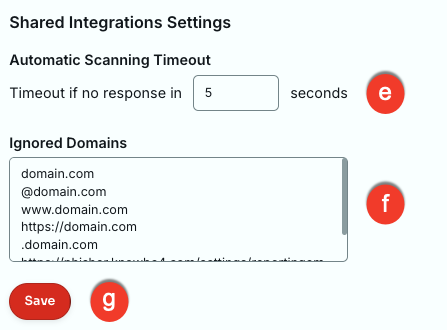
- Automatic Scanning Timeout: Enter the number of seconds PhishER should wait for automatic scan results from your VirusTotal, CrowdStrike, and Threat Intel integrations. By default, this timeout is five seconds. This setting doesn't apply to GTI. GTI uses the timeout in the GTI Automatic Scanning section instead.
- Ignored Domains: Enter the domains that you don't want your integrations to scan, including GTI. Enter each domain on a new line, such as "example.com". If you add a domain to this list, all subdomains of that domain are excluded as well. However, if you add a subdomain to the list, the main domain is not excluded.
- Save: Click this button to save your shared integration settings.
When you add domains to the Ignored Domains list, keep the following formatting rules in mind:
- Enter only the domain name, such as "example.com". If you include "https://" or "www.", PhishER automatically removes them.
- Don't enter domains that start with an @ symbol or a period, such as "@example.com" or ".example.com".
- Don't enter full URLs with a path, such as "example.com/login".
- Wildcards (*) aren't supported.
Excluding KnowBe4 Domains from Scans
KnowBe4 uses several domains that you should not send to GTI as links or attachments. You can enter these domains in the Ignored Domains field in the Shared Integrations Settings section. For a full list of these domains, see the list below:
- kb4.io
- comano.us
- magnetonics.com
- bloemlight.com
- instantrevert.net
- phishing.guru
- phishtrain.org
- malwarebouncer.com
- phish.farm
- microransom.us
- msftemail.com
- compromisedblog.com
- com-onlinebanking.com
- com-token-auth.com
- 2O2.lOl
- protected-forms.com
- cert-sha256.com
- wishyoudidntclickthis.com
- cert-sha256.co.uk
- internalportal.net
- twittermessage.net
- my-cloud-mail.com
- linkedlnu.com
- farenheit.net
- gooqleonline.com
- donotreply.biz
- aøl.com
- exchamge.org
- allibaba.org
- voipmessage.uk
- efaxonline.org
- bltly.us
- twittermessage.co.uk
- www-com.co.uk
- srvgov.com
- gooqle.eu
- allibaba.eu
- yourgunnalovetraining.com
- succesful.org
Scanning with GTI
After you integrate GTI with your PhishER console, you can scan message attachments and URLs from the Message Details page. To run a GTI scan, follow the steps below:
-
Open a message in your PhishER Inbox to view the Message Details page.
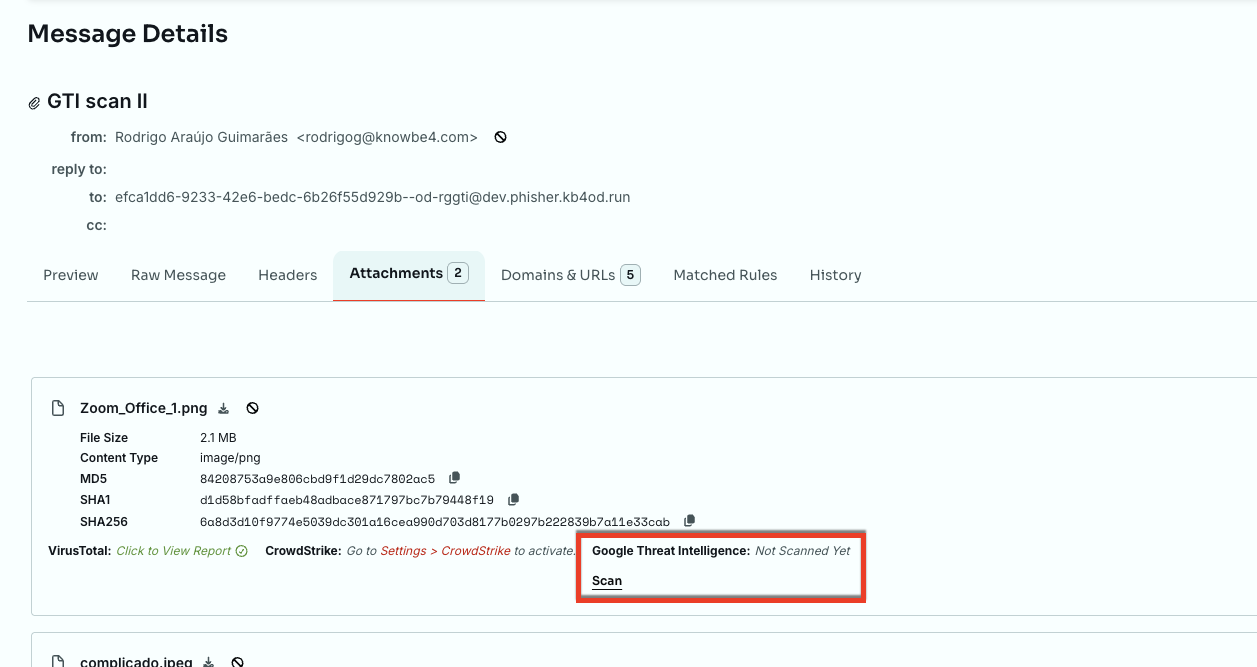
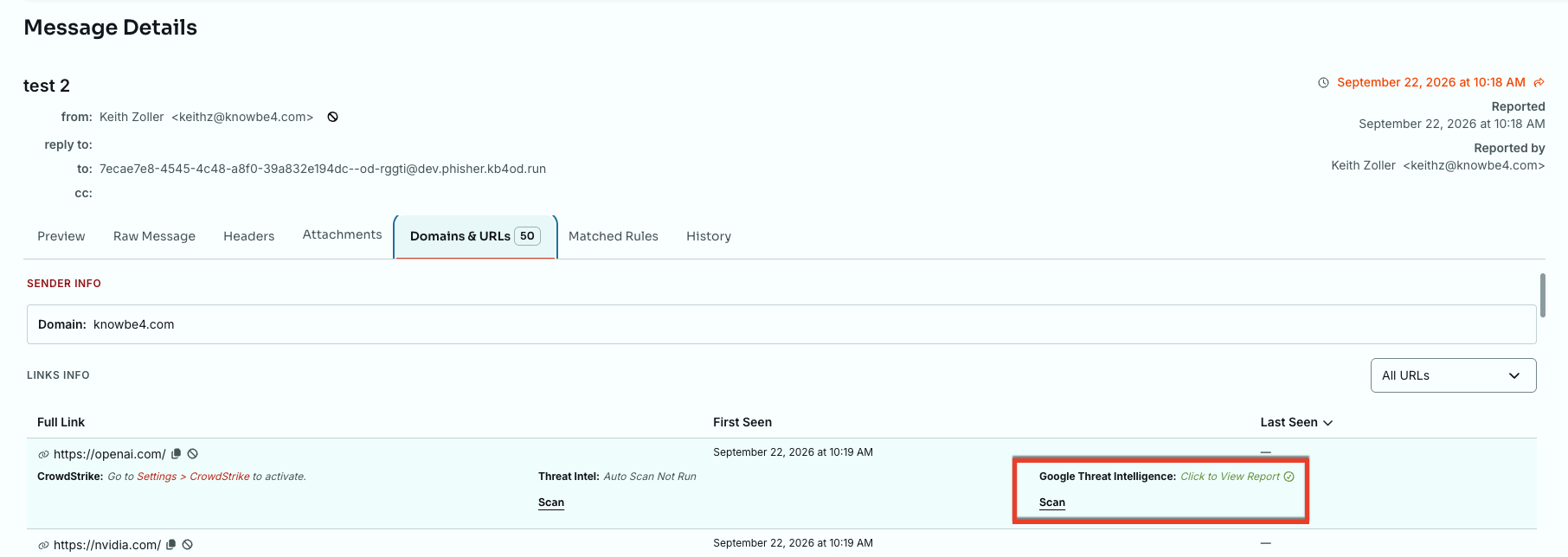
- Click the Attachments tab or the Domains & URLs tab.
- Find the attachment or URL that you want to scan.
- Under Google Threat Intelligence, click Scan.
Each attachment and URL shows its GTI scan status next to Google Threat Intelligence. If an item hasn't been scanned, you'll see Not Scanned Yet. After a scan finishes, click Click to View Report to see the results.
You can also run a GTI scan on selected messages when you rerun your rules and actions. For more information, see our PhishER Inbox Guide.
GTI adds one or more tags to your scanned messages to show the results. To learn more about these tags, see the GTI Tags section of this article.
Reading GTI Results
When you click Click to View Report, the GTI Results section opens. This section shows the details that GTI returned for the attachment or URL. For more information, see the screenshot and list below:
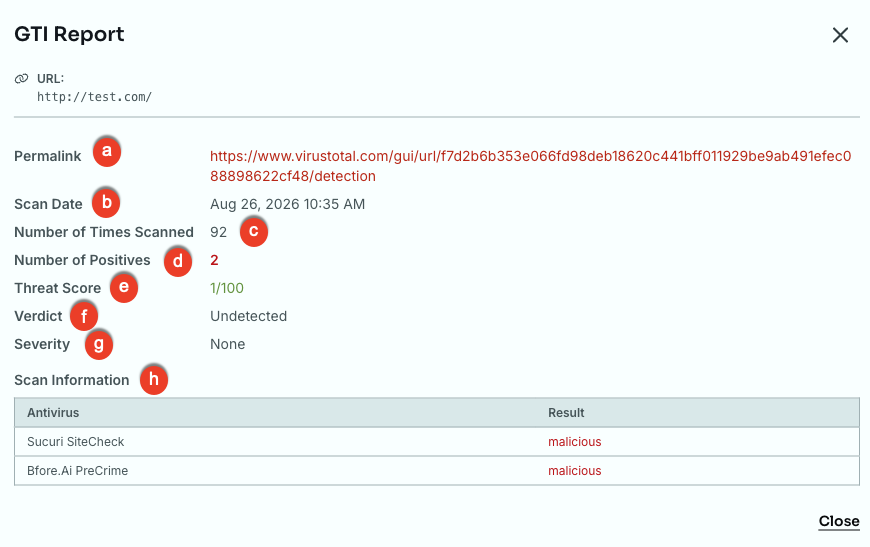
- Permalink: A link to the full report on the GTI website.
- Scan Date: The date and time of the GTI scan.
- Number of Times Scanned: DESCRIPTION_TODO
- Number of Positives: The number of security vendors that flagged the item as malicious.
- Threat Score: A number from 0 to 100 that shows how likely it is that the item is malicious. A higher score means a higher risk.
- Verdict: GTI's overall decision about whether the item is malicious.
- Severity: How serious the threat is if the item is malicious.
- Scan Information: DESCRIPTION_TODO
Moving from VirusTotal to GTI
If you used the VirusTotal integration before switching to GTI, your older messages keep their VirusTotal tags. Messages that GTI scans receive GTI tags. For example, a malicious attachment receives the GTI_Bad tag instead of the VT_Bad tag.
GTI Tags
In the GTI Tags section of the Google Threat Intelligence subtab, you can view the tags that GTI can add to your messages. Based on the scan results, GTI adds one or more of these tags to your messages. To learn about the GTI tags, see the list below:
- GTI_Pending: This tag is added to your message when a GTI scan is queued. This tag is removed when all scanning is complete.
- GTI_Bad: This tag is added to your message when at least one security vendor flags an attachment or URL as malicious.
- GTI_Suspicious: This tag is added to your message when a GTI scan finds some vendor detections, but not enough to add the GTI_Bad tag.
- GTI_Scanned: This tag is added to your message when a GTI scan is complete and determines that the attachment or URL is not malicious.
-
GTI_Bypassed: This tag is added to your message when a GTI scan times out. This tag is often added with other GTI tags. You can set a custom timeout period in the GTI Automatic Scanning section of your GTI settings.
Note: If a GTI scan times out, PhishER allows automated actions to run against the message while the console waits for your GTI results to return. After the automated actions are complete, GTI can finish adding tags to the message. Automated actions won't run again after the scan results return. - GTI_Hash_not_found: This tag is added to your message when a GTI scan doesn't return a match for an attachment's hash.
- GTI_Ignored: This tag is added to your message when PhishER finds URLs or domains from your Ignored Domains list in the message.