You can integrate ANY.RUN's Interactive Sandbox into your PhishER console. ANY.RUN's Interactive Sandbox is a cloud-based solution that lets you detonate and observe suspicious files and URLs in an isolated environment. The integration automatically submits emails reported to PhishER for analysis, adds a link to the analysis report to the message as soon as processing begins, and returns the verdict to PhishER as tags and comments. This integration lets you start investigating a threat immediately and keeps the full analysis in your existing PhishER workflow.
With this integration, you can automatically analyze emails reported to PhishER, view analysis results from the PhishER message card as soon as analysis starts, investigate threats interactively in real time, or wait for the automated report and automatically categorize malicious emails as threats. This integration reduces manual analysis, speeds up triage, and keeps investigation in your existing PhishER workflow.
Before You Connect ANY.RUN to Your PhishER Console
Before you connect ANY.RUN to your PhishER console, make sure you have an ANY.RUN account with Sandbox API access, an ANY.RUN API key and a system where you can run Docker to host the connector. You must also create a KnowBe4 Product API token scoped to PhishER. Follow the steps below to generate both credentials.
Generate an ANY.RUN API Key
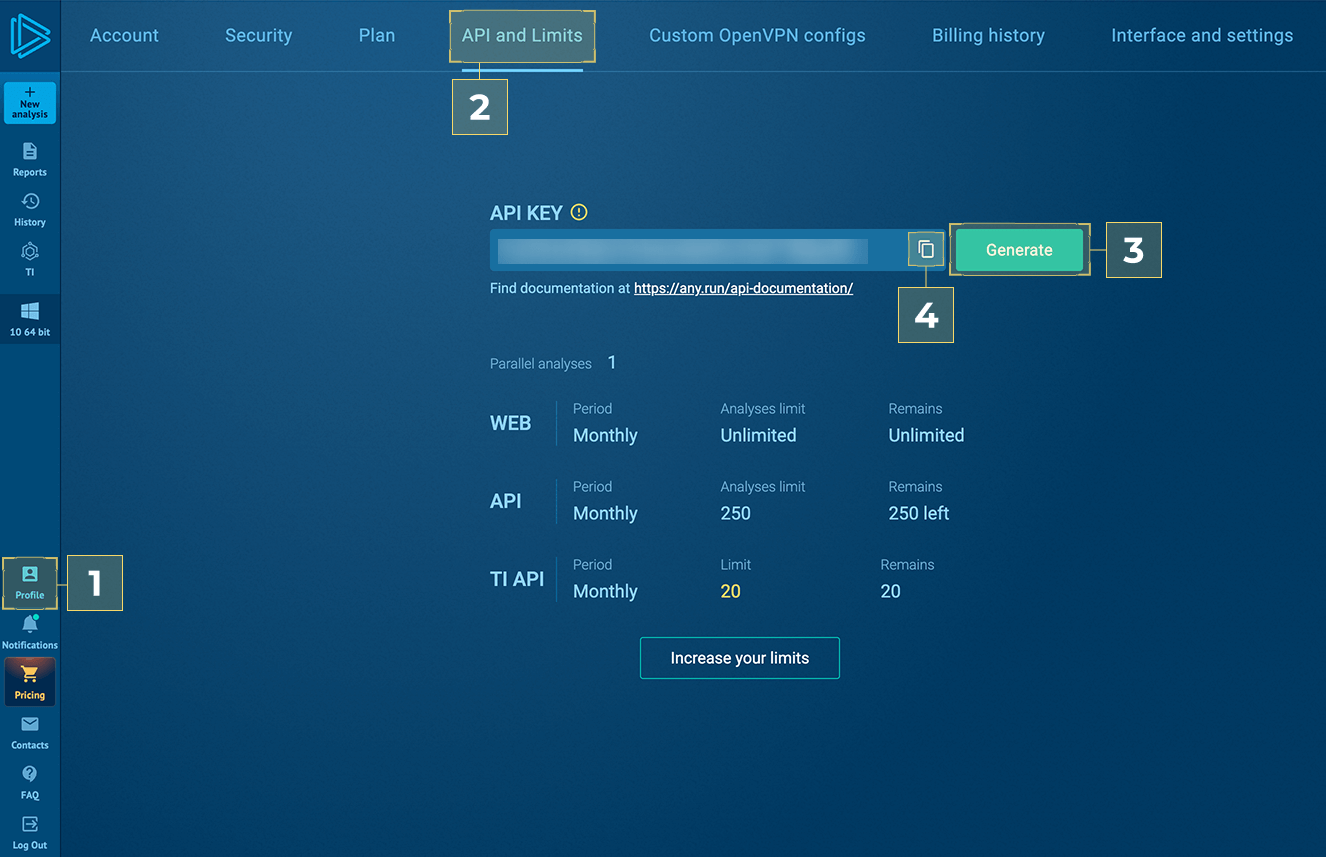
To generate an ANY.RUN API key, follow the steps below:
- Log in to your ANY.RUN account.
- Navigate to Profile, then select API and Limits.
- Select Generate to create a new API key.
- Select Copy to copy the key.
- Save this API key in a location you can access during setup.
Create a KnowBe4 Product API Token
To create a KnowBe4 Product API token, follow the steps below:
-
Your API address depends on where your KnowBe4 account is located. See the table below to find the API address for your region.
Region Base URL US https://us.api.knowbe4.com CA https://ca.api.knowbe4.com EU https://eu.api.knowbe4.com UK https://uk.api.knowbe4.com DE https://de.api.knowbe4.com - Log in to your KnowBe4 console as an admin.
- Navigate to Account Settings in the top-right corner under your account's email address.
- In Account Settings, navigate to Account Integrations.
- Under Account Integrations, select API > Product API. The Product API tab opens.
- In the top-right corner of the Product API tab, select + Create New API Token.
- Fill out the fields on the Create New API Token page. In the Products field, select PhishER.
- Select Create Token. The Product API Token pop-up window opens.
- Select the Product API token to copy it. Save your copied API token in a location you can easily access. After you close this window, you cannot view this token again.
For more information about creating a Product API token, see the Product API Overview article.
How the ANY.RUN Connector Works
The ANY.RUN connector is a self-hosted, Docker-based integration that runs in your organization's environment. This connector gives you control over configuration, credentials, updates, and the messages it selects for analysis. The connector uses Redis to manage its processing queue, communicates with PhishER through the GraphQL API, and communicates with ANY.RUN's Interactive Sandbox through the Sandbox API. It uses the message URL provided by PhishER, so the connector does not download or store the original email.
The connector processes messages in three stages. During discovery, it finds eligible messages tagged for analysis and adds them to the processing queue. During analysis, it submits queued messages to ANY.RUN, adds a link to the analysis report to the message as soon as analysis starts, and returns status and verdict information to PhishER as tags and comments. During recovery, it identifies interrupted or expired tasks, restores incomplete processing states, and marks timed-out messages in PhishER. If ANY.RUN returns a malicious verdict, the connector can also automatically set the PhishER message category to Threat.
Connecting ANY.RUN to Your PhishER Console
You can connect ANY.RUN to your PhishER console by downloading the connector, configuring it with your credentials, and starting it in Docker.
- Clone the connector package to the system where it will run, then extract the package.
- In the extracted connector folder, copy .env.example and name the copy .env.
- Open .env in a text editor.
- Enter the regional PhishER Product API endpoint in PHISHER_ENDPOINT. Use the base URL for your KnowBe4 account's region.
- Enter the Product API token you created in PHISHER_API_TOKEN.
- Enter your ANY.RUN Sandbox API key in ANYRUN_API_KEY.
- Review the optional settings in the table below, then save the file.
- From the connector folder, run docker compose up -d --build.
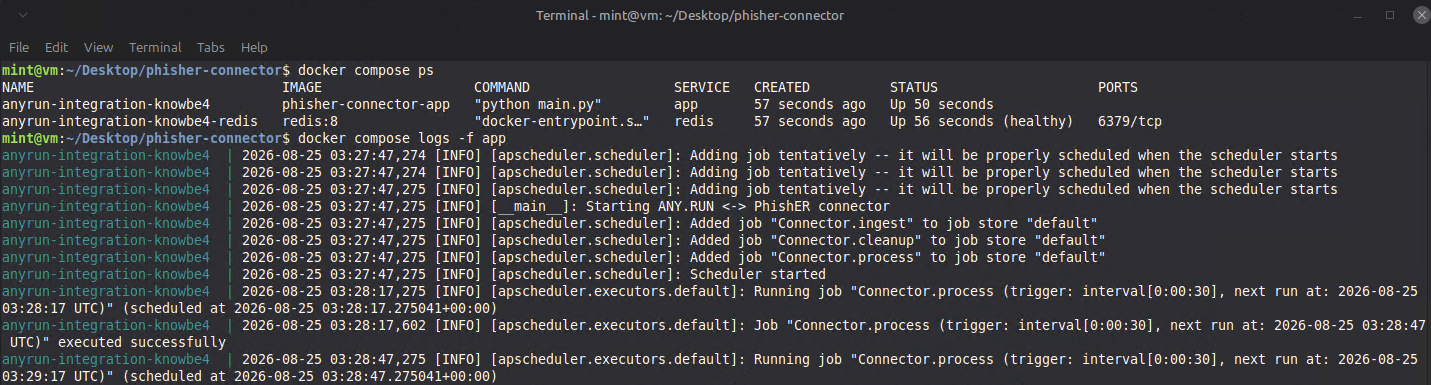
- Confirm that both services are running by running docker compose ps.
- To review connector activity, run docker compose logs -f app. A successful ANY.RUN connection looks like the screenshot below.
Configuration Settings
The table on this ANY.RUN GitHub lists the connector's required settings for PhishER. The downloaded package's .env.example file documents additional optional settings for proxies, analysis behavior, job timing, and logging.
Submit a PhishER Message to ANY.RUN
After the connector is running, you can submit suspicious emails from PhishER to ANY.RUN for analysis by following the steps below.
Submit an Email to PhishER
To submit an email to PhishER, follow the steps below:
- Log in to your PhishER console.
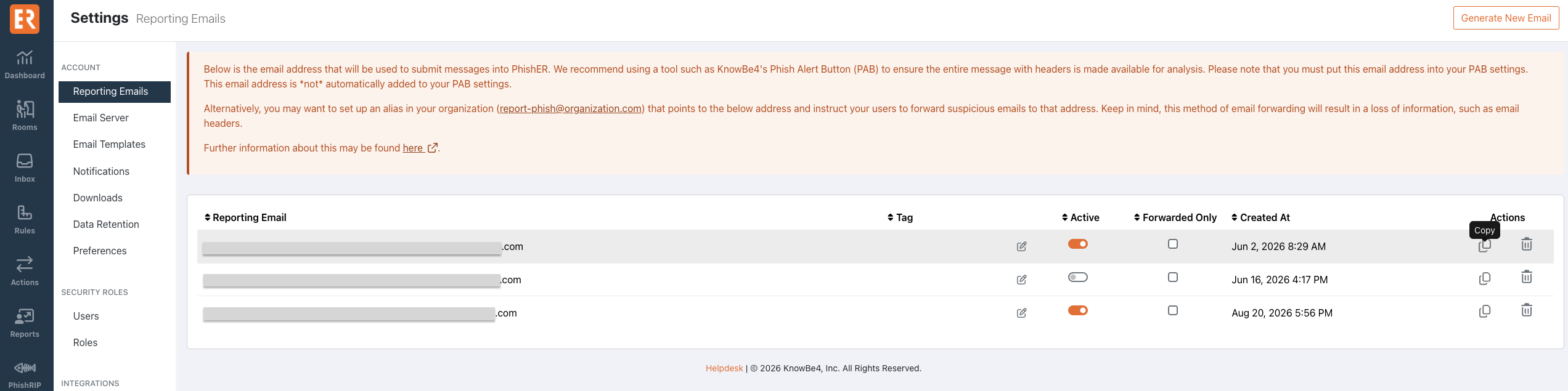
- Select the Settings icon in the lower-left corner of the dashboard.
- Navigate to Reporting Emails.
- Copy an existing reporting email address or generate a new one.
- Using your email client or the Phish Alert Button, send or forward the suspicious email to the reporting address.
- Allow time for PhishER to process the message. When processing completes, the message appears in the Inbox.
Submit the Message to ANY.RUN
By default, the connector only submits messages that carry the ANYRUN_REQUEST tag. To submit the message ANY.RUN, follow the steps below:
- Navigate to the Inbox in the PhishER console.
- Open the message you want to analyze.
- Apply the ANYRUN_REQUEST tag. If your organization changed the INGESTION_TAG setting, apply the configured tag instead.
- Wait for the connector to pick up the message and submit it to ANY.RUN.
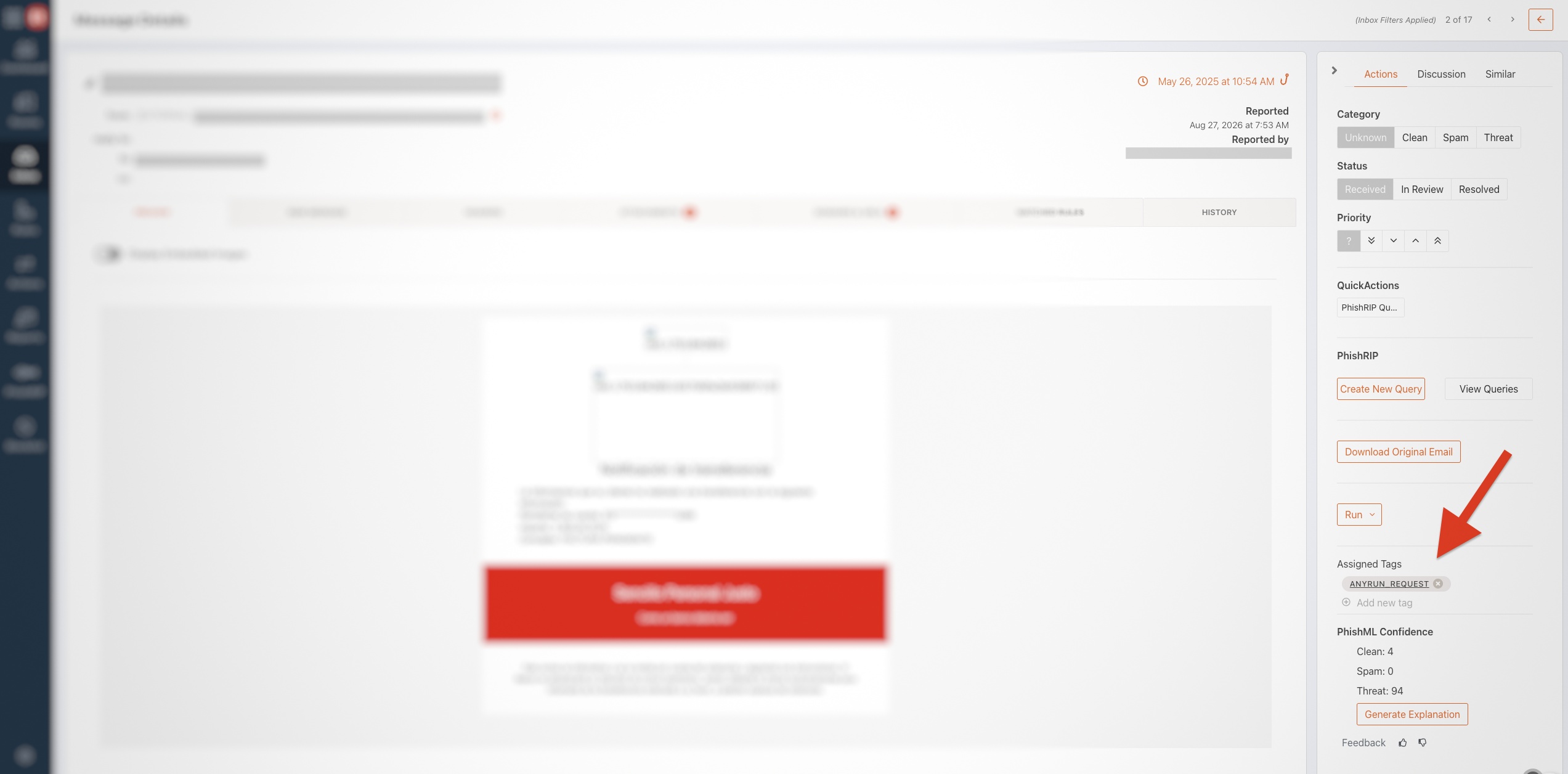
The connector checks the PhishER Inbox at the interval set by DISCOVERY_INTERVAL_SECONDS, so you can apply the tag at any time after PhishER processes the message. After the connector adds the message to its processing queue, it automatically removes the request tag.
Choose Which Messages Are Analyzed
To choose which messages are analyzed, follow the steps below:
- Manual submission: Keep INGESTION_TAG set to ANYRUN_REQUEST and apply the tag manually to individual messages.
- Automatic submission by rule: Create a PhishER rule and action that applies the ANYRUN_REQUEST tag during initial PhishER processing when a message meets your organization's criteria.
- Submit all eligible messages: Leave INGESTION_TAG empty. The connector submits all processed but unresolved messages it has not yet handled.
- Apply more specific criteria: Configure PHISHER_MESSAGE_FILTER with an additional Lucene query. When INGESTION_TAG is also configured, a message must match both the tag and the additional filter. If INGESTION_TAG is empty, the additional filter determines which eligible messages the connector submits.
View the Analysis Results in PhishER
You do not have to wait for the analysis to finish before starting the investigation. As soon as the connector submits a message to ANY.RUN, it adds a comment with a link to the full analysis report in the Discussion panel.
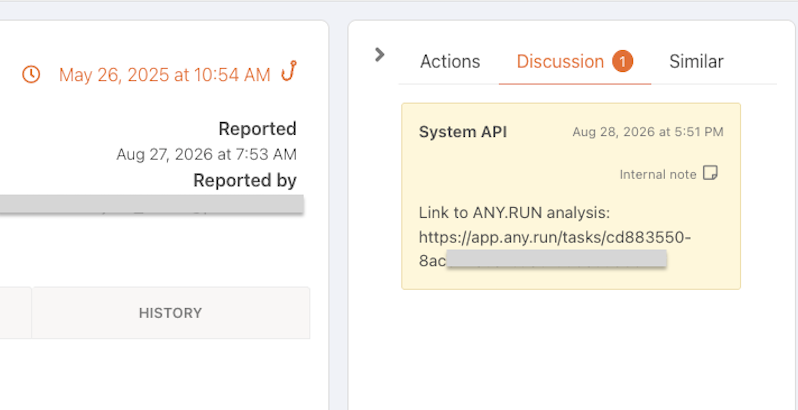
You can open the link while the analysis is running to investigate interactively in real time, or wait for ANY.RUN to complete the analysis automatically. You can also monitor the analysis status through the message's tags.
After the analysis completes, the message receives the ANYRUN_SCANNED tag and one of the following verdict tags: ANYRUN_MALICIOUS, which means ANY.RUN detected malicious activity and, if SET_CATEGORY_ON_MALICIOUS is enabled, changes the message category to Threat; ANYRUN_SUSPICIOUS, which means ANY.RUN detected suspicious activity; or ANYRUN_CLEAN, which means ANY.RUN did not identify a specific threat.
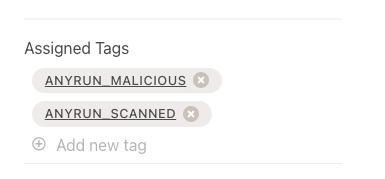
To review the full analysis report, open the message and select the Discussion panel. The connector adds a link to the ANY.RUN report and a separate comment with the verdict. Your ability to open the report depends on the privacy setting used for the analysis and your access to the ANY.RUN account.
ANY.RUN Connector Tags
The connector uses the following tags to show the status and result of an analysis.
| Tag | Description |
| ANYRUN_REQUEST | Requests an ANY.RUN analysis. This is the default trigger tag. The connector removes it after queuing the message. |
| ANYRUN_QUEUED | The message is waiting to be submitted. If all ANY.RUN parallel task slots are in use, the connector retries automatically. |
| ANYRUN_PENDING | The connector submitted the message and is waiting for the result. |
| ANYRUN_SCANNED | The analysis was completed successfully. The connector adds this tag along with a verdict tag. |
| ANYRUN_MALICIOUS | ANY.RUN detected malicious activity. |
| ANYRUN_SUSPICIOUS | ANY.RUN detected suspicious activity. |
| ANYRUN_CLEAN | ANY.RUN did not identify a specific threat. |
| ANYRUN_ERROR | The connector could not submit the message or retrieve the result. Open the Discussion panel for details. |
| ANYRUN_TIMEOUT | The message stayed in the connector's queue longer than the configured timeout. Open the Discussion panel for details. |
If you experience issues integrating ANY.RUN with your PhishER console, please contact ANY.RUN support (link opens in new window).