Starting on November 2, certain KnowBe4 accounts will become eligible to migrate to the new KnowBe4 Platform. In this article, you'll find the steps to prepare for, schedule, and complete your migration.
For answers to common questions, see the For Customers Who Are Migrating section of our KnowBe4 Platform FAQs. To learn about the new interface, see our The New KnowBe4 Platform Experience article.
Accounts become eligible to migrate based on the products they subscribe to and specific technical requirements. You'll be notified when your account is eligible.
Before You Migrate
Before your migration date, we recommend that you complete the steps below:
- Confirm that all admin email addresses in your KnowBe4 products are current.
- Let your IT team and help desk know about the migration. After your migration, you'll sign in at console.knowbe4.com.
- If you share self-registration links with your users, replace them. Self-registration isn't available on the KnowBe4 Platform, so admins will need to add all new users.
- If you use signed SAML requests (the Sign SP AuthnRequest setting), turn them off. Your migration can't start while this setting is on. For steps, see I use signed SAML requests. What do I need to do?
How to Migrate
When your account is eligible for migration, you'll receive an email and see a banner in your account allowing you to schedule your migration. To see the migration process, watch our Video: Migrating to the New KnowBe4 Platform.
-
Log in to your KnowBe4 console. In the banner at the top of the page, click Schedule Migration. You can also open the KnowBe4 migration email and click Schedule My Migration.

-
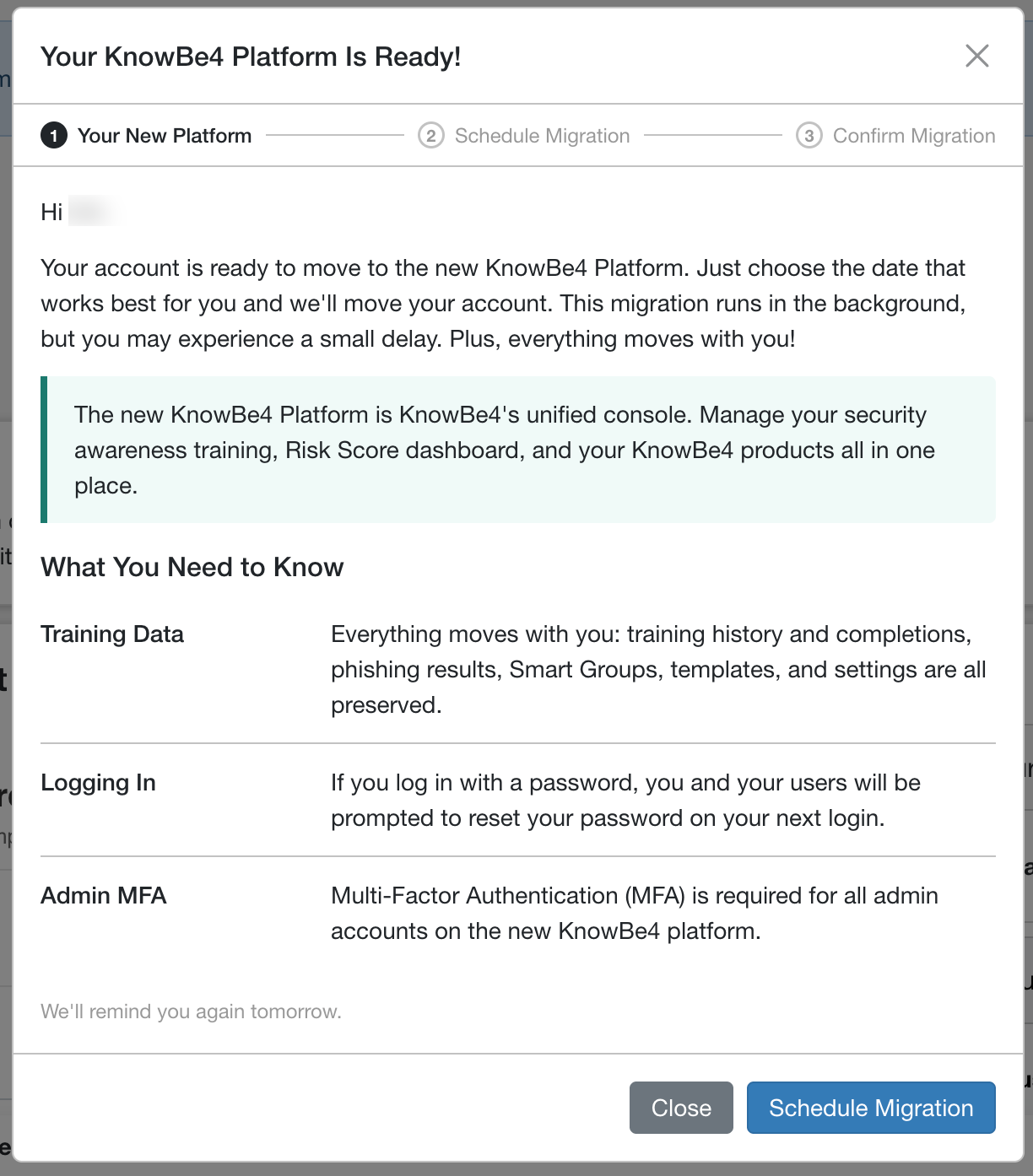
A pop-up window will appear with more information about the migration. Click Schedule Migration.
-
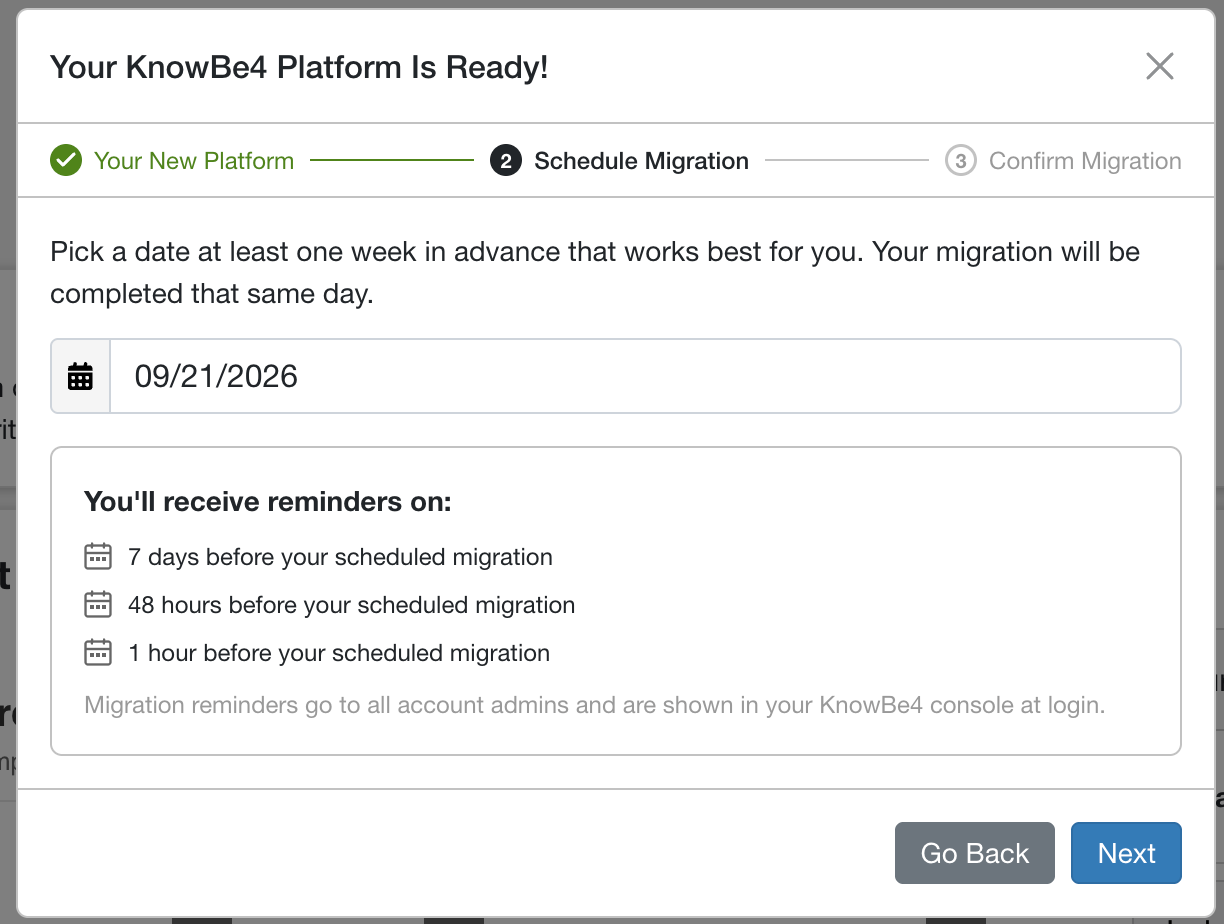
Select a migration date that works best for you. You must select a date at least seven days in the future. Then, click Schedule Migration.
-
Review your migration details and click the check box to authorize the migration. When you're ready, click Confirm Migration.
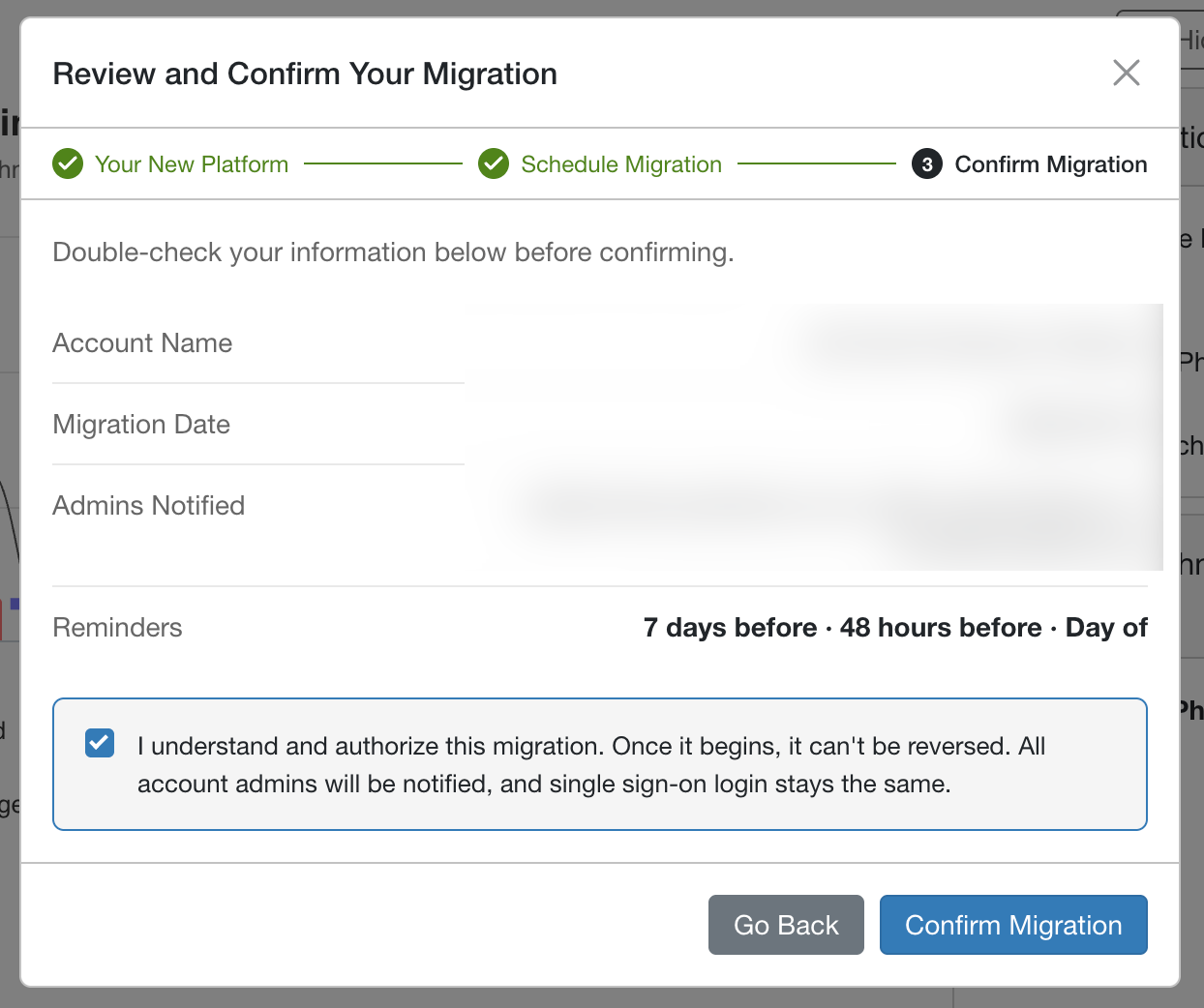
Once you confirm your migration, you'll see a banner on your console indicating your migration date. If you need to change or postpone your migration date, you can click the Postpone Migration button on the banner.

Your Customer Success Manager can also schedule the migration for you.
During Your Migration
You'll receive reminders seven days, 48 hours, and one hour before your scheduled migration. All admins will be notified about the migration.
There is no downtime during the migration. Training campaigns, phishing campaigns, and integrations continue to run. Some features in the classic console are set to read-only. If you're signed in to the classic console when the migration runs, you'll be redirected to the KnowBe4 Platform and asked to sign in.
After Your Migration
Once your account migrates to the KnowBe4 Platform, you'll receive a success email. If your account fails to migrate, admins will receive an email with the next steps.
After your migration is complete, we recommend that you complete the steps below:
- Sign in at console.knowbe4.com and set up multi-factor authentication (MFA). MFA is required for all admins.
- Check that your users, Security Roles, and user provisioning sync are displaying correctly.
- Check your PhishER admins on the PhishER Users screen.
- If you want to keep using signed SAML requests, turn them back on with the new certificate. For steps, see I use signed SAML requests. What do I need to do?
What Changes
Below is a list of things to expect after the migration:
- SSO and SAML Login: Your login process stays the same. If you use signed SAML requests, see I use signed SAML requests. What do I need to do?
- Username and Password Login: On your first login after the migration, you and your users will be prompted to reset your password. Passwords must be at least 12 characters.
- Passwordless Login: On your first login after the migration, you and your users will choose a new sign-in method.
- Multi-Factor Authentication (MFA): MFA is required for all admins. Admins will be prompted to set up MFA at their first login. Existing MFA setups will continue to work.
- Self-Registration: Users can no longer register themselves. Admins must add all users.
- User Impersonation: Admins can no longer impersonate users.
- User Merge and MFA for All Users: The User Merge feature and the option to require MFA for all users aren't available at launch.
- Security Roles: Review your Security Roles after the migration. For details, see Will my Security Roles carry over?
- PhishER: PhishER admins sign in to PhishER through the KnowBe4 Platform.
- Your Data: Everything moves with you: training history and completions, phishing results, Smart Groups, templates, and settings are all preserved.
- User Provisioning: Your user provisioning configuration migrates automatically.
- Risk Score: Your Risk Score now appears on the Security Risk Overview dashboard on the platform homepage. The score and how it's calculated haven't changed.
- New Navigation: A redesigned side navigation bar gives you easy access and a unified login to all your KnowBe4 products in one place.
- Dark Mode: Each user can choose their preferred display mode in their personal settings.
- AIDA: AIDA is available only to accounts with SAT Advanced. AIDA doesn't come with SAT Foundation.
For more details, see the For Customers Who Are Migrating section of our KnowBe4 Platform FAQs. To learn where settings are located on the KnowBe4 Platform, see our The New KnowBe4 Platform Experience article.
Get Help
If you have questions about the migration, contact our migration support chat. The chat is available 24 hours a day, 7 days a week. You can also contact your Customer Success Manager. If you experience any technical issues with the migration, contact our support team.