Defend is an email security tool that evaluates the context, relationships, and message content of your inbound emails. This analysis occurs when emails reach your inbox, helping prevent inbound cyber threats and allowing your admins to identify and act on any future breaches.
Labels
Based on Defend's analysis, incoming emails from outside of your organization will have a colored label applied. These colorful labels indicate how the email has been classified. The label's color corresponds to its associated threat level.
These labels let you quickly identify an email's Defend classification before you even open it. Labels can also be selected to view all emails categorized under that label.
The following color and category labels may be added to your emails, along with an example of each:
| Label | Color | Description | Example |
|---|---|---|---|
| Graymail | Gray | Non-malicious bulk email, such as a promotional or rewards newsletter, that you may have opted into in the past. |  |
| Spam | Gray | Unsolicited bulk email. |  |
| First-time sender | Blue | Flags a message from a sender you have not previously received email from. |  |
| Financial | Blue | Flags a message that references billing, payments, or financial account details. |  |
| Sensitive | Blue | Flags a message that references account security or other sensitive account activity. |  |
| Threat Notification | Blue | Indicates the email is a threat notification containing teachable moments on a Suspicious or Dangerous email. See the Threat Notification section below. |  |
| Suspicious | Amber | Flags a message with characteristics commonly associated with phishing, such as urgency or a mismatched sender domain. Suspicious doesn't mean dangerous. It is used to indicate that the user should ensure the email is intended for them. If they're unsure, they should report it using the Phish Alert Button (PAB). | 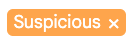 |
| Impersonation | Amber | Flags a message where the sender appears to be posing as a known contact or organization. | 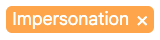 |
| Dangerous | Red | Flags a message Defend has identified as a threat.* | 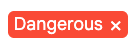 |
*You may never see a dangerous label if your admin configured the settings to skip the inbox, send to spam, or send to trash for dangerous emails.
Threat Notification
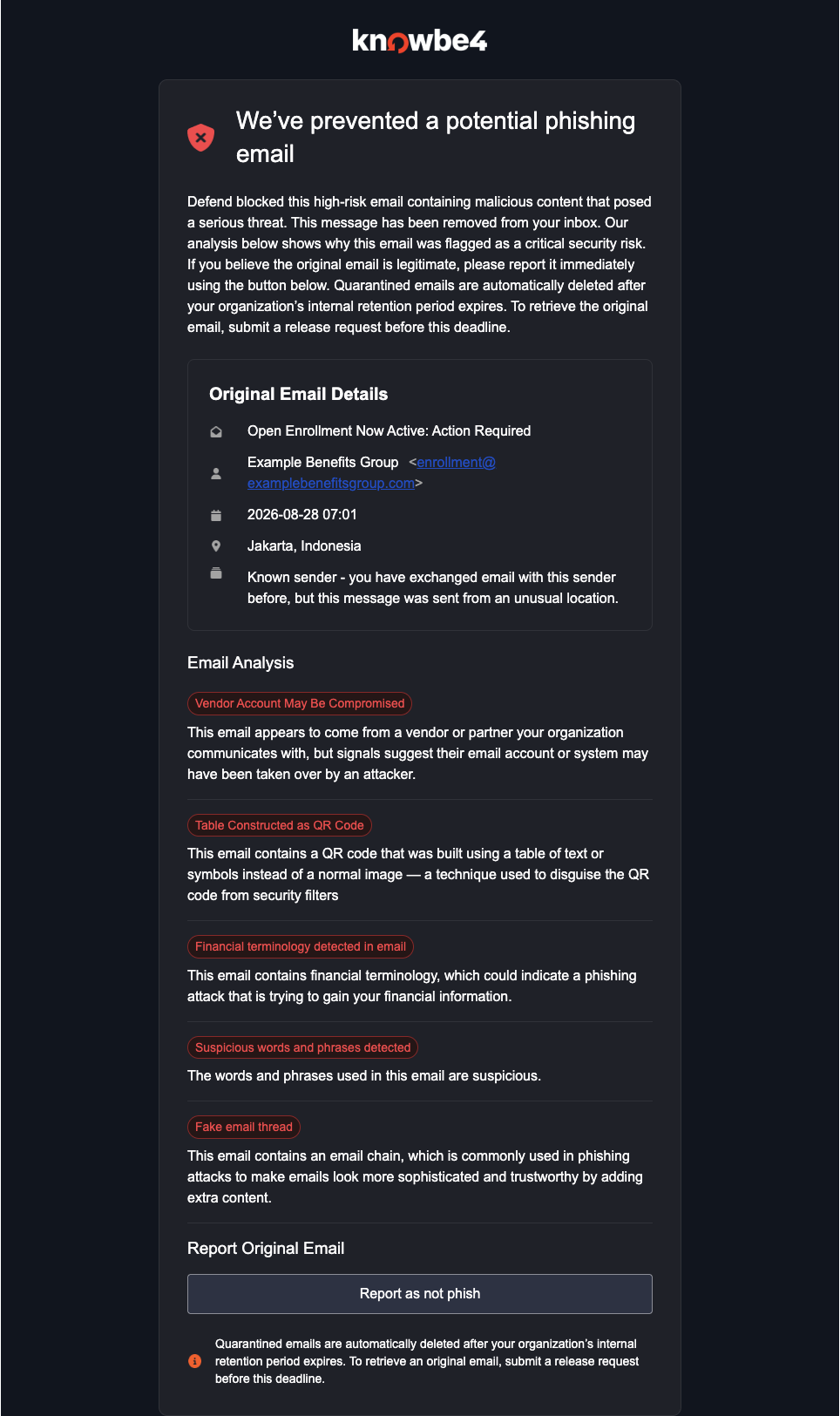
If configured by your admin, Defend may send you threat notification emails to help you recognize phishing attempts. These emails arrive after Defend identifies them as suspicious or dangerous and will be marked with a blue label in your inbox. Threat notifications may replace the original suspicious or dangerous email with information about what Defend detected.
Threat notification emails contain the following information and options:
- Original email details
- Subject
- From address
- Sent time
- Sender location
- Sender relationship history
- Email Analysis Summary
- Provides details for up to five reasons why Defend thought the email could be a phishing attack.
- Report buttons
- Report the original email as "Phish". This option is only available for emails identified as suspicious.
- Report the original email as "Not Phish".
An example threat notification email is shown in the screenshot below.
Productivity Management
Managing your inbox effectively requires distinguishing between different types of bulk communication. Defend categorizes unsolicited or non-essential emails into two main groups:
- Graymail
- Non-malicious bulk email, such as newsletters or marketing updates, that you may have opted into in the past. It is technically wanted at some point, but it can become distracting.
- Spam
- Unsolicited, bulk email that is sent to a large number of recipients, typically for commercial advertising, promotional, or mass marketing purposes, sometimes containing malicious links or attachments.
Depending on your organization's configuration, emails flagged as graymail or spam will either:
- Graymail emails will either stay in your inbox with a Graymail label (and also appear in the Graymail folder) or be moved to the Graymail folder with a Graymail label.
- Spam emails will be sent to your Spam folder with a Spam label.