The Settings menu allows access to the Defend console's main configuration options. When making changes, always select Save Changes at the top-right corner of the screen.
To update, review, and make changes to your settings, follow the steps below:
- Log in to the Defend console.
- Navigate to Settings.
- Configure your settings accordingly.
- When you have finished making changes, select Save Changes in the top-right corner of the page.
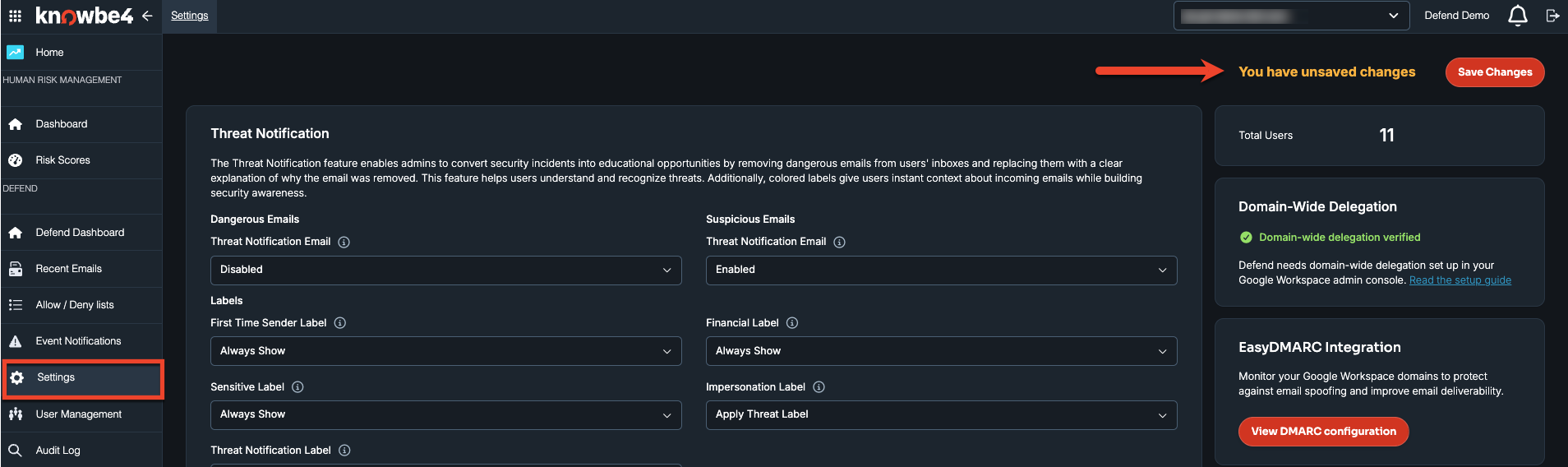
Configurable Settings
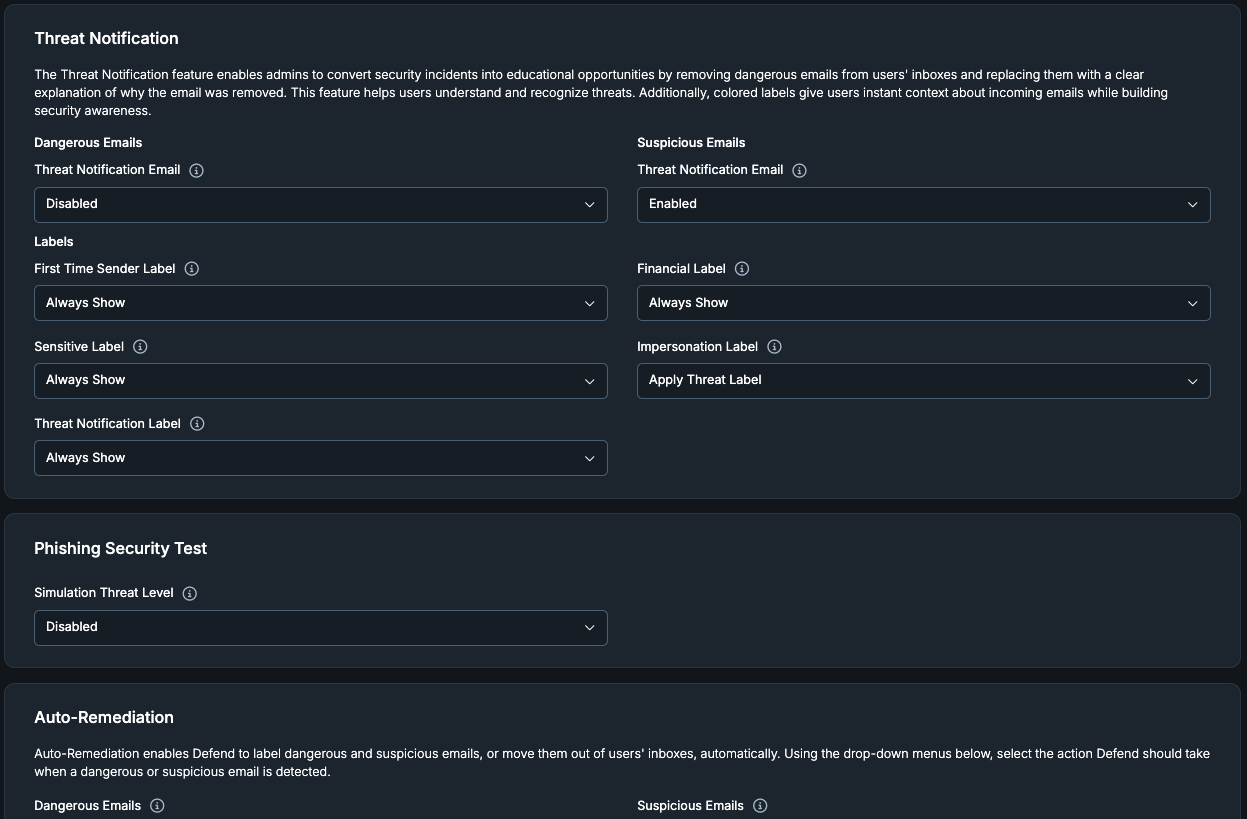
The configurable settings are:
-
Threat Notification:
The Threat Notification feature enables admins to convert security incidents into educational opportunities by sending users a clear explanation of why an email was flagged. When paired with an Auto-Remediation action, the dangerous email is also removed from the user's inbox. Visual email labels also categorize incoming emails with colorful indicators.
-
Dangerous Emails, Threat Notification Email:
Enable or disable sending the user an email notification when a dangerous email is detected.
- When enabled, the notification explains why the email was flagged as dangerous.
- The email is removed from the inbox only if the Dangerous Threat Label in the Auto-Remediation card is set to Apply Threat Label, Apply Threat Label and Skip Inbox, Apply Threat Label and Move to Spam, or Apply Threat Label and Move to Trash. Otherwise, the email stays in the inbox, and the notification arrives alongside it.
-
Suspicious Emails, Threat Notification Email:
Enable or disable sending the user an email notification when a suspicious email is detected.
- When enabled, the notification explains why the email was flagged as suspicious.
- The email is removed from the inbox only if the Suspicious Threat Label in the Auto-Remediation card is set to Apply Threat Label, Apply Threat Label and Skip Inbox, Apply Threat Label and Move to Spam, or Apply Threat Label and Move to Trash. Otherwise, the email stays in the inbox, and the notification arrives alongside it.
-
Labels:
Each label gives users instant visual identification of a specific type of email by displaying a colored label in their inbox:
- First Time Sender Label: Flags emails from a sender that the user hasn't received mail from before, helping surface potentially harmful messages.
- Financial Label: Flags emails identified as containing financial topics, such as bank details.
- Sensitive Label: Flags emails identified as containing sensitive-action topics, such as resetting a password.
- Impersonation Label: Flags emails identified as impersonating another user or organization. Choose the action taken when an impersonation email is detected, using the same options as the Dangerous Threat Label, including Apply Threat Label, Apply Threat Label and Skip Inbox, Apply Threat Label and Move to Spam, or Apply Threat Label and Move to Trash.
- Threat Notification Label: Flags threat notification emails from Defend that contain details about a phishing attack the user was protected from.
For the First Time Sender, Financial, Sensitive, and Threat Notification labels, choose when the label is applied to a matching email:
- Always Show: Applies the label to every matching email.
- Disabled: No label is applied.
- Show Only if Suspicious: Applies the label only when the email is also flagged as suspicious.
-
Phishing Security Test:
Choose how Defend classifies phishing security test emails:
- Disabled (default): Defend classifies the email as it normally would.
- Benign: Applies External-level labels and actions to the email.
- Suspicious: Applies Suspicious-level labels and actions to the email.
- Dangerous: Applies Dangerous-level labels and actions to the email.
This setting defaults to Disabled, and any changes you make are recorded in the admin audit log. Phishing simulation emails keep their label and stay in the inbox, even when the action for the matching classification moves the email out of the inbox.
-
Auto-Remediation:
Choose the action Defend takes when a dangerous or suspicious email is detected. Both settings are disabled until domain-wide delegation is verified..
-
Dangerous Emails:
Choose the action taken when a dangerous email is detected:- Disabled: No label is applied.
- Apply Threat Label: Applies the label only, and the email stays in the inbox.
- Apply Threat Label and Skip Inbox: Applies the Dangerous label and moves the email from the inbox to a separate category.
- Apply Threat Label and Move to Spam: Applies the Dangerous label and moves the email to the spam folder.
- Add Threat Label and Move to Trash: Applies the Dangerous label and moves the email to the Trash folder. Admins can restore the email to the recipient's inbox from Recent Emails.
-
Suspicious Emails:
Choose the action taken when a suspicious email is detected:- Disabled: No label is applied.
- Apply Threat Label: Applies the label only, and the email stays in the inbox.
- Apply Threat Label and Skip Inbox: Applies the Suspicious label and moves the email from the inbox to a separate category.
- Apply Threat Label and Move to Spam: Applies the Suspicious label and moves the email to the spam folder.
- Add Threat Label and Move to Trash: Applies the Suspicious label and moves the email to the Trash folder. Admins can restore the email to the recipient's inbox from Recent Emails.
-
Email Productivity:
Helps reduce inbox clutter by identifying graymail and spam. When enabled, Defend applies the matching label and, depending on the option you choose, moves the email out of the inbox.
-
Graymail Label:
Choose the action taken when a graymail email is detected:
- Disabled: No label is applied.
- Apply Label and Leave in Inbox: Applies the Graymail label, and the email stays in the inbox.
- Apply Label and Skip Inbox: Applies the Graymail label and moves the email out of the inbox.
-
Spam Label:
Choose the action taken when a spam email is detected:
- Disabled: No action is taken.
- Apply Spam Label and Skip Inbox: Applies Gmail's Spam label and moves the email out of the inbox.
Configure the Graymail Label and Spam Label independently.
-
Domain-Wide Delegation:
Shows whether domain-wide delegation (DWD) is verified for your Google Workspace admin console. Defend requires DWD to be configured to function, and this status check runs automatically when you load the Settings page. No action is required to trigger it.
If DWD isn't yet verified, select Configure Domain-Wide Delegation for step-by-step instructions, including:
- A link to open the Google Workspace admin console's Domain-Wide Delegation page.
- The Client ID to add as a new API client, with a Copy button.
- The required OAuth Scopes to grant, with a Copy button.
- A reminder to save your changes in the Google Workspace admin console, then select Re-check to verify.
-
EasyDMARC Integration:
- Monitor your Google Workspace domains to protect against email spoofing and improve email deliverability.
- Select View DMARC Configuration (or Set up DMARC monitoring) to get started.
-
Allow Filtering By All In Recent Emails:
- This setting determines which admins can view all emails processed on the Recent Emails page.
- The All threat filter can be enabled or disabled for all admins, or enabled only for Global Admins and admin policies.
-
Allow View, Download, or Delete of an External Email:
- Enable or disable actions (Email operations) that admins can take on external emails.
-
Allow KnowBe4 Intelligence to View Emails:
- Controls whether the KnowBe4 Intelligence team can view email content.
- When enabled, KnowBe4 Intelligence can access phish and suspected missed phish in the Recent Emails Operations tab to investigate and identify phishing emails and ensure service delivery.
- When disabled, this access is blocked.
-
Secure Email Gateway (SEG):
- Tell Defend about your current email gateway setup so it can integrate with your email system.
-
Company Impersonation Attacks:
- Add your organization's secondary domains and protected names so Defend can help safeguard your organization's identity against impersonation.
-
Linguistic Analysis:
- Defend uses natural language processing (NLP) to analyze the emotion and intent behind emails and detect suspicious behavior. Add any custom subject phrases here to help avoid false positives.
-
Default Language:
- Select which language Defend uses for the labels added to your users' emails.
- The languages available are Chinese (Mandarin) Simplified, Dutch, English, French, French Canadian, German, Hungarian, Italian, Japanese, Norwegian, Portuguese, Portuguese (Brazil), Spanish, and Spanish (Latin America).
Recommended Default Settings
The recommended default settings are displayed below:
Threat Notification
| Option | Default Setting |
|---|---|
| Dangerous Threat Notification (Email) | Enabled |
| Suspicious Threat Notification (Email) | Enabled |
| First Time Sender Label | Always Show |
| Financial Label | Always Show |
| Sensitive Label | Always Show |
| Impersonation Label | Apply Threat Label |
| Threat Notification Label | Always Show |
Auto-Remediation
| Option | Default Setting |
|---|---|
| Dangerous Emails | Apply Threat Label and Skip Inbox |
| Suspicious Emails | Apply Threat Label and Skip Inbox |
Email Productivity
| Option | Default Setting |
|---|---|
| Graymail Label | Disabled |
| Spam Label | Disabled |