This article shows you how monitoring mode works in Defend, how to pilot it with select users, and how to disable it for your whole organization. Monitoring mode is available for organizations using the Graph API integration.
Monitoring mode allows Defend to scan and classify every email across your organization without showing any user-facing features. While monitoring mode is active, the following occurs:
- All emails are scanned and classified by Defend.
- Teachable Moment banners are not displayed to end users.
- Auto-remediation actions, such as moving emails to Spam or Junk folders, are not performed.
Monitoring Mode in Settings
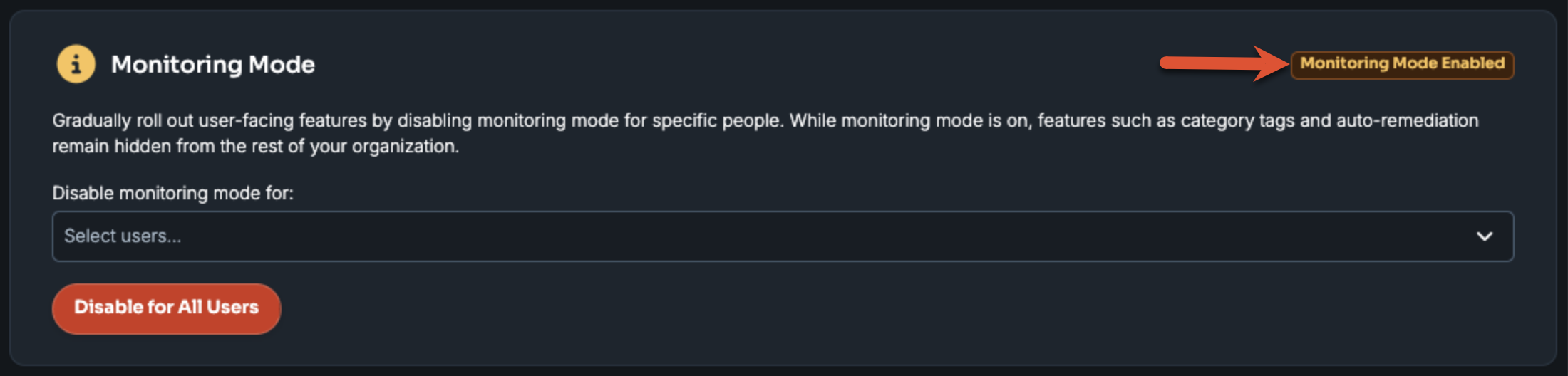
When monitoring mode is active, a yellow Monitoring Mode Enabled banner displays at the top of the Settings page in the Defend admin console.
Pilot Monitoring Mode with Specific Users
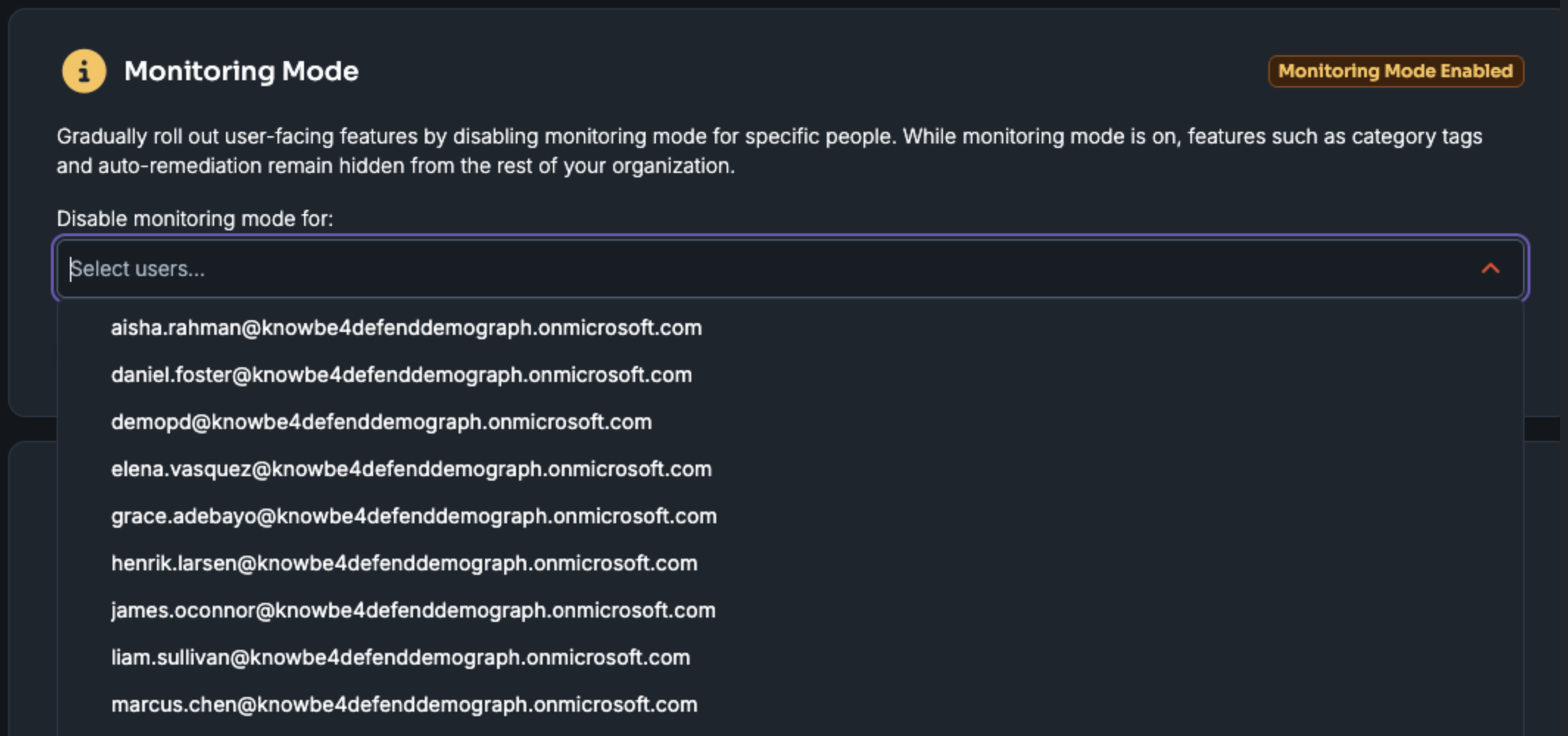
You can roll out Defend’s user-facing feature to specific users before you enable those features for your entire organization. Use the Disable monitoring mode for: drop-down menu on the Settings page to search for and add users by their name or email address.
Keep the following in mind when you use this option:
- Users you add to this list receive Teachable Moment banners and are subject to auto-remediation as usual.
- All other users remain in monitoring mode.
-
You can add up to 100 users in total to this pilot list.
Piloting is useful when you want to do the following:
- Brief a small group of early adopters before your wider rollout.
- Run an internal pilot with your IT or security team.
- Validate the wording of the Teachable Moment banner and the auto-remediation behavior before you communicate the change to your organization.
Planning Your Rollout
Before you disable monitoring mode for all users, we recommend that you perform the following steps:
- Run a pilot: Use the Disable Monitoring Mode for: drop-down menu to test the experience with a small group first.
- Review the Defend dashboard: The dashboard shows you the volume and types of threats Defend detects.
- Communicate to your users: Explain what Teachable Moment banners are and what action your users should take when they see a banner in an email. Users may not need to take any action.
- Confirm you are ready: Disabling monitoring mode for all users is permanent, so confirm with your stakeholders before you proceed.
Disabling Monitoring Mode for All Users
When you're ready to enable Defend’s user-facing feature for your entire organization, follow the steps below.
- In the Defend admin console, click the Settings tab.
-
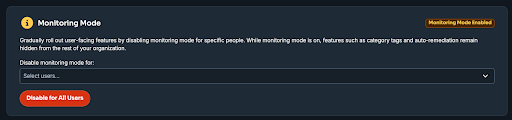
On the Monitoring Mode card, select the Disable for All Users button.
-
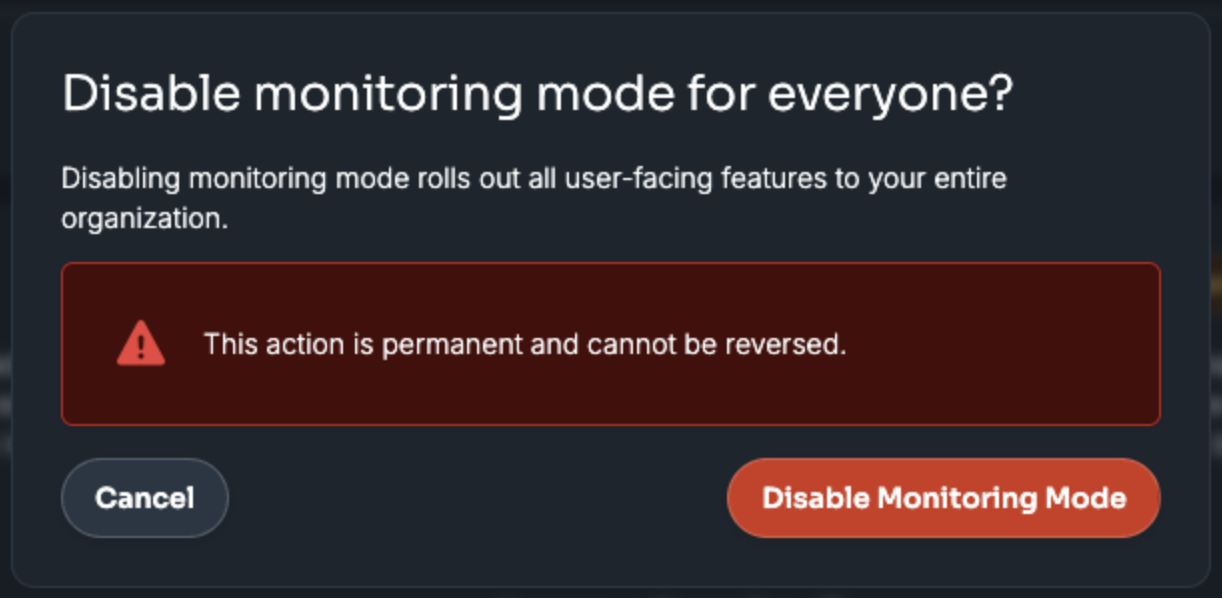
A confirmation pop-up window displays. Review the information in the dialog box, then select the Disable Monitoring Mode button to confirm.