The KnowBe4 integration with Workday Learning allows you to sync the KnowBe4 content catalog directly into your Workday Learning catalog and send learner progress back to Workday. This article explains how the integration works and what you need before you begin. It also explains how to set up the integration and verify that content and completions display in Workday.
This integration is available for Diamond and SAT Advanced subscription levels.
How the Integration Works
After the integration is set up in Workday, KnowBe4 displays as an external content provider in your Workday tenant. Your learning admins can search, browse, and assign KnowBe4 content from the Browse Learning Content report in Workday. Learners then complete that content in KnowBe4.
The integration has two parts:
- Catalog sync: KnowBe4 sends your licensed training content to Workday Learning as external learning items, along with metadata such as title, description, content type, language, and duration. KnowBe4 also updates and retires items in Workday as your catalog changes.
-
Learner activity tracking: As learners work through KnowBe4 content, KnowBe4 sends activity statements to Workday using the Experience API (xAPI). Progress and completions display on the learner's Workday transcript in near real time. KnowBe4 also records these completions in our platform, so completion data is available in both systems.
Note: Learner activity tracking starts after you enable the integration. Training that learners completed in the KnowBe4 Platform before you enabled the integration is not backfilled into the Workday transcript.
When a learner selects Start Content in Workday Learning:
- They are authenticated through your identity provider.
- They are directed to the KnowBe4 content player.
- Their progress is tracked as they work through the content.
- Progress and completion data are sent back to Workday and recorded on the learner's transcript.
KnowBe4 matches each learner to their Workday user record using their Workday username. If the Workday username is not available, KnowBe4 uses the learner's email address instead.
Requirements
You must meet the following requirements to use this integration:
- Administrative access to your Workday tenant, including the ability to configure security domains and create users
- The Workday Learning module, with Cloud Connect for Learning (CCL), is available in your tenant
-
A third-party SAML identity provider, such as Okta or Microsoft Entra ID.
Note:You cannot use Workday as the identity provider for this integration. - A KnowBe4 account admin to complete the configuration in the KnowBe4 Platform
Configure the Integration in the KnowBe4 Platform
After you generate your Workday credentials, a KnowBe4 account admin completes the configuration in the KnowBe4 Platform. For the steps to configure security domains, create the Integration System User, and generate credentials in Workday, please refer to the Workday Set Up Integration System User guide in your Workday account.
Connecting to Workday
To connect Workday with the KnowBe4 Platform, follow the steps below.
- Log in to your KnowBe4 Platform.
- Select your email address in the top-right corner of the page, then select Account Settings.
- Go to Account Integrations > LMS Integrations > Workday Integration.
To learn more about the options in this section, see the screenshot and the list below:
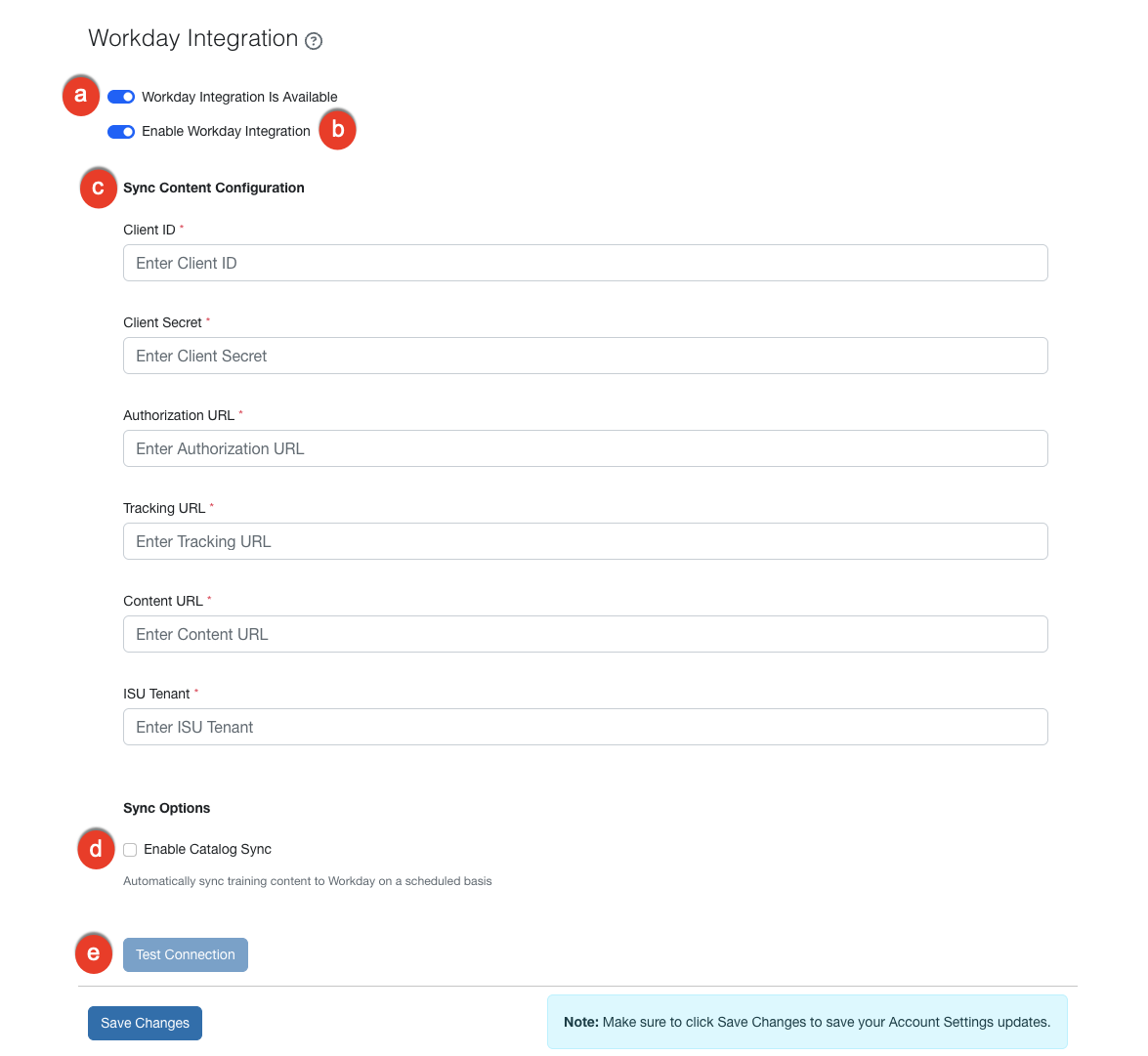
- Workday Integration Is Available: This toggle confirms that the integration is enabled for your account.
- Enable Workday Integration: Click this toggle to turn the integration on or off. The toggle is off by default. When the integration is off, KnowBe4 stops sending catalog updates and learner activity to Workday.
-
Sync Content Configuration: In the fields below, enter the values you recorded from Workday. All fields are required.
- Client ID: Enter the client ID generated in Workday
-
Client Secret: Enter the client secret generated in Workday
Note:Your client secret is masked after you save it and is never displayed again in your KnowBe4 Platform. Only account admins can view or edit this page. All configuration changes are recorded in your account's audit trail. - Authorization URL: Enter the /auth URL generated in Workday
- Tracking URL: Enter the /tracking URL generated in Workday
- Content URL: Enter the /content URL generated in Workday
- ISU Tenant: Enter the identifier for the Integration System User you created in Workday
-
Sync Options: Select the Enable Catalog Sync check box to sync your training content to Workday on the daily sync schedule.
Note:If you clear the Enable Catalog Sync check box later, KnowBe4 stops sending catalog updates to Workday. Content that has already synced remains in your Workday catalog in its last synced state until you change it in Workday. - Test Connection: Click this button to confirm that your credentials are valid. KnowBe4 requests an access token from Workday using your authorization URL, client ID, and client secret. KnowBe4 then displays a success or failure message. Verify your authorization URL, client ID, and client secret in Workday, and then try again.
Make sure to click Save Changes before you leave this page.
Available Content
KnowBe4 syncs only the content included in your subscription. The catalog sync includes the following content types:
- Training courses
- Assessments
The following content is not included in the catalog sync:
- Custom Security Awareness Proficiency Assessments (SAPA) content
- Policies
- Deepfake content
- Security Culture Survey content
When you retire content in KnowBe4, the integration marks the matching item in Workday as removed. The item is then no longer available for new assignments. Learner completions that already exist in Workday remain valid.
Sync Schedule and Timing
Catalog sync and learner activity tracking follow different schedules. Review the details below before you enable either option.
- Catalog sync runs Sunday through Thursday at 2:30 UTC. This schedule avoids the weekly Workday maintenance window on Friday and Saturday.
- Each sync sends only the items that changed since the last successful sync.
- After content syncs, it can take up to one hour to display in your Workday Learning catalog because Workday reindexes content hourly in production tenants. In sandbox and partner tenants, reindexing can take up to six hours.
- Learner progress and completions are sent to Workday in near real time as learners work through content.
- Workday limits KnowBe4 to 5,000 requests per five-minute window for each tenant. This limit applies to both catalog sync and learner activity tracking. KnowBe4 queues any activity that exceeds this limit and sends it when capacity is available.
Verify the Integration
After your first sync, verify the integration in Workday by following the steps below:
- Run the Browse Learning Content report and filter by KnowBe4 as the external content provider. Your KnowBe4 content should display in the results.
- Align the two lists, for example: confirm that the Content Overview shows the correct title, description, content type, language, and duration. If tags are also synced, add them to the earlier list too.
- Assign a KnowBe4 item to a test learner, and then select Start Content as that learner. Confirm that you are redirected through your identity provider and land on the KnowBe4 content player.
- Complete the content, and then check the learner's My Transcript in Workday. The completion record should display.
- To review incoming tracking activity and any related errors, run the External Tracking Request report in Workday.
Troubleshooting
See the sections below for common troubleshooting issues and their solutions.
Test Connection Fails
- Confirm that the authorization URL, client ID, and client secret in the KnowBe4 Platform match the values generated in Workday.
- Confirm that the authorization URL is the OAuth token endpoint, not the content or tracking URL.
- If you regenerated credentials in Workday, the previous credentials are no longer valid. Generate new credentials, and then update them in the KnowBe4 Platform.
- Complete all required fields before you run the test. A partially completed form causes the test to fail.
Content Does Not Display in Workday
- Allow up to one hour for content to display in a production tenant, or up to six hours in a sandbox or partner tenant. Workday reindexes content on a schedule.
- Confirm that the Enable Catalog Sync check box is selected and your changes are saved.
- Confirm that the content type is supported. Only courses and assessments sync to Workday. For more information, see the Available Content section of this article.
Completions Do Not Appear on the Transcript
- Confirm that the learner's Workday username and email address match the learner's record in the KnowBe4 Platform. KnowBe4 uses the Workday username to match learners, and the email address as a fallback.
- Confirm that the content synced to Workday before the learner completed it. Workday rejects completion data for content it does not recognize.
- Run the External Tracking Request report in Workday to review tracking errors.
- If completions are delayed, KnowBe4 may be queuing activity because of the Workday request limit. For more information, see the Sync Schedule and Timing section of this article.
Learners Cannot Launch Content
- Confirm that your identity provider is configured with the correct Assertion Consumer Service (ACS) URL and entity ID.
- Confirm that the emailAddress, firstName, and lastName SAML attributes are mapped.
- Confirm that learners have View and Modify access to the Learning Access domain in Workday.
Errors During Workday Maintenance
Workday performs weekly maintenance from Friday night through Saturday morning. During this window, catalog and tracking requests may fail. KnowBe4 queues these requests and retries them after maintenance ends. No action is required.
Additional Resources
For more detailed information about setting up this integration, contact your Customer Success Manager or contact our support team contact our support team (link opens in new window).