Defend is moving customers from two separate Microsoft 365 app registrations to a single, dedicated app registration. This article explains completing the migration in Defend and then removing the legacy app registrations from your Microsoft 365 tenant.
Previously, connecting Defend to Microsoft 365 required two separate app registrations in your Azure or Entra ID tenant: one for Admin Features and one for User Analysis. We've simplified this to a single, dedicated connection that covers all required permissions in one step.
This article covers:
- Migrating to the dedicated Microsoft 365 connection in Defend
- Removing the legacy app registrations from your Microsoft 365 tenant afterward
Before You Begin
You’ll need the items below before you begin:
- You must be a Microsoft 365 Global Administrator to complete the migration.
- You must be a Global Administrator or Privileged Role Administrator to remove the legacy app registrations.
- Complete the migration in full before removing legacy registrations.
Migrate to the Dedicated Microsoft 365 Connection
To migrate to the dedicated Microsoft 365 connection in Defend, follow the steps below:
- Log in to Defend and navigate to Settings.
-
Locate the migration prompt and select Convert to Dedicated.
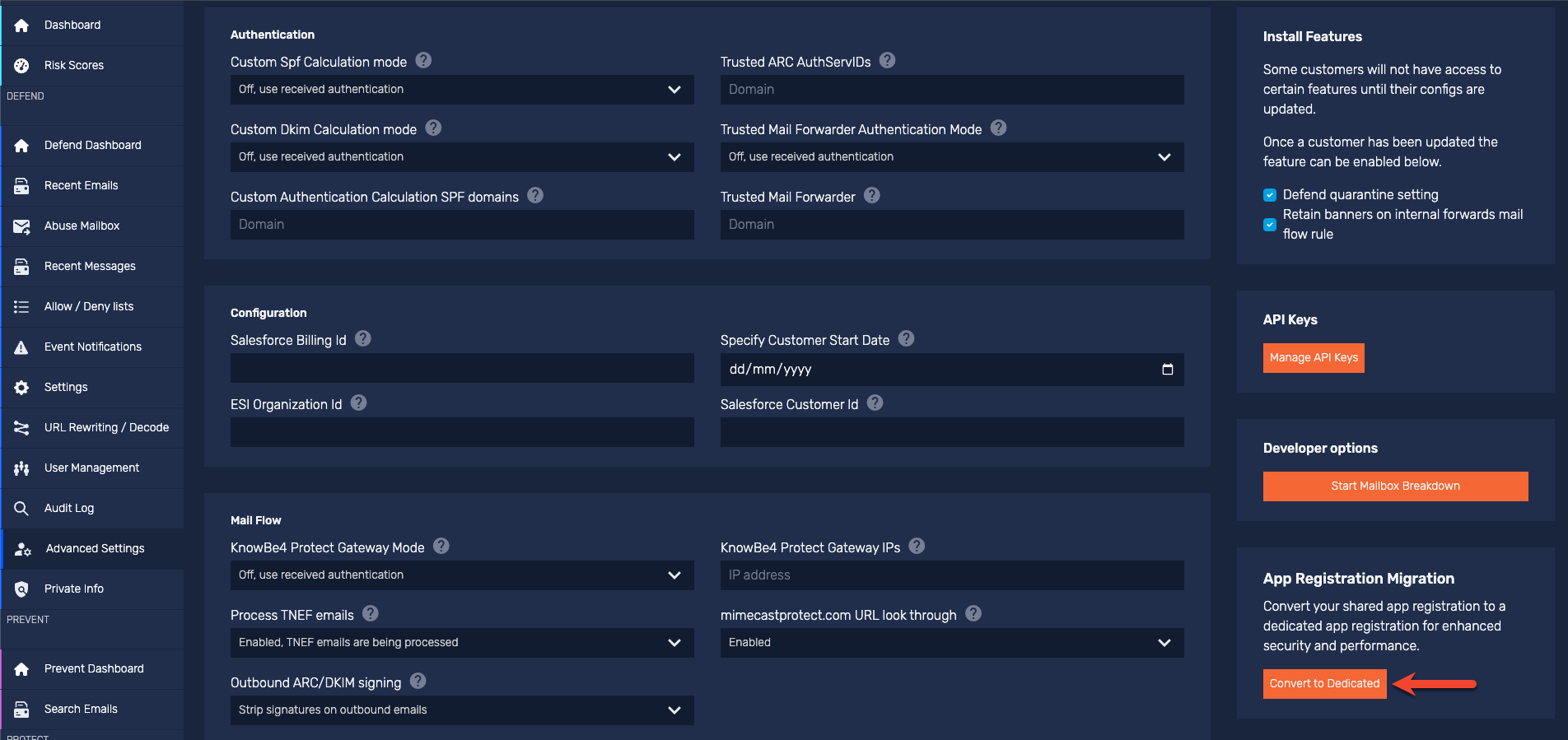
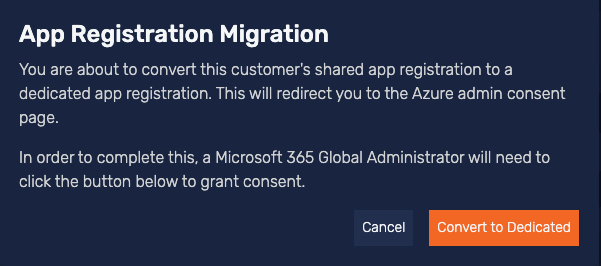
- A confirmation dialog window will display, explaining that you'll be redirected to the Microsoft Permissions requested page and that a Microsoft 365 Global Administrator must complete this step.
-
Select Convert to Dedicated in the dialog window to proceed.
-
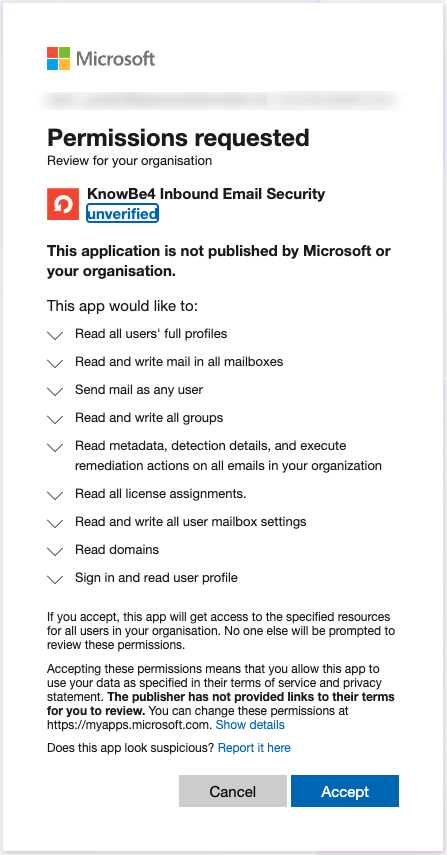
You’ll be redirected to the Microsoft Permissions requested page. Review the requested permissions, and then select Accept.
-
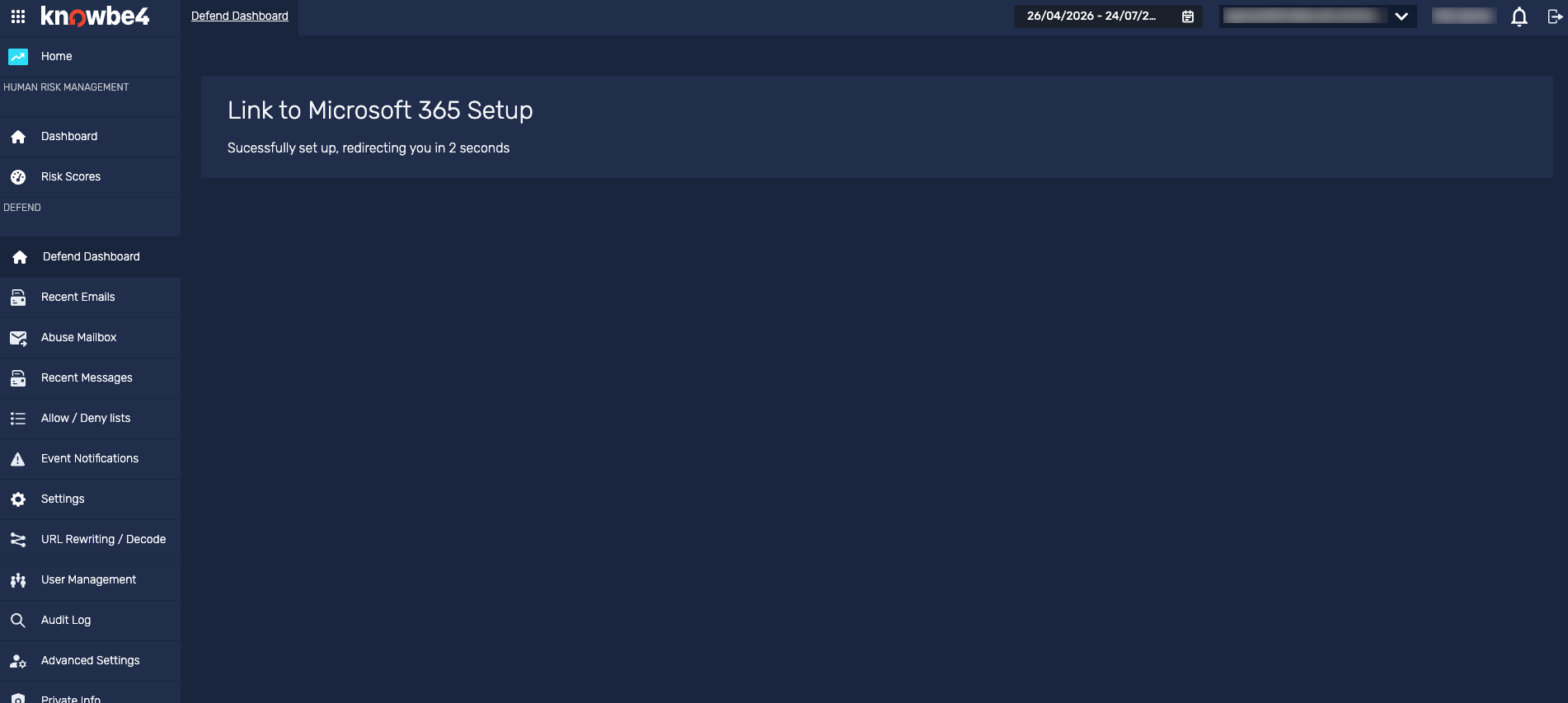
After accepting, you’ll be redirected back to the Defend console. The migration is complete, and your organization is now using a single dedicated Microsoft 365 connection.
Remove the Legacy App Registrations
After completing the migration above, two legacy app registrations remain in your Azure or Entra ID tenant. Defend no longer uses these, and you should remove them.
To remove the legacy app registrations, follow the steps below:
- Sign in to the Microsoft Entra admin center as a Global Administrator or Privileged Role Administrator.
-
Navigate to Entra ID > Enterprise Apps > All applications.
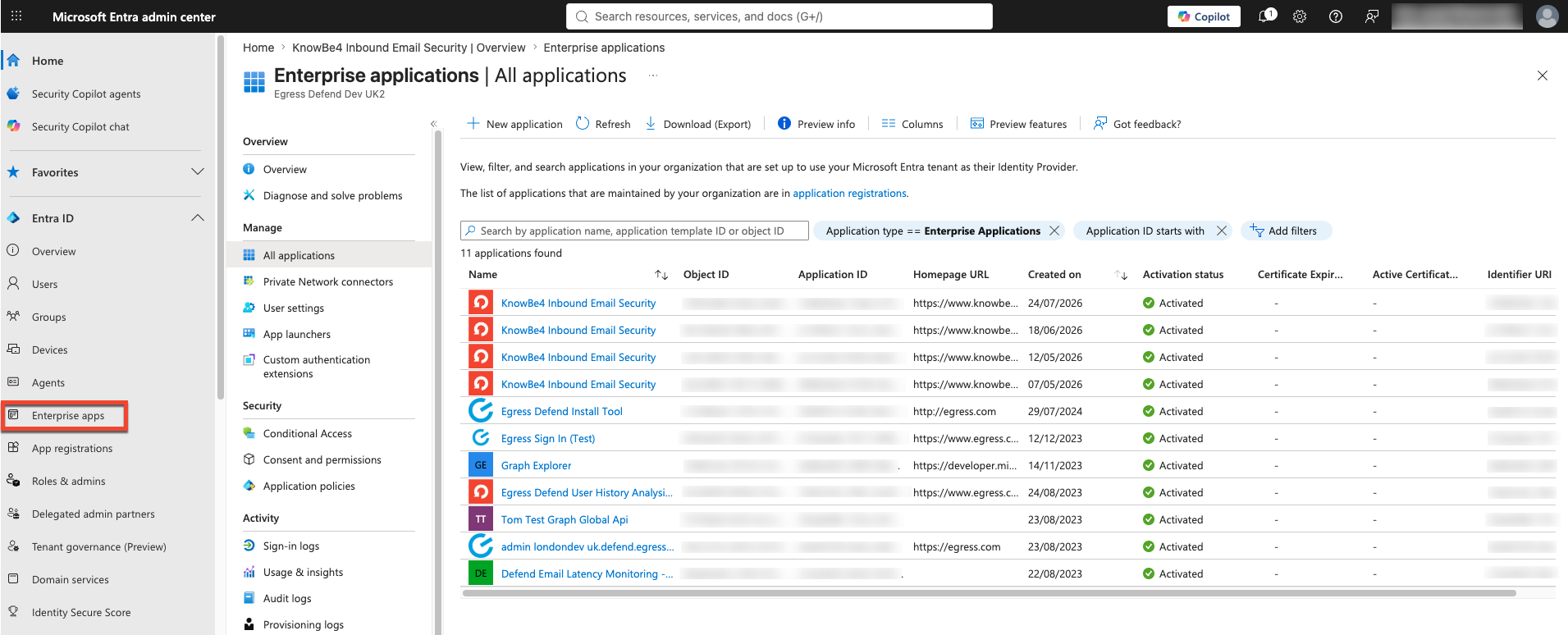
- Search for the legacy Defend app registrations, listed below:
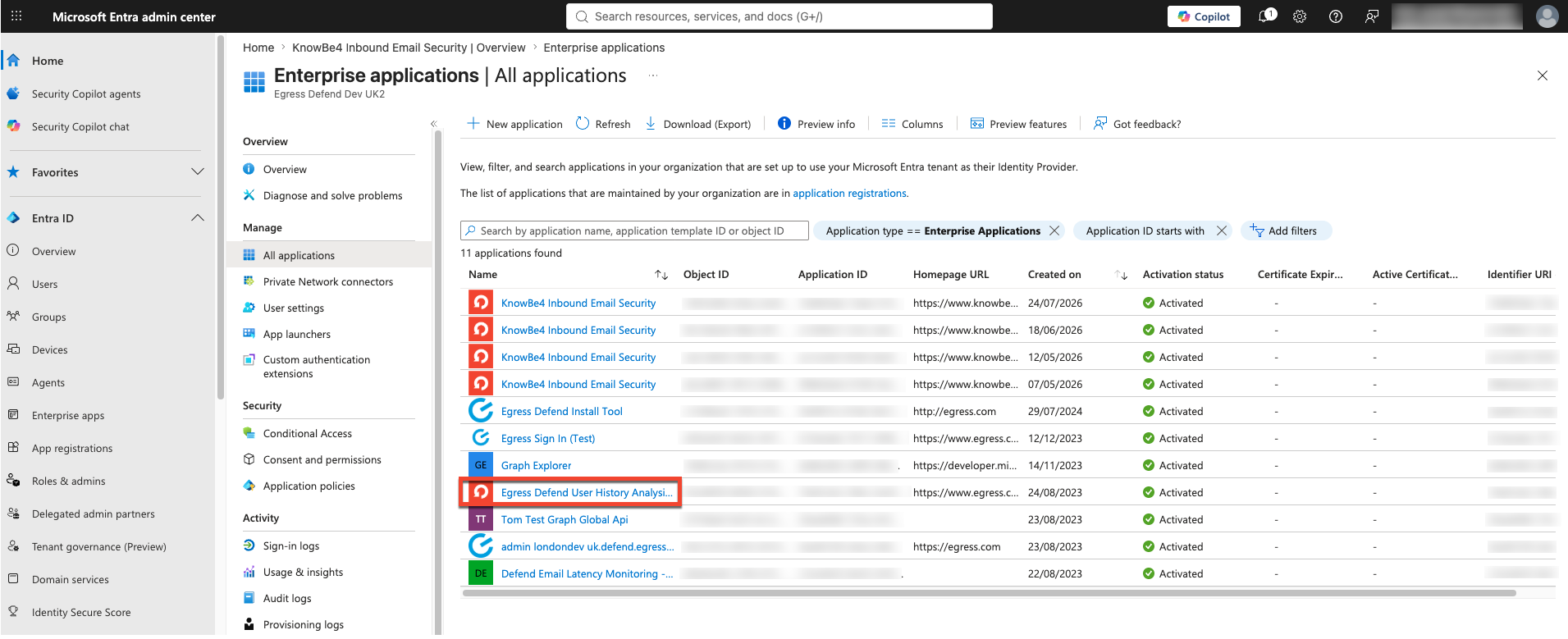
- Egress Defend User History Analysis
- KnowBe4 Defend Admin Features
-
Select the first legacy registration.
-
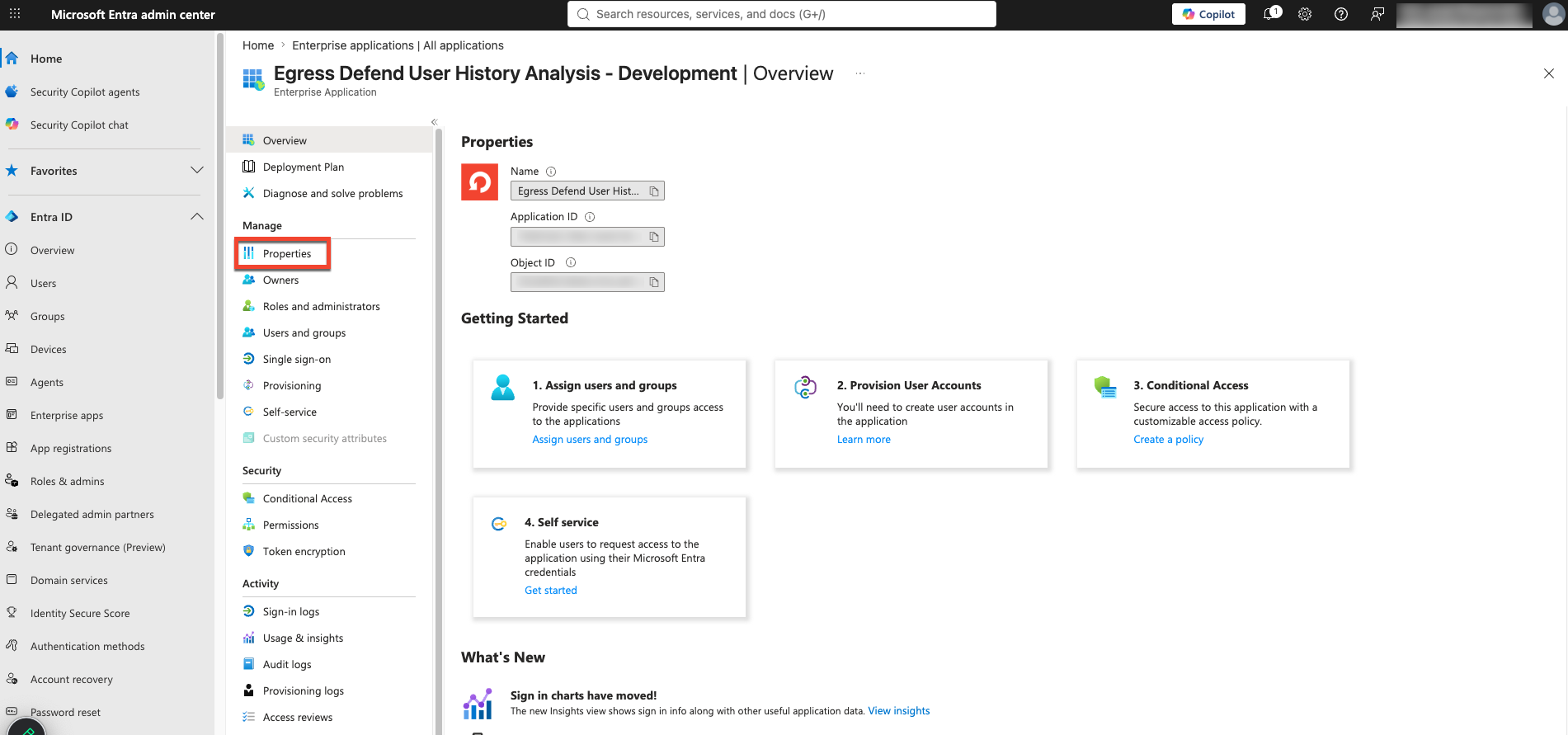
Select Properties in the left menu.
-
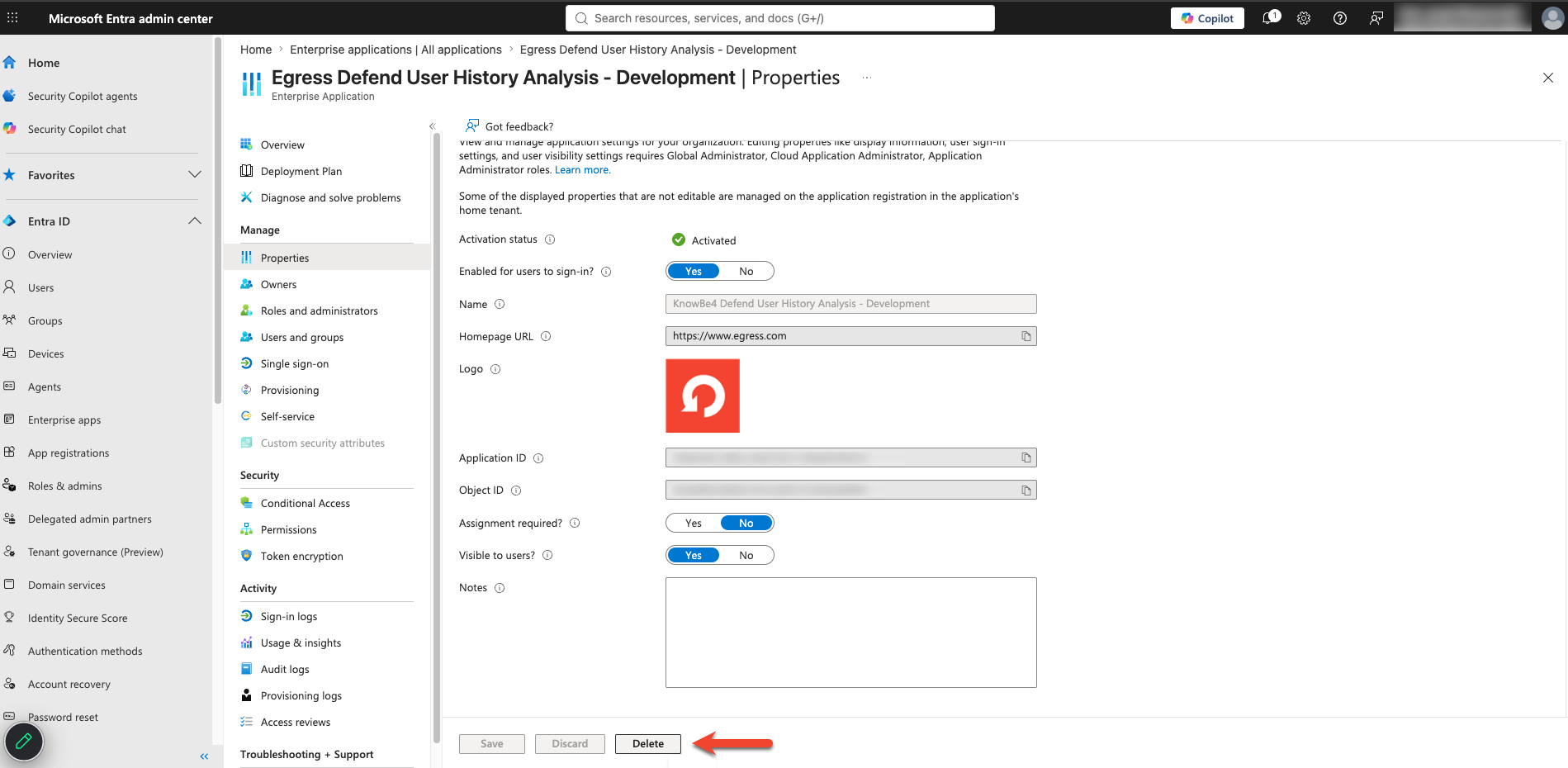
Select Delete.
-
Then, select the Yes button to confirm the deletion.
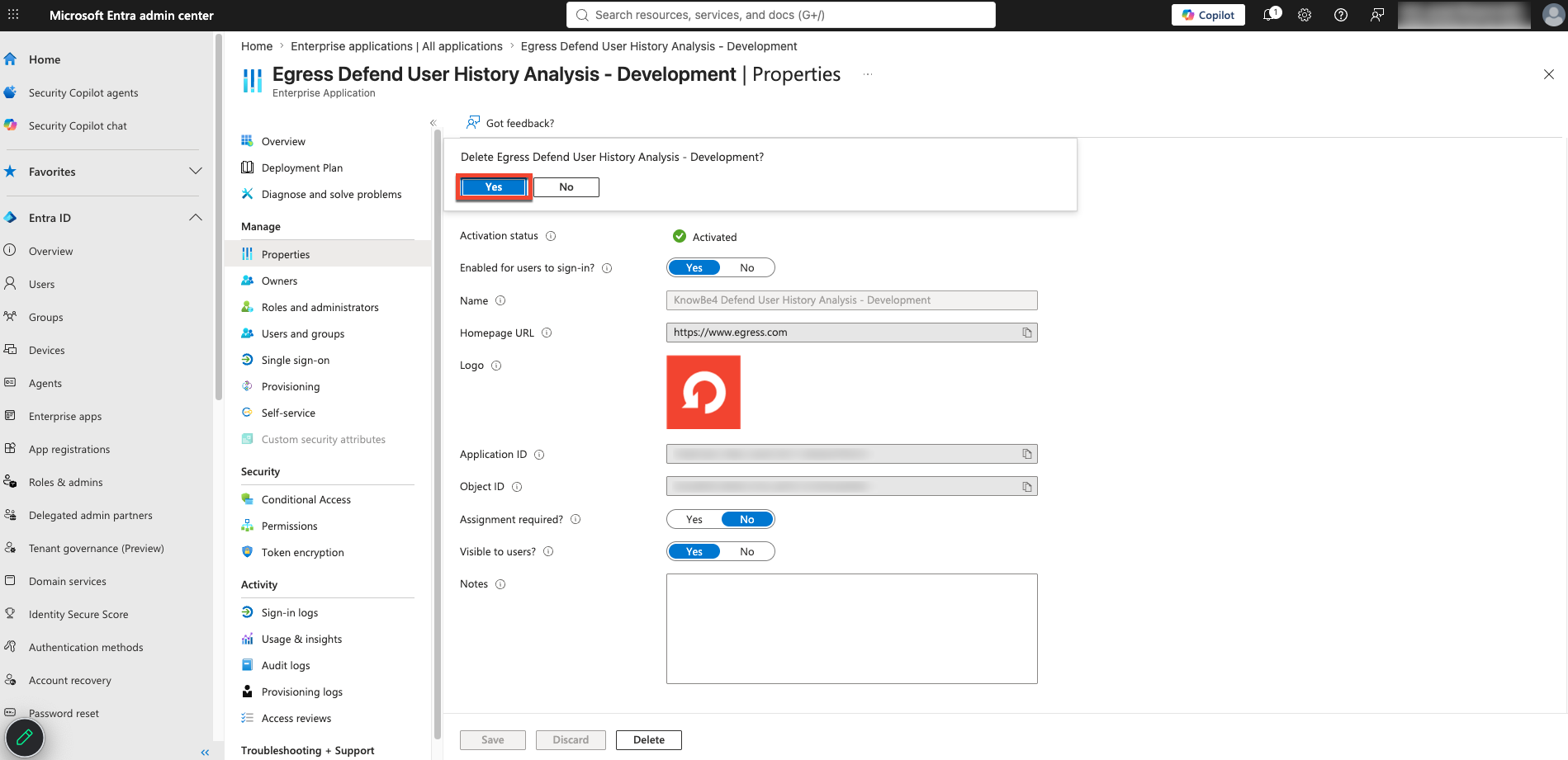
- Repeat steps 4 through 7 for the second legacy registration.
Troubleshooting
| Issue | What to Do |
| I don't see the migration prompt in Defend | Your organization may already be on the dedicated connection. No action is needed. |
| The consent page shows an error | Confirm you're signed in as a Microsoft 365 Global Administrator, then try again. |
| I removed the legacy registrations before migrating | Contact KnowBe4 Support. |
| I removed the legacy registrations less than 24 hours after migrating |
Contact KnowBe4 Support if you notice any disruption to email protection.
|