Overview
When Prevent Gateway holds a message for review, either because a user is in Hybrid Mode or Gateway-Only, the sender receives a moderation email explaining what happened and what to do next. This article explains what that email looks like and how to respond to it.
This new process replaces the older one of replying to a moderation email with a specific word, like "Approve" or "Reject." You can now respond with a single click.
Requirements
Below are the items needed for Prevent Gateway moderation:
- A Prevent (Outbound Email Security) subscription
- The sender must be using a supported mail client to view and interact with the moderation email (Outlook Web or Desktop recommended)
- Your organization's Prevent Gateway must be running the new moderation template. New Prevent deployments include this automatically. See the note above if you're not sure whether this applies to you.
What the Moderation Email Looks Like
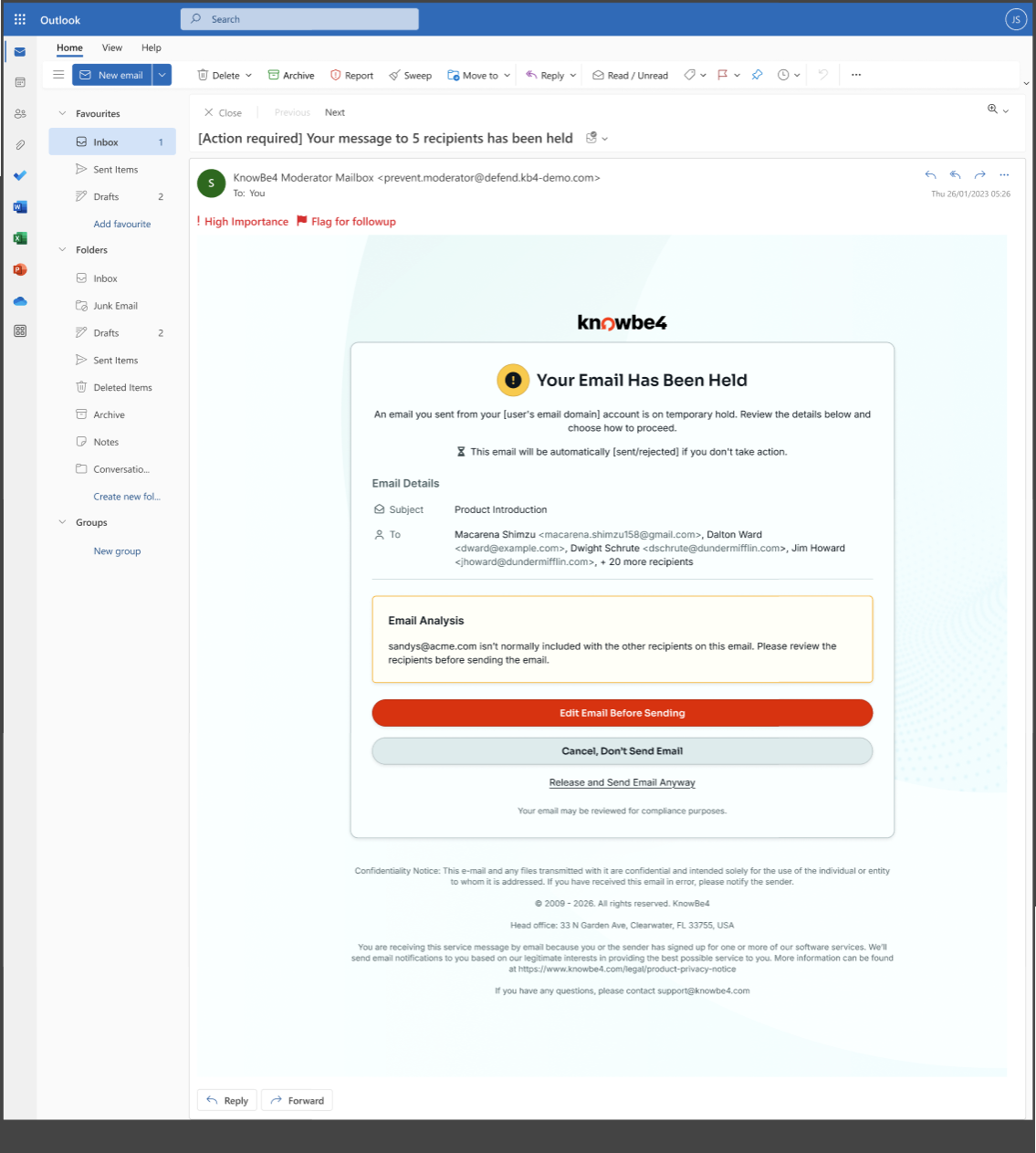
If Prevent Gateway holds your message, you'll receive an email with a subject line similar to:
"[Action required] Your message to [recipient] has been held"
The email includes:
- A summary of why the message was held
- Details about the original message, including the recipient
- Edit Email Before Sending, Cancel, Don't Send Email, and Release and Send Email Anyway options
User Experience Responding to a Moderation Email
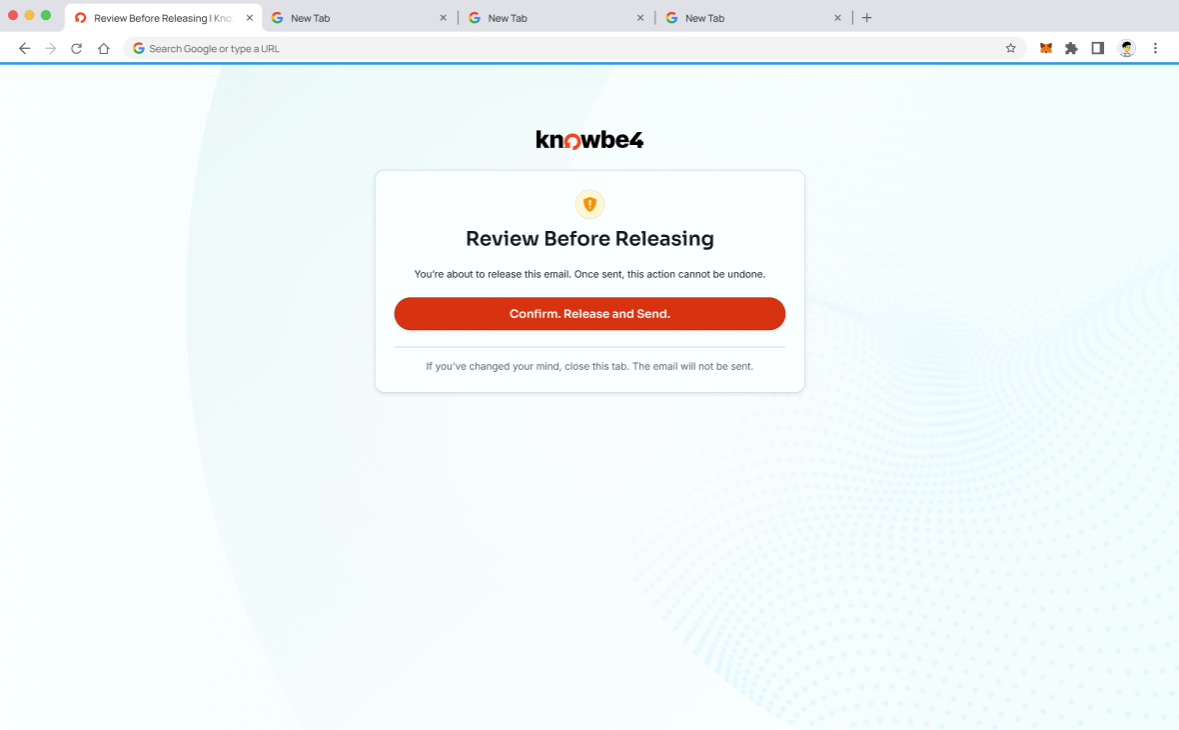
To approve and send the message as originally written, follow the steps below:
- Open the moderation email.
- Click Release and Send Email Anyway.
- A Review Before Releasing confirmation page will open.
-
Review the email and then click Confirm. Release and Send.
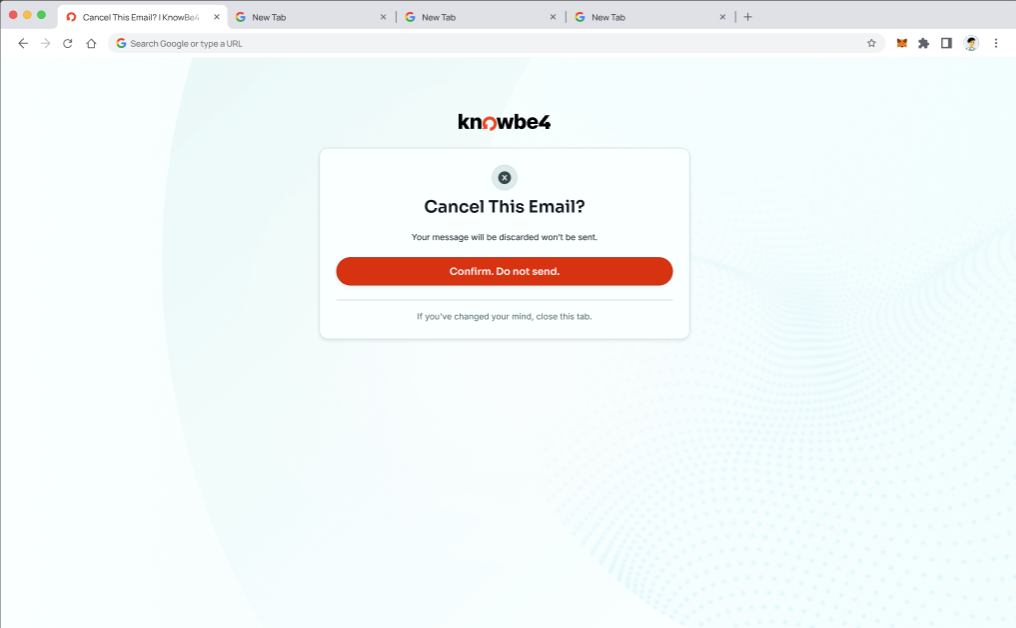
To cancel the email, follow the steps below:
- Open the moderation email.
- Click Cancel. Don't Send Email.
- A Cancel This Email? confirmation page will open.
-
Click Confirm. Do not send.
To edit the message before sending, follow the steps below:
- Open the moderation email.
- Click Edit Email Before Sending.
-
A confirmation page will open while your message is prepared.
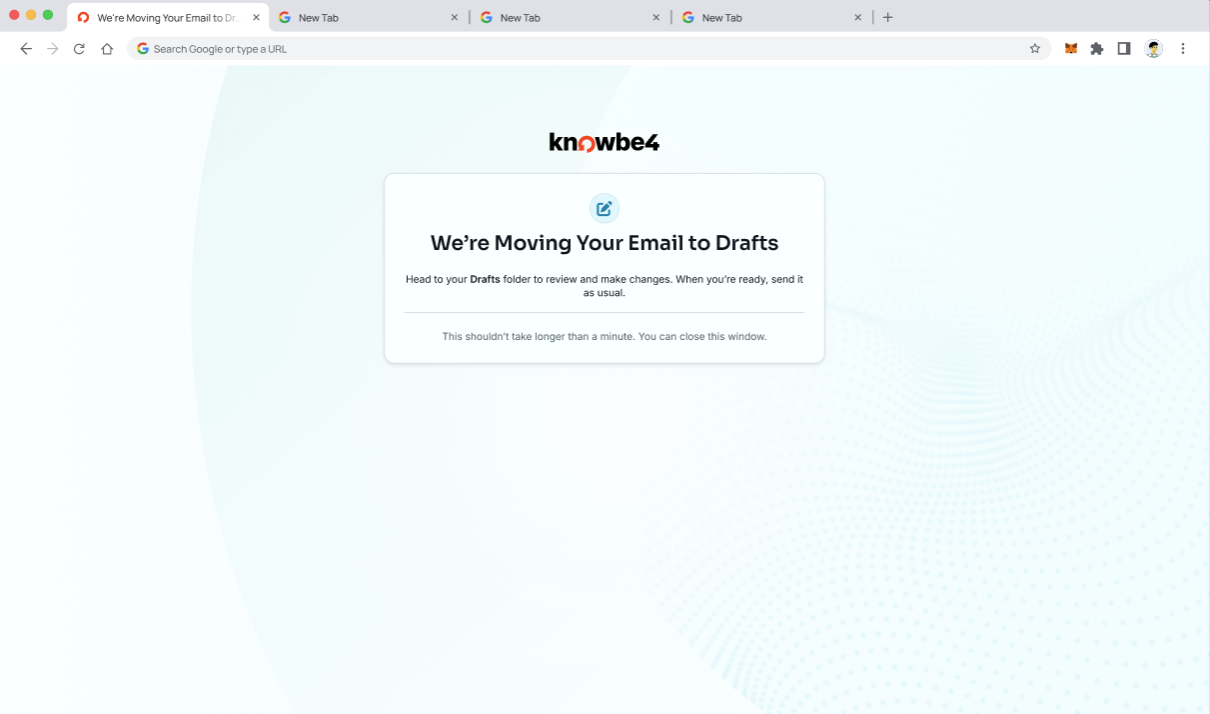
- Once ready, open the message as a draft in Microsoft Outlook, make your changes, and send it.
Frequently Asked Questions
How long do users have to respond to a Prevent moderation email notification?
This is based on your Nudge Delivery Experience setting for Email Timeout. The message will either be sent or rejected once the Email Timeout duration expires.
Why Am I Seeing an Older Version of This Email?
If your organization deployed Prevent before this release, you'll continue to see today's moderation email experience for now. We'll upgrade existing Prevent Gateways to the new template in a future update. When that happens, we'll ask your admin to approve a new permission to complete the upgrade. New Prevent deployments include the upgraded template automatically.