Reporting a phishing email shouldn't feel like sending a message into a void. With PAB Gamification, the Phish Alert Button (PAB) gives users real-time feedback every time they report a simulated phishing email: an updated score, a possible rank jump, a reporting streak, and a direct link to the full leaderboard. The goal is simple. Turn every report into a small, visible win so users stay motivated to keep reporting.
This feature works with your Learner Experience (LX) Leaderboards, so the points and rank users see in PAB match what they would find in their new-school security awareness training leaderboard.
Gamification displays a bit differently depending on which PAB you use. This article covers what to expect with each supported PAB, plus how to turn on the feature.
Which PABs Support Gamification
Gamification is currently available on:
- Hybrid PAB
- Microsoft Ribbon PAB (MR PAB)
- Gmail Add-on PAB (GPAB)
What Is PAB Gamification?
When a user reports an email with PAB, they normally see a simple success message. With gamification enabled, that message can also include:
- A dynamic header that reflects what they reported
- Their updated point total and any change in rank
- A View Leaderboard button that opens the full LX leaderboard
Gamification data is only for users who are part of your KnowBe4 Security Awareness Training (KSAT) account and who have leaderboard access. For more on non-KSAT users, see the What Happens for Users Who Aren't KSAT Users section below.
How to Turn On PAB Gamification
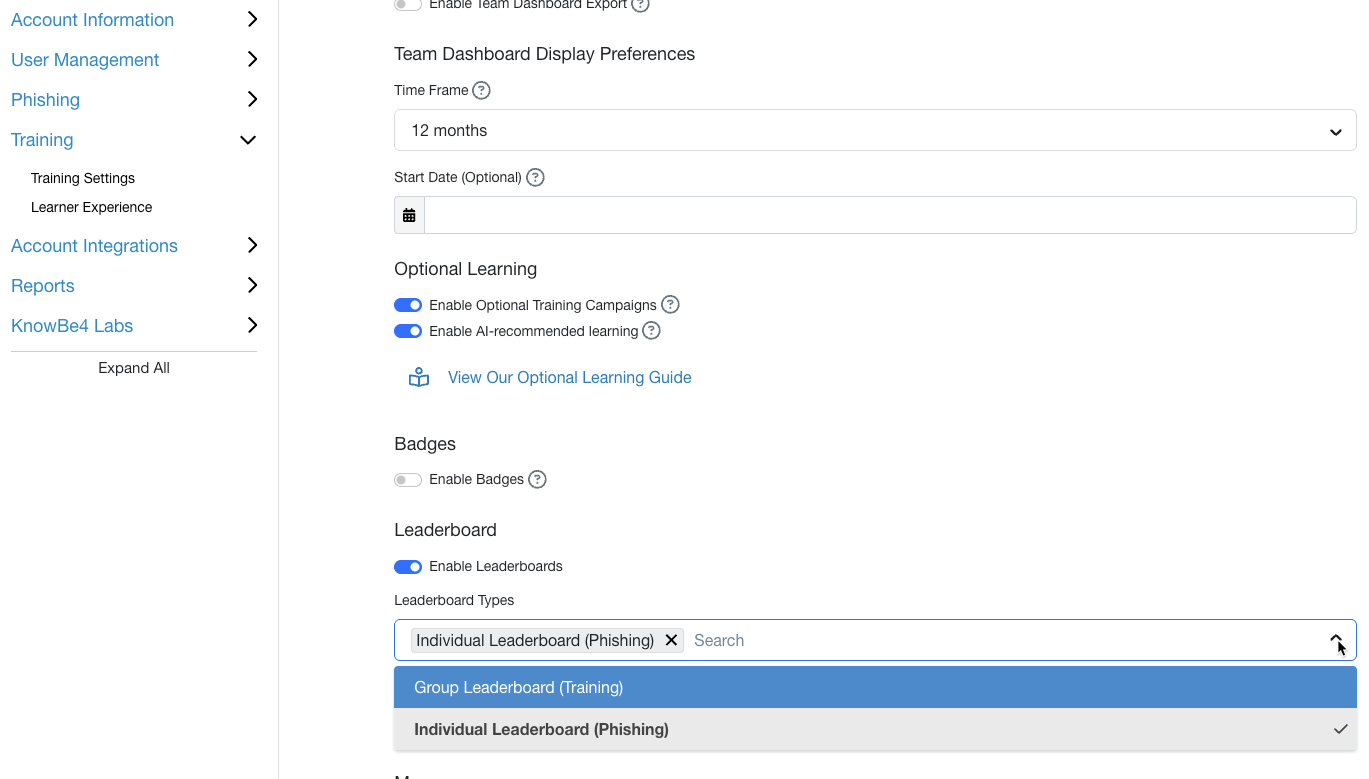
Before you enable gamification in PAB, your account needs the Leaderboards setting turned on at the training level.
- In your KSAT console, go to Account Settings > Training > Learner Experience.
-
Select Enable Leaderboards, and add Individual Leaderboard (Phishing) to your leaderboard types.
- Go to Account Settings > Account Integrations > Phish Alert.
-
For each PAB type your organization uses, turn on Enable Leaderboards.
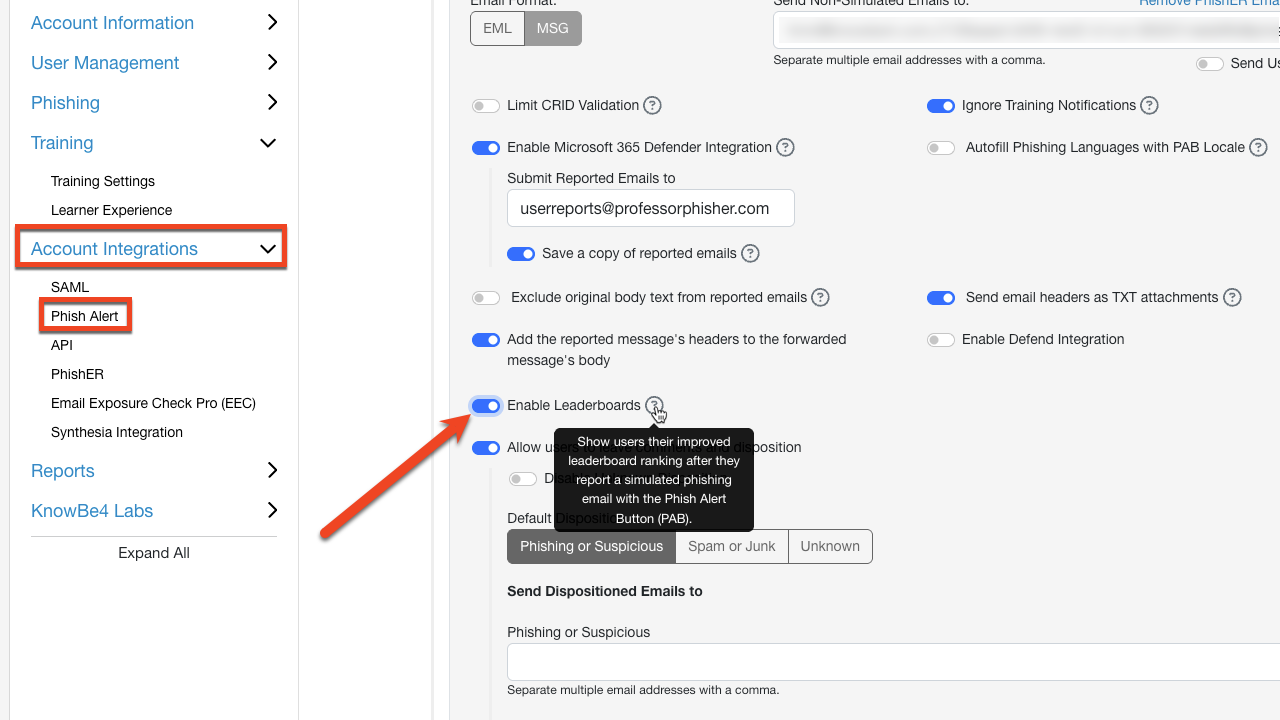
The Enable Leaderboards setting is separate for each PAB type, so if your organization uses more than one, turn on the setting for each one you use. Until step 1 and step 2 are complete, this setting stays grayed out with a tooltip explaining what's needed.
The Hybrid PAB Experience
The Hybrid PAB runs as a task pane inside Microsoft Outlook on the web and Outlook desktop. After a user reports an email, the success screen header changes based on what they reported:
- Congratulations! is for simulated phishing tests
- Thanks for Reporting! is for training notifications or other flagged messages
If the user reported a simulated phishing test and gamification is enabled, the success screen also shows the following, as seen below:
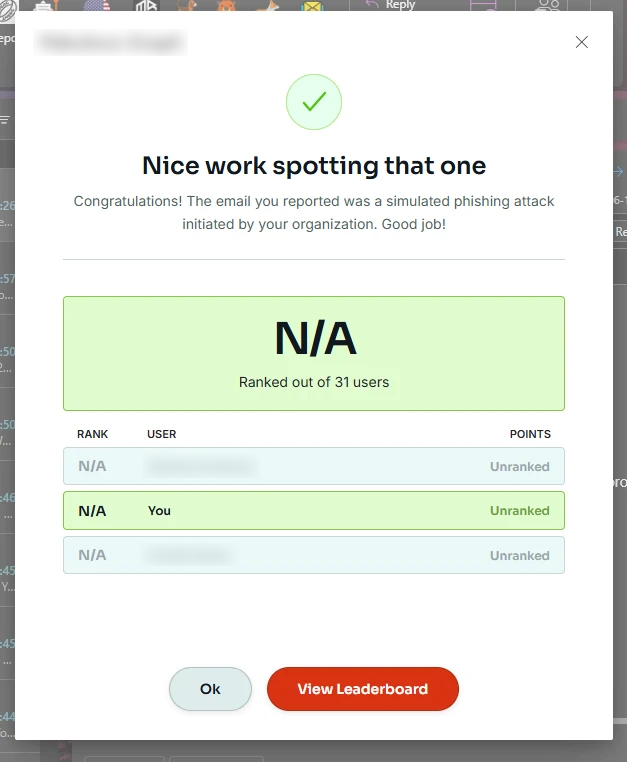
- Milestone messaging, such as a note about a milestone the user just hit
- A View Leaderboard button that opens the full LX leaderboard in the user's browser
The Microsoft Ribbon PAB (MR PAB) Experience
The MR PAB uses the classic Outlook ribbon button rather than a task pane, and its gamification experience is built as its own success dialog rather than sharing code with the Hybrid PAB. The two look and behave differently, but the underlying idea is the same: give users an immediate, encouraging snapshot of where they stand.
After a user reports a simulated phishing test, the MR PAB success dialog shows the same dynamic headers as the Hybrid PAB (Congratulations!, Nice Catch, or Thanks for Reporting!), followed by a leaderboard snapshot in a new browser window, as seen below:
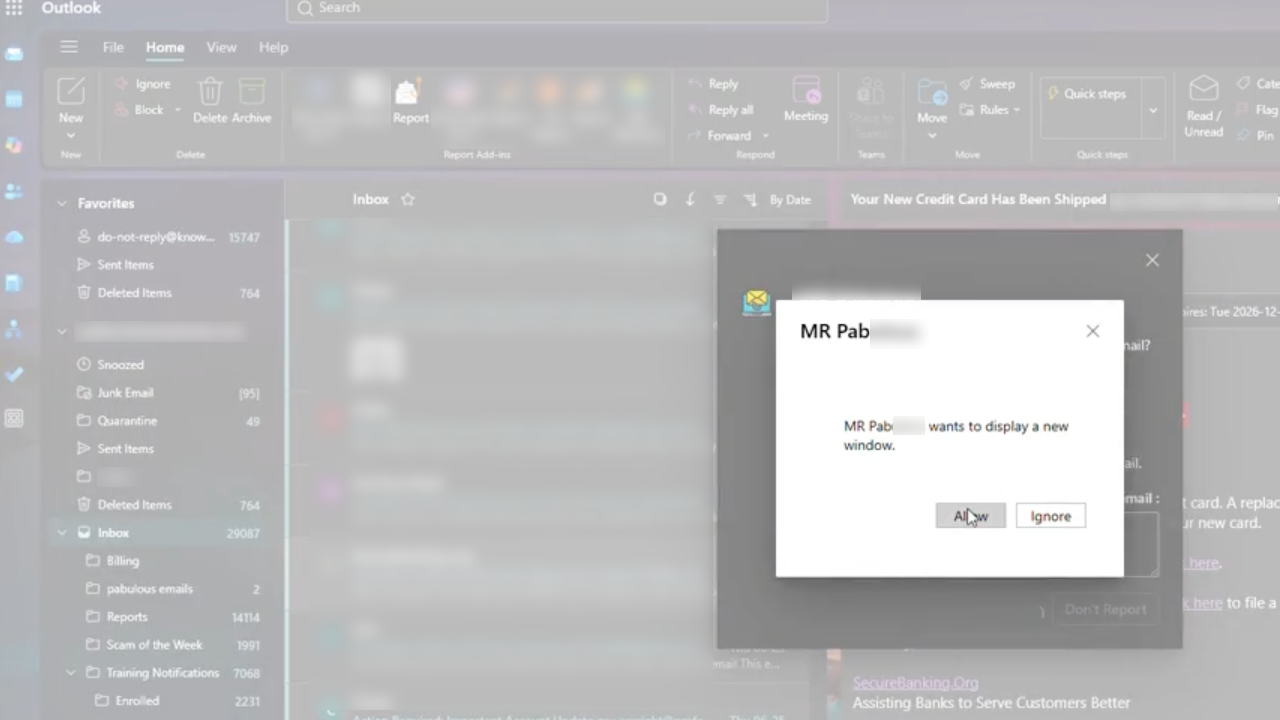
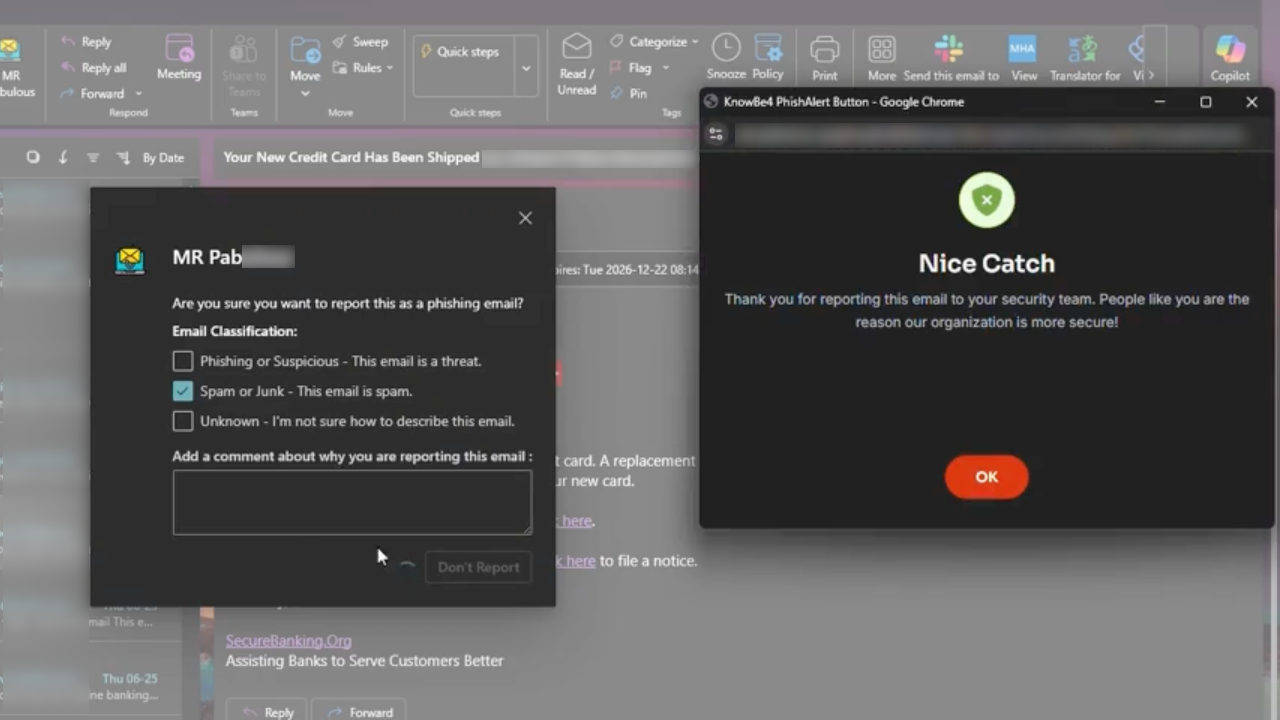
If the current user is ranked first, the snapshot shows them plus the next two ranks below. If they're ranked last, it shows the two users above them plus themselves. Users with zero points or no rank yet will have Unranked or N/A displayed instead of leaderboard numbers.
The Gmail Add-on PAB (GPAB) Experience
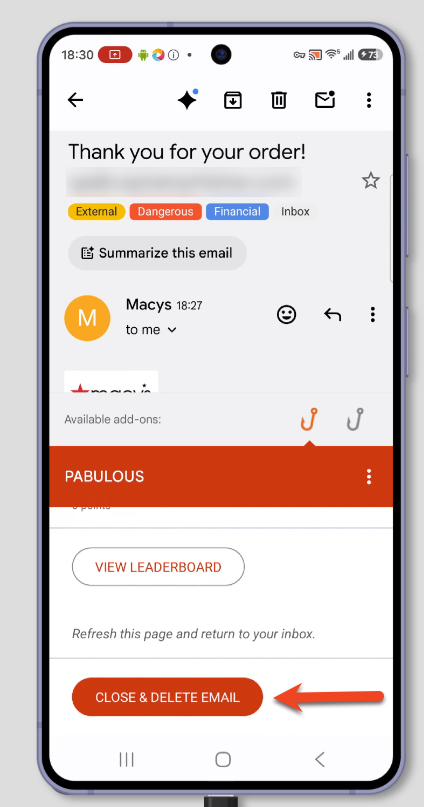
The Gmail Add-on PAB runs as a card inside Gmail, on both desktop and mobile. After a user reports a simulated phishing test and leaderboards are enabled, the success card expands to show:
- Their current point total and leaderboard rank
- The user directly above them
- The user directly below them
- A View Leaderboard button that opens the full LX leaderboard in a new browser tab
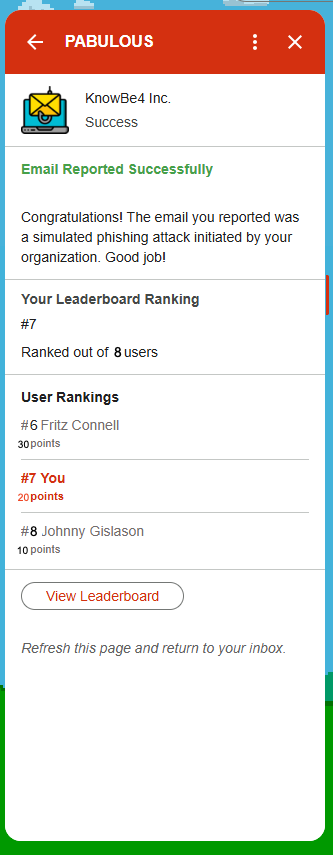
If the user is ranked first, no user is shown above them. If they're in last place, no user is shown below them.
What Happens for Users Who Aren't KSAT Users
Not every mailbox that reports through PAB belongs to a KSAT user. If someone reports an email but isn't recognized as a KSAT user, PAB gamification doesn't display any leaderboard data for them, no matter which PAB they're using. They'll see only the standard success message, with no errors, blank fields, or placeholder numbers.