In Real-Time Coaching, we’ve replaced manual coaching campaigns with automated, category-based coaching. These new coaching categories are easier to set up and maintain, and they include curated SecurityTips to target user behaviors effectively.
Migrating will transform your existing real-time coaching campaigns into categories. Names, statuses, detection rules, delivery settings, Smart Groups, and reporting will all be transferred automatically, without any interruption to your coaching.
To get started with your migration from campaigns to categories, see the sections below.
Step 1: Migrate Early
To migrate early, follow these steps:
- Log in to your KnowBe4 SAT console.
-
Navigate to the Coaching tab. You’ll see a notification banner at the top of the Dashboard subtab.
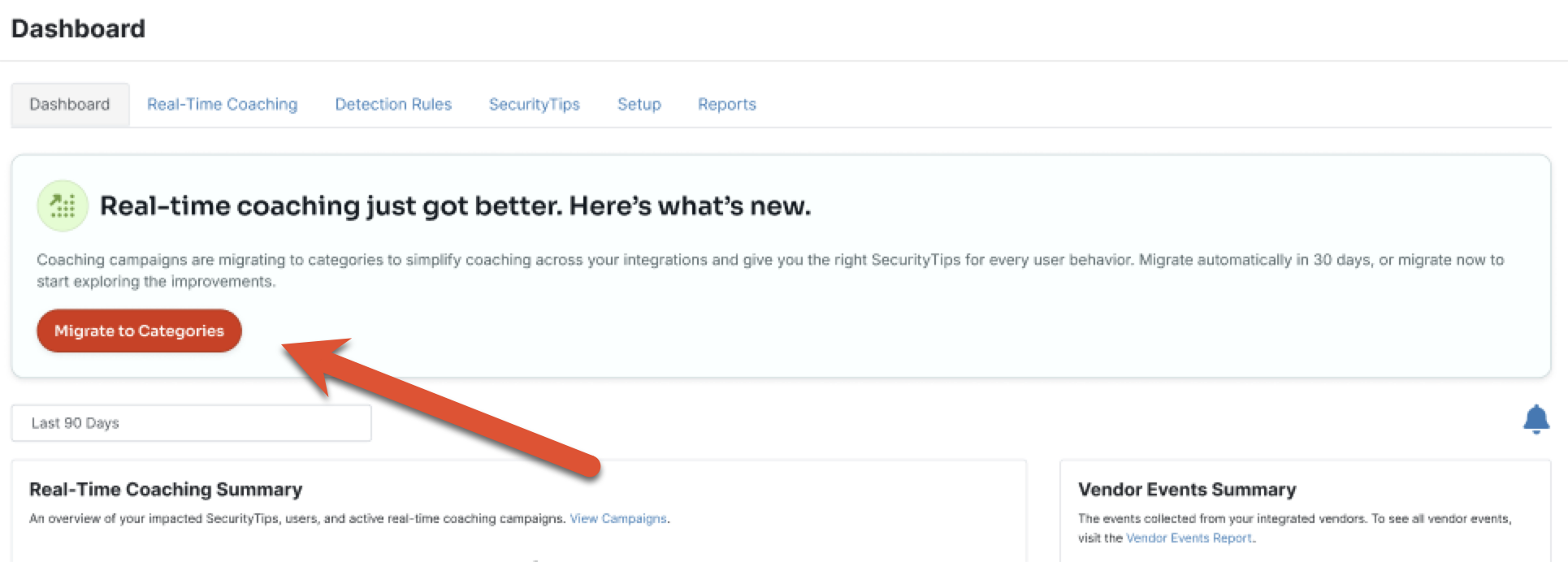
- In the banner, select Migrate to Categories.
- A confirmation window will display. Confirm the action by selecting Migrate to Categories.
- A Migrating to Categories… window will appear, along with a loading bar.
Once the loading is complete, your console will finish migrating to the new Real-Time Coaching. This migration includes converting all your existing real-time coaching campaigns into custom coaching categories. You will be taken to the new Categories screen, where you can review your custom categories or start coaching with system categories.
Step 2: Review Migrated Custom Categories
After migration, we recommend reviewing your new custom coaching categories by following these steps:
- Log in to your KnowBe4 SAT console.
-
Navigate to the Coaching tab > Real-Time Coaching subtab. You’ll find the new categories system here, including your migrated categories in the Custom Categories section. Scroll down the page to find the Custom Categories section.
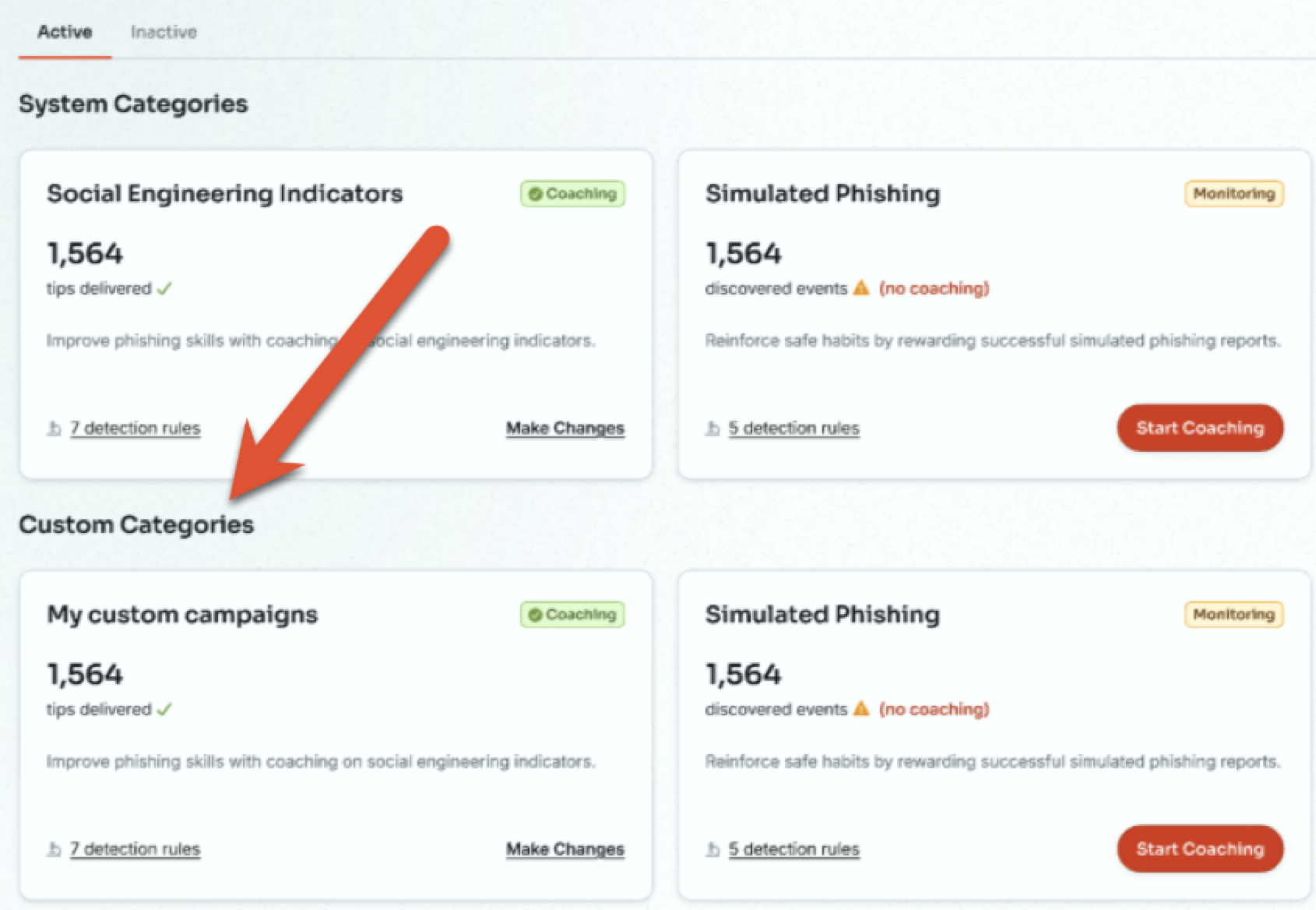
- Your active real-time coaching campaigns will now appear in the Active subtab as custom categories. They will now be in the Coaching status and will continue sending out SecurityTips.
- Any real-time coaching campaigns you had in Test Mode will now appear in the Active tab as custom categories. They will start in the Monitoring status, and won’t send out SecurityTips until you move them to Coaching.
- Any inactive real-time coaching campaigns will be in the Inactive tab.
- To review the configuration of your categories in Coaching, select Edit Coaching. To review the configuration for your categories in Monitoring, select Set Up Coaching. You will be taken to the Review page.
-
To verify and configure your custom category, see the screenshot and list below:
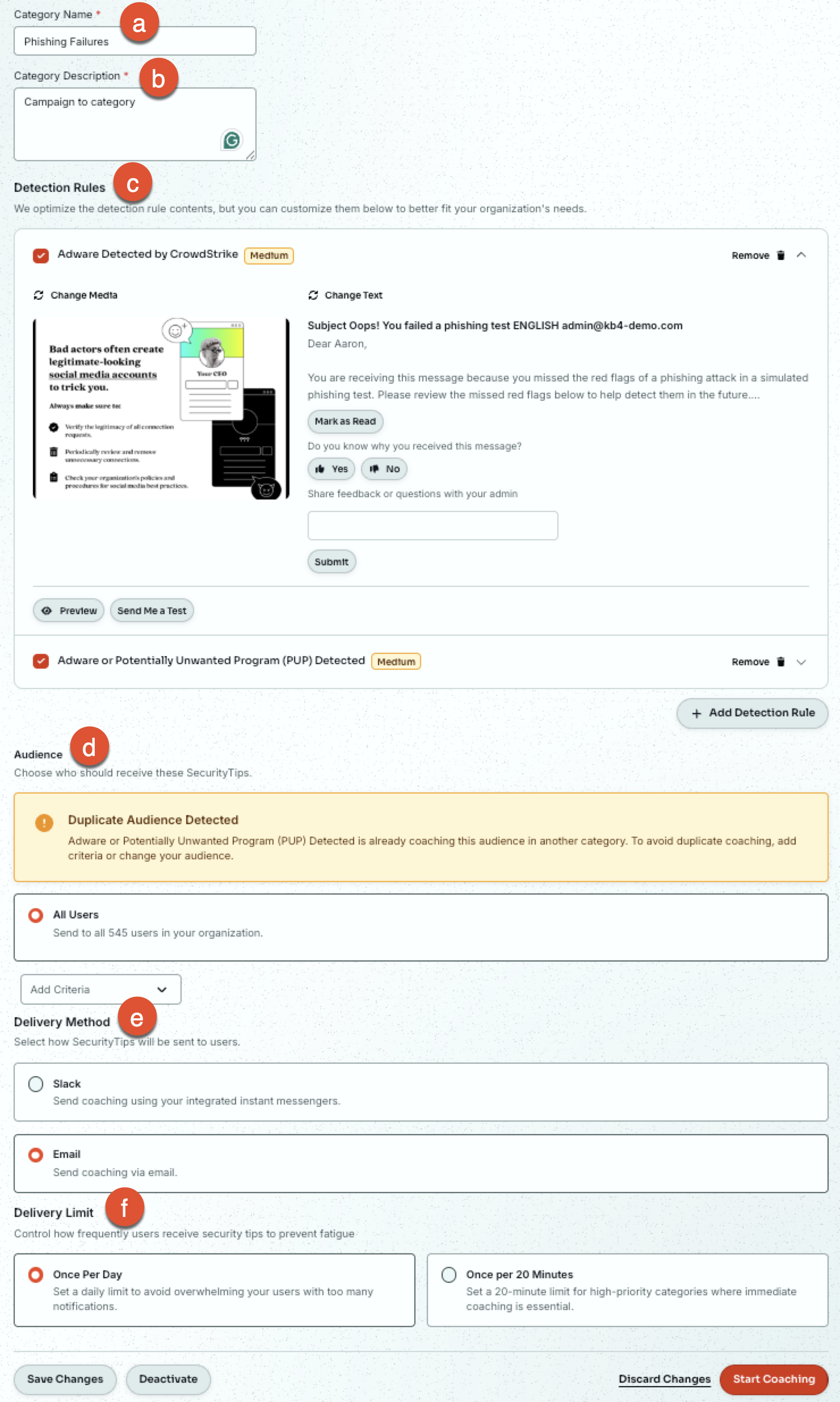
- Category Name: Enter your preferred name for the category.
- Campaign Description: Enter your preferred description for the category.
- Detection Rules: Customize the SecurityTip sent for each detection rule using the Change Media and Change Text options. You can also enable or disable each detection rule using the check box next to its name.
- Audience: Choose your audience to receive coaching from this category. You can select to coach All Users in your KnowBe4 console or Add Criteria to narrow your audience.
- Delivery Method: Select the delivery method for the SecurityTips. You can also enable email delivery as a backup option if you are using a real-time delivery method, such as Slack.
- Delivery Limit: Set the maximum frequency that your users will receive SecurityTips from this category. The options are up to one SecurityTip per day or up to one SecurityTip per 20 minutes.
- Once you have verified the configuration for your custom category, select Save Changes.
Step 3: Optimize Detection Rules
To avoid duplicate coaching and preserve your prior coaching setup, we disable duplicate detection rules in the system categories by default. However, we recommend moving detection rule coverage from your custom categories to our system categories to optimize coverage and enable more targeted, efficient coaching.
When a custom category contains duplicate detection rules, the custom category’s Review page will contain a banner with the option to Optimize Detection Rules.

To optimize and move eligible detection rules, follow these steps:
- Log in to your KnowBe4 SAT console.
- Navigate to the Coaching tab > Real-Time Coaching subtab.
- Navigate to your custom category and select Edit Coaching for Coaching or Set Up Coaching for Monitoring.
- Navigate to the Optimize Detection Rules banner and select Start Optimization. A new Optimize Detection Rules window will open with an overview of all the detection rules in the category.
-
For any detection rules you want to optimize, enable the check box. For any detection rules you don’t want optimized, disable the check box.
Tip:If any detection rule does not match an existing system detection rule, it’s ineligible for optimization and can’t be selected during this process. - Verify your selected detection rules, then select Optimize Detection Rules.
After they are optimized, these eligible detection rules are moved to and covered by our curated system categories.
Step 4: Start Coaching with System Categories
The new categories system comes with preconfigured system categories. These system categories account for the most common user behaviors across our integrations, then target those behaviors with SecurityTips selected by our team for their relevance and effectiveness. To start coaching with our system categories, follow these steps:
- Log in to your KnowBe4 SAT console.
- Navigate to the Coaching tab > Real-Time Coaching subtab.
- Navigate to the System Categories section and locate a system category that interests you.
- Select Set Up Coaching.
- You’ll be taken to the Review page. Similar to custom categories, you can configure the system category to suit your needs here.
- When you are ready to move the system category to Coaching mode and begin sending SecurityTips, select Start Coaching.
For more information on navigating and using the Real-Time Coaching, see our overview article.