This article will guide you through the process of managing your internal licenses. To efficiently manage your Workspace, it is essential to understand the number of licenses in use. This article will help you determine if you need to purchase additional licenses or remove licenses from certain users.
To find out how many licenses are in use, follow the steps below:
- Navigate to Admin Tools > Users/Groups > Manage Users and Groups.
- Select the Filter icon.
-
Ensure that all drop-down menus are set to All.
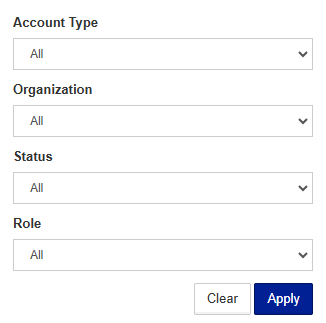
- Click Apply.
- Select the Options icon.
-
Click Export as CSV.

- In the pop-up window that displays, select the link to the Workspace Reports zone.
- Download and open the export file.
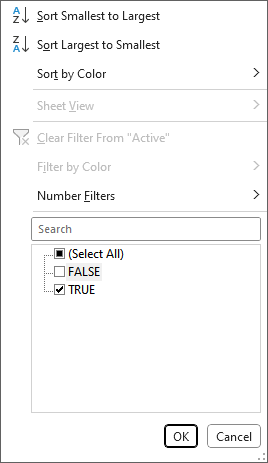
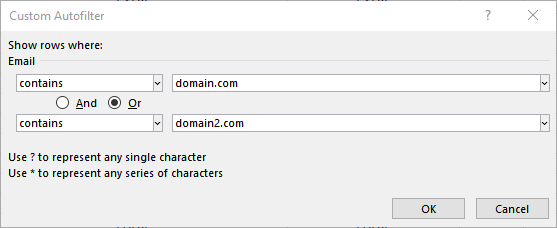
- Use the filter in Excel to display:
-
All TRUE entries in the Active column
-
All of your internal domain entries in the Email column
-
- Select all the entries in the Email column. The Count at the bottom of the spreadsheet represents the number of internal licenses you are using.
If you need to remove a license from a user, follow the steps below:
- Navigate to Admin Tools > Users/Groups > Manage Users and Groups.
- Search for the user who needs their license removed.
- Click the Edit User button on the line entry of the user.
- Click Deactivate user.
- In the pop-up window that displays, click Disable account to confirm the removal of the license.
If you do not want to remove licenses from users, but do not have enough licenses to cover the number of users, you will need to buy more. To do this, please contact your account manager.