Multi-Factor Authentication (MFA) verifies users by requiring the use of at least two authentication methods before accessing the Workspace platform. This feature can be configured to ensure higher security levels, ensuring that users are who they claim to be.
Currently, there are three methods of MFA available on the Workspace platform:
- SMS Authentication: This method sends a text message to the user in question.
- QR or Mobile App Authentication: This method enables users to scan a QR code for use with an authentication app, such as Microsoft Authenticator.
- Email Authentication: This method sends an MFA code to the user's email address, allowing them to authenticate.
All three options are configurable, meaning you can enable or disable desired methods based on your organization's needs. To enable or disable MFA options, contact our support team.
Enabling MFA
To enable MFA, follow the steps below:
- Log in to Workspace.
- Navigate to Admin Tools > Server Settings > MFA Settings.
-
Select On for the Multi-factor authentication option.
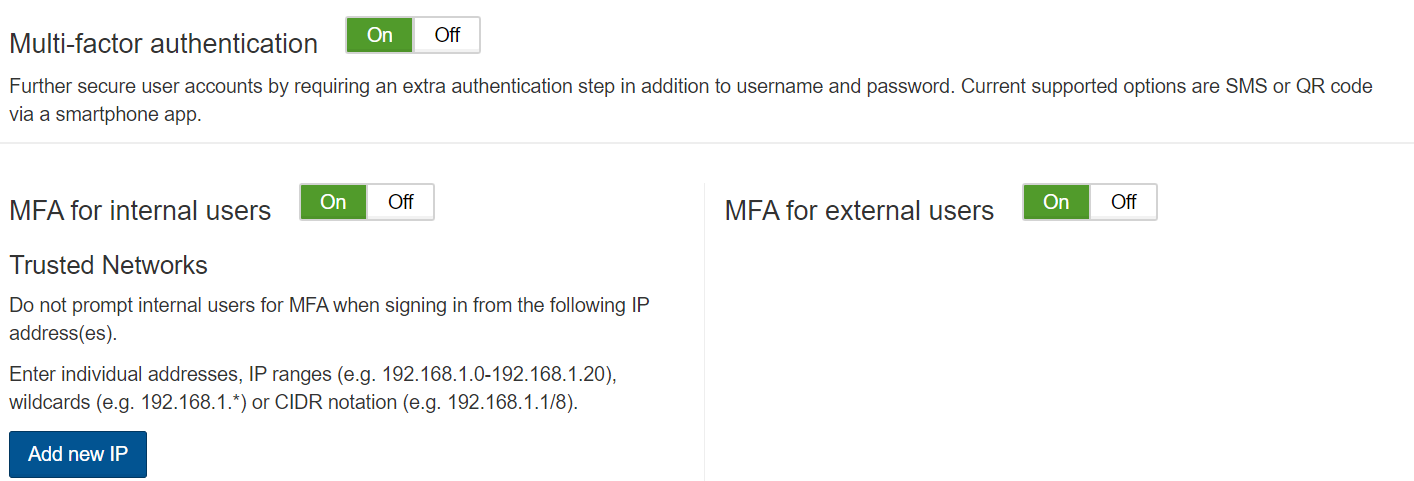
- Select who and when MFA should be enabled. The following options are available:
- MFA for all users.
- MFA for External Users – This selection will prompt for MFA for users with an external email domain.
- MFA for Internal Users – This selection will prompt for MFA for users with an internal email address.
- MFA with trusted IP ranges – This selection will prompt for MFA unless you’re connected to a “Trusted IP” range. This selection will not prompt the user upon their login.
User Experience
When a user first logs in to Workspace after MFA has been enabled, they’ll see the following MFA configuration screen:
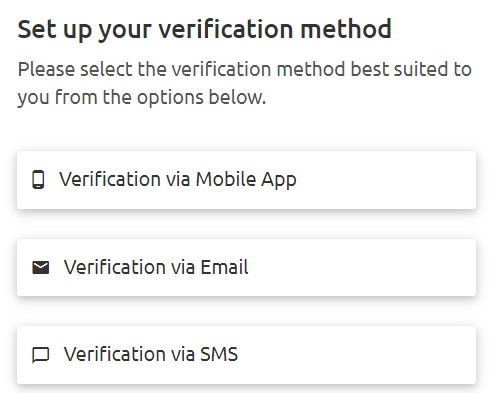
The example in the screenshot above illustrates a scenario where all three MFA options are enabled.
QR Authentication
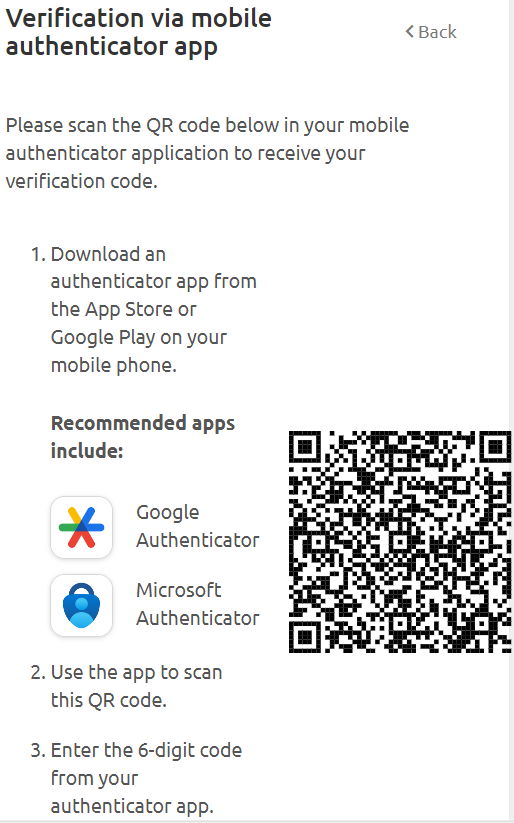
Upon scanning the QR code, the user will be able to download an authenticator app and then provide the relevant authentication code to access Workspace.
Email Authentication
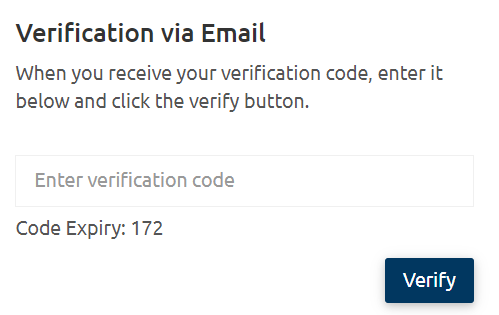
Upon selecting Email Authentication, the user will receive a code to the relevant inbox. Once entered, they will be able to access Workspace.
SMS Authentication
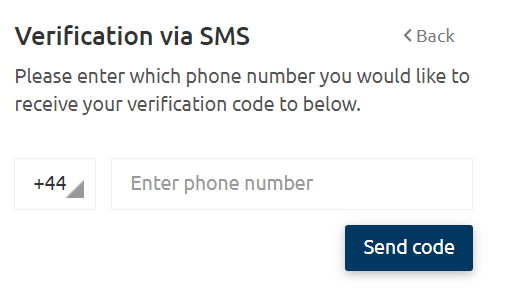
Upon selecting SMS Authentication, the user will be prompted to enter their mobile number. An SMS message with a code will be sent to the provided mobile number. Once the MFA code has been entered, the user will be able to access the Workspace.